This article provides a guide on the new feature that lets you scan a product barcode and instantly add a photo to the correct SKU. This helps stores capture product images faster as items come in, without needing to manually search for the product first.
You can add photos in two ways:
POS App (Scan and Add Photo)
Web Browser (Product List)
Method 1: Scan and Add Photo in the POS App
Step 1: Log In to the POS App
Open the POS App.
Log in using your store credentials.
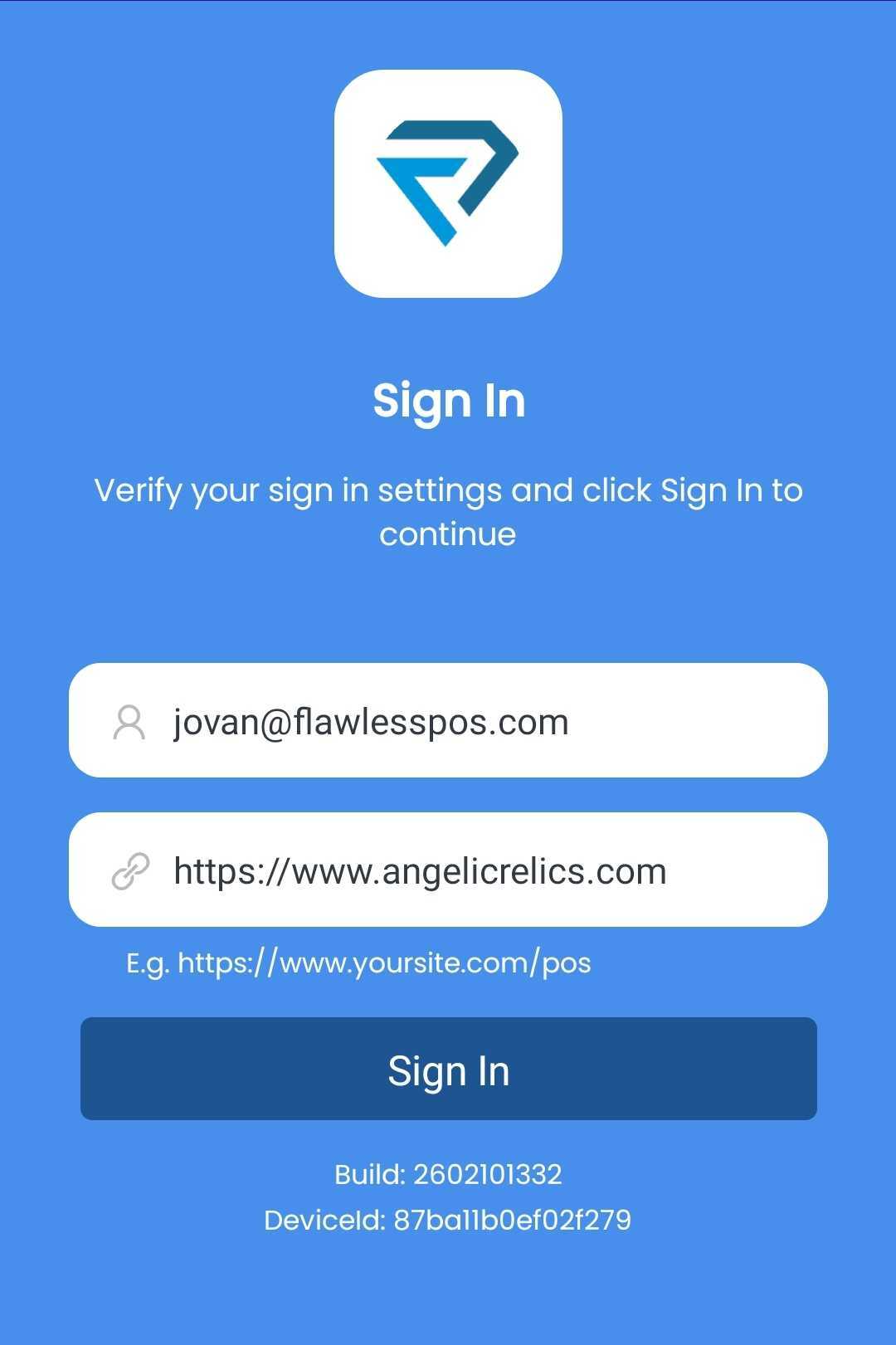
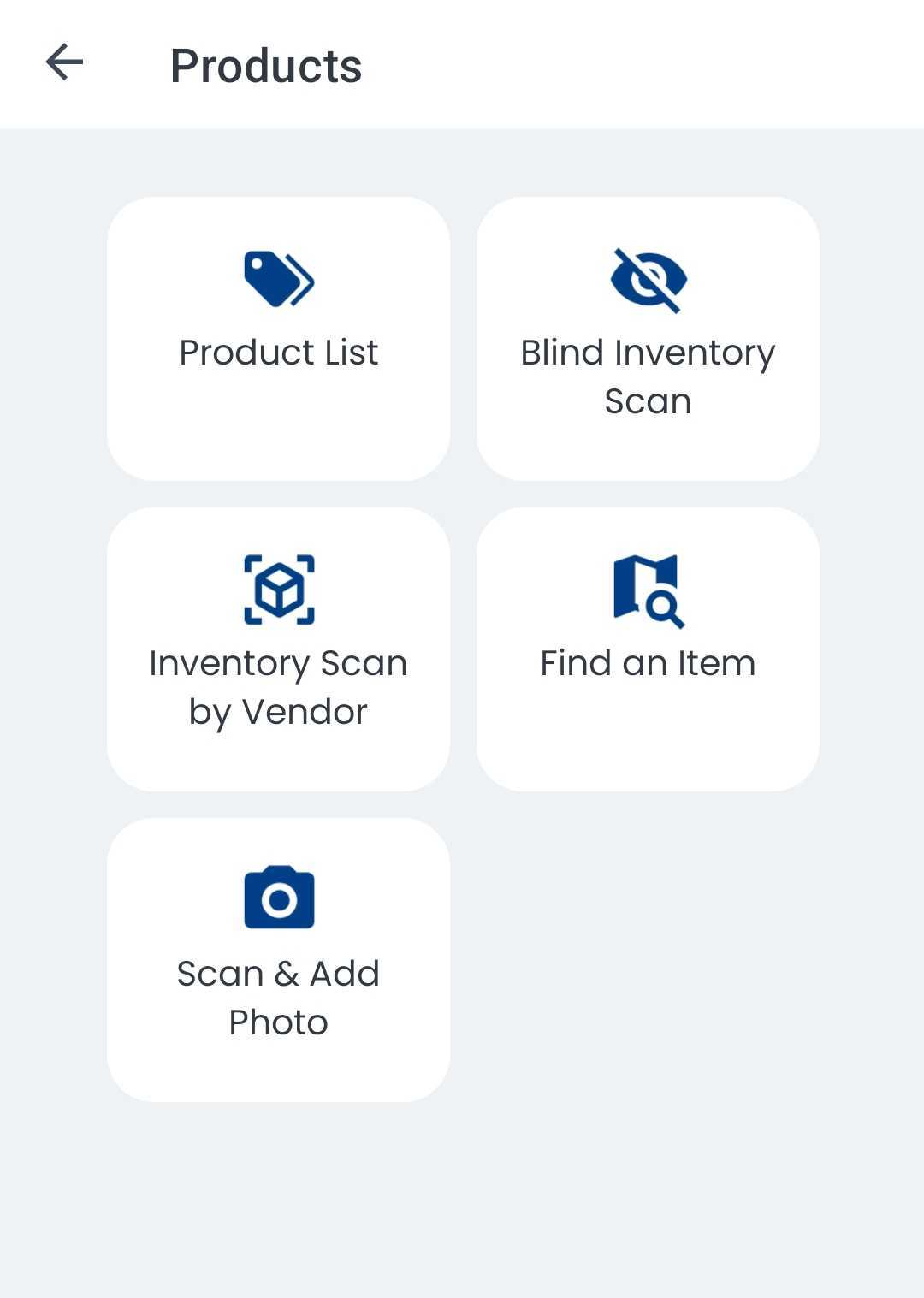
Step 2: Open Products and Select Scan & Add Photo
From the dashboard, go to the Products module.
Select Scan & Add Photo.
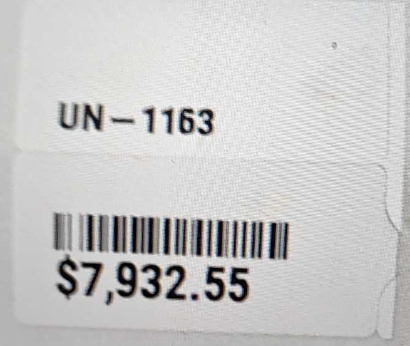
Step 3: Scan the Product Barcode
Align the product barcode inside the scanning box.
Once the barcode is detected, the app will automatically recognize the SKU and continue to the next step.
Step 4: Take a Product Photo
After scanning, the app will automatically open your device’s camera.
Take a photo of the product.
Confirm the photo.
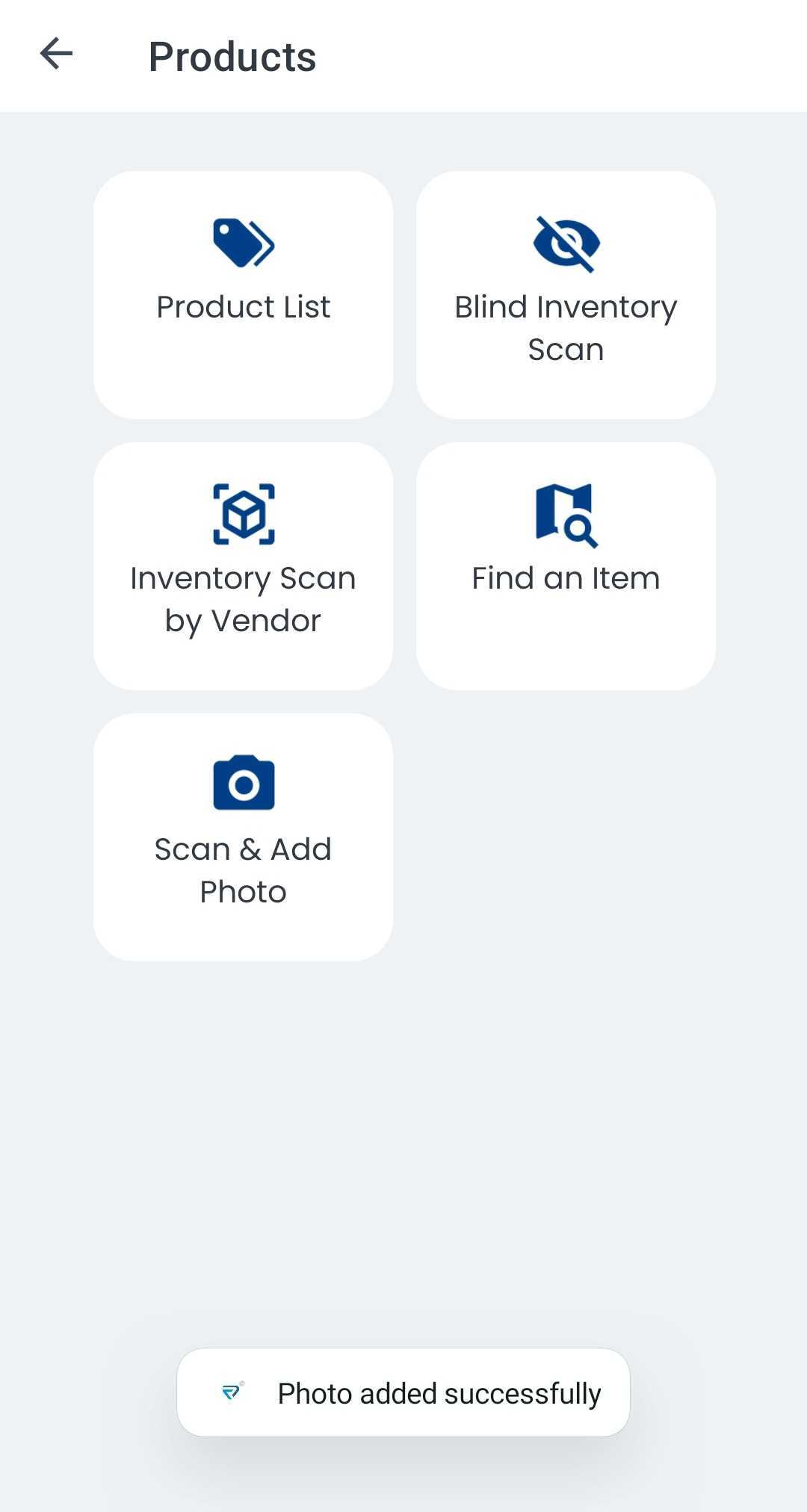
Once confirmed, the photo is automatically uploaded and attached to the scanned SKU.
Step 5: Verify the Photo on the Product
The photo will now be available in the product’s Images tab, attached to the correct SKU.
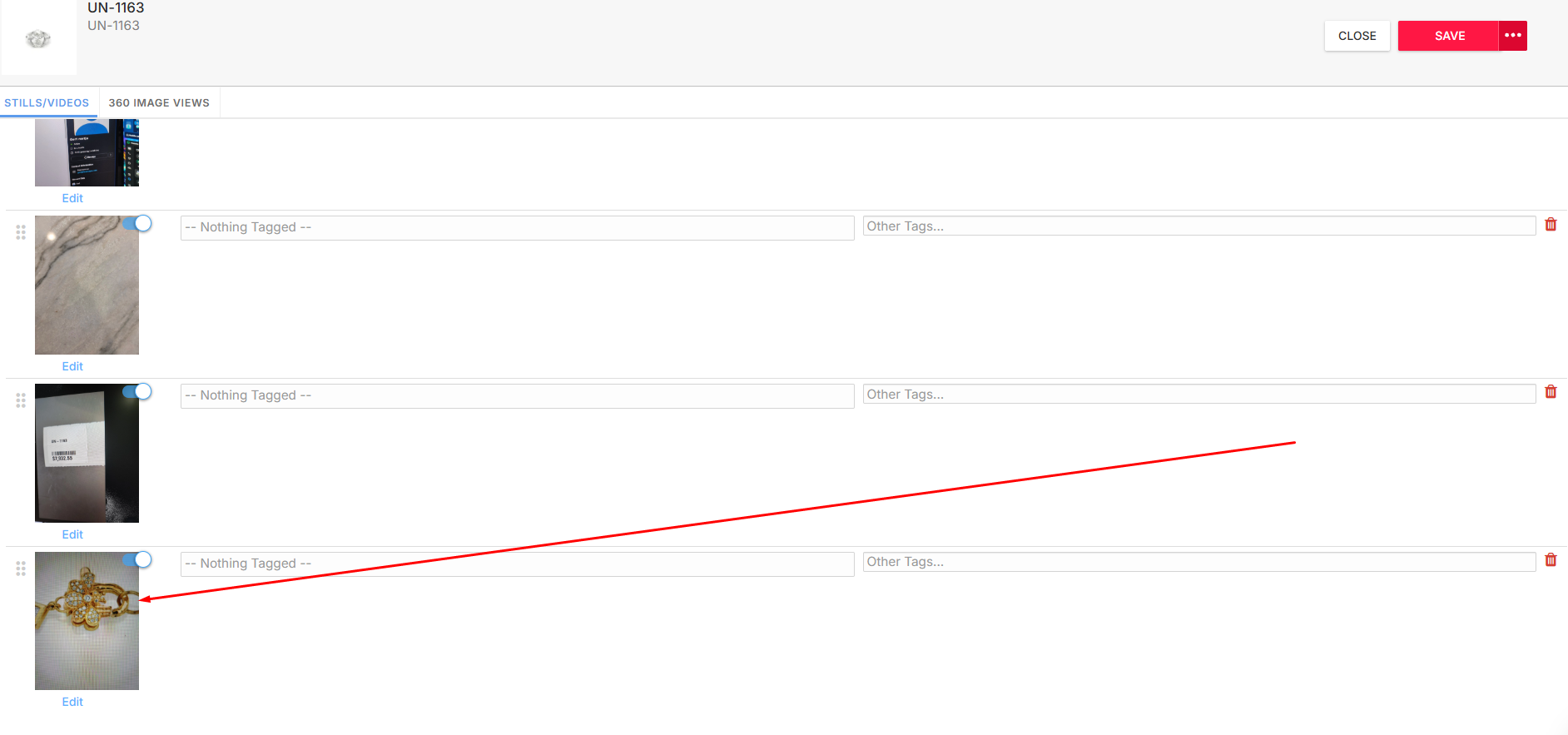
Why This Feature Helps
Using Scan & Add Photo makes it easier, faster, and smoother to capture images for products that come in, especially during receiving or when updating inventory.
Method 2: Add a Product Photo Through the Web Browser
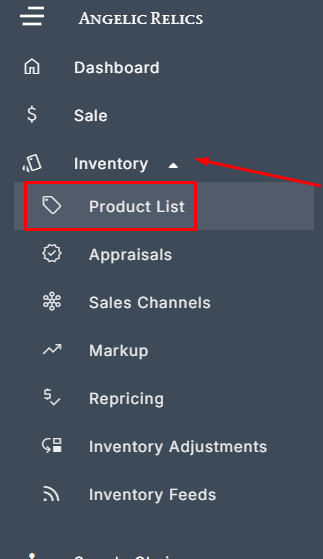
Step 1: Go to Product List
In the web browser, open the left navigation menu.
Go to Inventory → Product List.
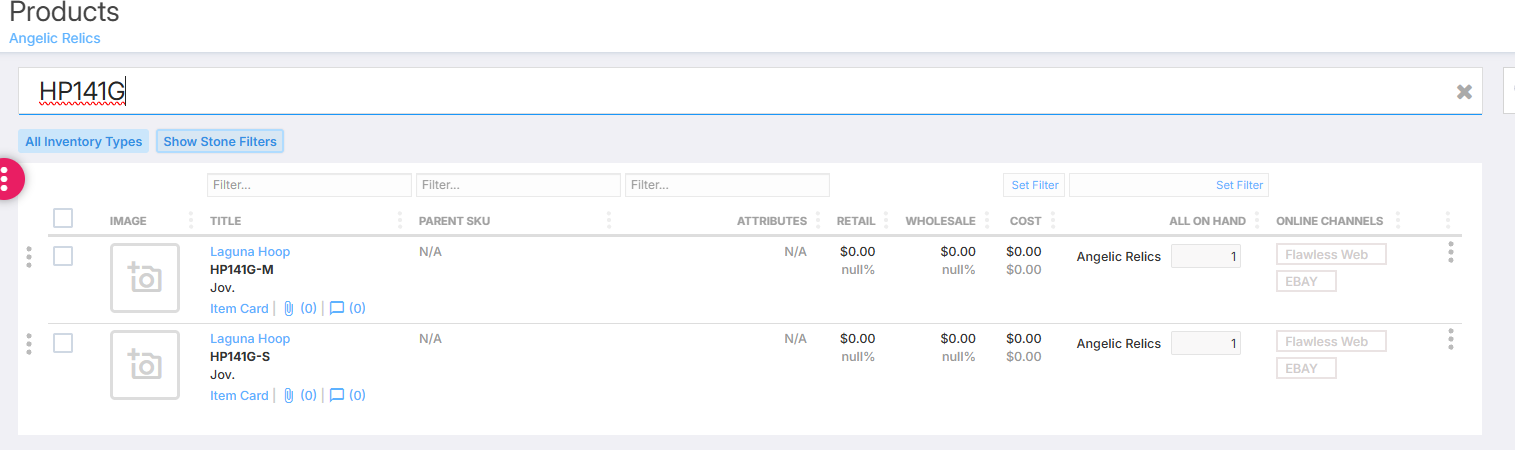
Step 2: Search for the SKU
Enter the SKU of the product you want to add an image to.
Step 3: Add the Photo
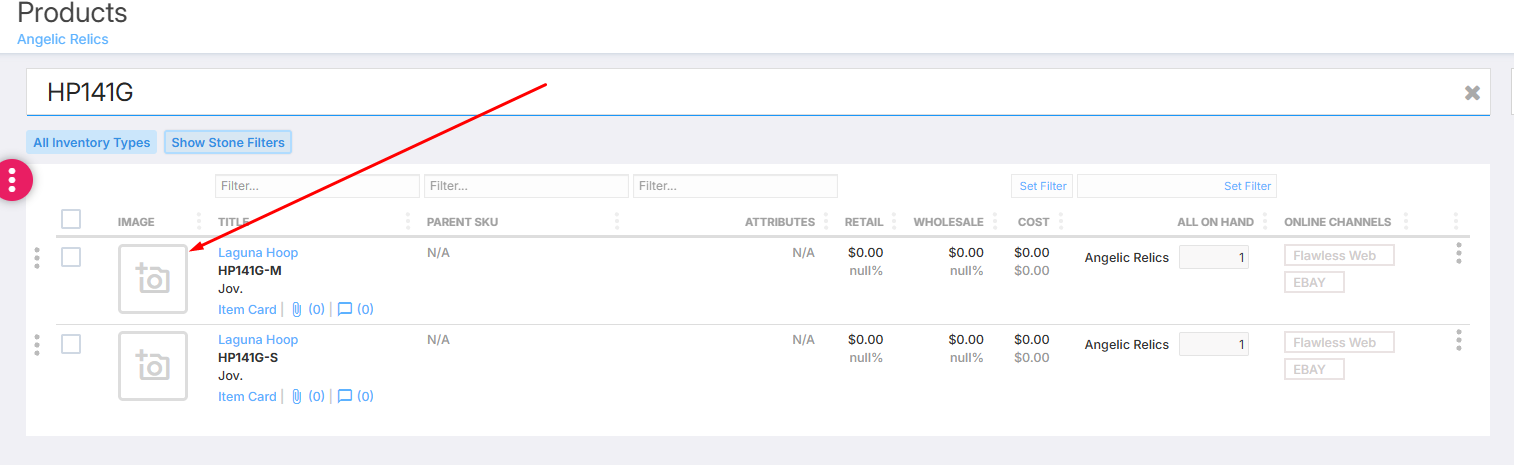
You can add the image in two ways depending on whether the product already has a photo.
Option A: If there is no photo yet
Click the Photo button located in the Image column.
Option B: If the product already has an image
Open the product.
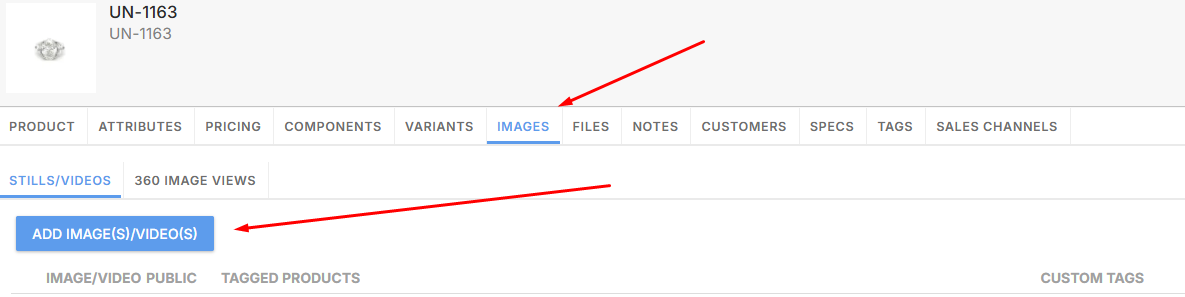
Go to the Images tab.
Click Add Image.
Step 4: Choose a Device and Take the Photo
Select the device you want to use to take the image.
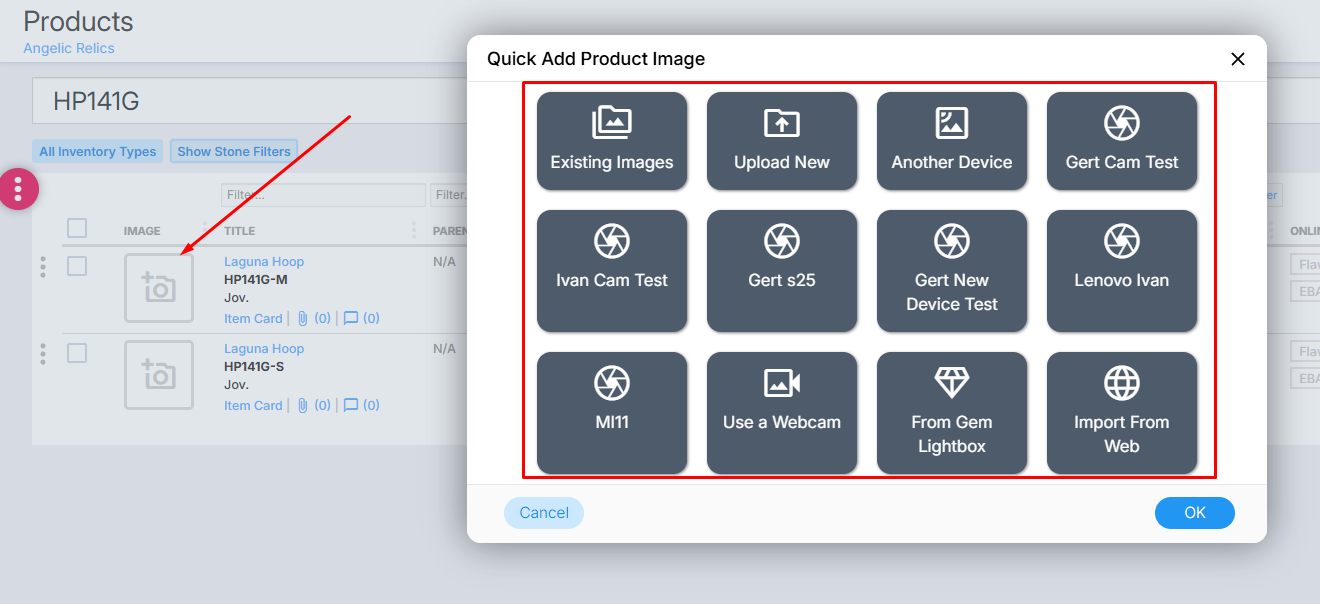
Take the photo.
Once completed, the image will automatically upload and attach to the product.
Important Note: Camera Device Requirement
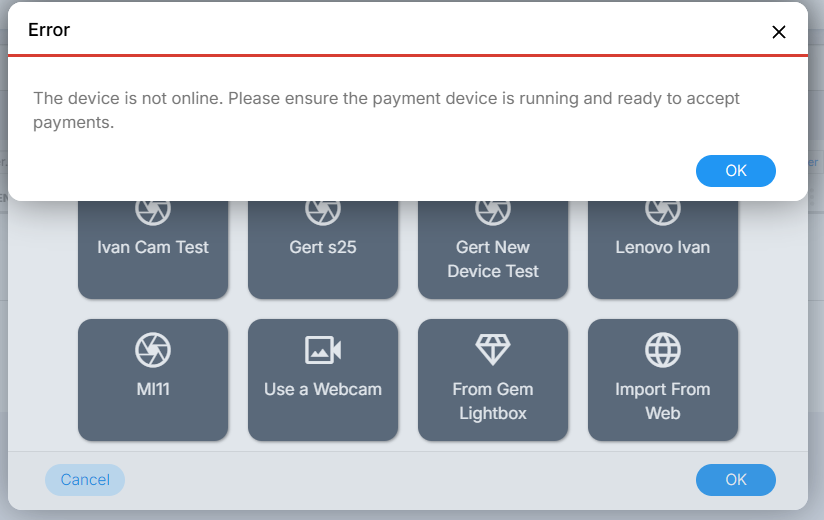
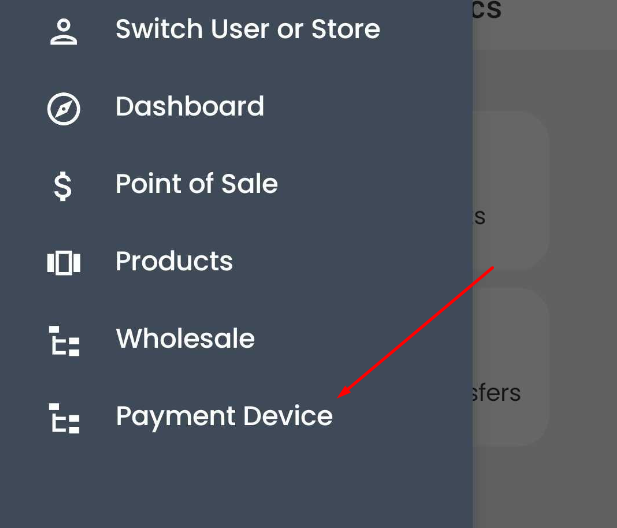
For the system to detect a camera device, the device must be opened on the Payment Device section in the POS App. Additionally, if a device is not listed, it will not appear as an available camera option when adding product images through the browser. Please reach out to Flawless Support for assistance.
Troubleshooting
If you encounter any issues while trying to Scan a Product and Add a Photo in the POS, please reach out to Flawless POS customer support for technical assistance.
Was this article helpful?
That’s Great!
Thank you for your feedback
Sorry! We couldn't be helpful
Thank you for your feedback
Feedback sent
We appreciate your effort and will try to fix the article