Inventory accuracy is essential for smooth retail operations. In Flawless POS, you can perform two types of scans when creating a checklist:
- Regular Scan (By System Qty – Inv Scan by Vendor → All Stores)
- Blind Inventory Scan
We'll be explaining the difference between the two methods, how to use them, and when each is most useful.
Accessing the Inventory Scan
- Navigate to the Vendors module ->Select a Vendor or All Vendors -> Inv Check.
- Click Start Inventory Check.
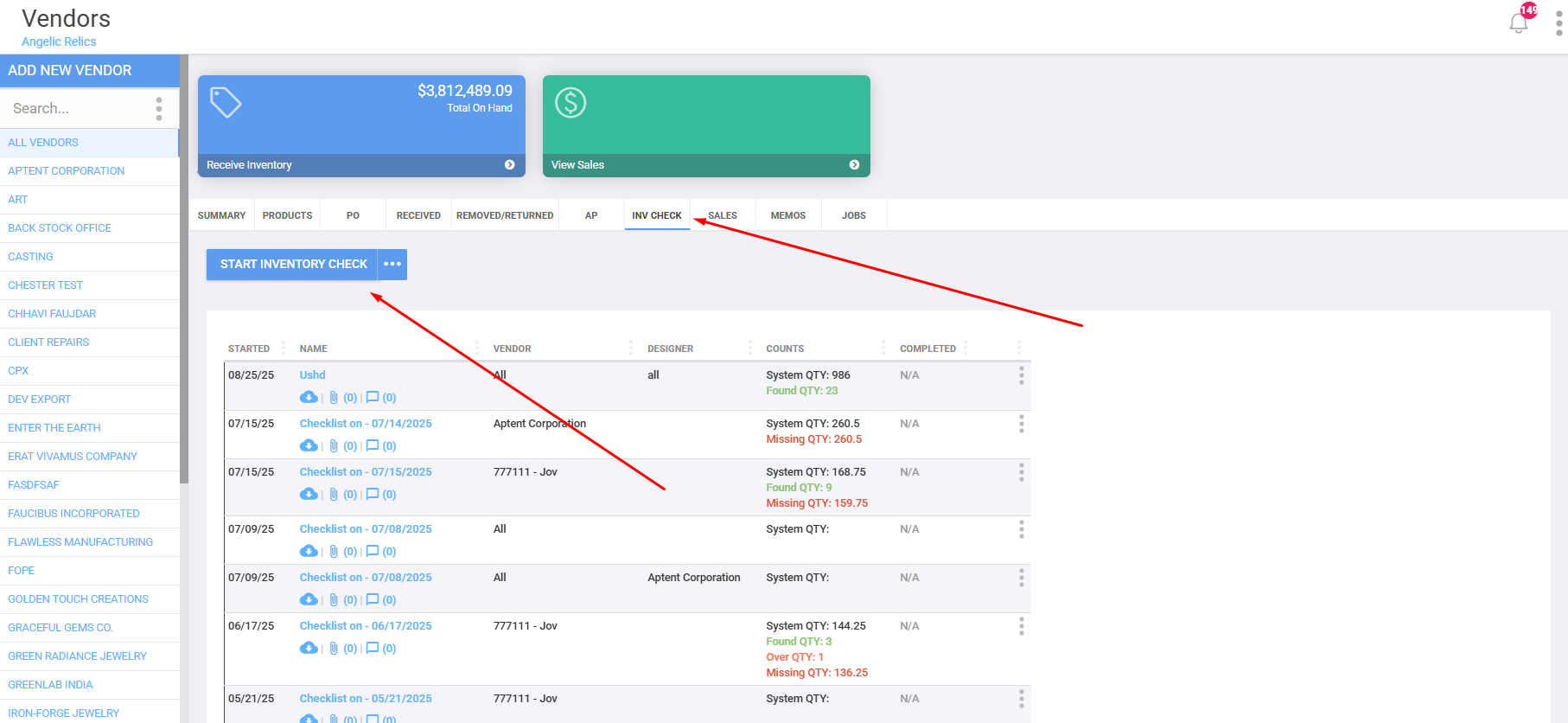
- Select Checklist Type:
- By System Qty
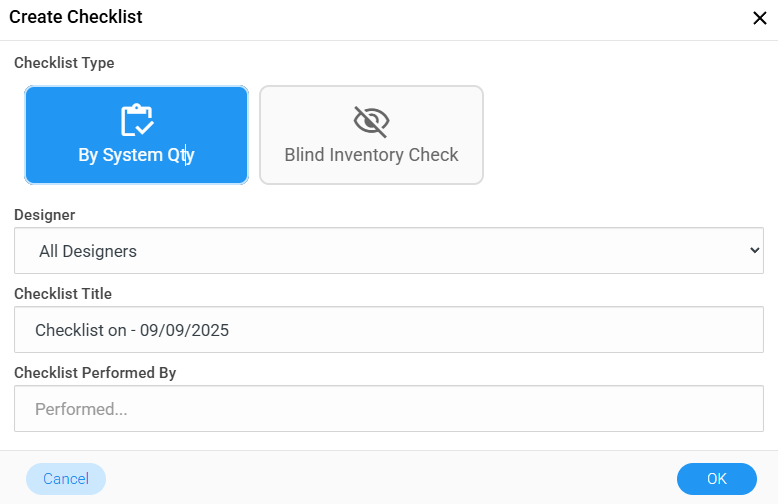
- Blind Inventory Check
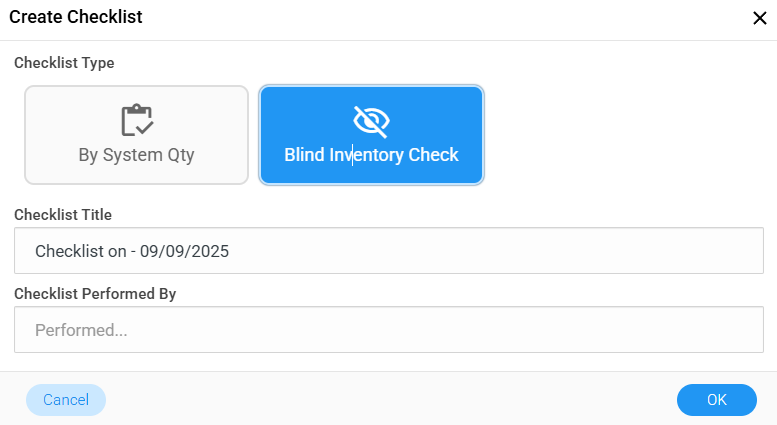
- By System Qty
Regular Scan (By System Qty – Inv Scan by Vendor → All Stores)
When you select By System Qty, the checklist is pre-filled with the current system quantities.
- You can filter by Designer or choose All Designers.
- The checklist shows:
- SKU
- Title
- System Qty (POS Record)
- Found Qty (Physical Count
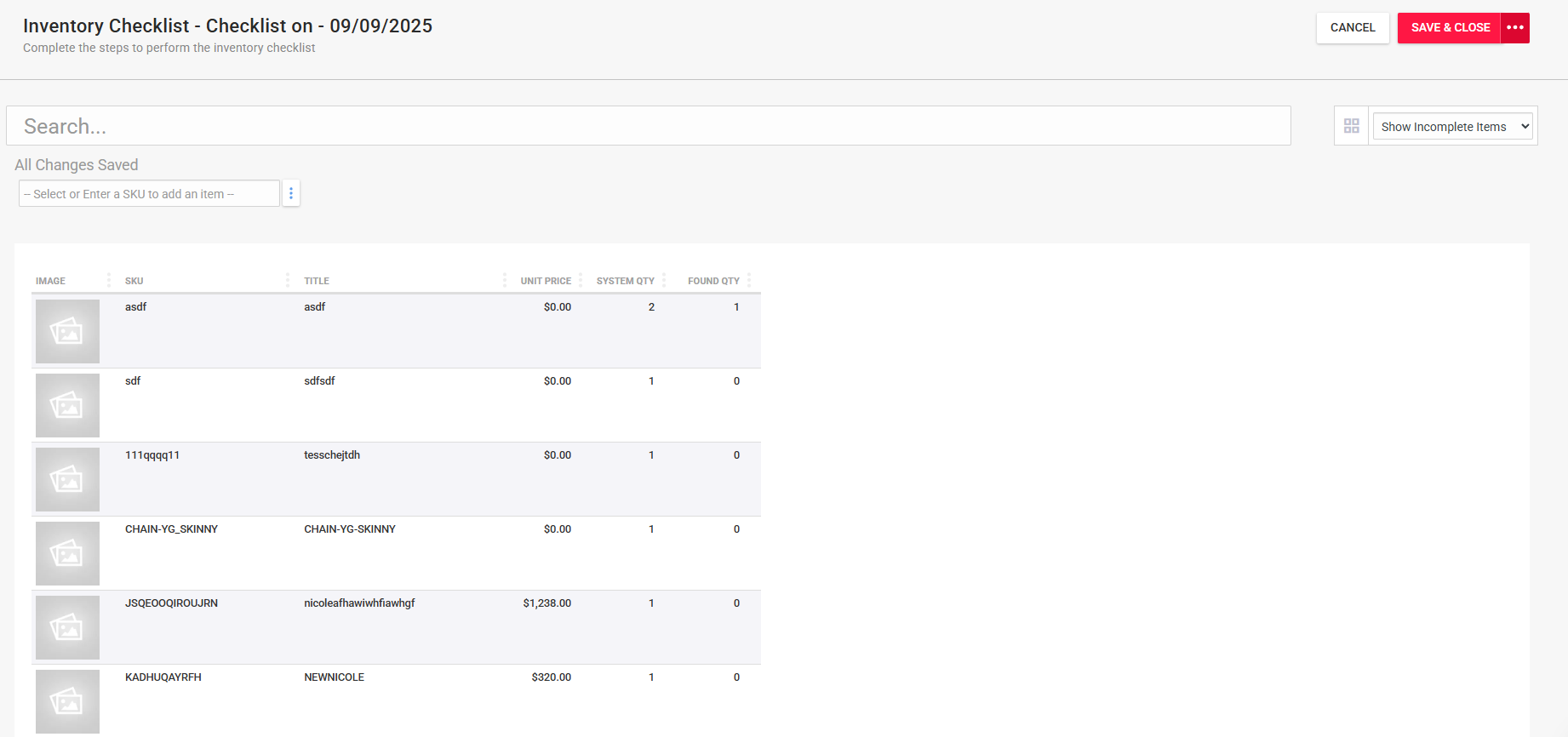
Row Indicators:
- Green = Found Qty Matches System Qty.
- Gray = Found Qty still lacks to match System Qty.
- Yellow = Found Qty is more than the System Qty.
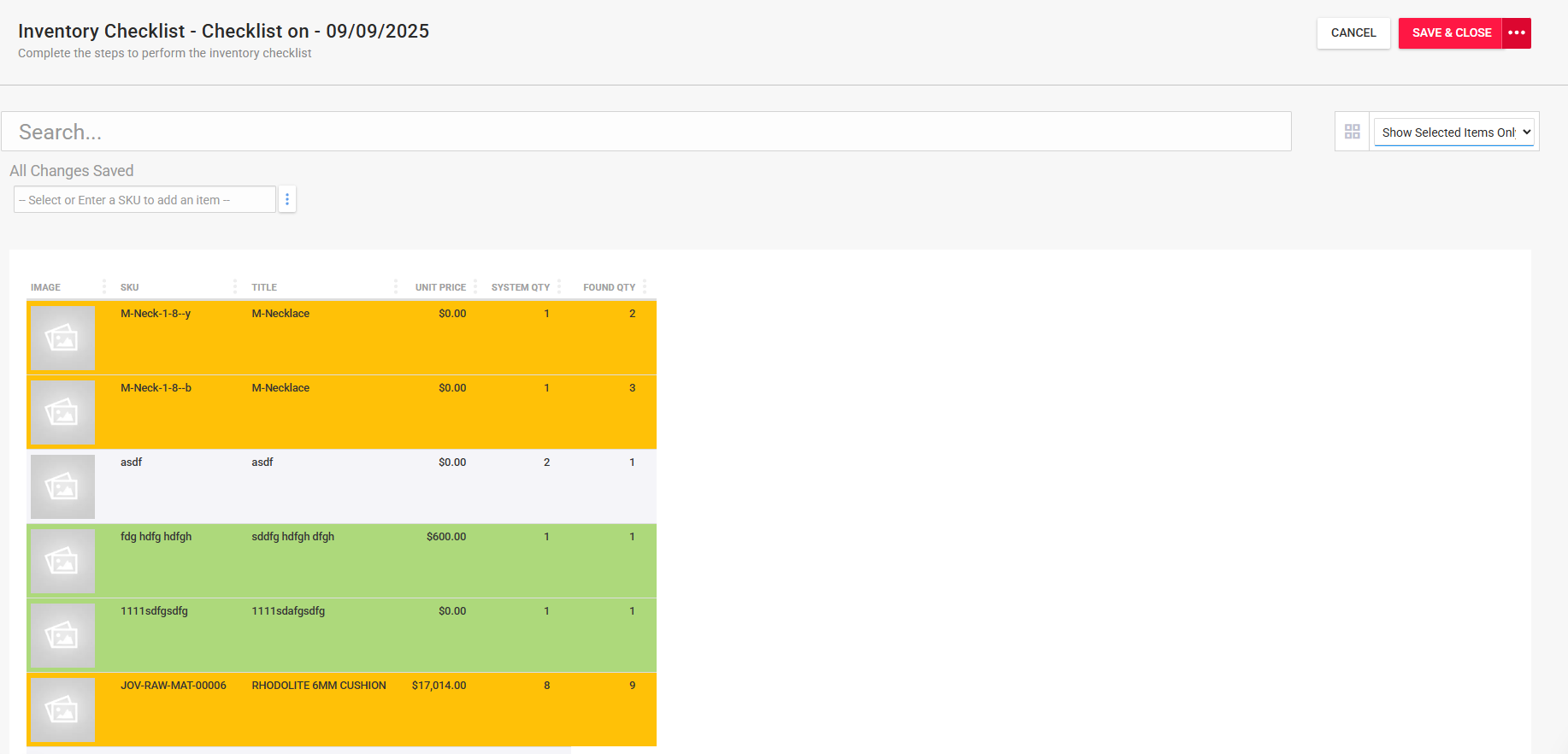
Dropdown Filter (top-right):
- Show All Items - Displays every item in the checklist.
- Show Incomplete Items - Displays only items where counts don't match
- Show Selected Items Only - Displays only the items you've marked or entered.
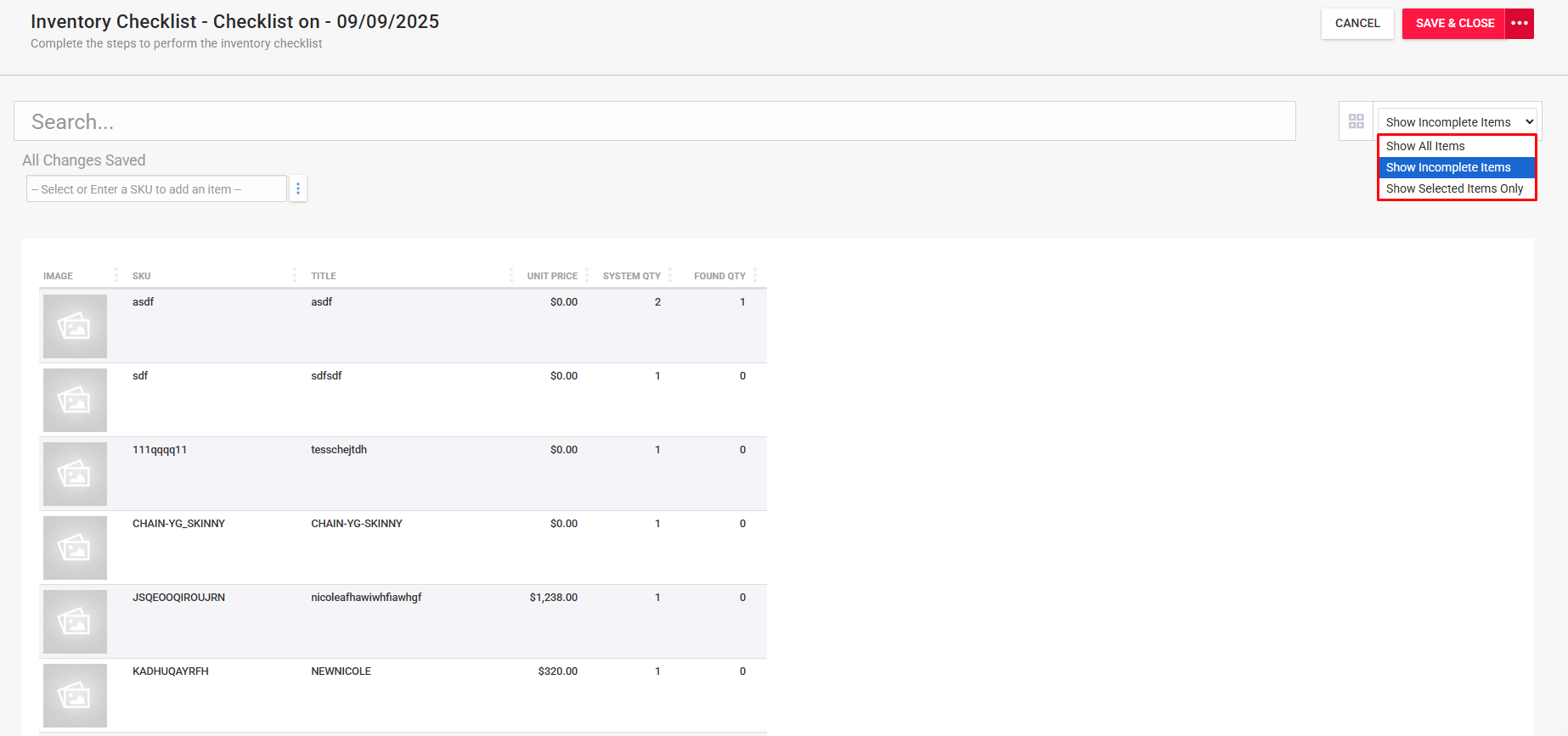
This makes it easier to focus on problem SKUs or quickly review progress during the scan.
Best for:
- Routine cycle counts.
- Reconciling vendor or designer-specific stock.
- Times when staff should see the expected quantities for reference
Blind Inventory Scan
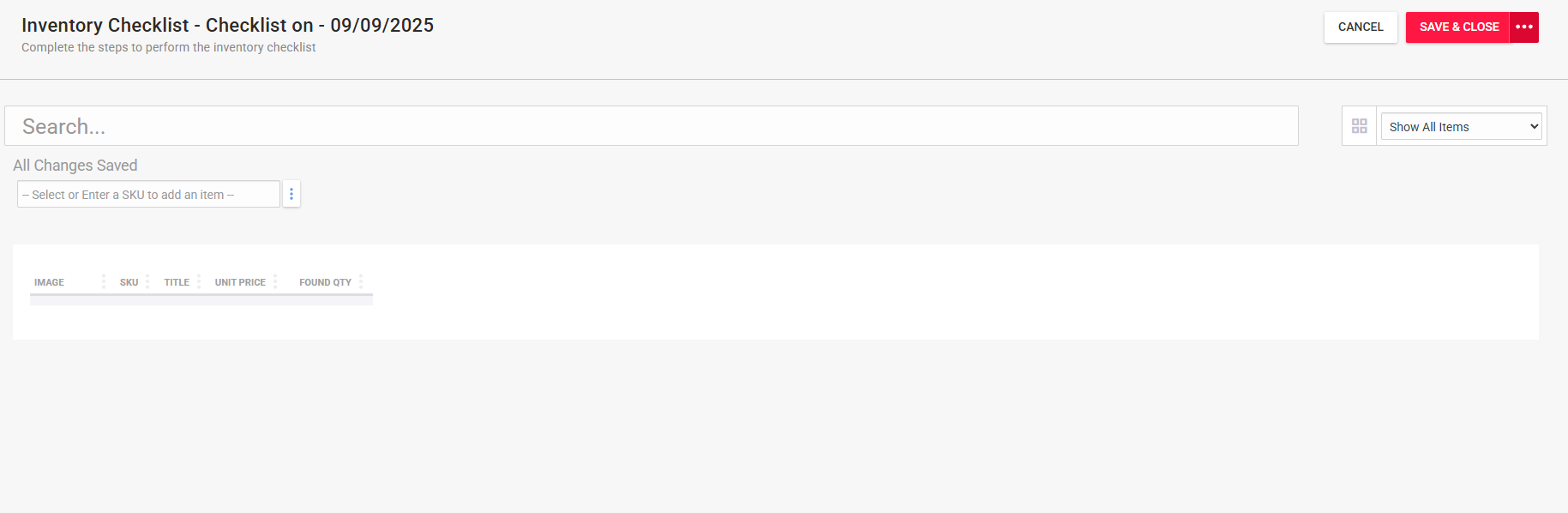
With Blind Inventory Check, the checklist does not display system quantities.
- Staff enter counts without reference to expected values.
- Discrepancies are only revealed after saving.
- Used for unbiased stock verification.
Best for:
- Audits and surprise checks.
- Preventing confirmation bias.
- Validating discrepancies or high-value items.
Key Differences
| Feature | Regular Scan | Blind Inventory Scan |
| System Quantity Shown | Yes | No |
| Real-Time Match Check | Yes (green/gray highlights) | No(revealed after scanning) |
| Filter Options Available | Yes (Show All, Incomplete, Selected) | Limited to entered items |
| Best Use Case | Routine cycle counts, reconciliations | Audits, unbiased verification, discrepancy checks |
Best Use Practices:
- Use Regular Scans for daily/weekly checks and efficiency.
- Use Blind Scans for unbiased verification and audits.
- Alternate between both to keep accuracy and fairness in balance.
Troubleshooting
If you encounter any issues when trying to perform a regular or blind inventory scan, please reach out to Flawless POS customer support for technical assistance.
Was this article helpful?
That’s Great!
Thank you for your feedback
Sorry! We couldn't be helpful
Thank you for your feedback
Feedback sent
We appreciate your effort and will try to fix the article