Troubleshooting: How to Resolve RFID Gun / Scanner Connection Conflicts
Overview
If your RFID gun or handheld terminal is not reading tags properly when using the Flawless App, it is usually caused by a pre-installed background app (keyboardreader / keyboardemulator) intercepting the scanner inputs.
Following these steps will reconfigure the hardware settings so the RFID gun communicates directly with Flawless POS.
Step-by-step Instruction
1: Open the Built-in Scanner App
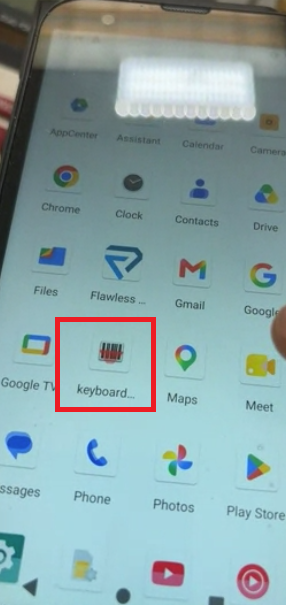
Exit the Flawless App and go to your handheld device's Home Screen / App Drawer.
Locate and open the app named
keyboard...(keyboardreader or keyboardemulator).
2: Adjust the Settings
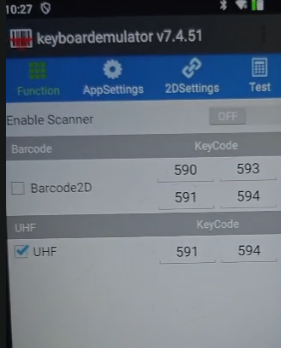
Inside the keyboardemulator app, adjust the following parameters:
Enable Scanner: Set to
OFF(at the top of the screen).Barcode2D: Make sure the
Barcode2Dcheckbox is Unchecked.UHF: Make sure the
UHFcheckbox is Checked / ON.
Reference Configuration:
Enable Scanner:
OFFUHF KeyCodes:
591/594(Checked)
3: Resume Your Scan
Close or swipe away the
keyboardemulatorapp.Relaunch the Flawless App.
Return to your inventory audit/scan screen and test the RFID gun—it should now register scans correctly.
Was this article helpful?
That’s Great!
Thank you for your feedback
Sorry! We couldn't be helpful
Thank you for your feedback
Feedback sent
We appreciate your effort and will try to fix the article