This article provides a quick and short guide on how to view a page live. Live view helps to check if the changes you made on the page/s is working intentionally and looking right. This tutorial assumes that you already have pages made.
Accessing the AI Page Builder
To access the AI Page Builder, navigate through the nav menu located on the top left.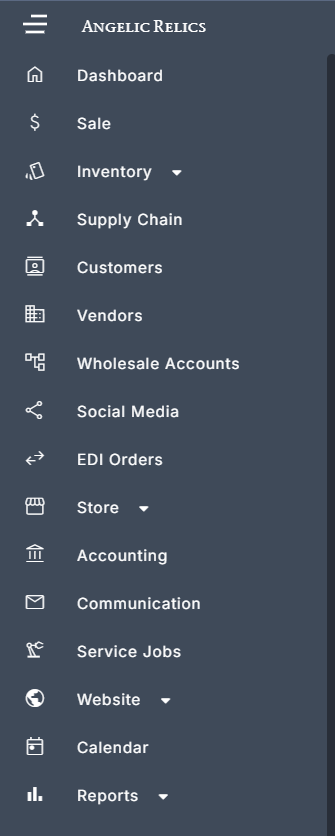
Once the nav menu is open click on Website then Pages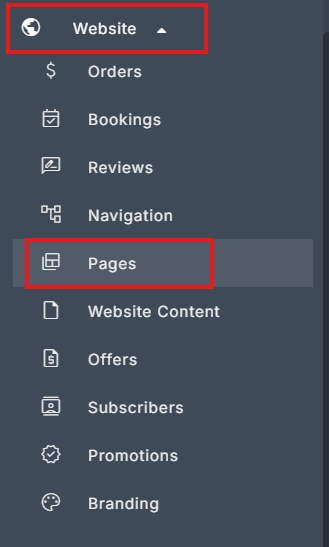
Once you are on the Pages section, click on AI Pages. You should now be on the AI Page Builder. 
How to Open a Page's Live View
On the Site Structure & Pages we will try to open one of the Static Pages, Accounts & Commerce, and Product Pages.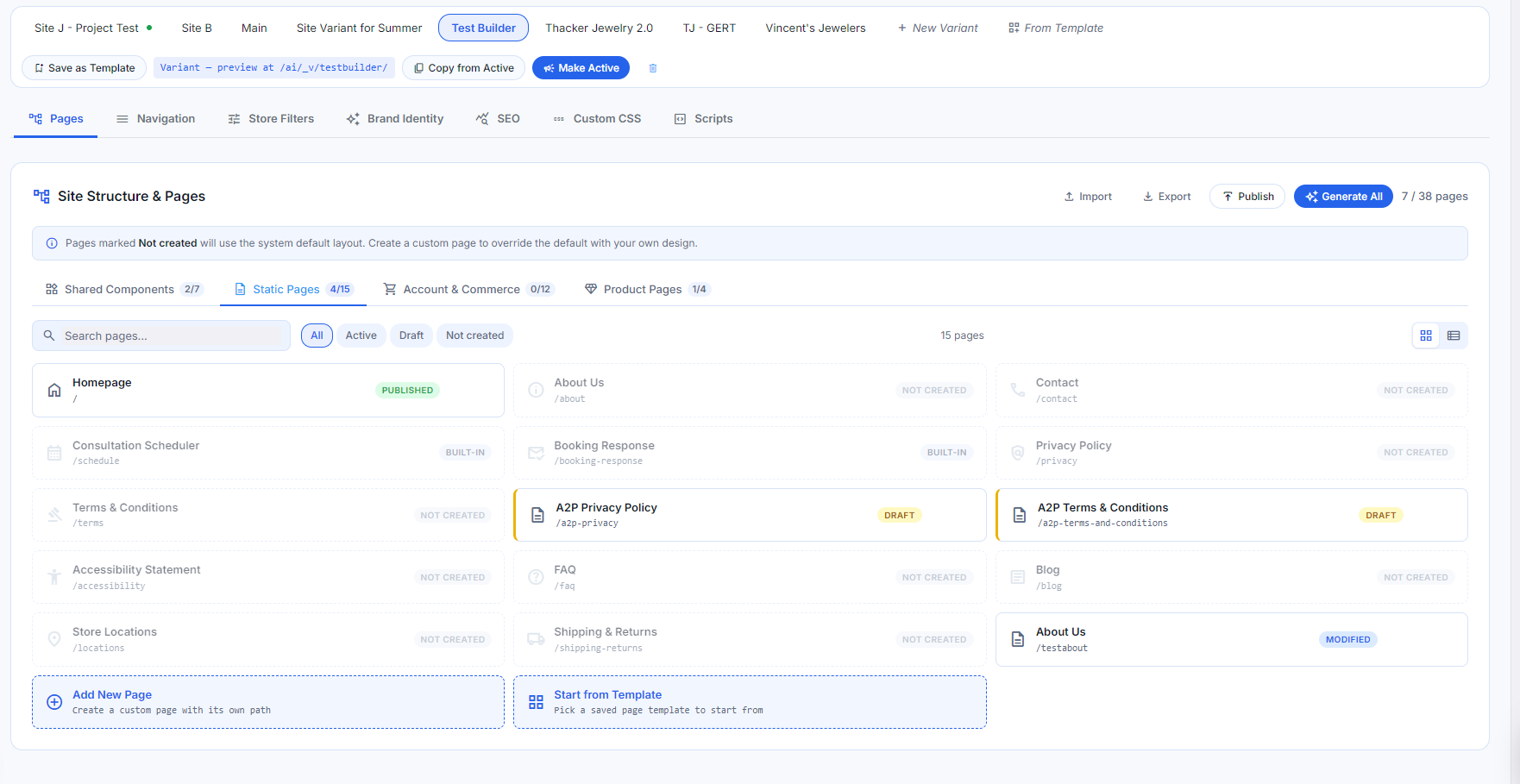
For this guide we will be opening the Homepage. Hover over the Homepage and click on the small arrow icon. This will open the Homepage's live view.
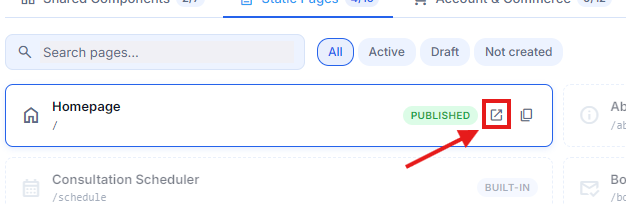
Once open, you can see the Homepage and even the Navbar that you made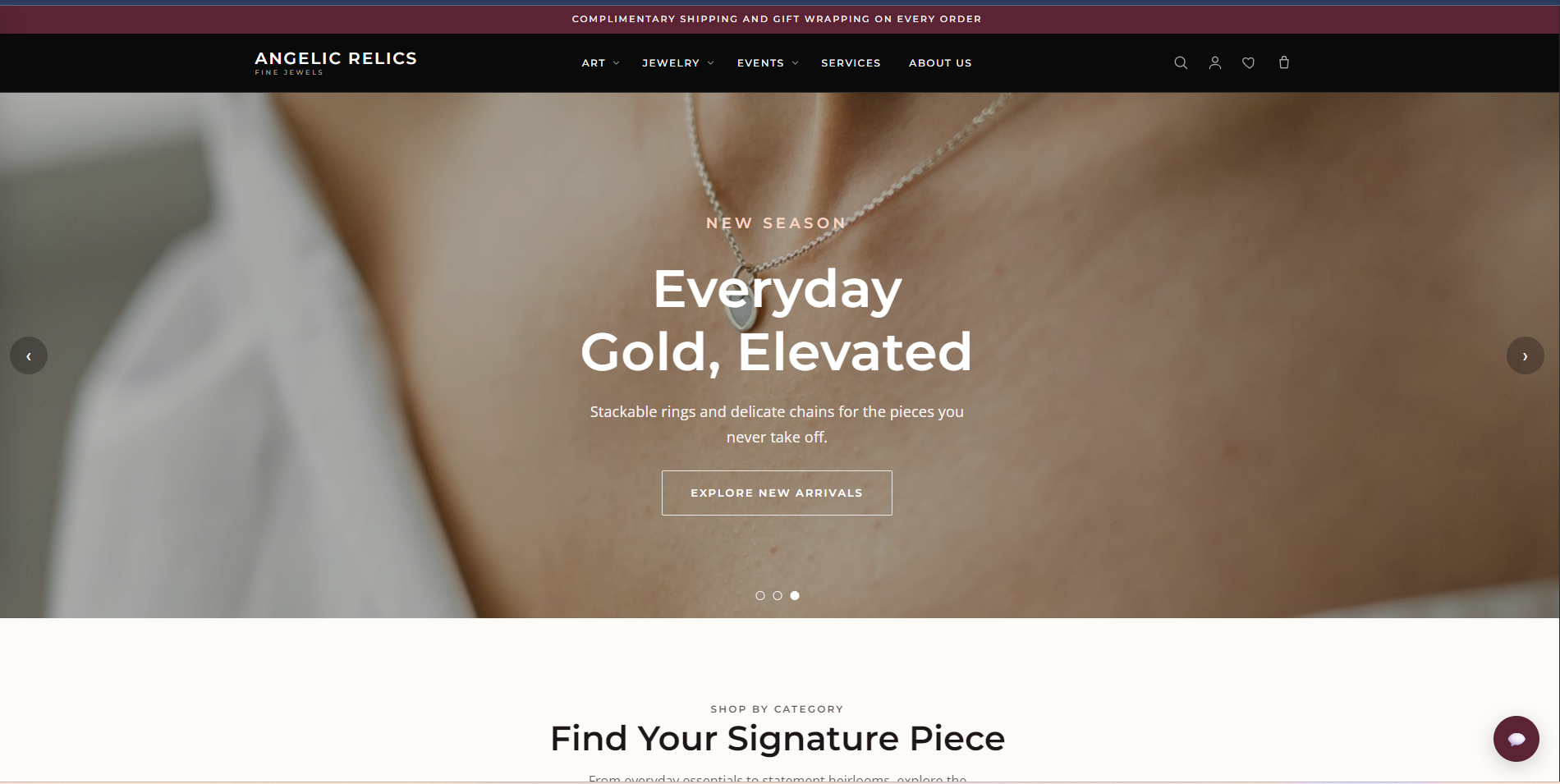
Scroll all the way down and you can also see the Footer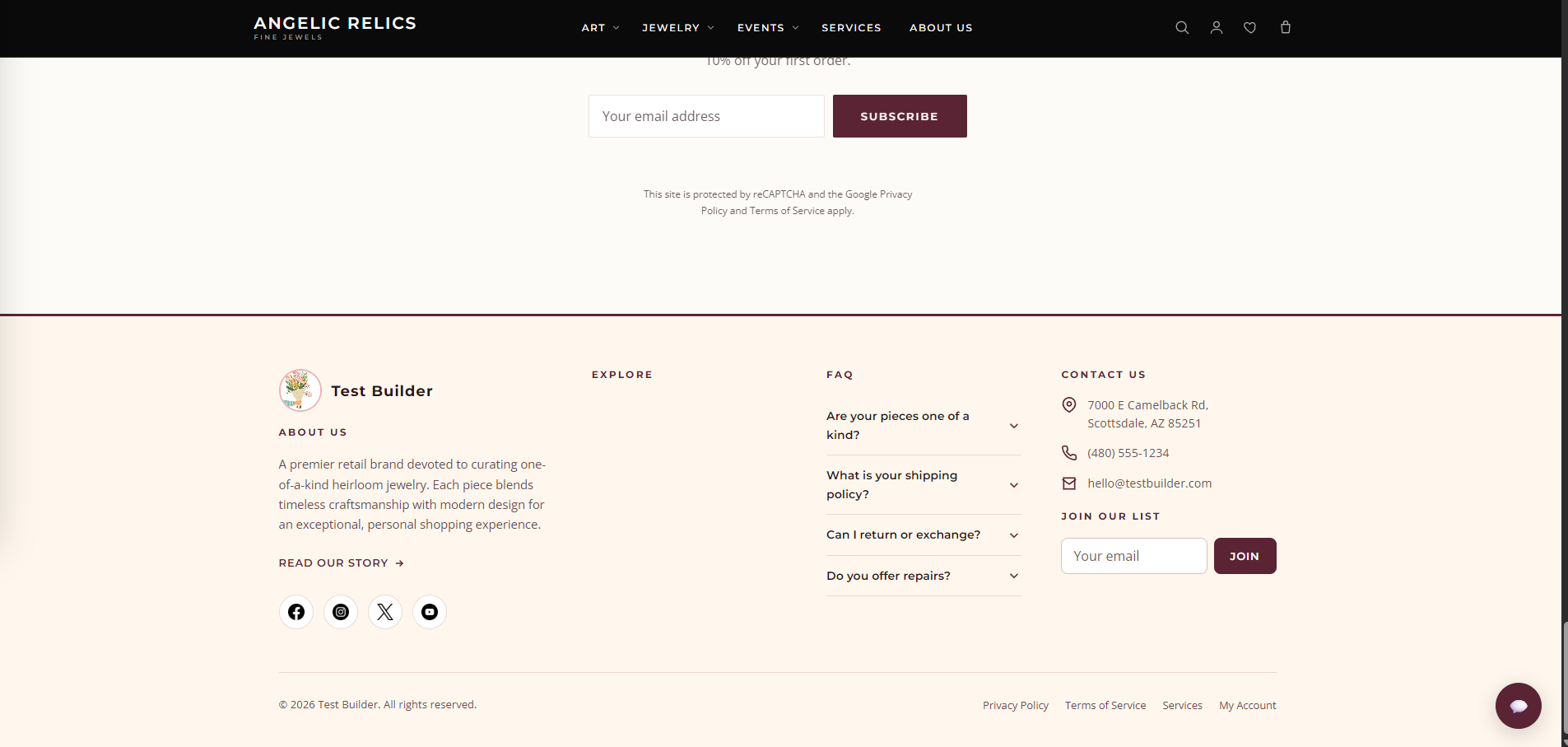
We can actually test the page and other pages by clicking on the buttons of the page and it will direct you to the other pages that you made but we have to make sure that we have them linked to the other pages correctly. On the next guide we will be showing you on how to link pages
Troubleshooting
For any issues encountered during the submission of the Customer Repair Job, please contact Flawless POS support for assistance.
Was this article helpful?
That’s Great!
Thank you for your feedback
Sorry! We couldn't be helpful
Thank you for your feedback
Feedback sent
We appreciate your effort and will try to fix the article