In this article, we’ll go through the steps on how to link pages in the AI Page Builder within Flawless POS.
The AI Page Builder allows you to bind internal pages, product URLs, navigation structures, or custom external links directly to text elements, buttons, and menu items.
Before we begin linking of pages, make sure that you have already made pages or have pages ready. If not refer to this article on how to create pages through the AI Page Builder:https://support.flawlesspos.com/a/solutions/articles/150000230430
Setting up the Page URL Path
Let's start on the Site Structure & Pages on the AI Page Builder. For this guide let us setup the URL of the About Us Page.
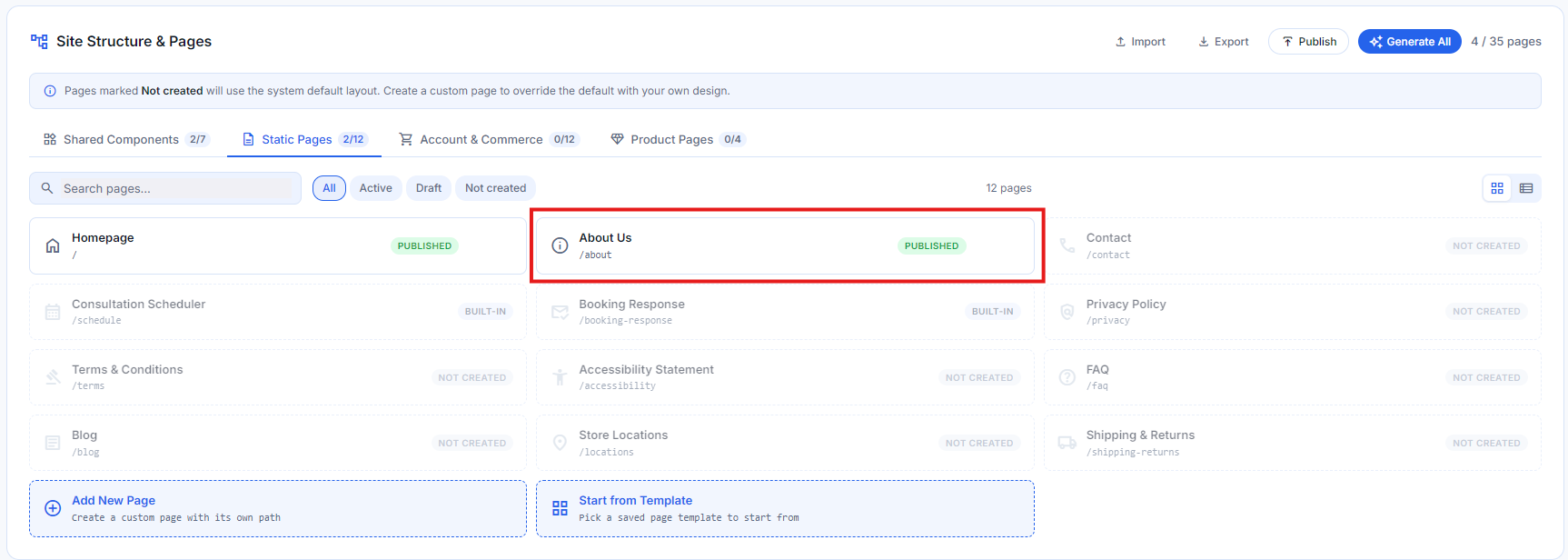
Once you have opened the About Us Page, click on the cogwheel located at the middle top of the page. It should have the name of the page on it.

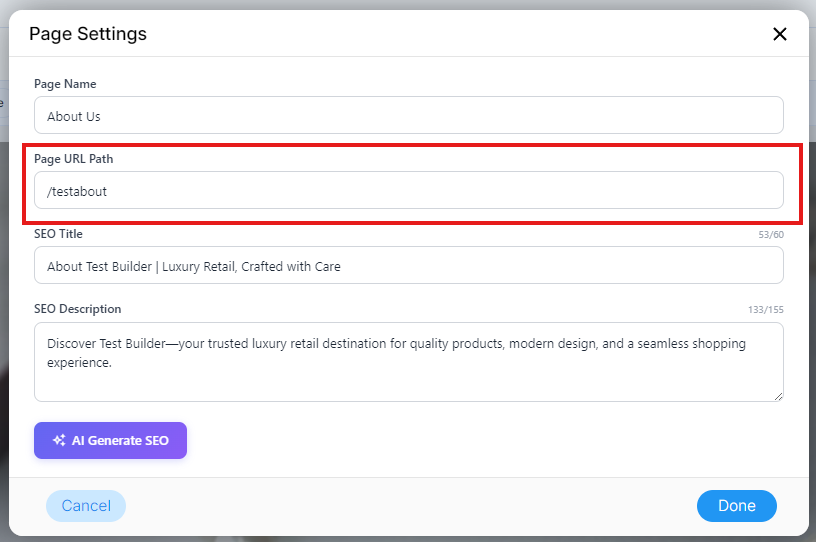
A pop-up box should appear. In here you can change:
Page Name: The internal title used to identify the page across your site structure and dashboard list (e.g., Homepage).
Page URL Path: Defines the live permalink route for the page (e.g.,
/for the homepage,/about,/contact).SEO Title: Sets the
<title>tag displayed on search engine result pages (SERPs) and browser tabs. Includes a character counter to optimize lengthSEO Description: Configures the meta description snippet shown under search results. Includes a character counter to prevent clipping
AI Generate SEO: Automatically analyzes the page content, brand identity, and targeted audience to draft optimized SEO titles and meta descriptions with a single click.
For now let us change the Page URL Path, let's change it to/testabout for this guide. Click Done once finished.
Click Save also

Click the back button to go back to the Pages tab once everything has been sorted

On the Pages tab, you should be able to to see that the URL of the About Us has changed from the default /about to /testabout
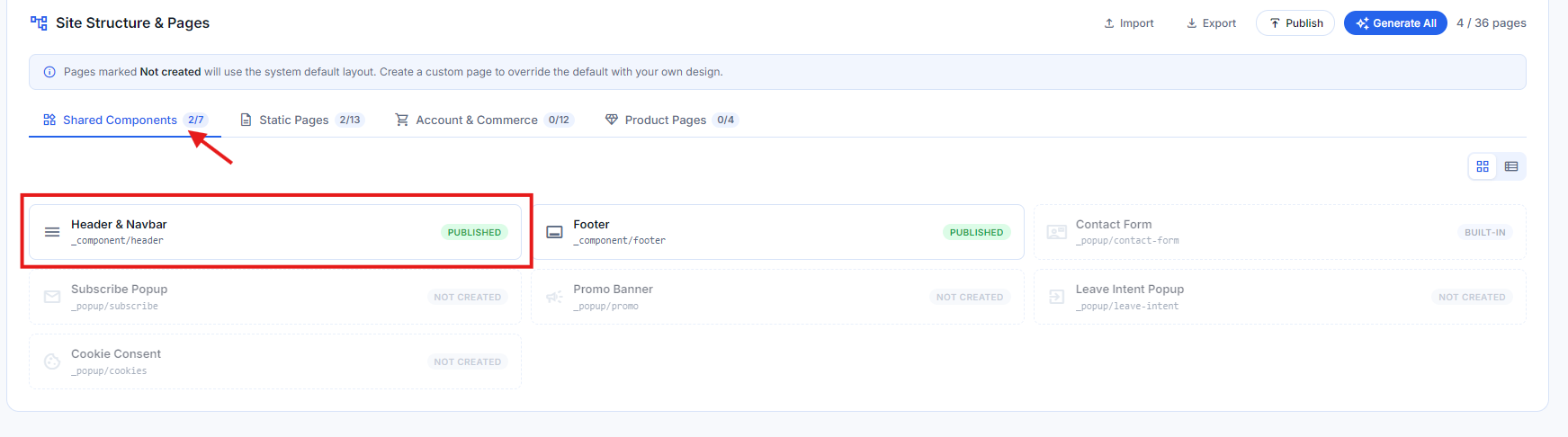
Next we proceed to the Shared Components section and we click on Header & Navbar.
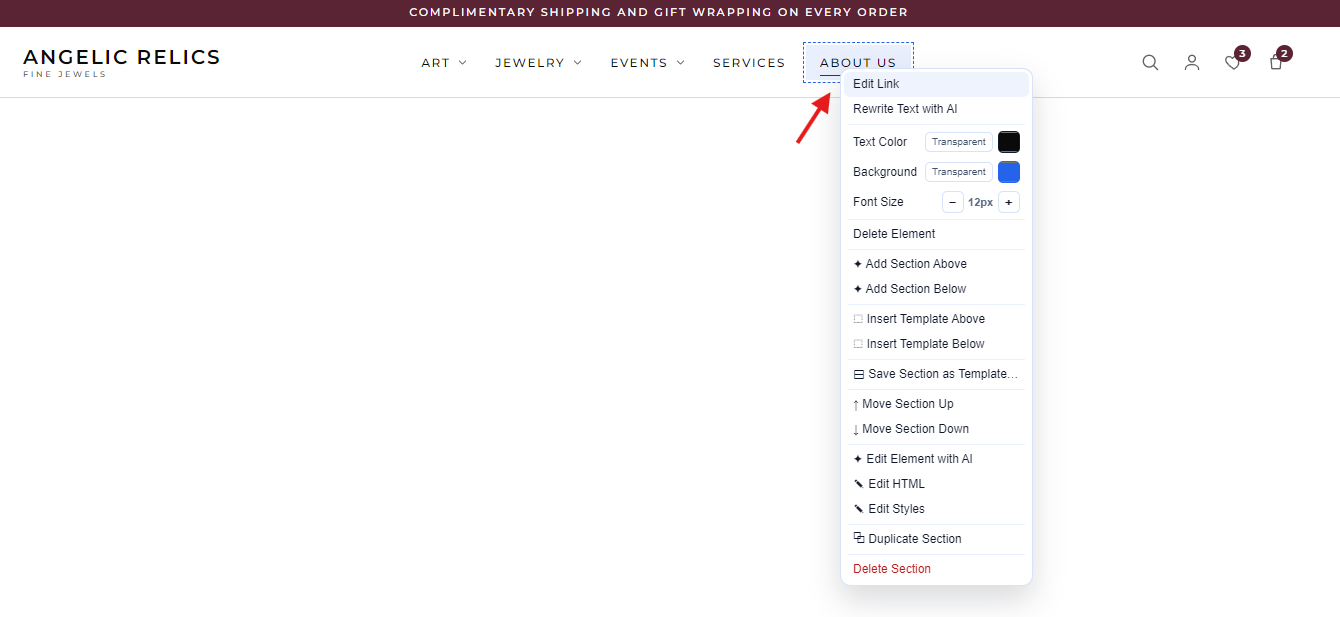
Once you are in the Header & Navbar page. Right click on About Us and select Edit Link.
A popup box should appear. On Custom change the URL to the correct URL. For this guide our URL on our About Us page is /testabout . Make sure to put /ai first before the correct URL.
Ex: /ai/testabout
Hit OK once you are done
Note: putting in the full URL of a page also works like " https://www.angelicrelics.com/ai/_v/testbuilder/testabout "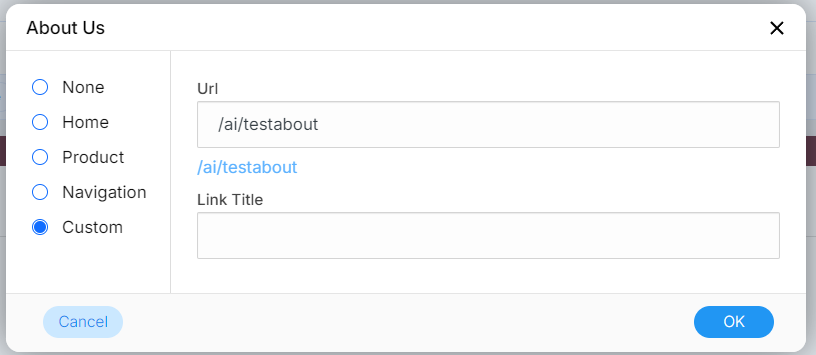
Click Save and Publish once done
Let us check to see if the URL we did on the About Us on the Navbar is working. Let us go on to one of the pages so we can view the Navbar. Let us click the small arrow icon a page.
( Note: Guide on viewing a page's live view: https://support.flawlesspos.com/a/solutions/articles/150000230703 )
For this guide click the one on the Homepage.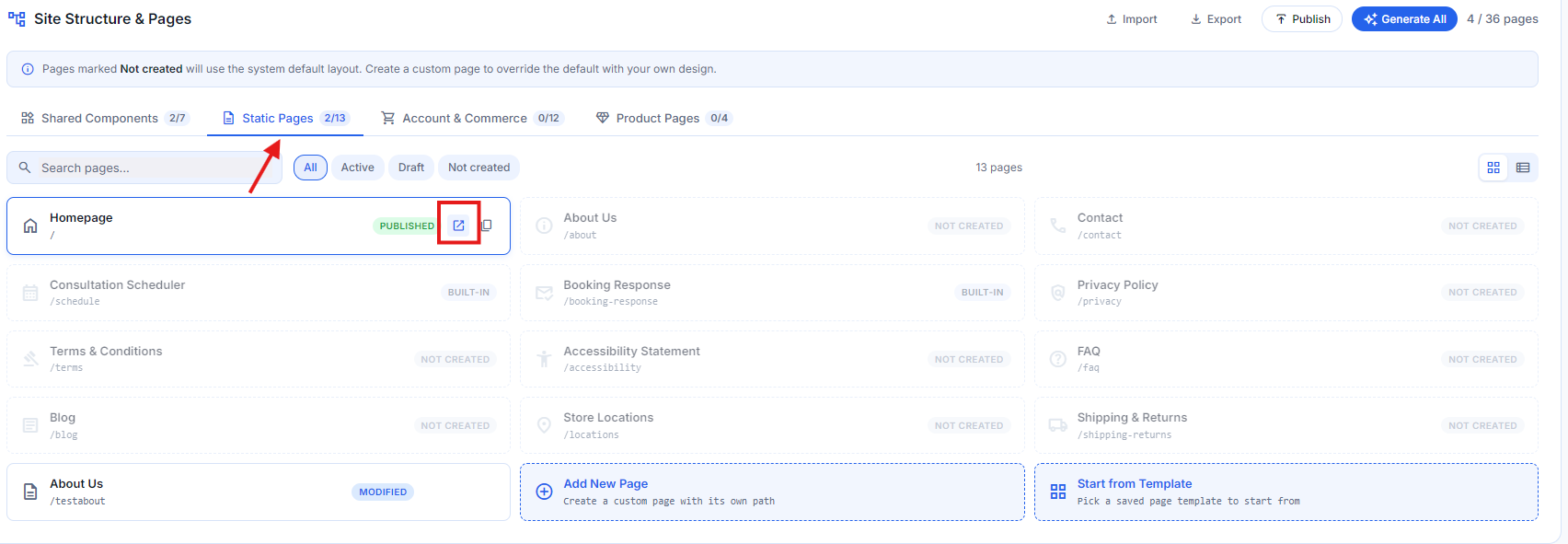
A new tab should open. To check that the link work for the About Us on the Navbar. Simply click on the About Us button.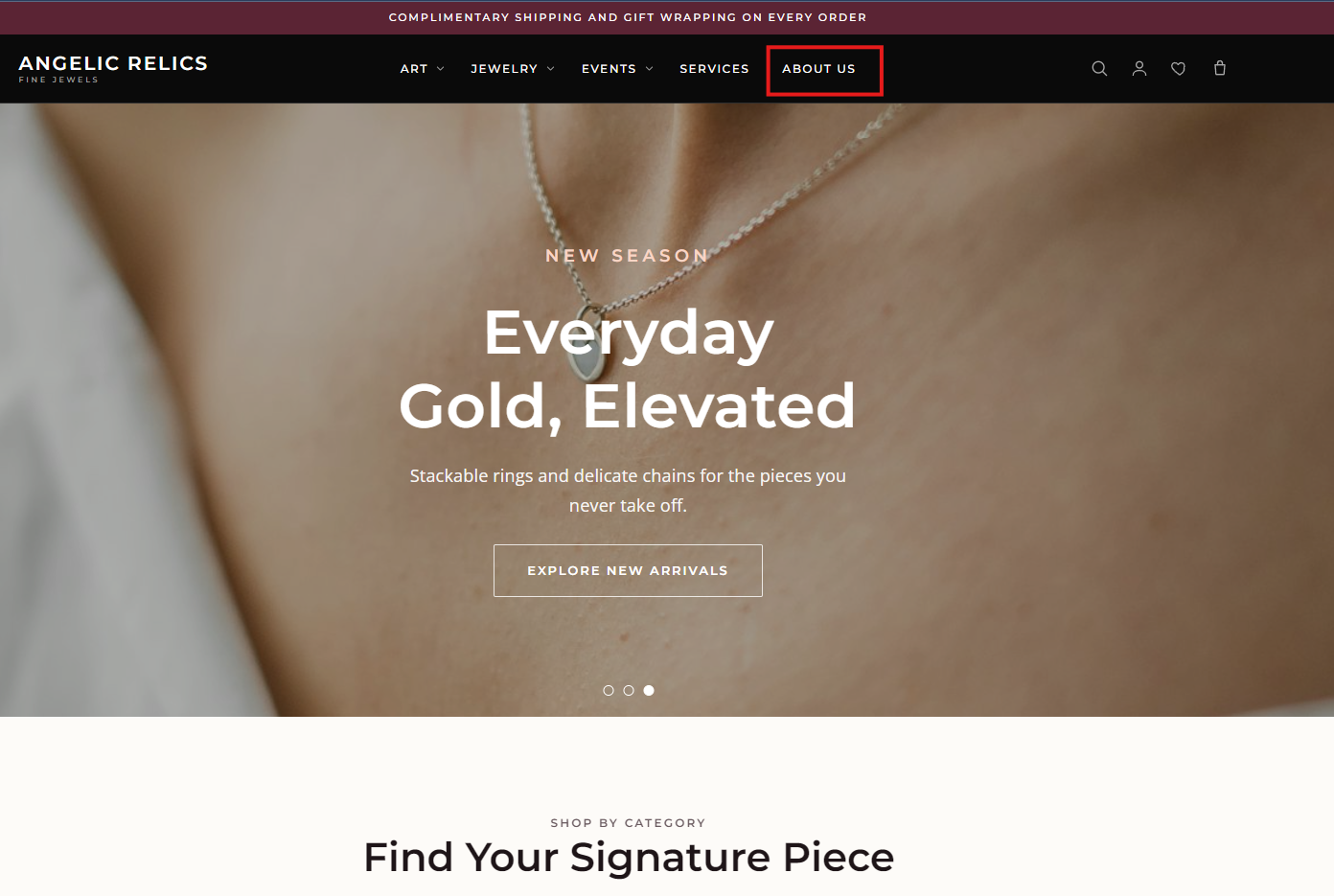
Great, it opened the correct page. The link has been successful
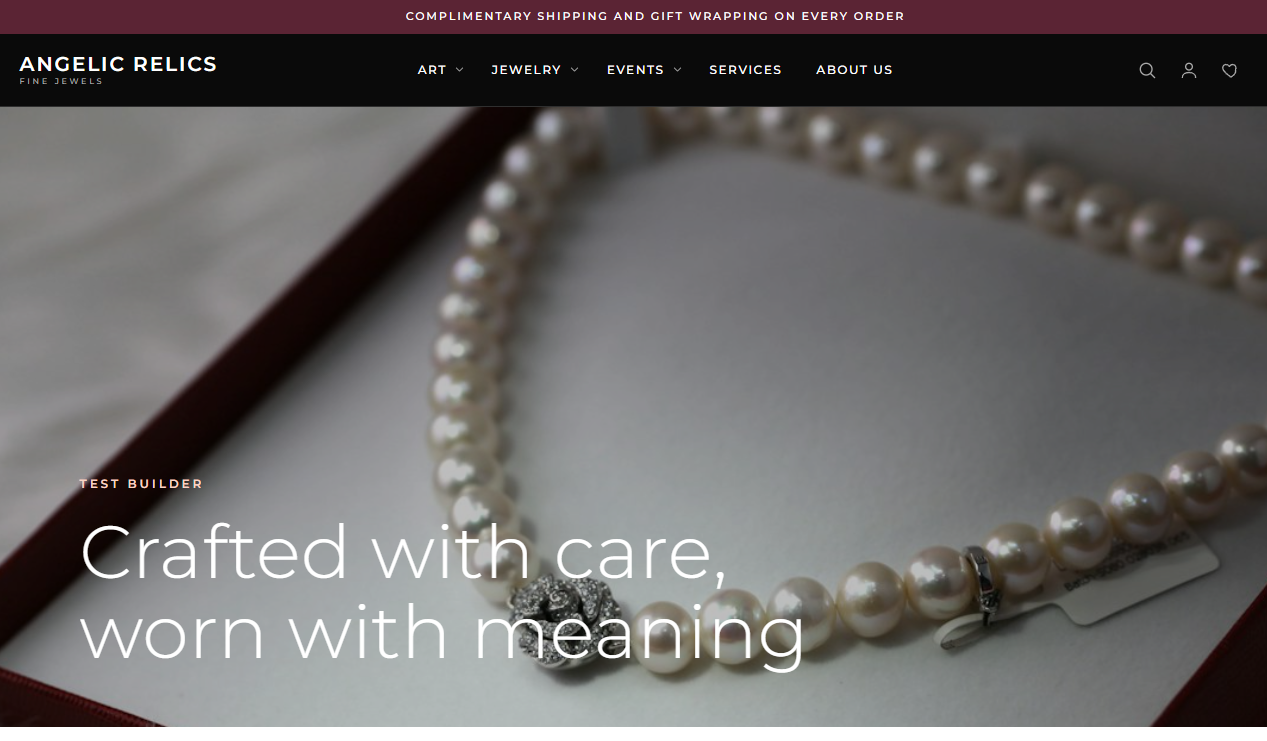
One more thing to know that the link was successful is to check the URL of the page. In the URL it says /testabout which is the URL we had set for About Us.
Linking doesn't only limit to buttons but icons , texts and images can be used to place a link as long as it is clickable.
That is it for this guide.
Troubleshooting
For any issues encountered during the submission of the Customer Repair Job, please contact Flawless POS support for assistance.
Was this article helpful?
That’s Great!
Thank you for your feedback
Sorry! We couldn't be helpful
Thank you for your feedback
Feedback sent
We appreciate your effort and will try to fix the article