Use the Export with AI feature in the product list to quickly generate either a customizable table or an AI-written report for selected SKUs, and then download or print the results as a PDF without changing your current product list view.
You may refer to this video for a step-by-step guide on how to export with AI from the Product List: https://youtu.be/5Xlb_oqBfaA
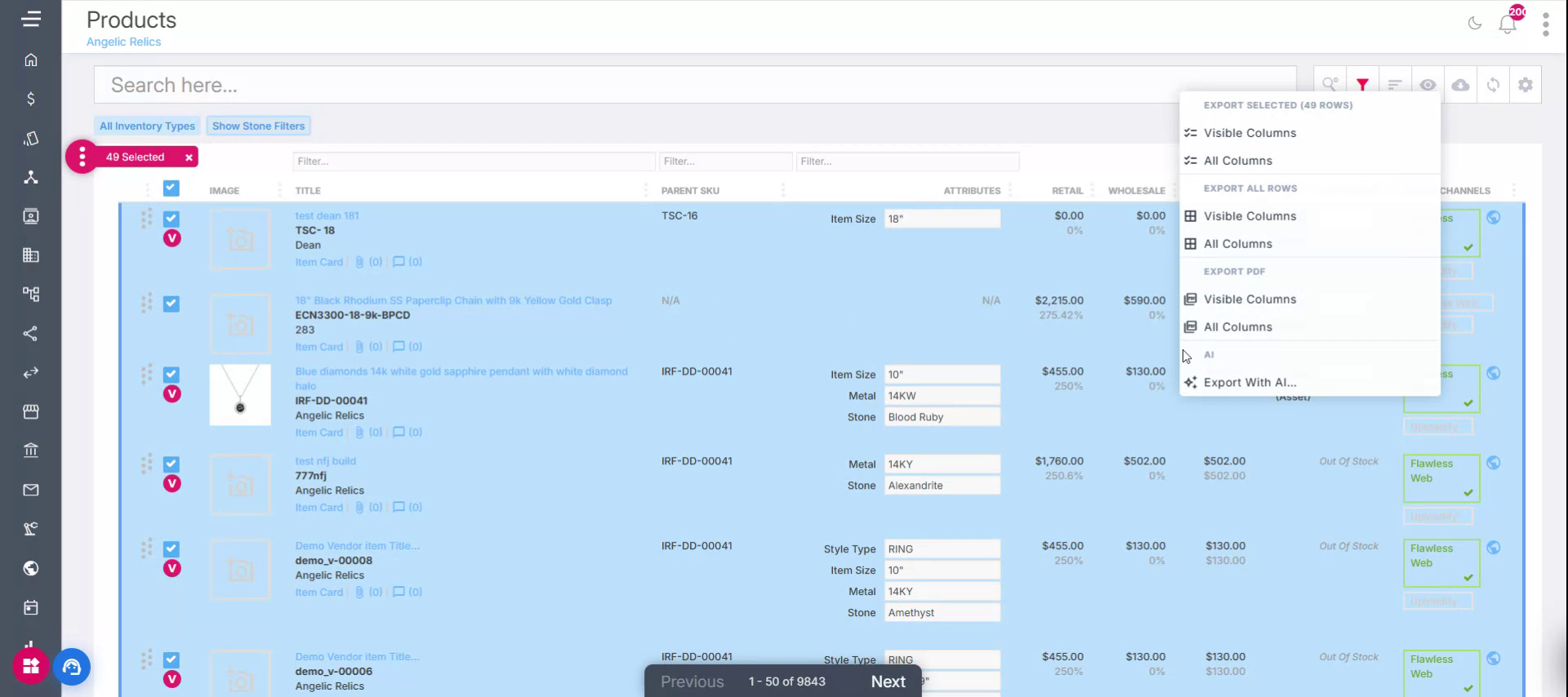
Step 1: Open Export with AI from the Product List
From the product list module, open the Export with AI option to begin exporting your data. This feature lets you export either the full product list or only the selected SKUs as a table or as an AI-generated report.
Step 2: Choose the Table Export Option
Select the option to export the data as a table.
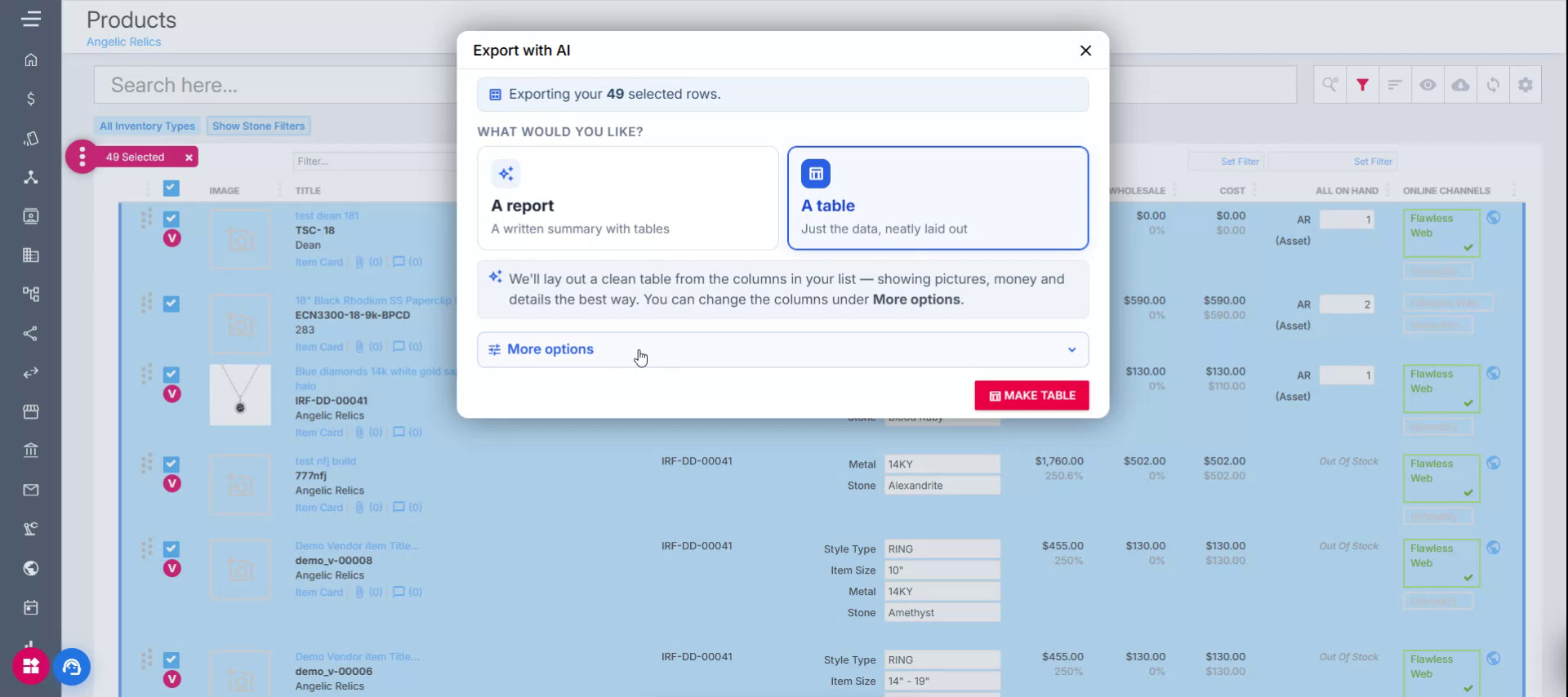
Then click on More Options located just below the table export option to configure which columns will be included in the exported table.
Step 3: Select Columns for the Table
In the column selection area, choose exactly which fields you want to appear in the exported table.
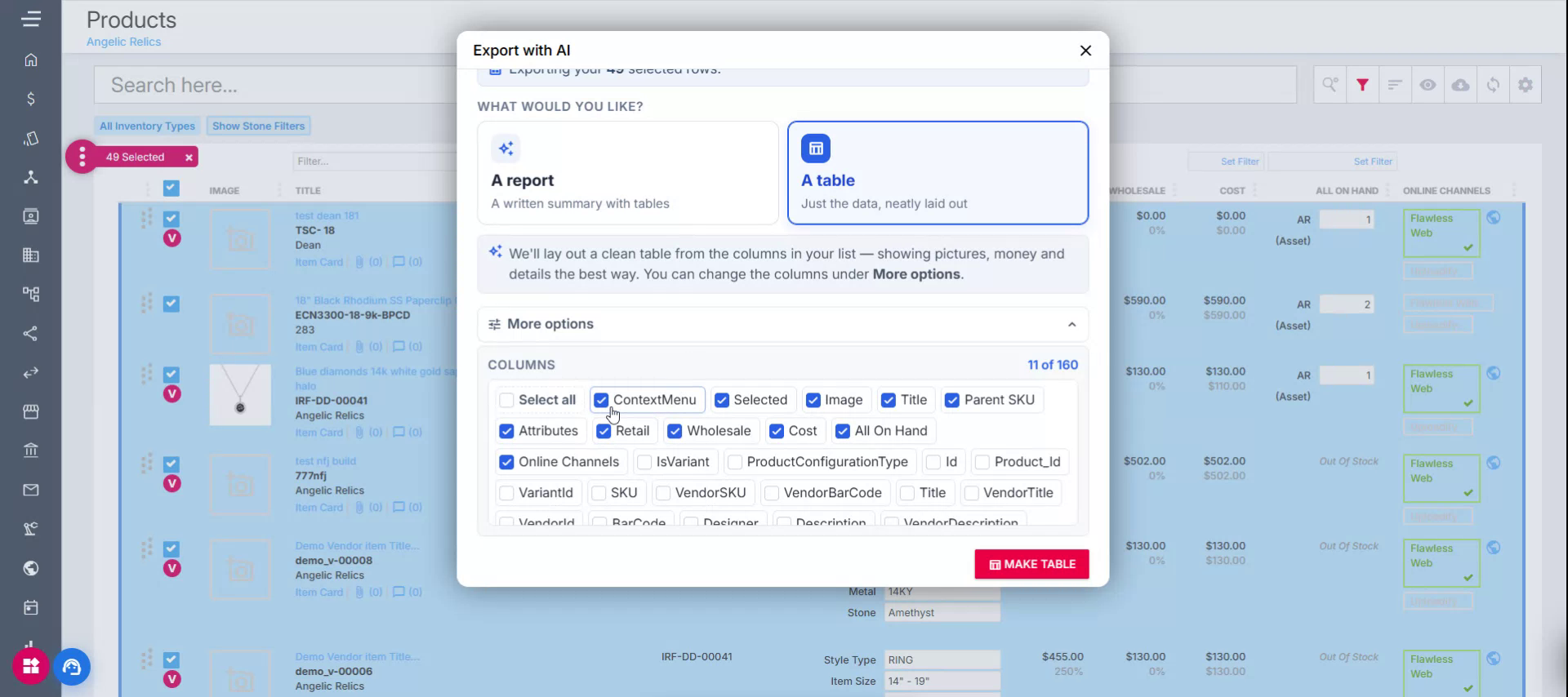
Once you have chosen the columns, click Make Table to generate the table. After the table is generated, you can download it or print it as a PDF.
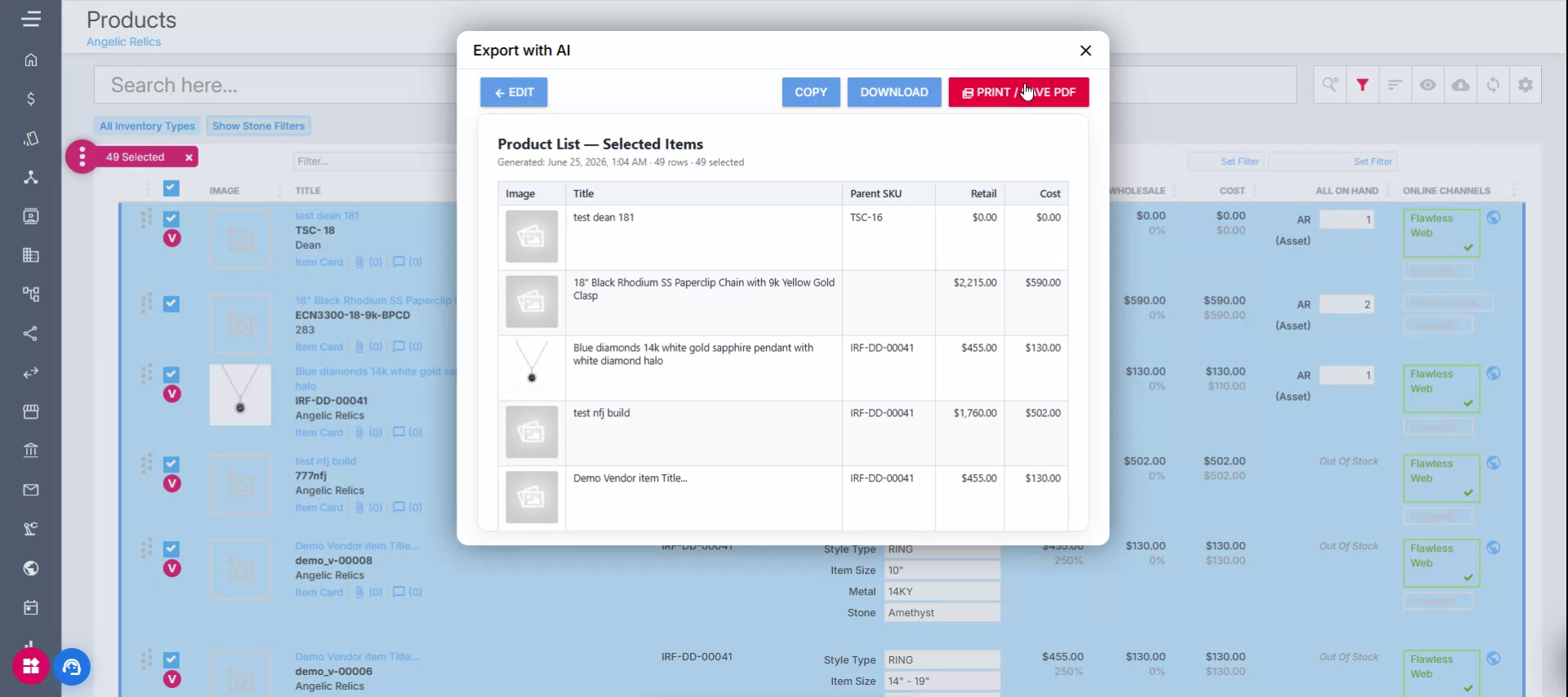
Note: The columns you select in Export with AI are independent of the columns shown in your main product list. Changing columns for the export will not change the columns displayed in the actual product list view. This makes it convenient when you only want specific columns in your printed/exported output, without constantly selecting and deselecting columns in the main product list.
Step 4: Choose the Report Export Option
Alternatively, select the option to export with AI as a report. This mode generates an AI-written report based on the SKUs you selected. The system provides a set of predefined prompts, and you can also create your own custom prompt. If you want to define your own prompt, type it into the text box field.
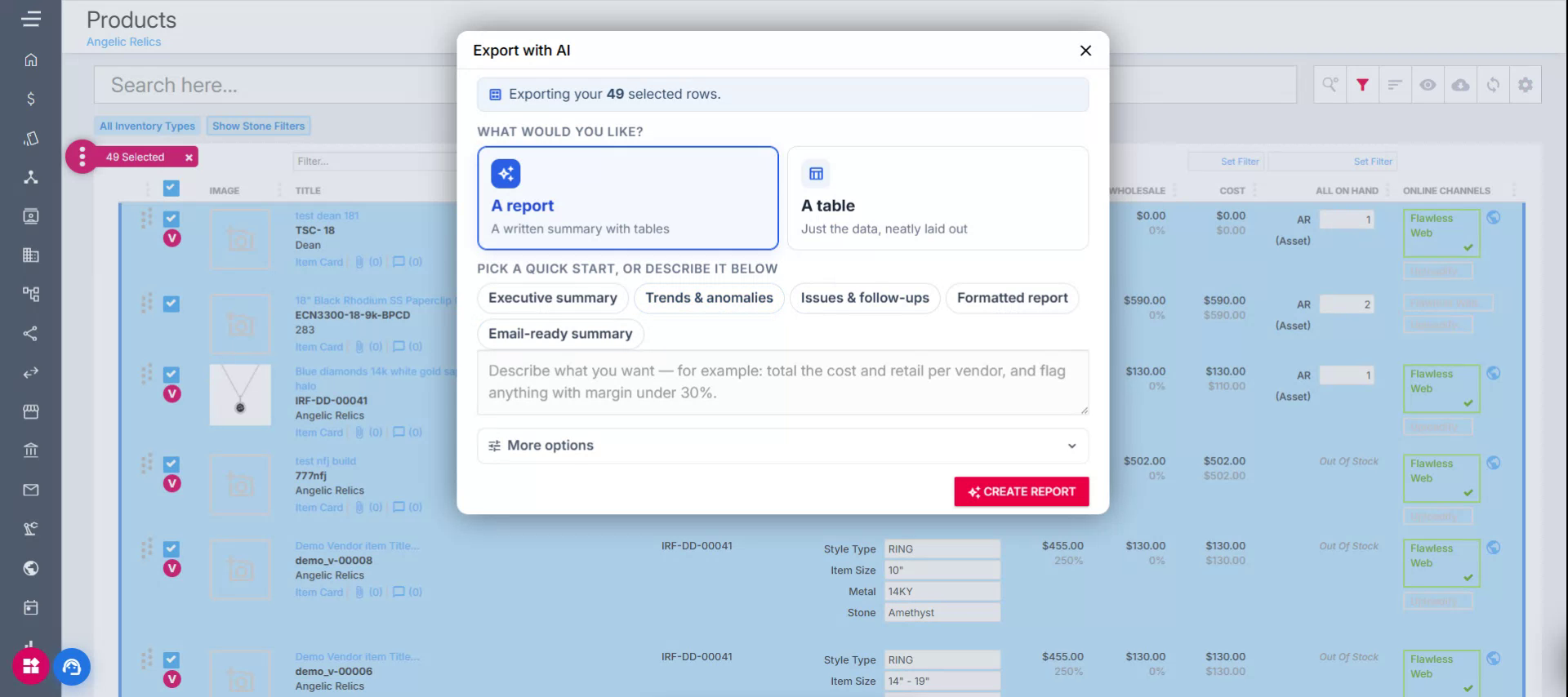
Step 5: Configure the Report Prompt and Generate
For example, select a predefined prompt such as an email-ready summary.
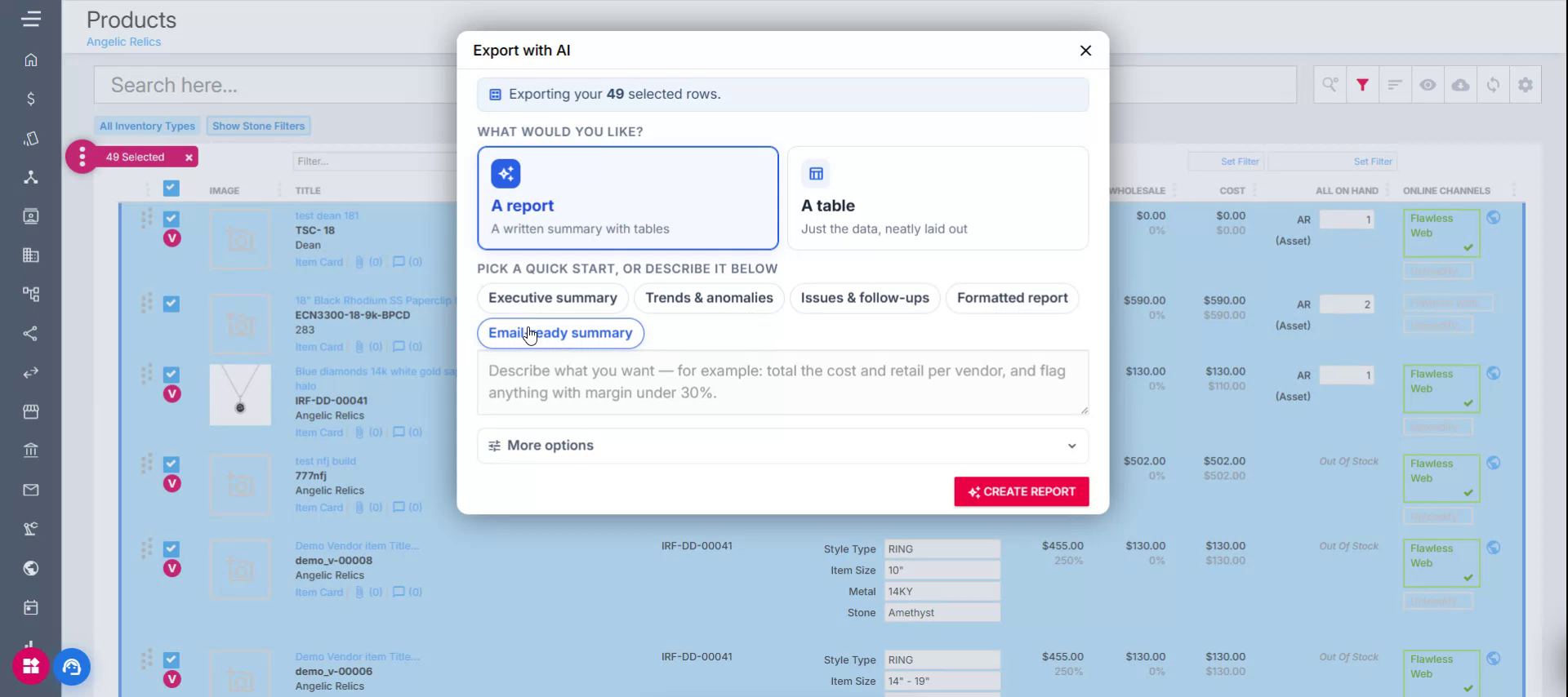
Then click Create Report to start generating the AI report.
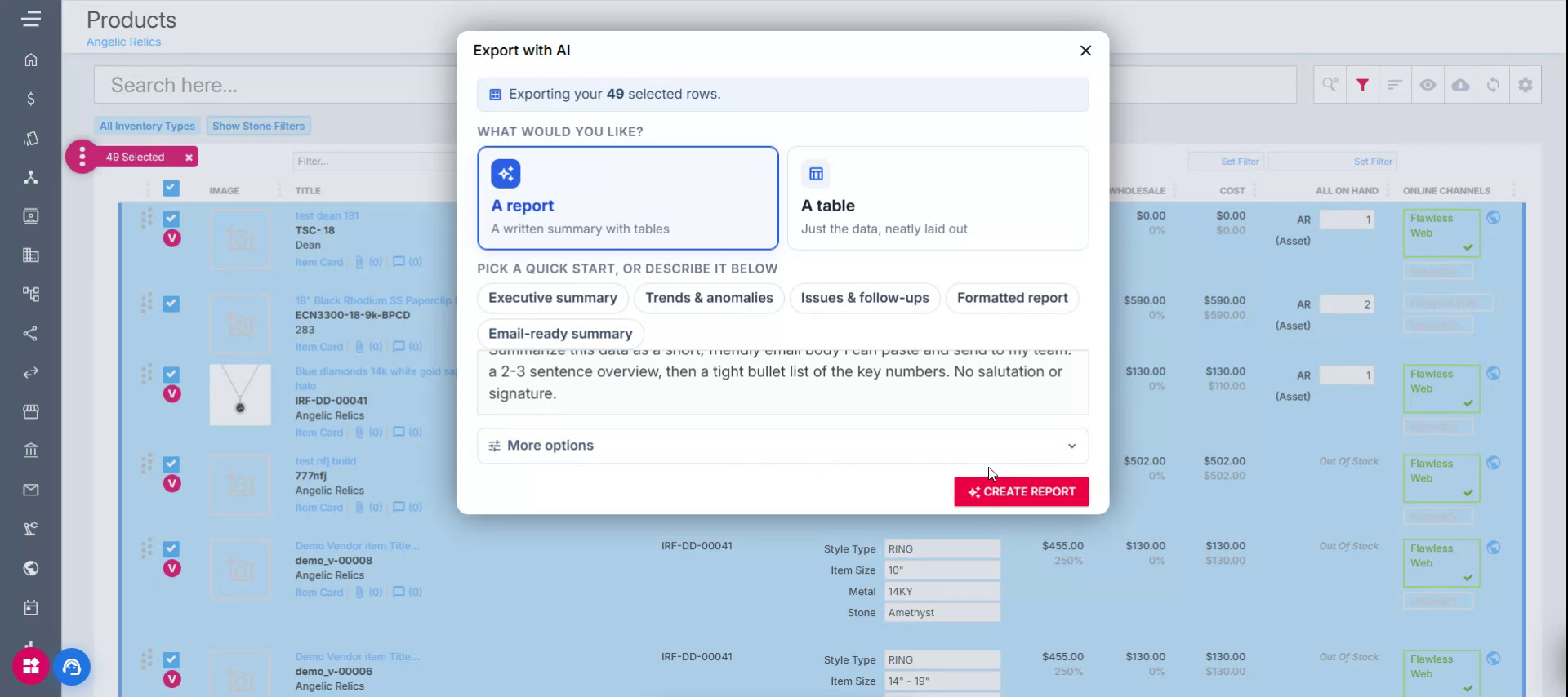
In this example, the report is configured to summarize the data into a short, friendly email body that you can copy and paste to your team, typically a 2–3 sentence overview plus a bullet list of key numbers.
Note: Be aware that generation time depends on the number of SKUs selected. It may take from about 1 to 5 minutes, though for many products it usually completes in around 2 minutes.
Step 6: Review and Export the AI Report
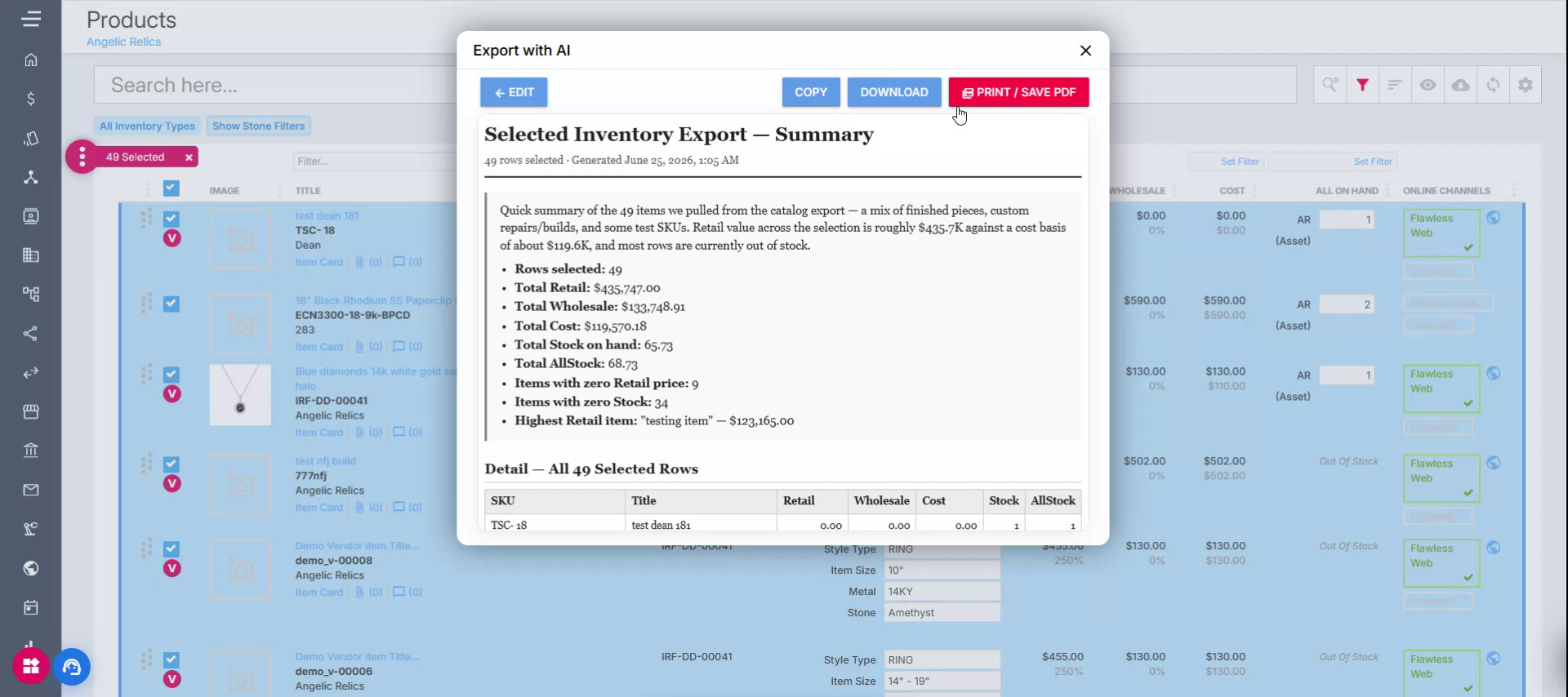
Once the report is generated, review the summary. It will include:
- A quick overview of the selected items (e.g., a summary of 49 catalog items).
- A 2–3 sentence high-level summary, matching your prompt.
- Detailed information listed below the summary.
You can download this report or print it as a PDF, just like the table export.
Troubleshooting
For any issues encountered when Exporting the Product List with AI, please contact Flawless POS support for assistance.
Was this article helpful?
That’s Great!
Thank you for your feedback
Sorry! We couldn't be helpful
Thank you for your feedback
Feedback sent
We appreciate your effort and will try to fix the article