This article guides you on how to use the new AI-powered feature in Merchandise Receive to scan an invoice or memo, have it automatically read, and quickly create a merchandise receive (MR) in your inventory without manually entering all the details.
You may refer to this video for a step-by-step guide on how to do a Merchandise Receive from an Invoice Scan using AI: https://youtu.be/JCp8B_VEuJI
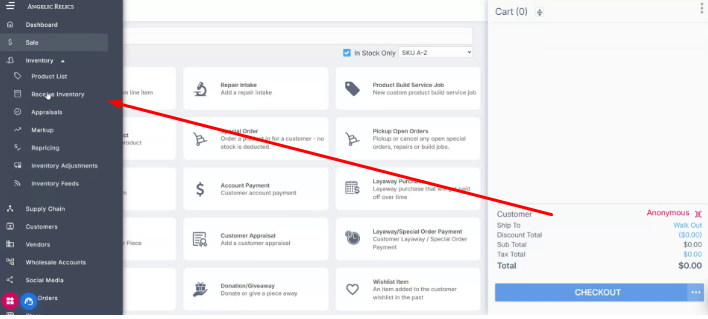
Step 1: Start the AI Merchandise Receive from Invoice or Memo
Begin by opening the Merchandise Receive module and accessing the new AI scan feature that allows you to work from an invoice or memo rather than manual entry.
Step 2: Upload the Invoice and Trigger AI Reading
As an example, upload the invoice file you want to process using the upload option in the AI merchandise receive screen.
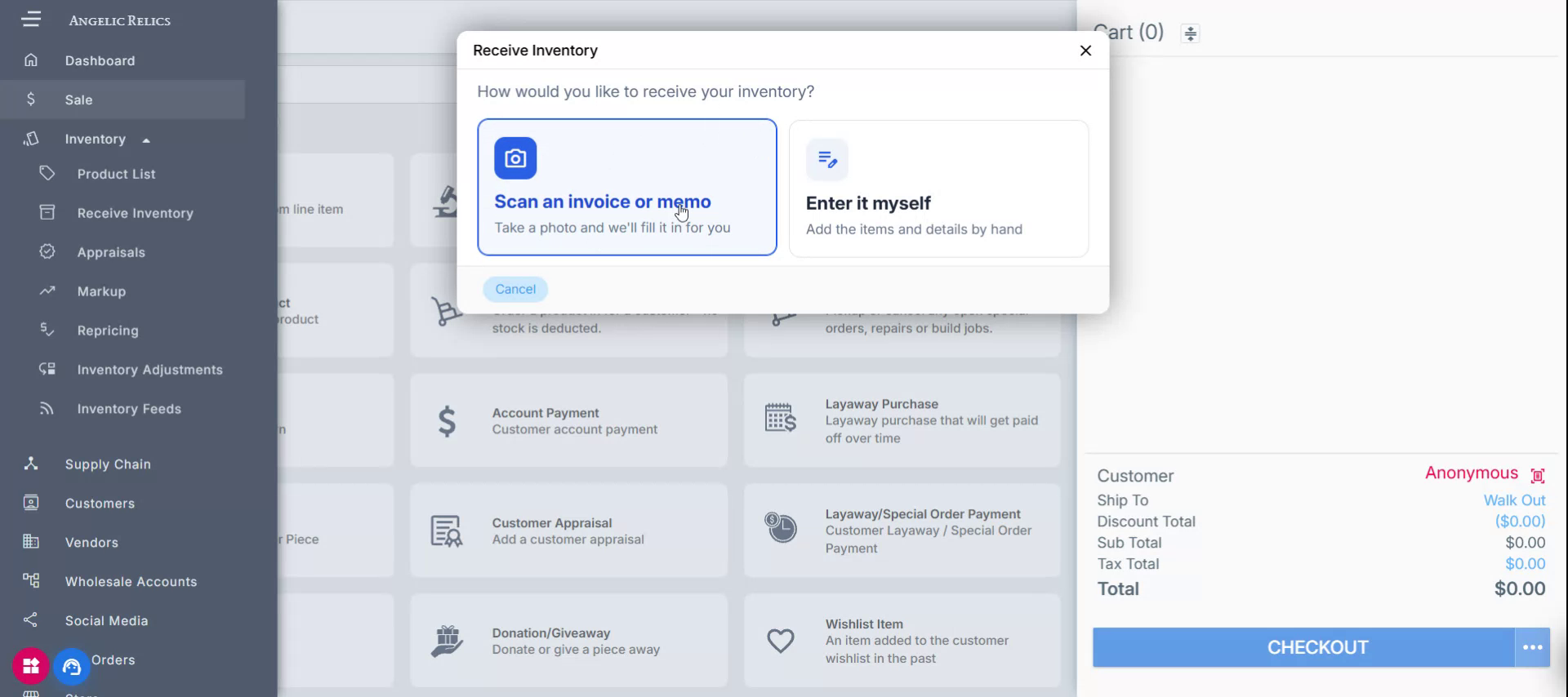
Once the invoice is uploaded, let the AI read the invoice.
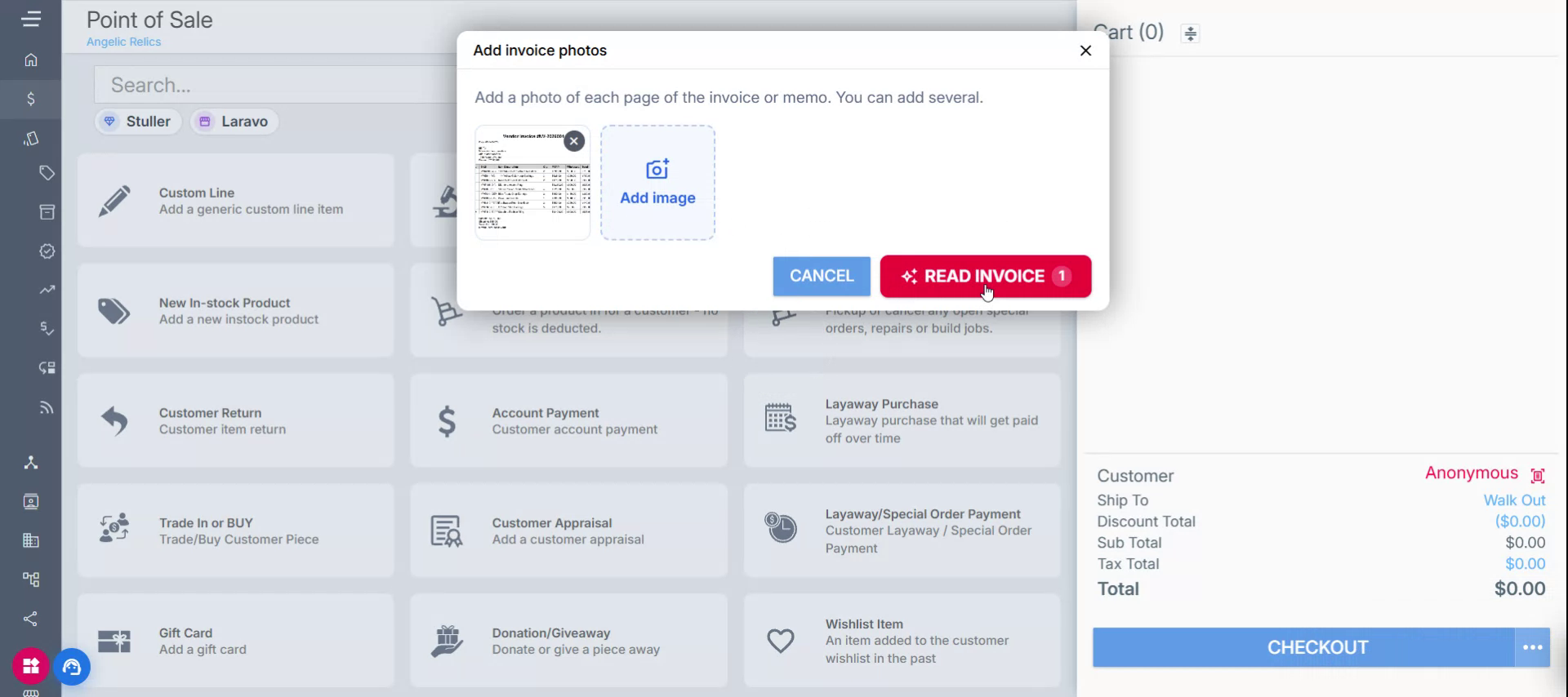
Note that the time it takes to read and process the invoice depends on the number of items included on that invoice. Additionally, you'll also be able to upload images straight from your mobile phone and it will capture all the necessary information available such as the vendor if it exists.
Step 3: Select the Vendor and Open Merchandise Receive
After the AI finishes reading the invoice, select the appropriate vendor from the vendor list associated with that invoice.
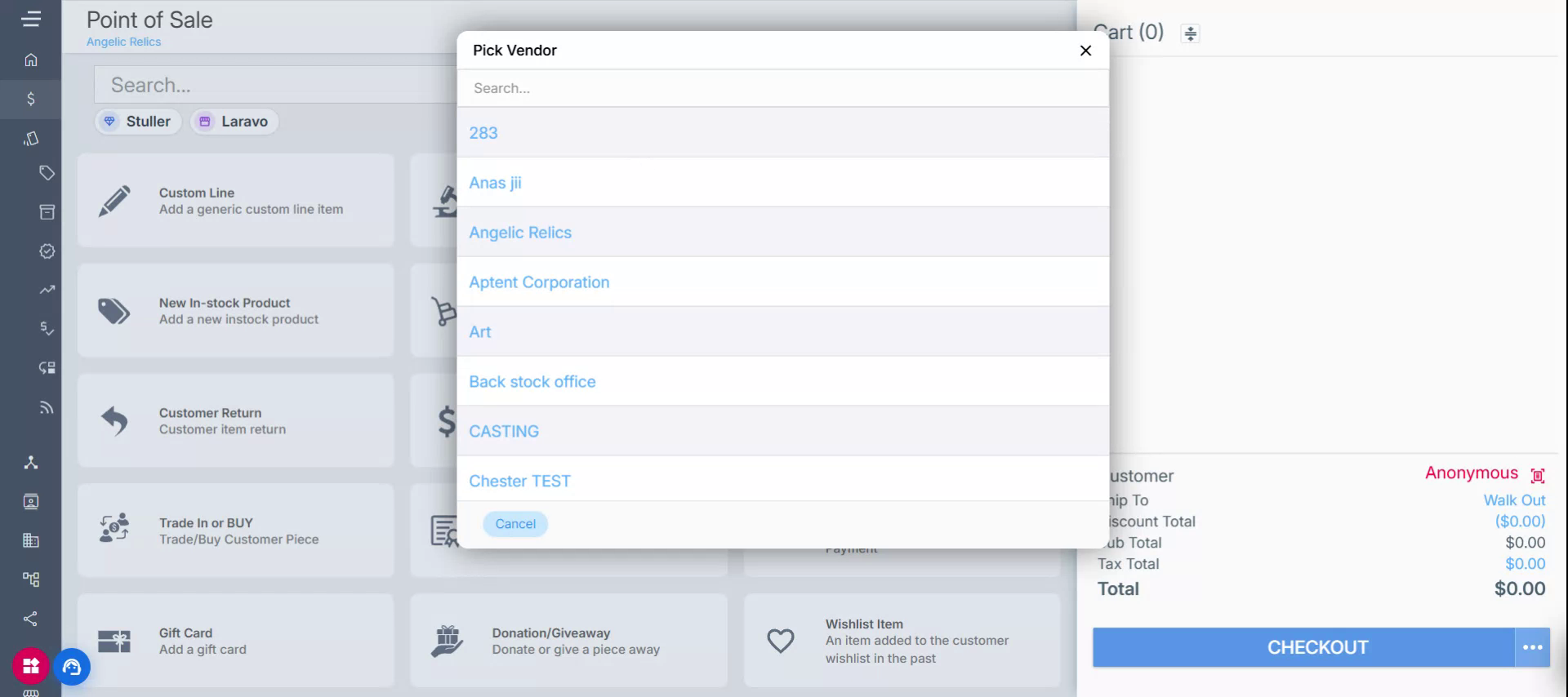
Once the vendor is selected, the system will automatically take you to the Merchandise Receive screen.
Step 4: Review and Adjust Merchandise Receive Header Details
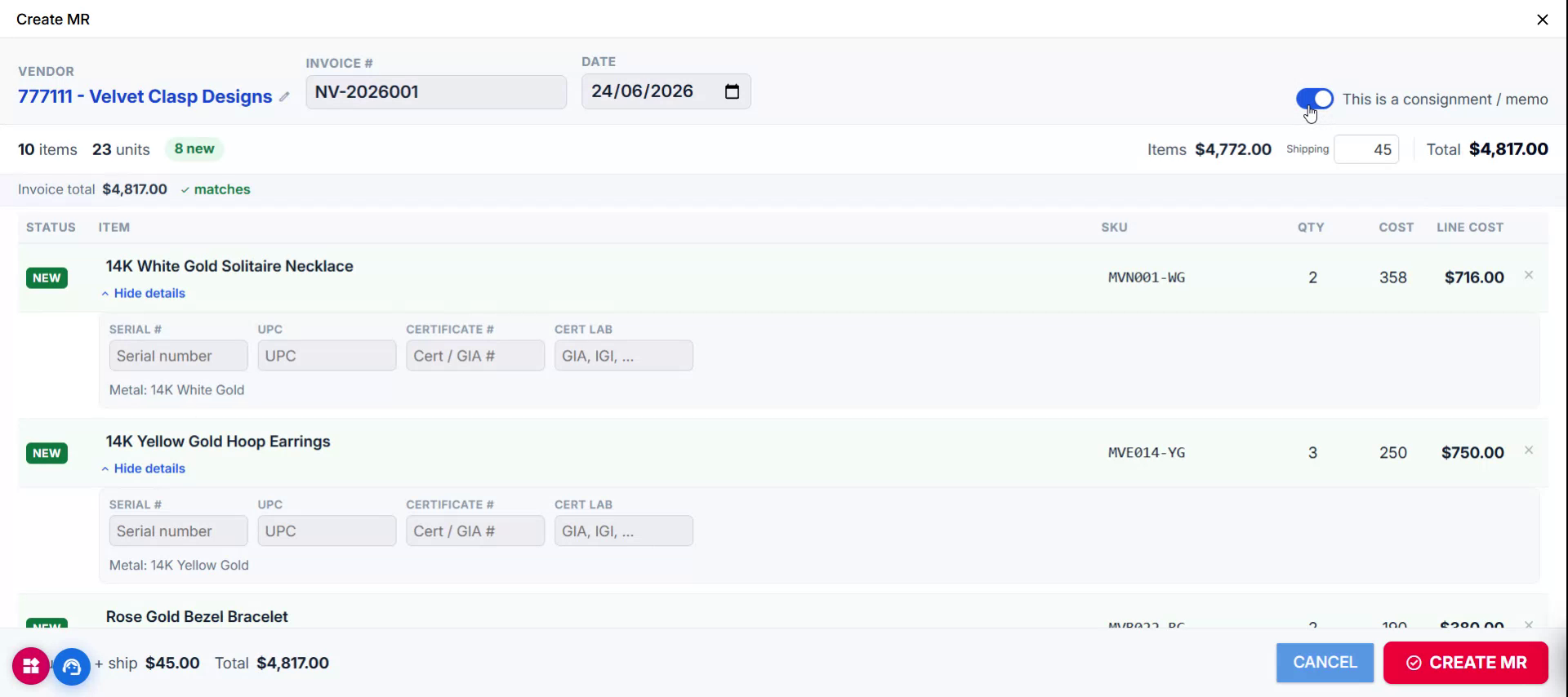
On the Merchandise Receive screen, review the header information and make any necessary edits. In this area, you can see and adjust a variety of fields.
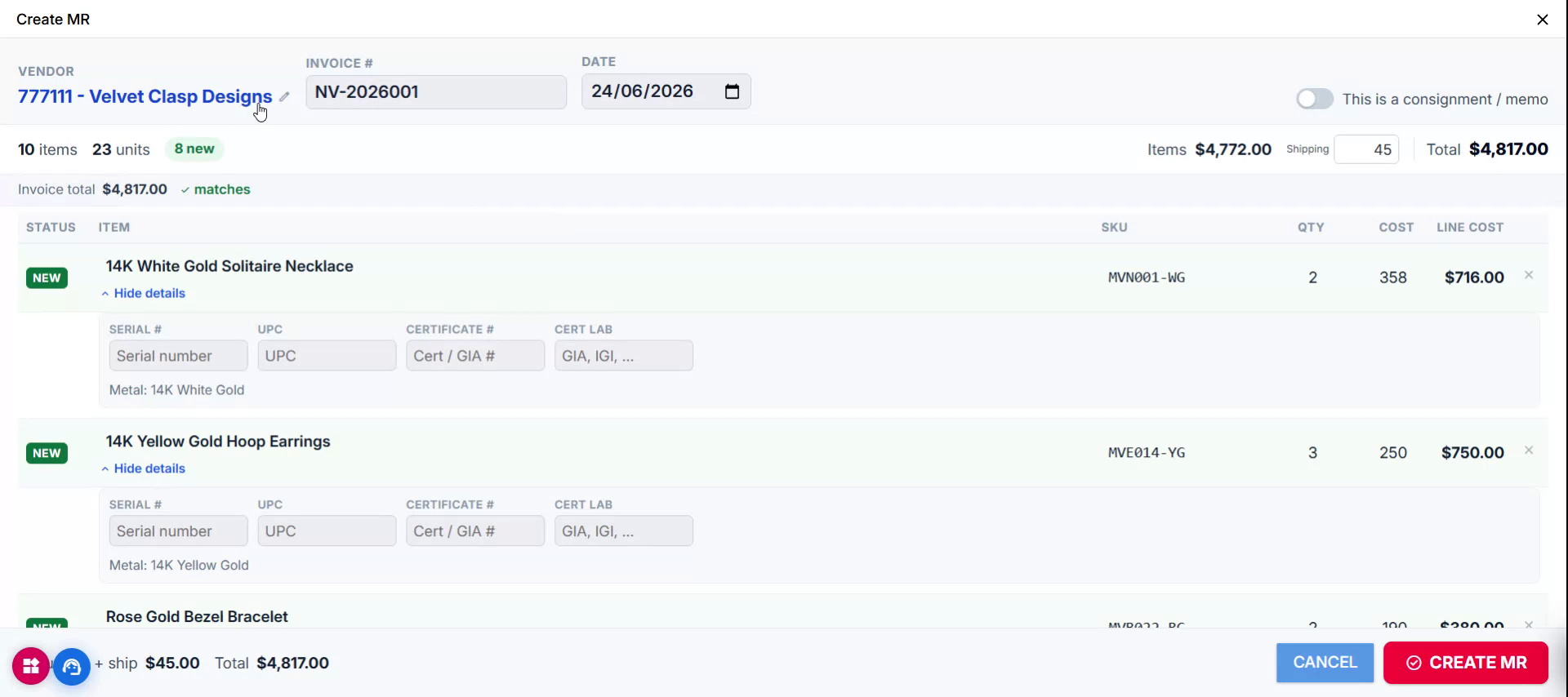
You can edit the vendor if needed, view/edit the invoice number and date, and specify whether the merchandise receive is for consignment or an asset.
You will also see the number of items, total quantity or units, and an overview of which items are new versus existing in the system.
Step 5: Validate New and Existing Items and Confirm Details
In the item list, review the imported lines:
- New items (not yet in your system) will be automatically created and marked with a status of New on the left side.
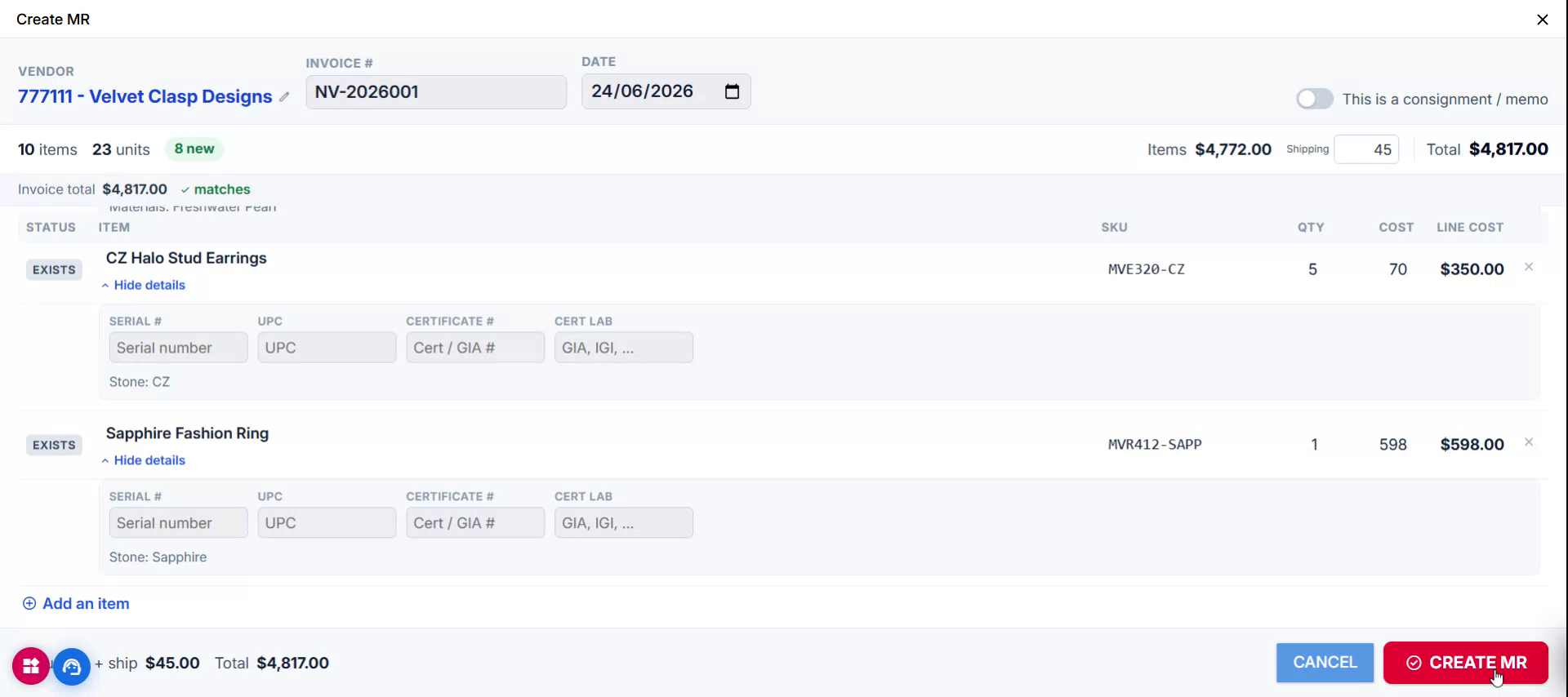
- Items already existing in your system will be marked as Exist.
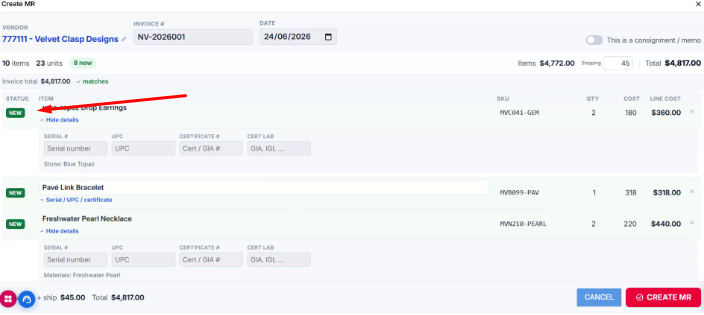
Confirm the quantities, costs, SKUs, and any other item-level details to ensure they match the invoice.
Step 6: Create the Merchandise Receive
Once all header and item details are confirmed and you are satisfied with the information, create the merchandise receive. Click Create MR to generate the merchandise receive from the AI-processed invoice.
Step 7: Post and Finalize the Merchandise Receive
After the MR is created, you will be taken to the Post Merchandise Receive screen. Here you can:
- Update or edit the MR if needed
- Download the MR
- Print product tags
- Create an invoice
- Add another merchandise receive
Complete any necessary follow-up actions on this screen to finalize your merchandise receive.
Troubleshooting
For any issues encountered when creating doing a Merchandise Receive using the AI, please contact Flawless POS support for assistance.
Was this article helpful?
That’s Great!
Thank you for your feedback
Sorry! We couldn't be helpful
Thank you for your feedback
Feedback sent
We appreciate your effort and will try to fix the article