This article outlines the step-by-step procedure for creating a new user within the Flawless system, sending an invitation link, and assigning the appropriate store roles. Following this process streamlines user management, ensures robust system security, and tailors access permissions based on specific job functions.
Step 1: Access the Store Module
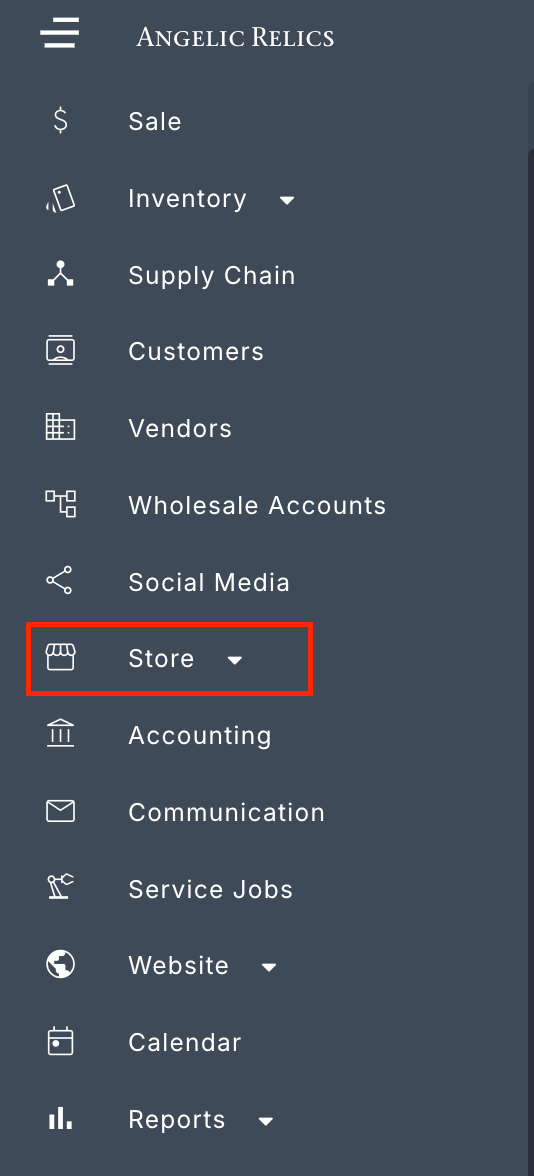
- Open the Left Navigation Menu:
- Navigate to and click on the Store option.
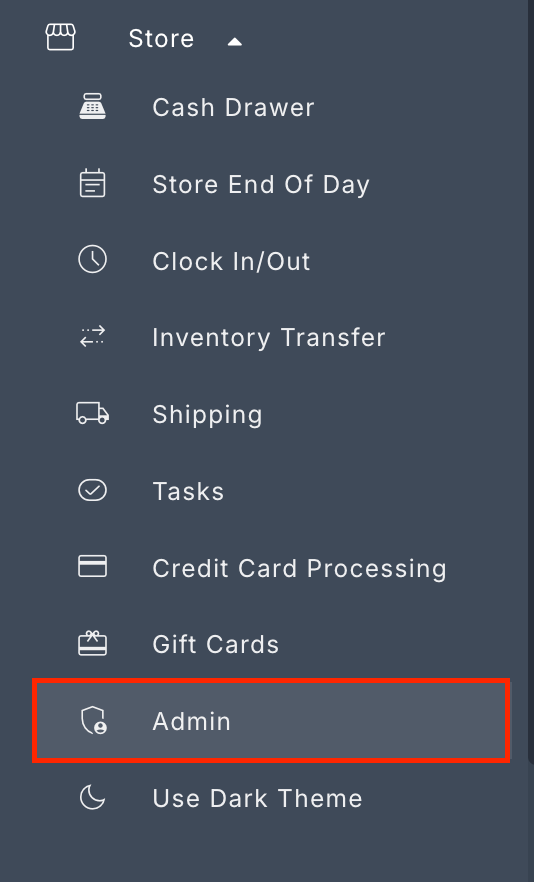
- Select Admin from the dropdown menu.
Step 2: Enter Admin Security Code
- When prompted by the system security gate, input your Admin Security Code to gain access.
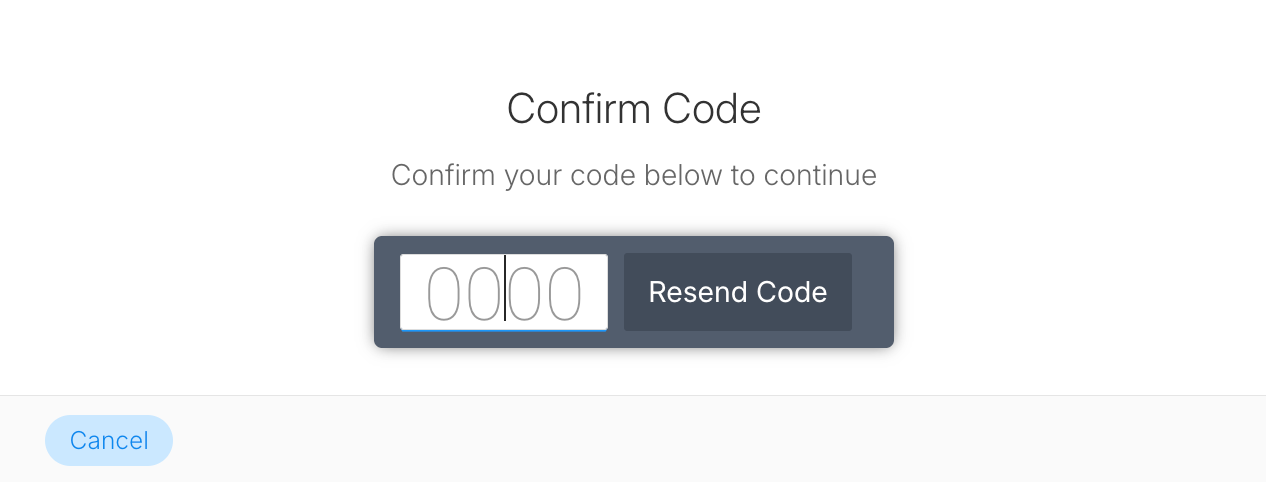
Note: The security code will be sent to the user’s email address.
Step 3: Navigate to Users Tab
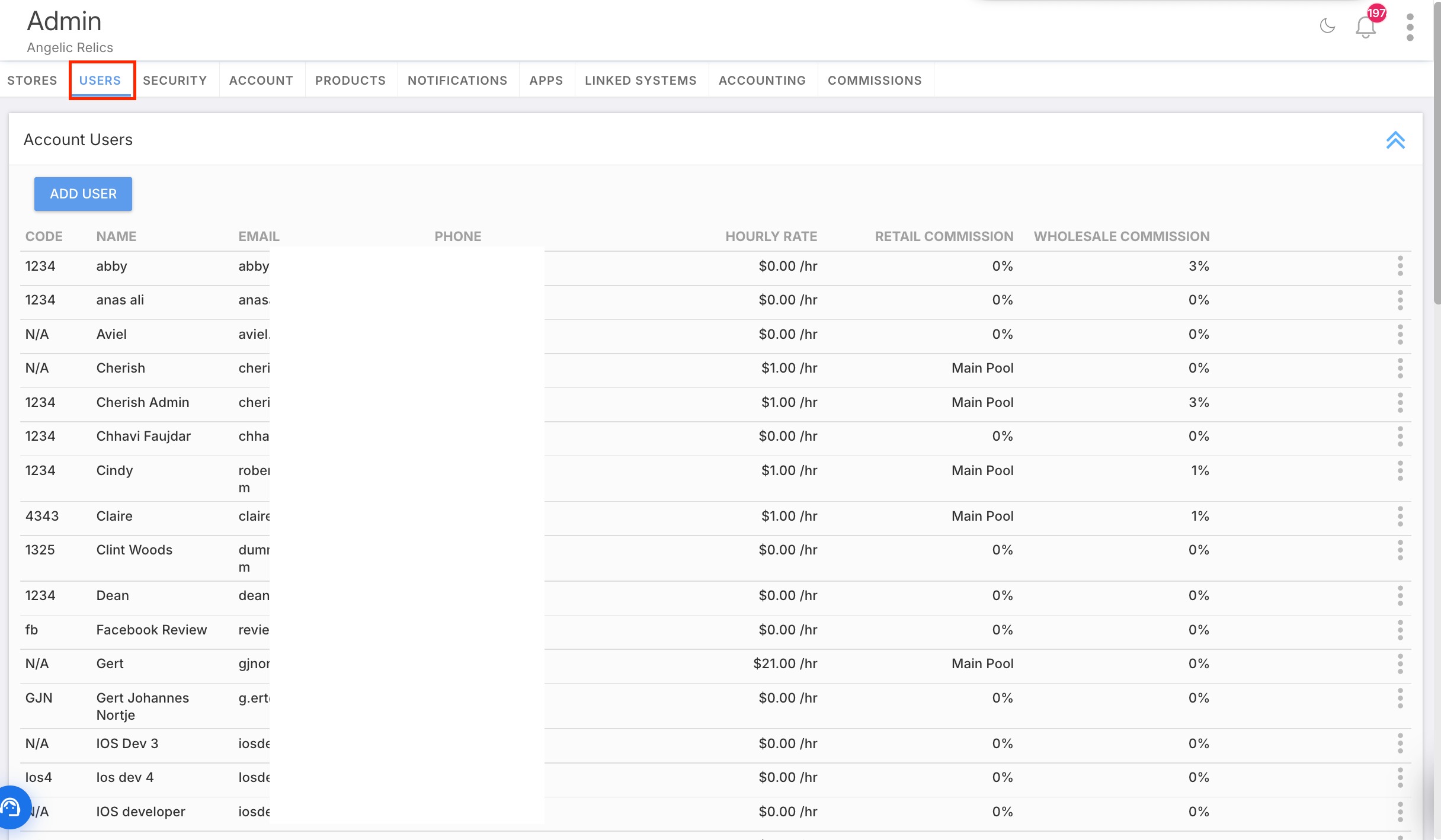
- Once inside the Admin module, locate the top navigation bar.
- Click on the Users tab to view and manage your existing team members.
Step 4: Add a New User & Send Invitation
- Click the Add User button. A dialog box will pop up prompting you to fill out the new user's profile details.
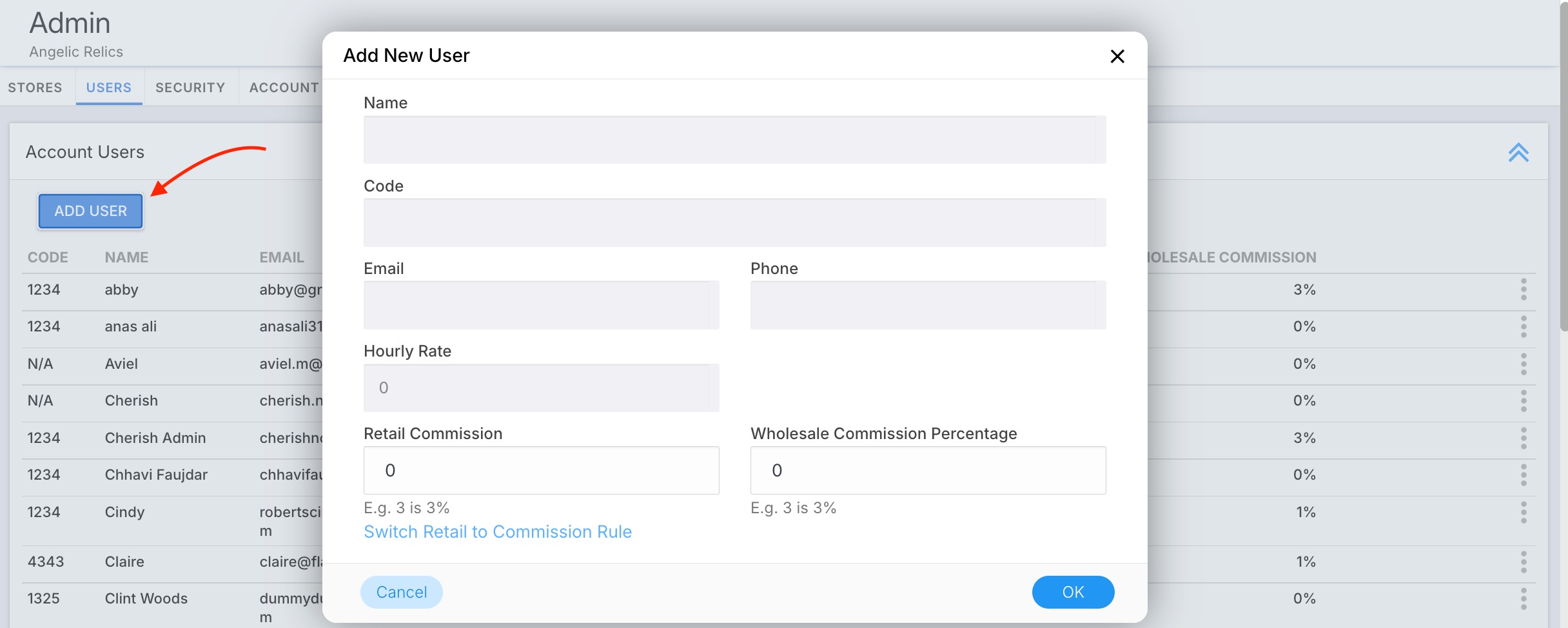
2. Enter the user's Email Address.
3. Configure the Send Invitation Email option based on your preference:
Password Set: If you manually input a password here, it will be included securely in the invitation email, allowing the user to log in immediately and change it later.
Password Left Blank: If left blank, the system will send an invitation email containing only a secure "Set-Your-Password" link for the user.

4. Configure Compensation (Optional): You can assign the user to a Commission Pool instead of assigning an individual commission percentage.
What is a Commission Pool - A collective fund from which earnings are distributed among eligible team members based on performance. This approach fosters team collaboration and ensures an equitable distribution of rewards.
5. Review the form data and click OK to create the user profile.
Step 5: Confirm User Creation
- Return to the main Users list.
- Verify that the newly created user (e.g., demouser) now successfully appears in the Account users list.

Step 6: Assign User to a Store
To ensure the user can log into a physical or digital location, you must link them to a specific branch:
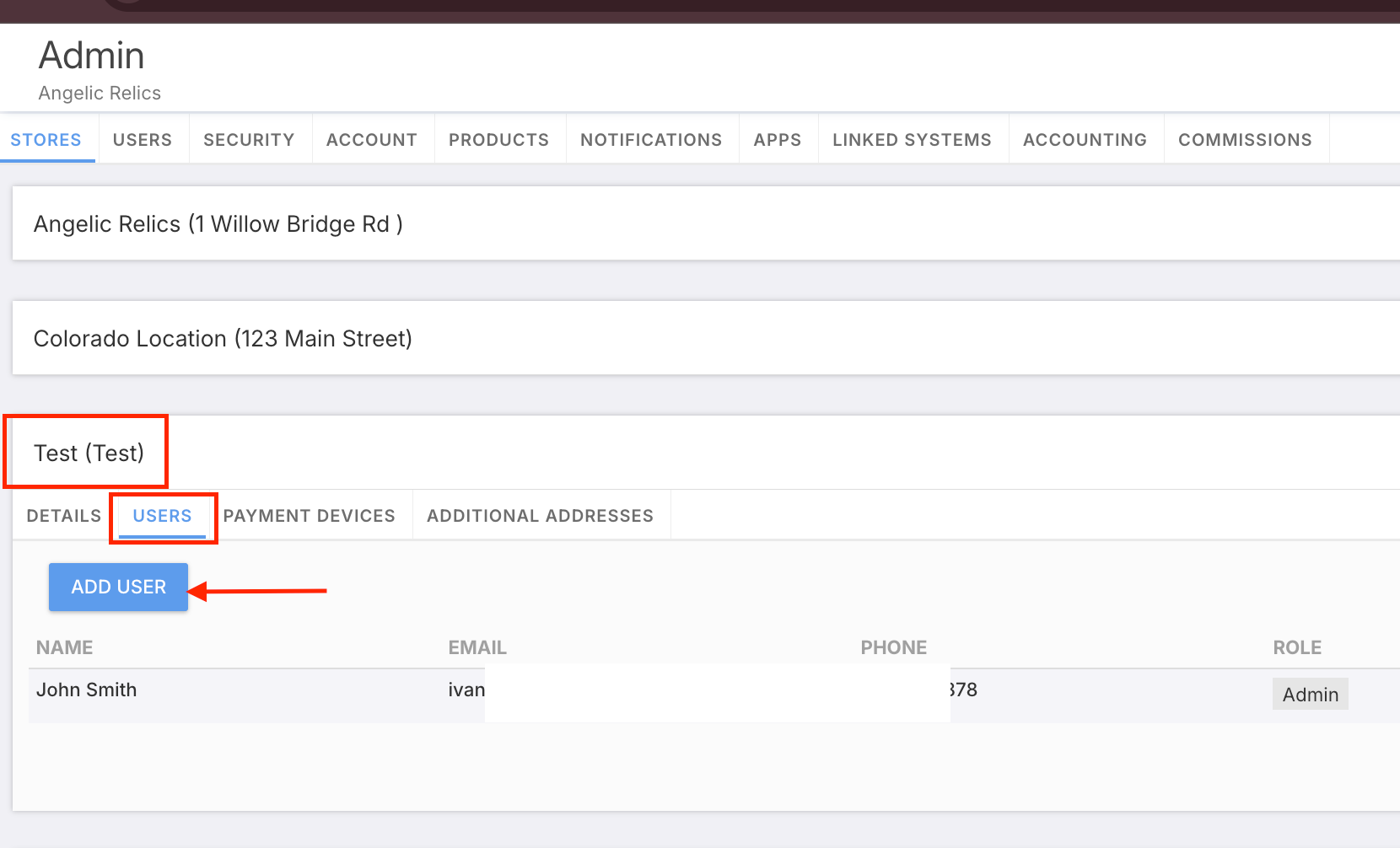
- Click on the Stores tab in the main Admin module.

- Select the appropriate location from the list (e.g., Test Store).
- Navigate to that specific store's internal Users tab and click Add User.
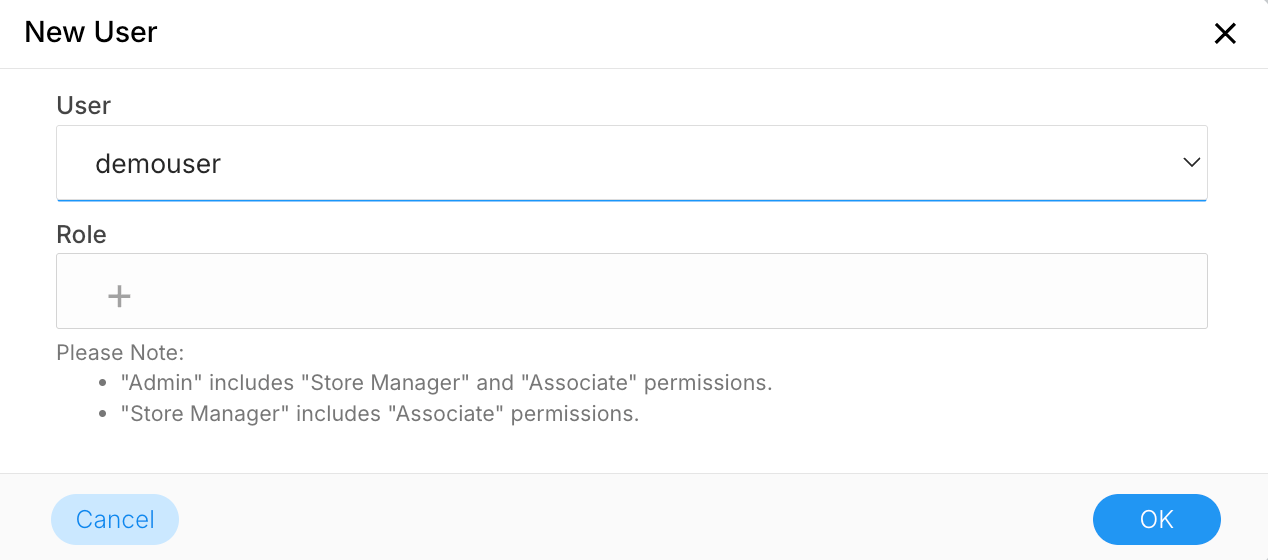
- Click the User Field dropdown menu, search for, and select the user you just created (e.g., demouser).
Step 7: Assign Roles and Permissions
- Select User's Role:
- Click the “+” icon to display available roles.
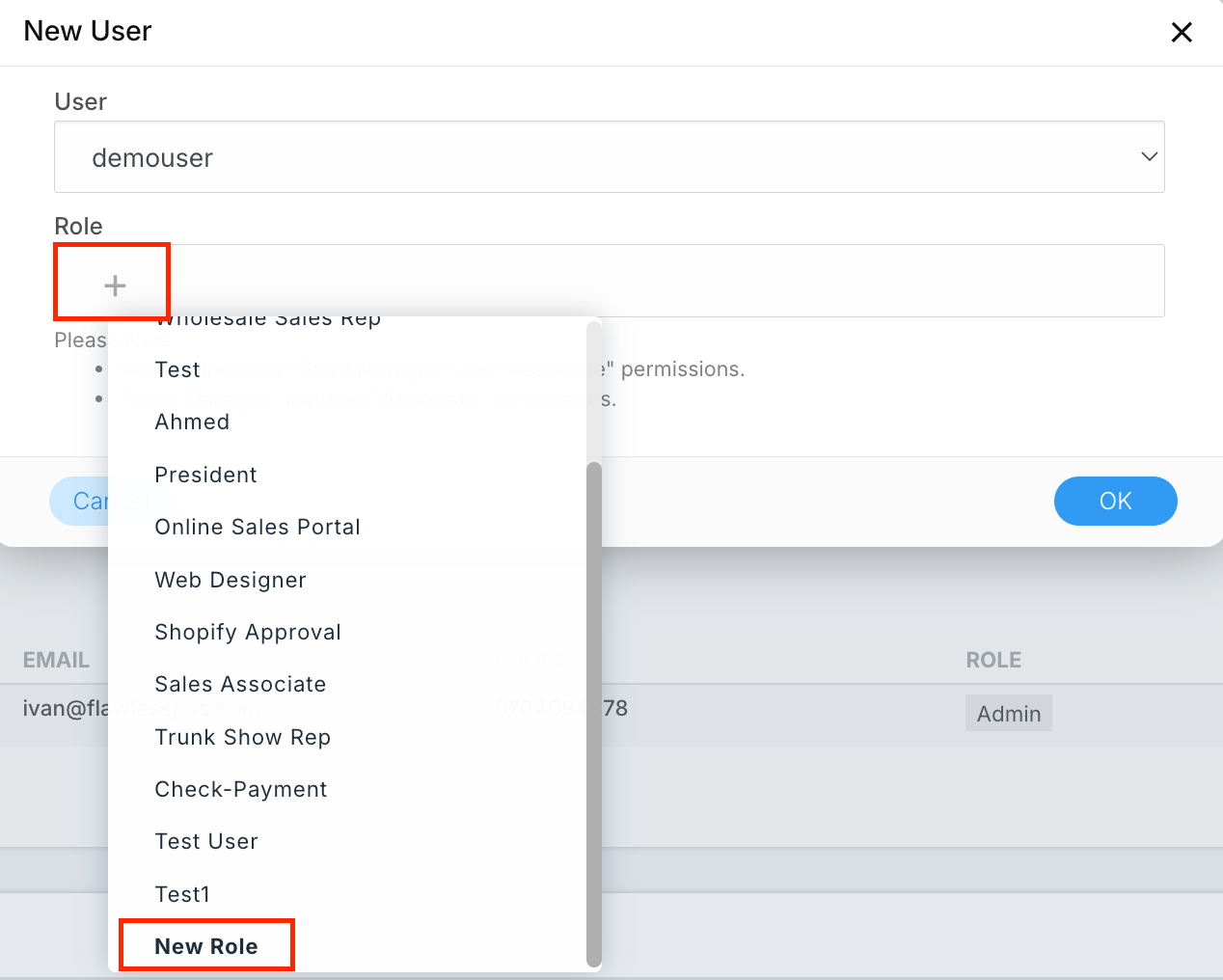
- Click the “+” icon to display available roles.
- Choose Desired Roles:
- Select the desired roles from the list, or click “New Role” if the specified role is not listed.
- Example Role Assignment:
- Designate “President” as the title for the new role, with “Test Role” as the description.
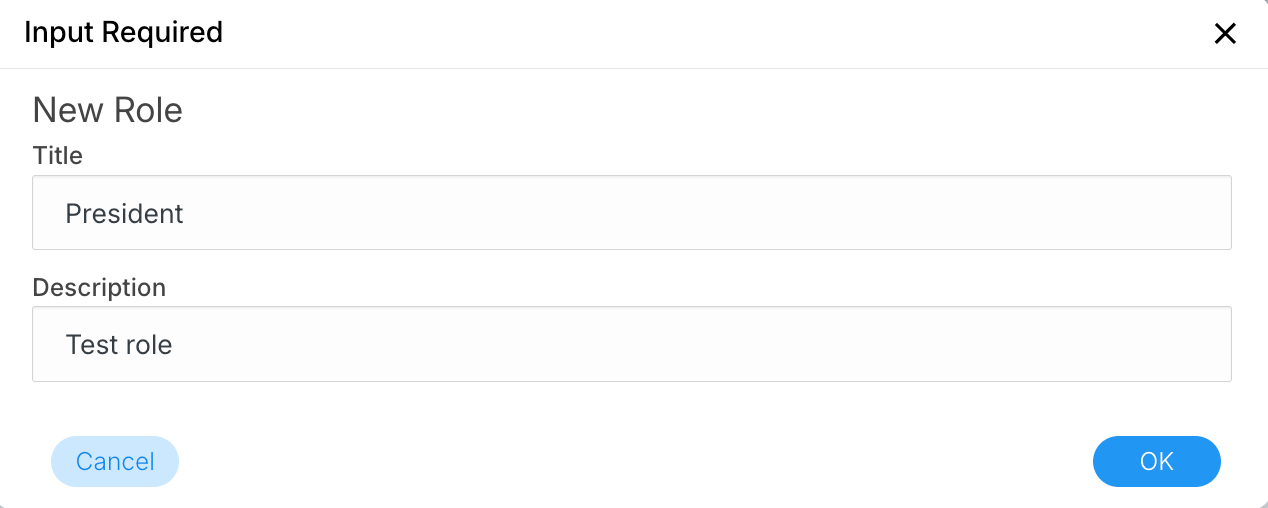
- Designate “President” as the title for the new role, with “Test Role” as the description.
- Edit or Delete User:
- You have the option to edit or delete the current user by clicking the three-dot menu on the right side
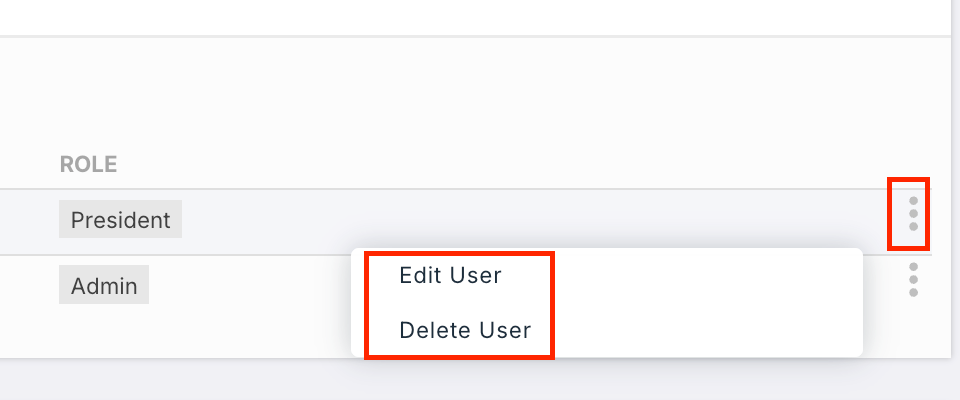
- You have the option to edit or delete the current user by clicking the three-dot menu on the right side
- Save the Changes:
- After assigning the role, you will see the adjustment reflected in the User tab.
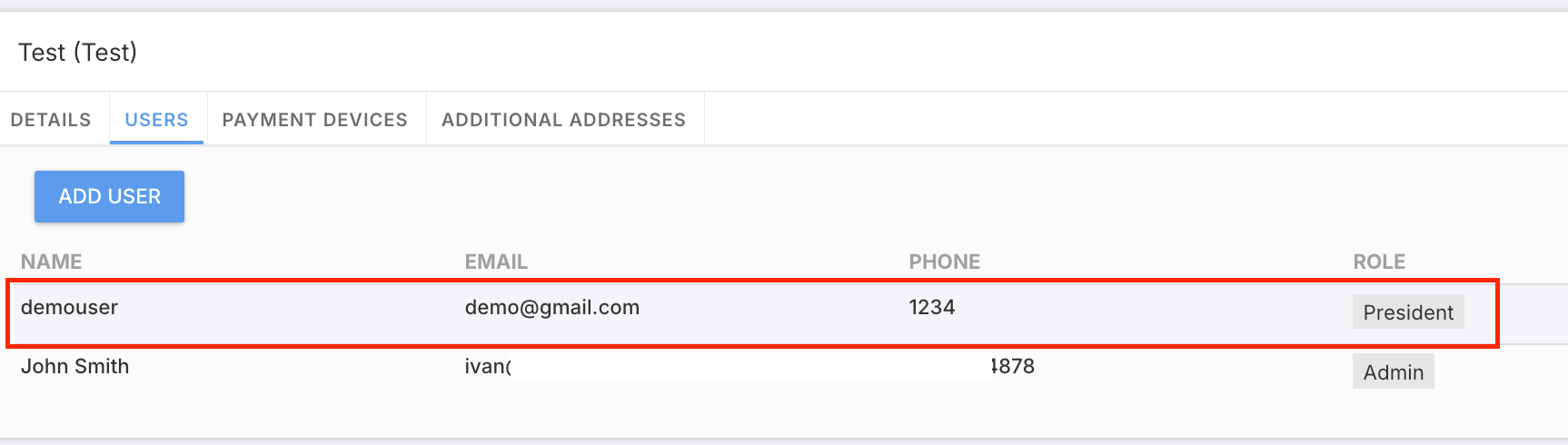
- After assigning the role, you will see the adjustment reflected in the User tab.
Troubleshooting
If you encounter any issues while trying to Create a User and Assign a Role, please reach out to Flawless POS customer support for technical assistance.
Was this article helpful?
That’s Great!
Thank you for your feedback
Sorry! We couldn't be helpful
Thank you for your feedback
Feedback sent
We appreciate your effort and will try to fix the article