In this guide, we’ll walk you through the steps of posting a video across multiple social media or platforms using Flawless Socials .Flawless Socials is a unified social media post scheduler and publisher designed to create, customize, and distribute content across multiple platforms simultaneously.
Step 1: Accessing Flawless Socials
To begin, access the POS module by following these steps:
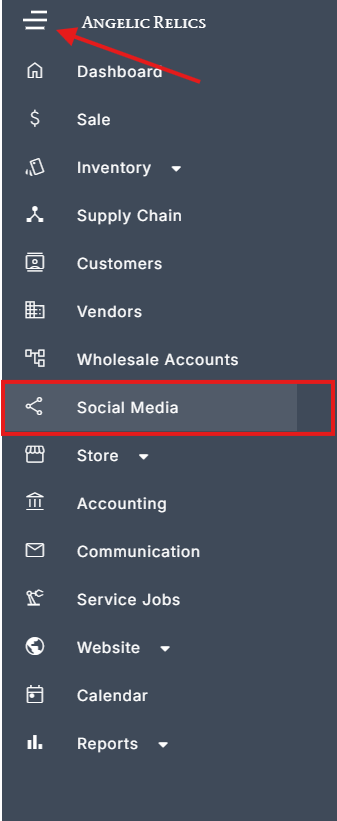
Open the Left Navigation Menu on your dashboard.
Select the Social Media option from the menu.
Step 2: Composing the Video
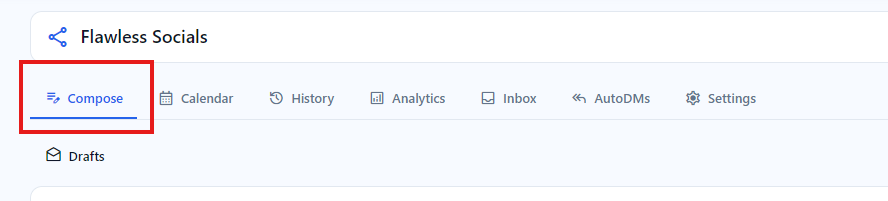
1. Once you are in Flawless Socials, select Compose located on the top left. By default it should be on Compose also.
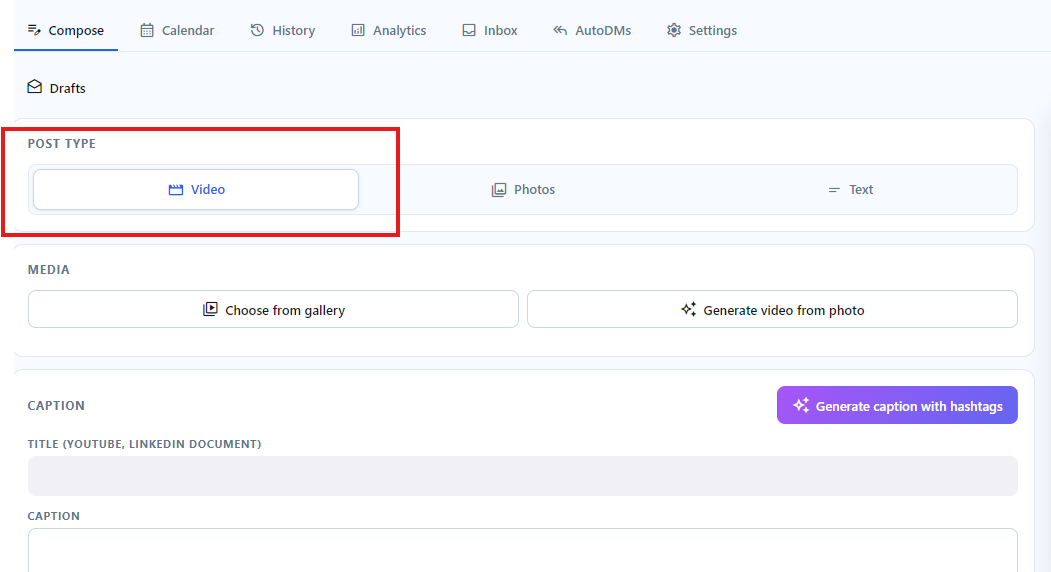
2. Select the Post Type, in this guide we will be selecting Video to upload.
3. Choose the Media type. Two options are available here
- Choose from gallery - Standard choosing a video from your gallery
- Generate video from photo - AI turns your chosen photo into a video
Note: If you choose a photo instead of a video from the Choose from gallery option it will automatically switch to the Generate video from photo option.

4. Pick the video/media you want
In this guide please choose a video.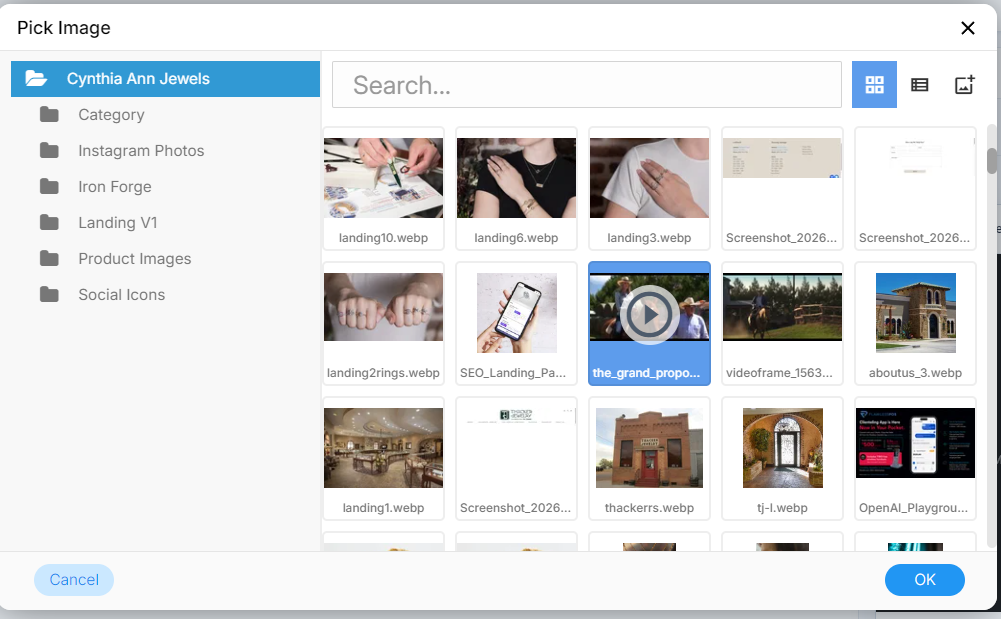
This is what it would look like if you have chosen a video.
You can see the preview of the video with it's duration and file name.
You have the option to replace or remove it.
For this guide we will go with the video.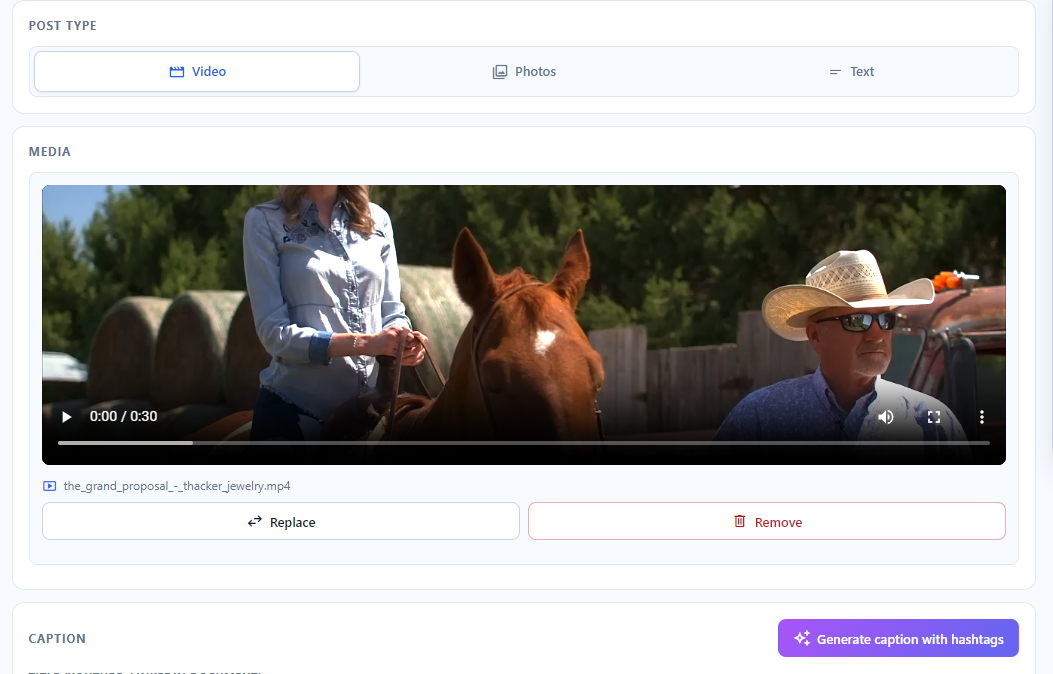
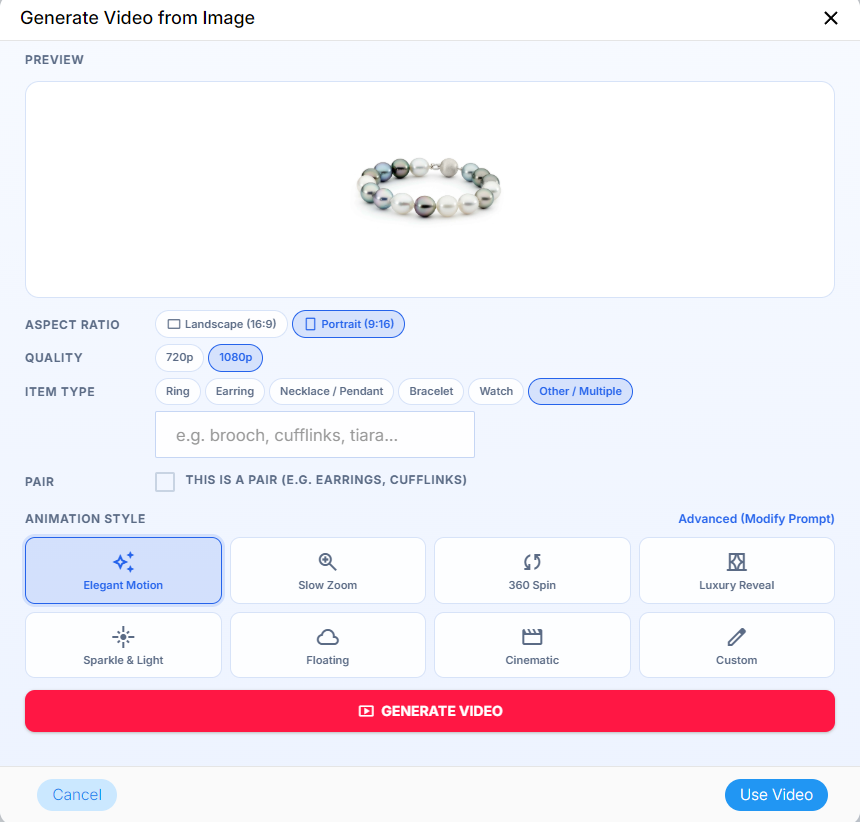
Alternatively, this is what it would look like if you have chosen a photo or the Generate video from photo option.
It would have a preview of the photo and other options like
- Aspect ratio - choosing between Landscape or Portrait
- Quality - quality of the generated video. 720p or 1080p
- Item Type - Choose what type is the item in the photo. Ring, Earring, Necklace/Pedant, Bracelet, Watch, Other/Multiple ( choose this if there are two items and make sure to write down below the bar )
- Pair - Only appears as an option if you choose the Other/Multiple item type. Choose this if it's a pair
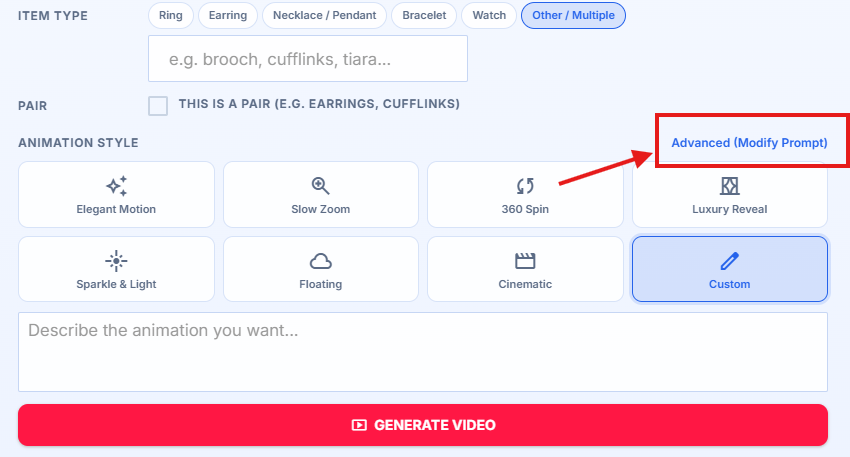
- Animation Style - The style you want the video to be produced. There are multiple options here Elegant Motion, Slow Zoom, 360 Sin, Luxury Reveal, Sparkle & Light, Floating, Cinematic and Custom( by choosing this you describe what animation you want on the that would appear below )
You could also use Advanced(Modify Prompt)
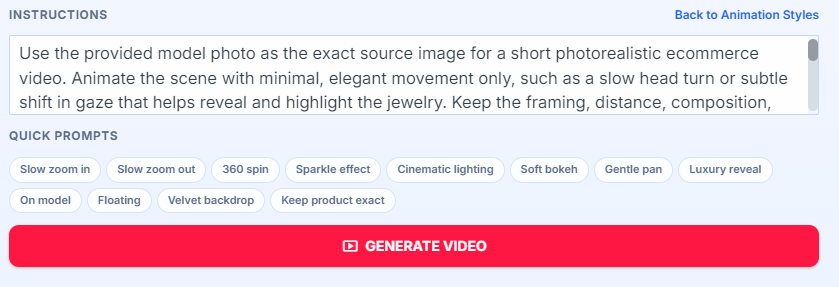
In here you can thoroughly give the AI instructions of how you want the generated video to come out. Quick prompts helps you by suggesting you quick instructions to give to the AI. Click Generate Video once done and the AI should process your request.
5. Caption, please write a Title of your post. ex: The Grand Proposal
Write a Caption of your post ex: An engagement ring isn't just jewelry — it's a promise,
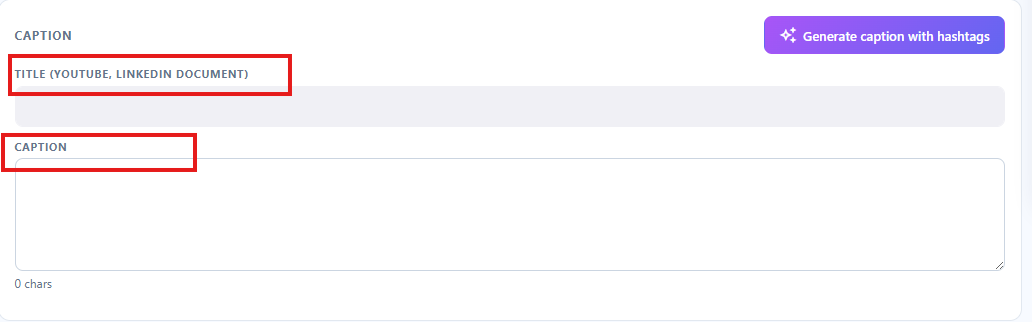
You can also click on Generate caption with hashtags, it's faster by letting AI make the title, caption and hashtags for you. Just input what kind of piece it is. Can also put additional context for further instructions given to the AI.
For this guide let's choose the Generate caption with hashtags for a faster process. Click Generate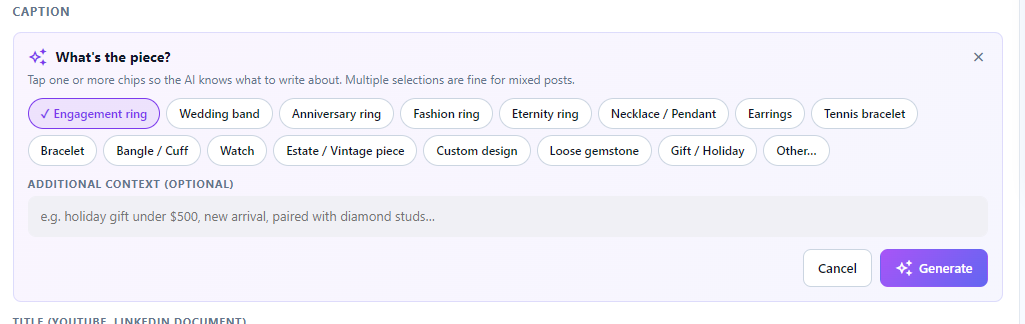
Here is the outcome of the Generate caption with hashtags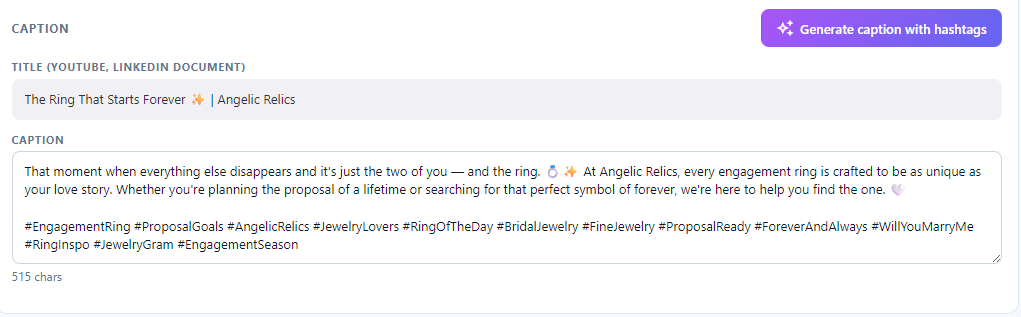
6. Linked Products, in here you wanna add the product that was advertised/shown in the video. This will add shoppable links to the post.
Click Add Product.
A box will appear with the list of products from the inventory. Choose the Product you want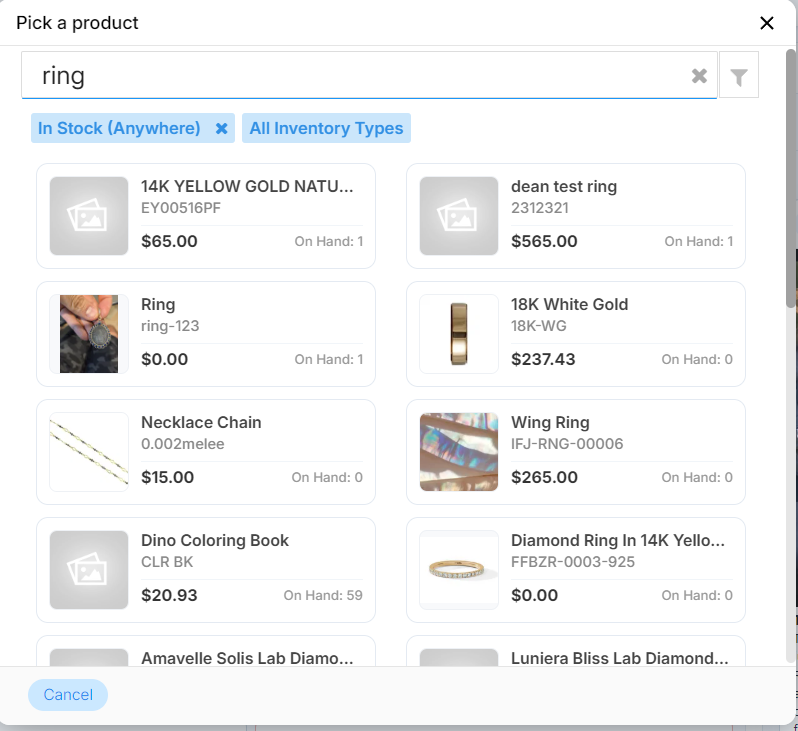
Once chosen you can see the link to the product once successful.
7. POST TO, in this section we will be choosing where we would want the media/post to be posted. You can select multiple social media or platforms as long as your account is connected to them. Depending on the platform it may you give options. Like Facebook gives you the option of which page to post it.
For this guide choose however you want.
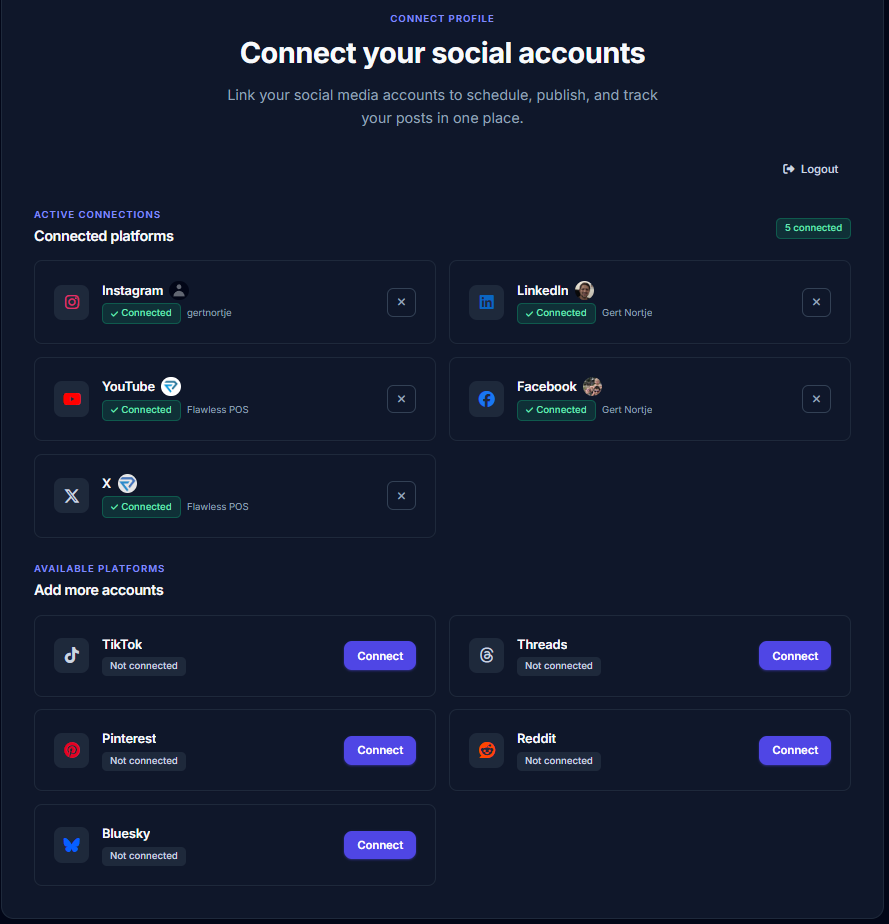
Additionally if you want to post to your other social media platforms just choose a platform and click on it to connect or you can also click on Connect Account on the top right.
It will direct you to a page where all your connected accounts are shown and the list of other platforms where you can connect
8. WHEN, You can choose when you can upload the post. You have the options Send Now, Schedule and Add to queue

For Schedule, you can select the month, day and year as well as the specific time to upload your post.

9. Post preview, on the right side of the page you can actually see a preview of your post on how it would look like, for ex: Instagram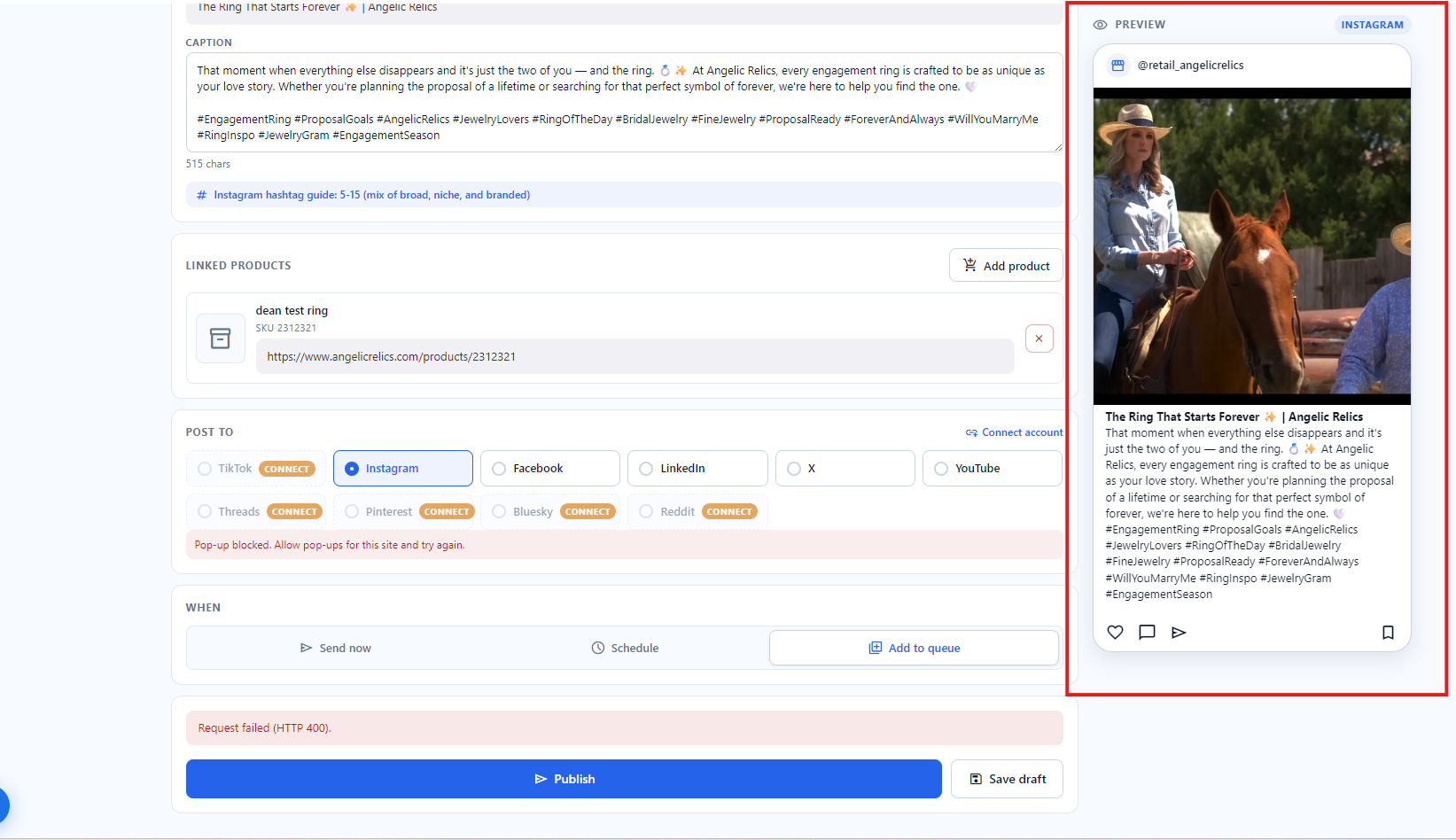
10. Publish or Save Draft, Once you are done and satisfied with everything, just click Publish. If you are not yet sure then you can have the option to Save it as a Draft and come back to it later.
If you save it as a Draft you can see it saved on top and will be shown on the Drafts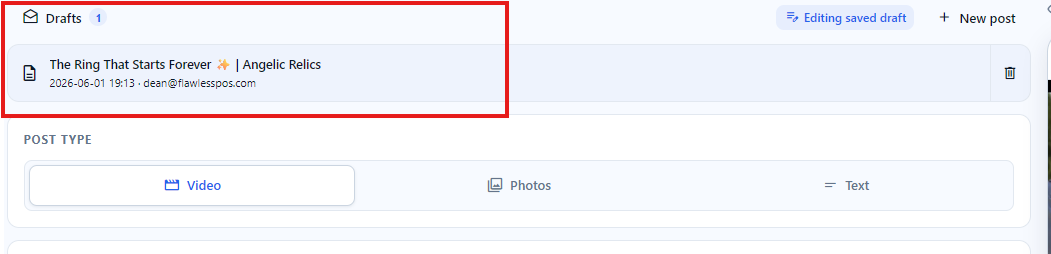
Additionally since you saved it as a Draft you can select to create a New Post
Located just on the right side of Drafts.
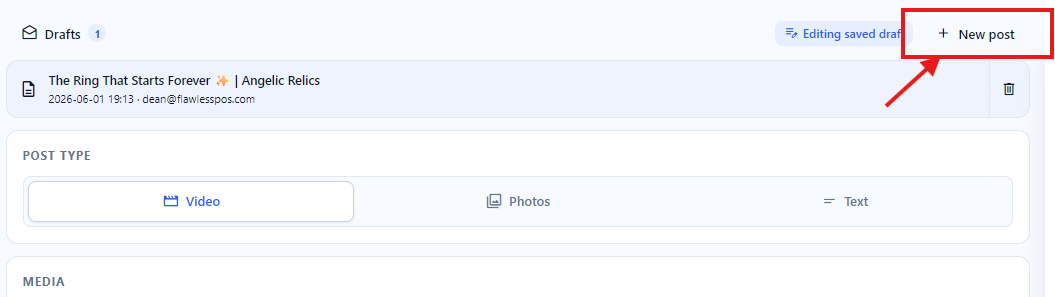
You will automatically be able to Create a New Post from scratch and you will still be able to access your old draft on Drafts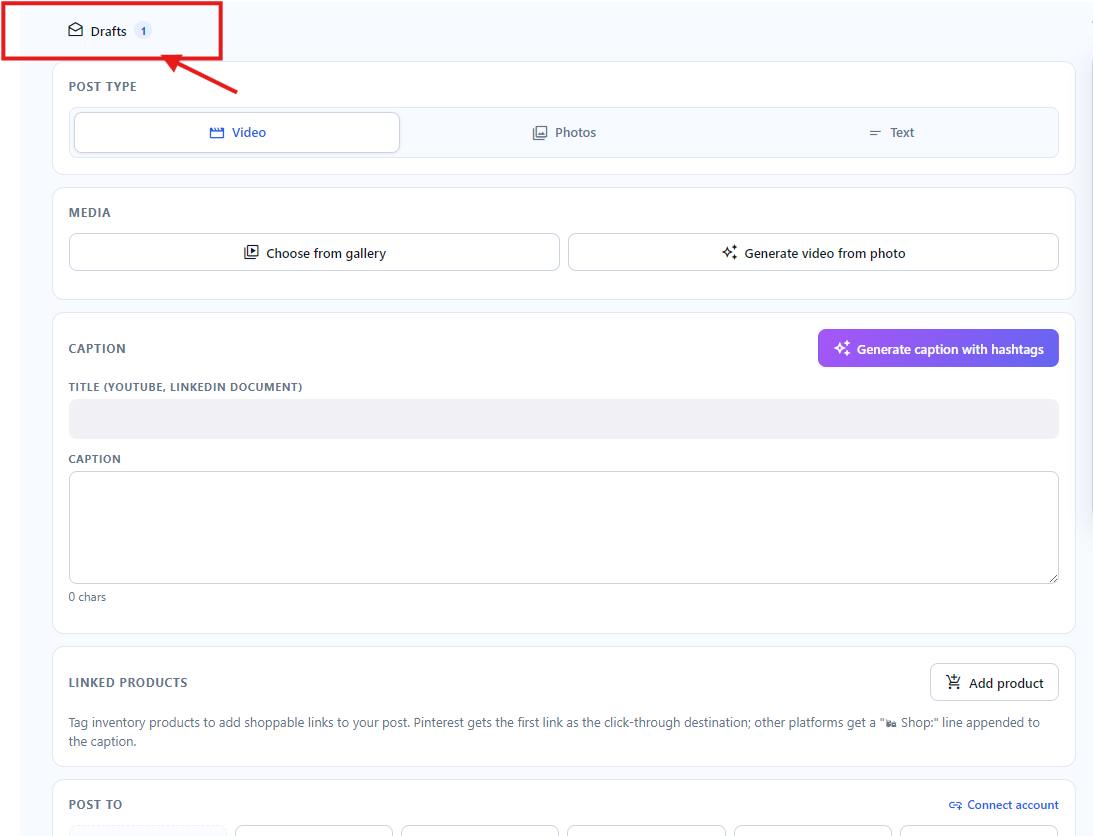
That’s it! You’ve successfully uploaded a video post through the Flawless Socials
Troubleshooting
If you encounter any issues while trying to submit a New Sale through the POS, please reach out to Flawless POS customer support for technical assistance.
Was this article helpful?
That’s Great!
Thank you for your feedback
Sorry! We couldn't be helpful
Thank you for your feedback
Feedback sent
We appreciate your effort and will try to fix the article