Step 1: Open the Customers Module
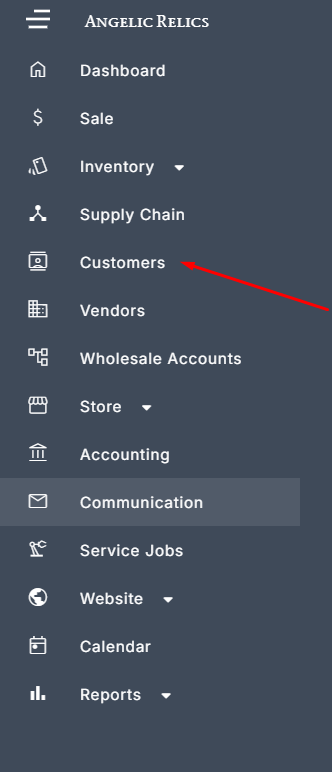
From the POS, go to the navigation corner on the top-left side of the screen and select Customers.
Step 2: Access the Communications Tab for a Customer
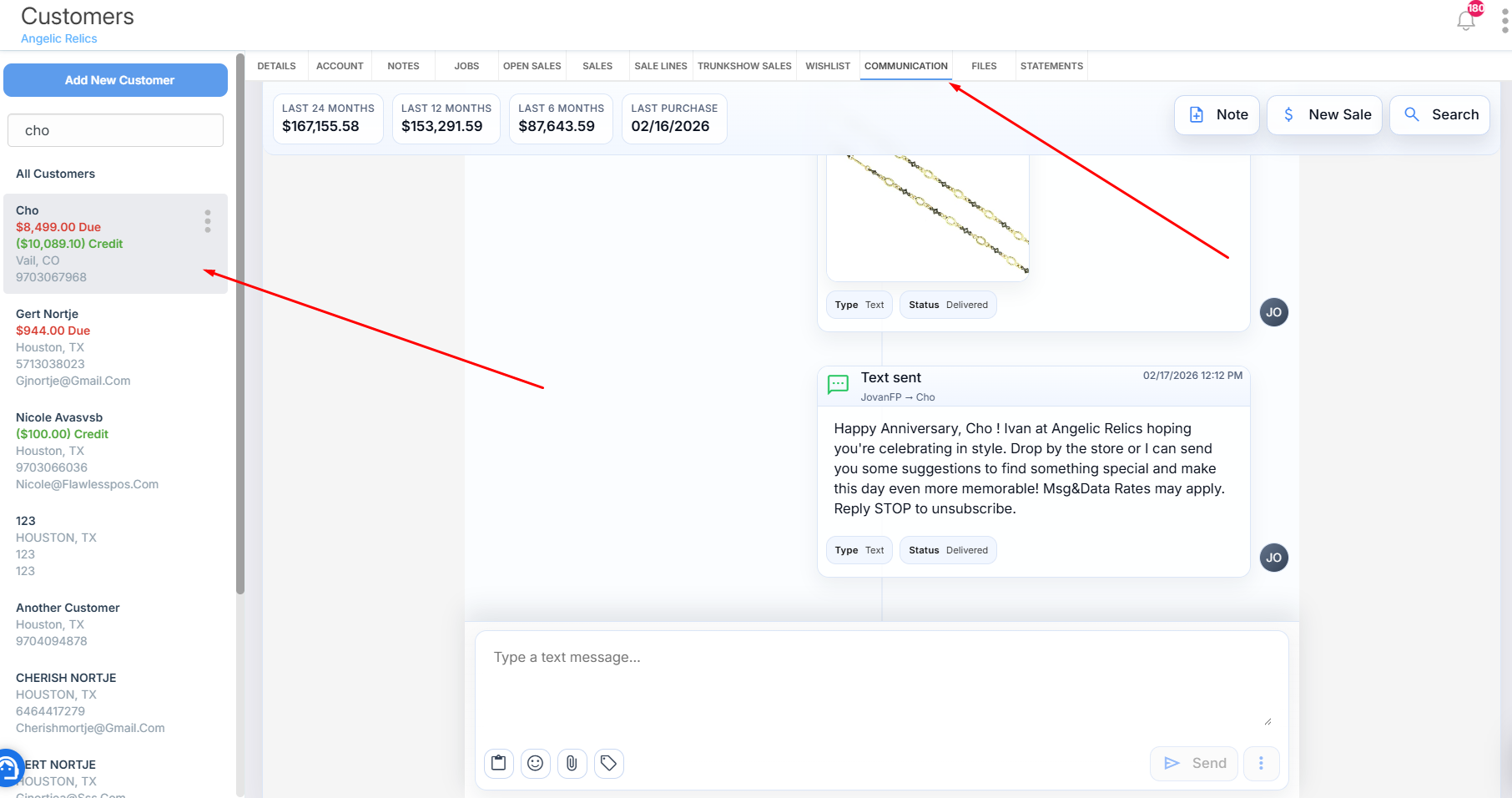
Open any customer profile from the Customers list, then click on the Communications tab within that profile.
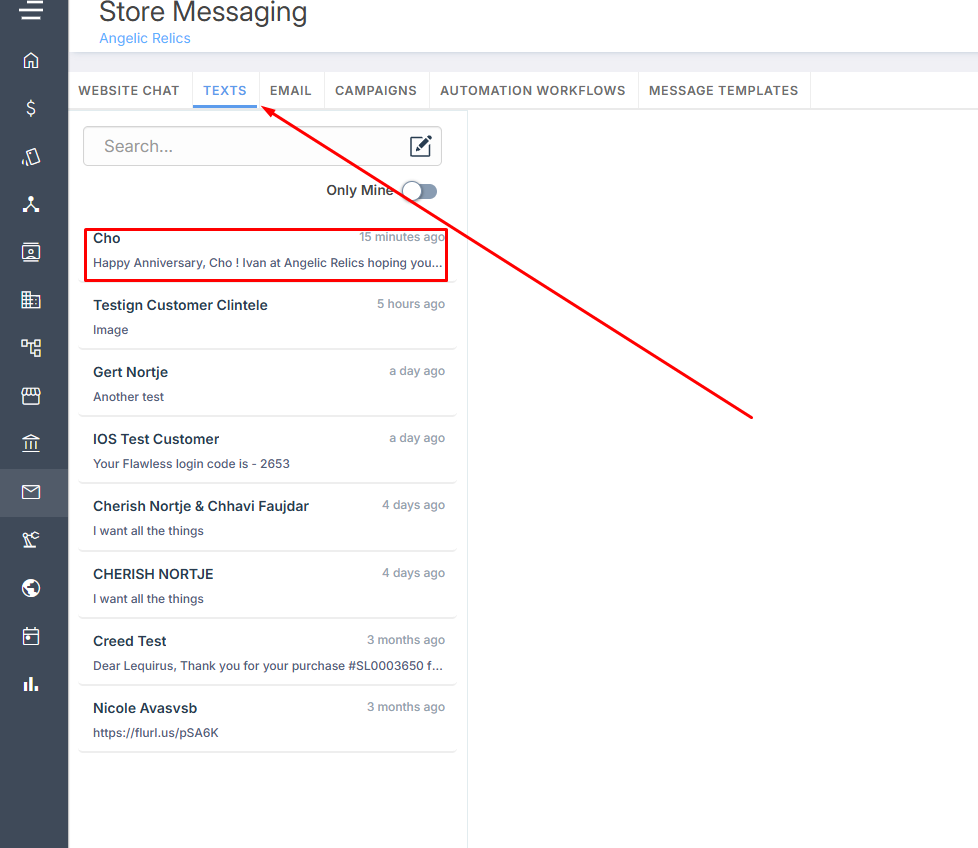
You can also access the same customer communication view from the customer’s communication module or via the store messaging module under the Text tab.
Step 3: Review Customer Overview and Key Details
Once inside the Communications tab, review the enhanced customer overview at the top of the page.
Here you can quickly see:
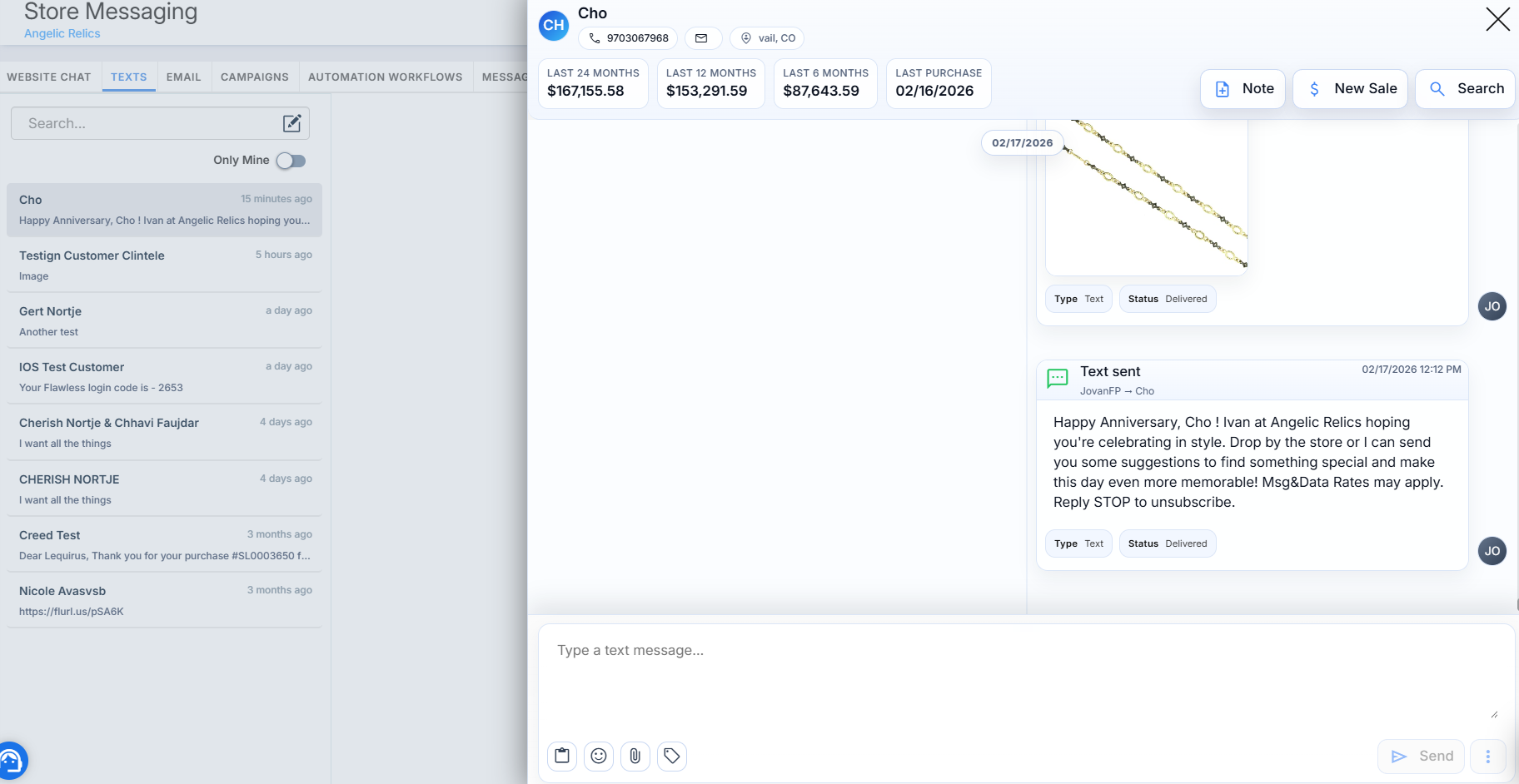
- The customer’s total spend over the last 6, 12, and 24 months
- Their most recent purchase
- Key contact details such as location, email, and phone number
All of this is displayed in one centralized area for quick reference.
Step 4: Use Quick Actions on the Right Panel
On the right-hand side of the Communications tab, use the quick actions to streamline your workflow:
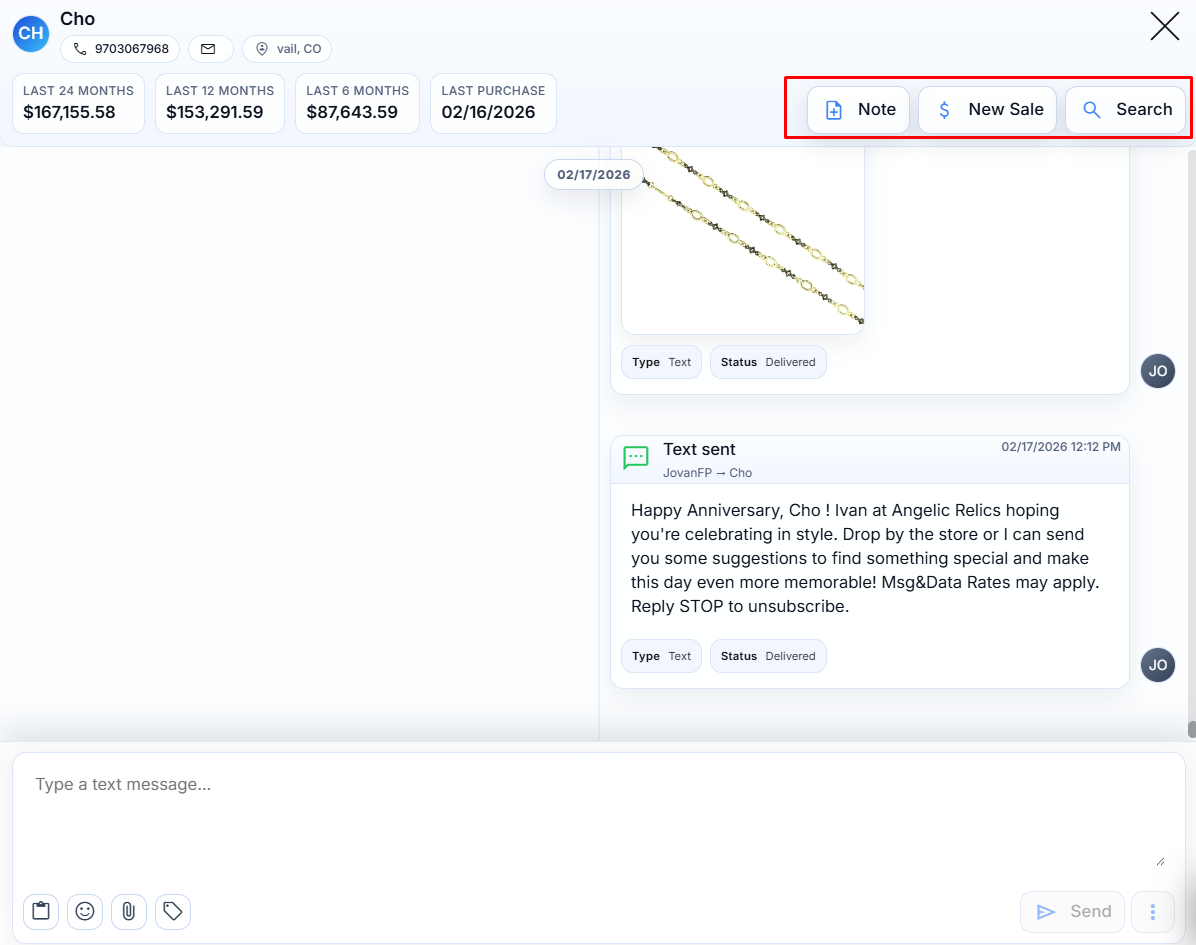
- Add a note about the customer
- Create a new sale, which takes you directly to the Sales module.
- Search within the conversation history to quickly find specific messages or information.
Step 5: Compose Messages with Enhanced Tools
When composing a message in the Communications tab, take advantage of the new flexibility and tools available. You can:
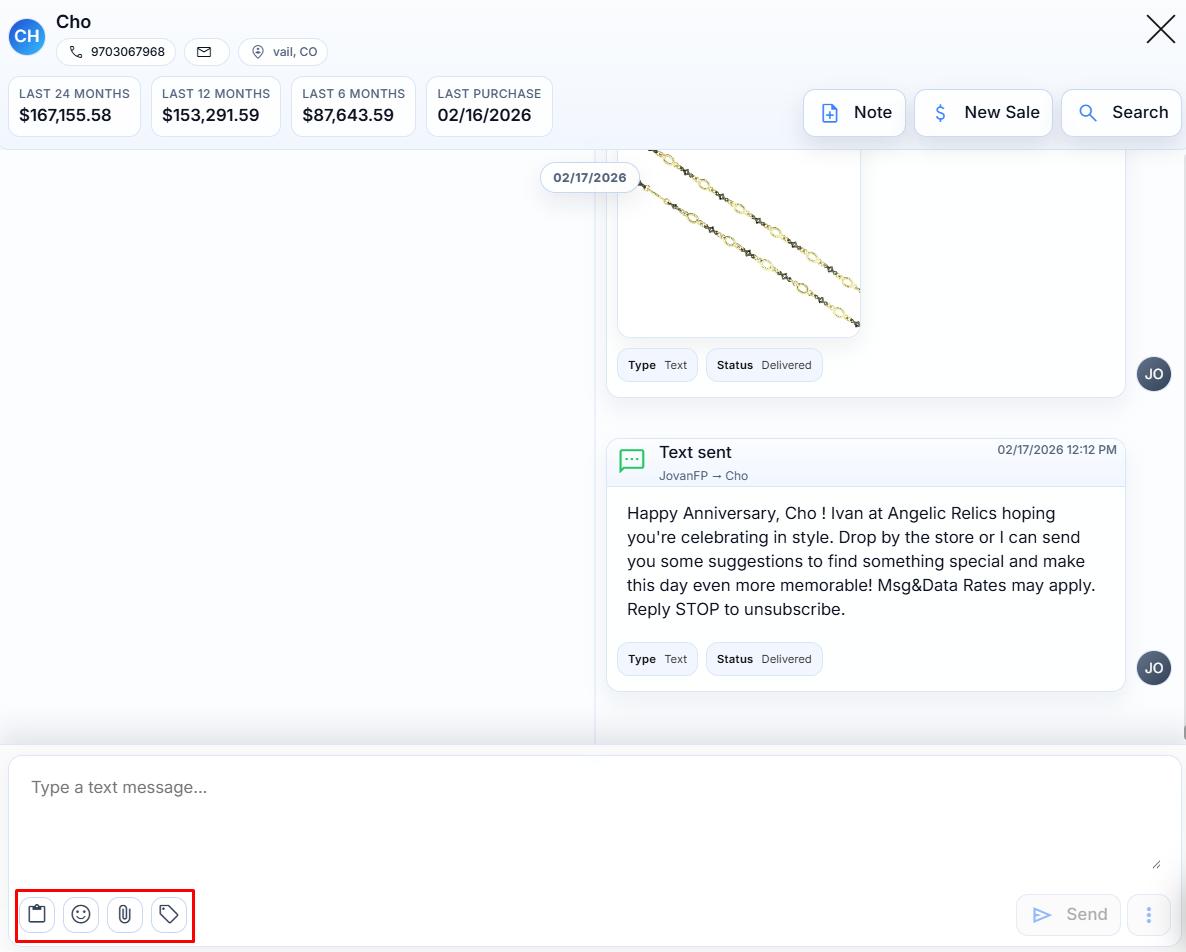
- Insert email templates to standardize and speed up your responses.
- Add emojis to personalize and lighten the tone of your messages.
- Attach files directly to your message.
- Insert a product image straight from your product list to showcase specific items.
Step 6: Schedule Messages for Future Delivery
Use the new scheduling feature to plan communications in advance. Prepare your email or text message, then set a future date and time for it to be sent.
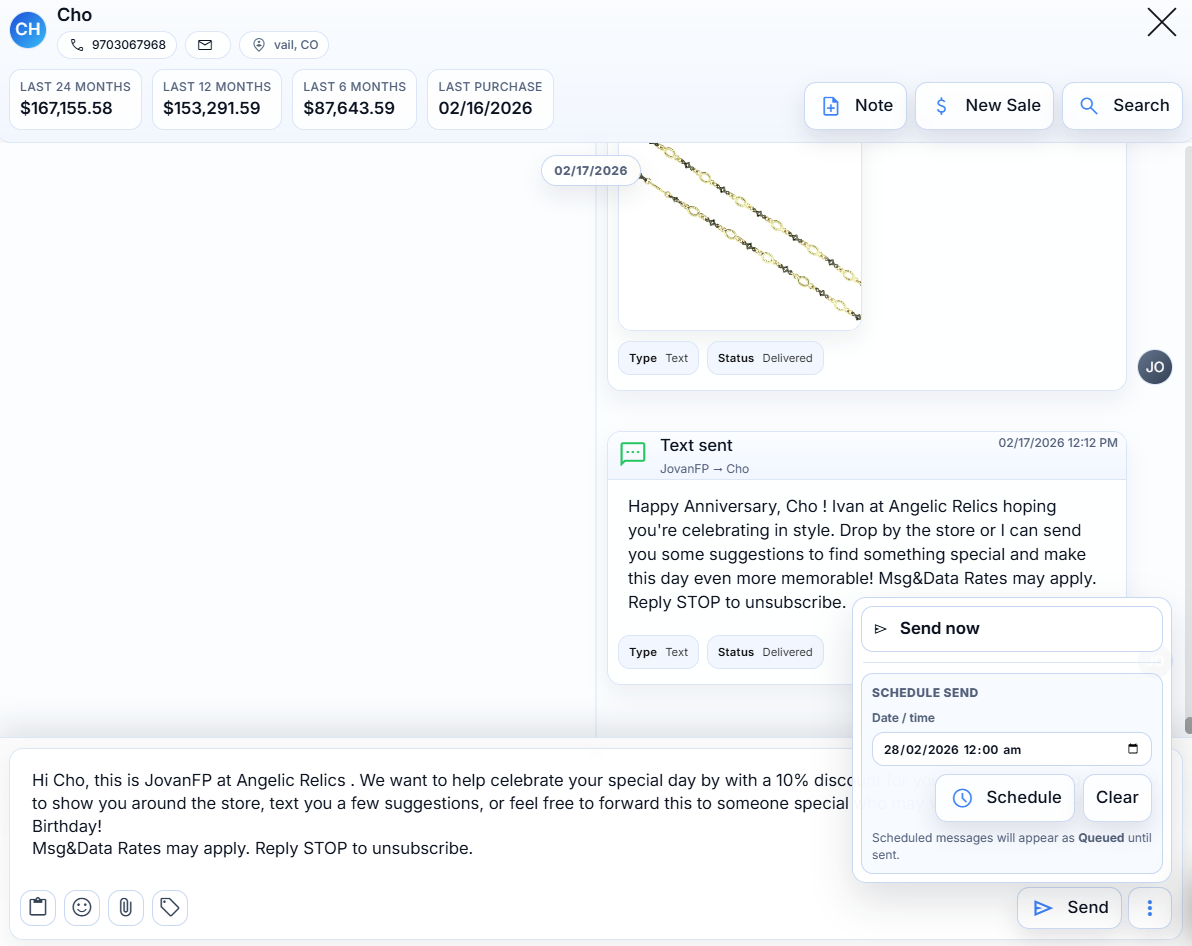
This is especially useful for:
- Marketing campaigns
- Anniversary or special-occasion greetings
- Appointment reminders
- Follow-up messages for retail customers
NOTE: When doing a schedule send, the format is as follows: DD/MM/YY
By using these features, the updated Communications tab becomes a centralized and efficient workspace for managing all customer interactions while keeping sales and messaging seamlessly connected.
Troubleshooting
If you encounter any issues while trying to use the new Communications module, please reach out to Flawless POS customer support for technical assistance.
Was this article helpful?
That’s Great!
Thank you for your feedback
Sorry! We couldn't be helpful
Thank you for your feedback
Feedback sent
We appreciate your effort and will try to fix the article