This article provides a guide on how Product Tagging works in Flawless. Product tagging is useful when you have an image that features multiple products, so customers can quickly identify what’s shown and add items to cart directly from the image.
You can also check out the video guide below:
Step 1: Tag Products on an Image in the Product List
An alternative to adding product tags straight from the page builder is through adding them inside the Product List. To do this, follow these steps:
Go to Inventory from the left navigation menu.
Open Product List.
Select any product to open its product details.
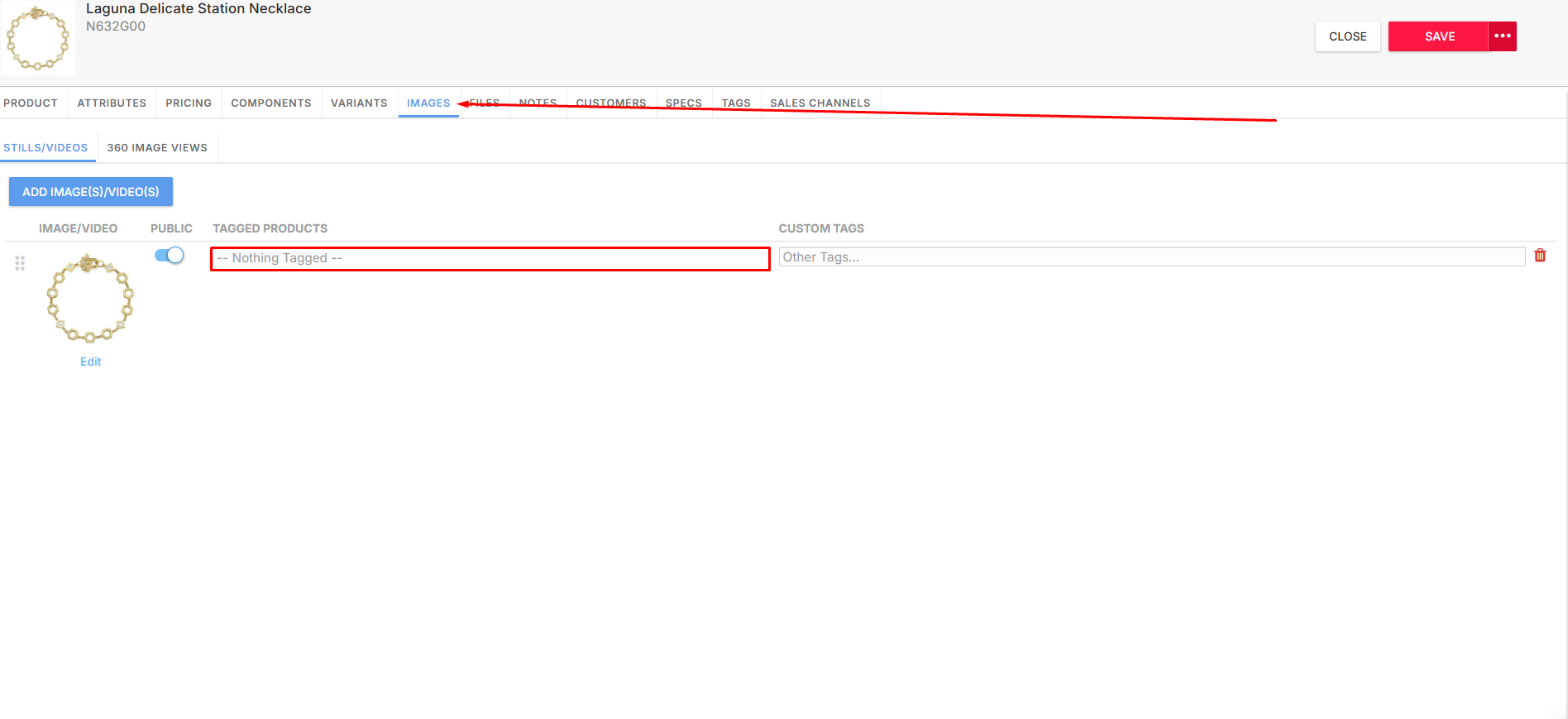
Click the Images tab.
On the image row, locate the Tagged Products field.
If nothing is tagged yet, it will show something like “Nothing Tagged”.
Click directly into the Tagged Products field.
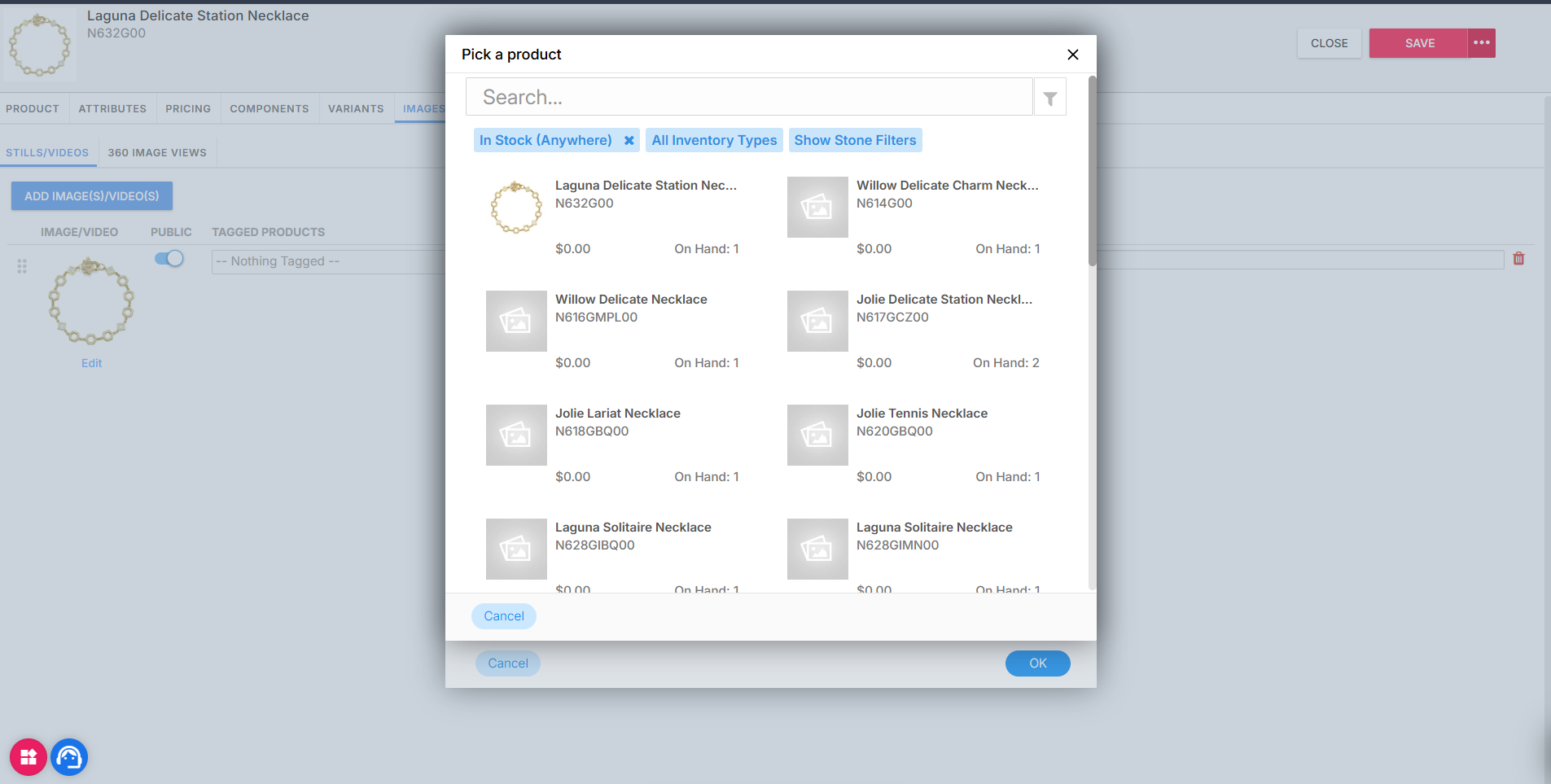
A popup will appear showing the image.
Click anywhere on the image to place a tag.
Select the product you want to attach to that tag.
Repeat as needed until all products are tagged.
Click OK to save.
Step 2: Navigate to Pages in the Website Builder
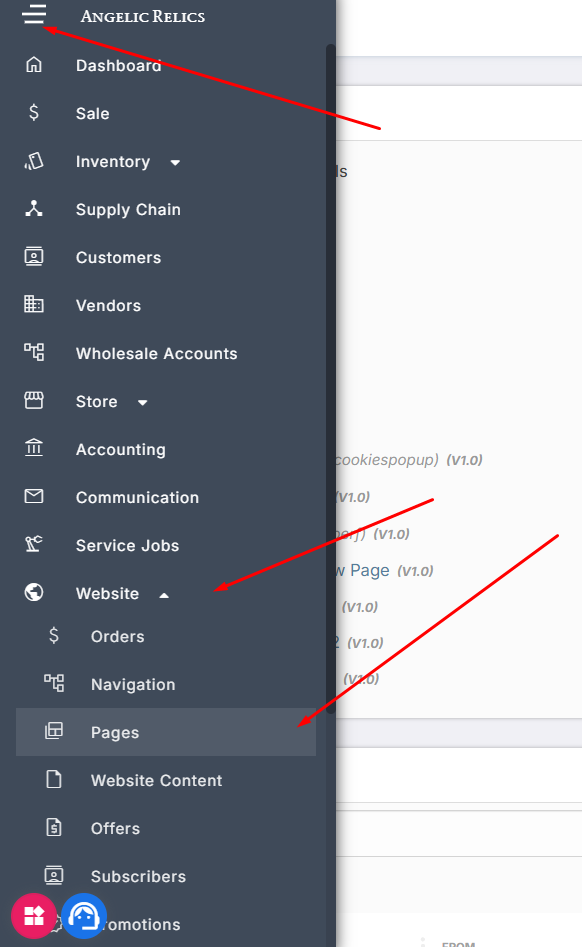
Open the left navigation menu.
Select Website.
Click Pages.
Use any existing page as an example, or create a new page for testing.
Step 3: Add a Row and Column
In the page editor, add a Row.
Inside that row, add a Column.

This column is where you will place the image used for tagging.
Step 4: Set the Image on the Column Background
Click the Column you want to use for product tagging.
In the right-side properties panel, find the Background settings.
Set the Background Type to Image, then upload/select the image you want to tag.
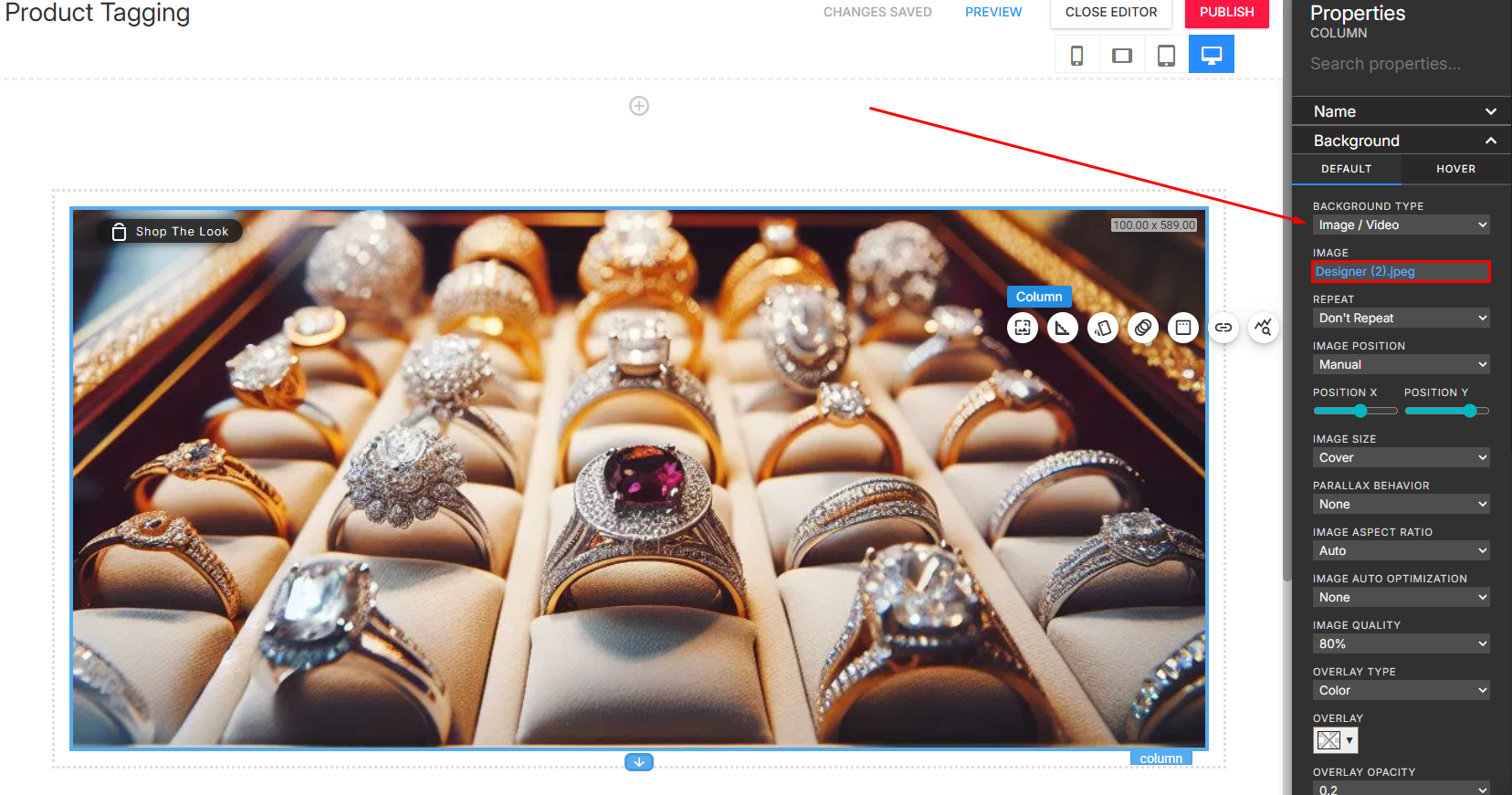
Important: Uploading an image to the Row will not enable product tagging.
Why it must be on the Column, not the Row
- Product Tagging is only available at the column level, because the tagging tool is tied to the Column properties panel.
- A row can contain multiple columns and is mainly used for layout structure and spacing. Since the product tag feature relies on the selectable element that holds the image and its settings, it only appears when the image is applied to a Column background.
- If the image is added to the row instead, the builder will display the image, but you will not see the Product Tagging tools because the row does not support Product Tags.
Step 5: Open Product Tags and Configure Tags
With the Column selected (the one with the background image), go to the right-side properties panel.
Scroll to the very bottom until you see Product Tags.
Open the dropdown, then click Configure Product Tags.
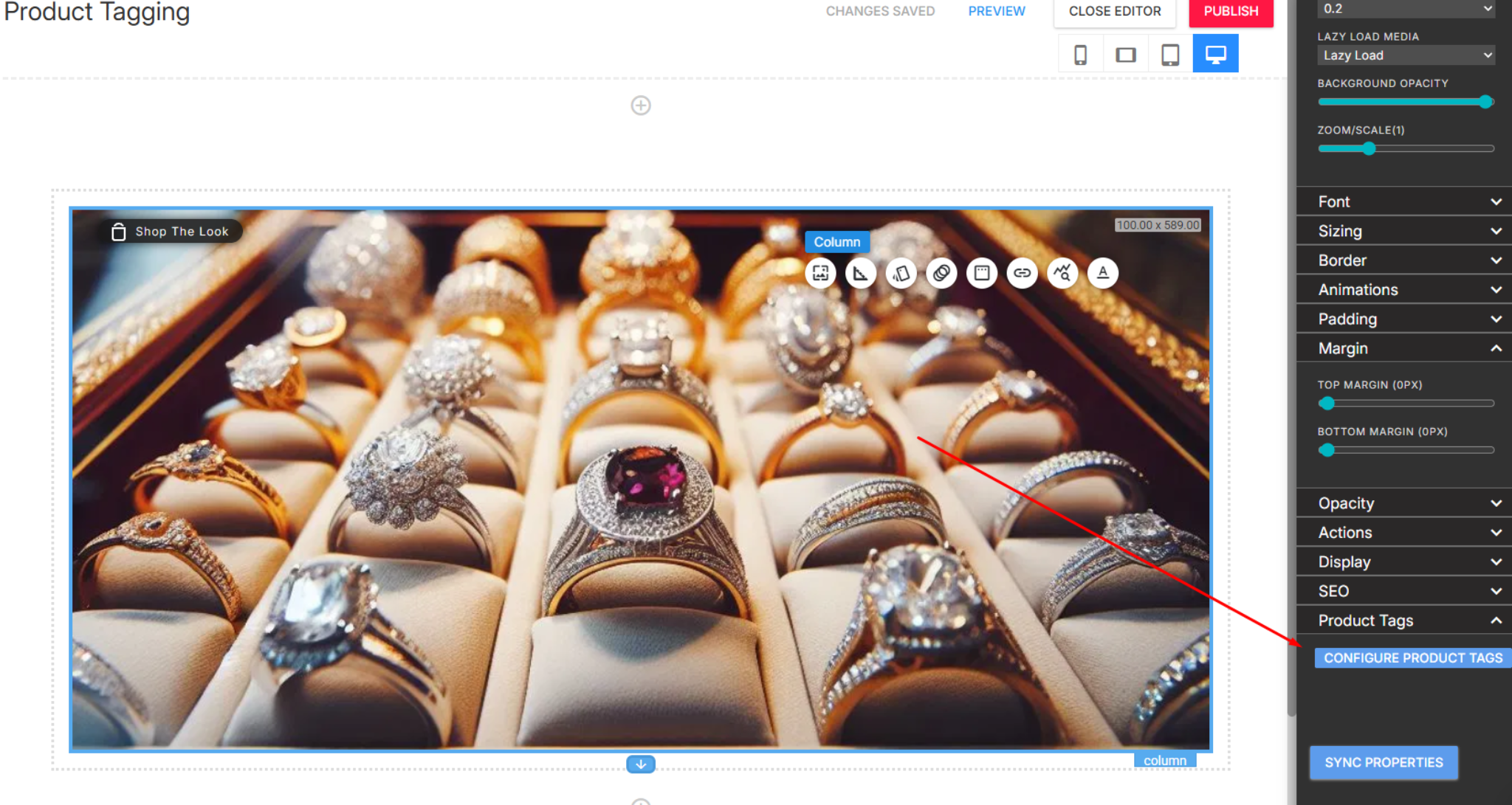
Step 6: Add Product Tags to the Image
A popup will appear showing your image.
Click anywhere on the image where you want to tag a product.
You’ll be prompted to select a product. Choose the correct product from the list.
Once selected, the product name will appear in the popup.
Repeat this process until all products in the image are tagged.
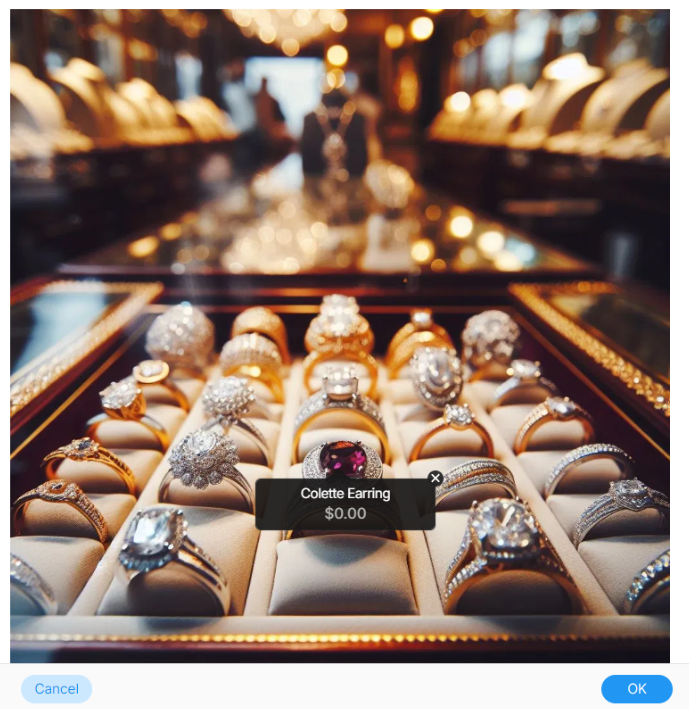
When finished, click OK.
Step 6: Confirm “Shop The Look” Appears
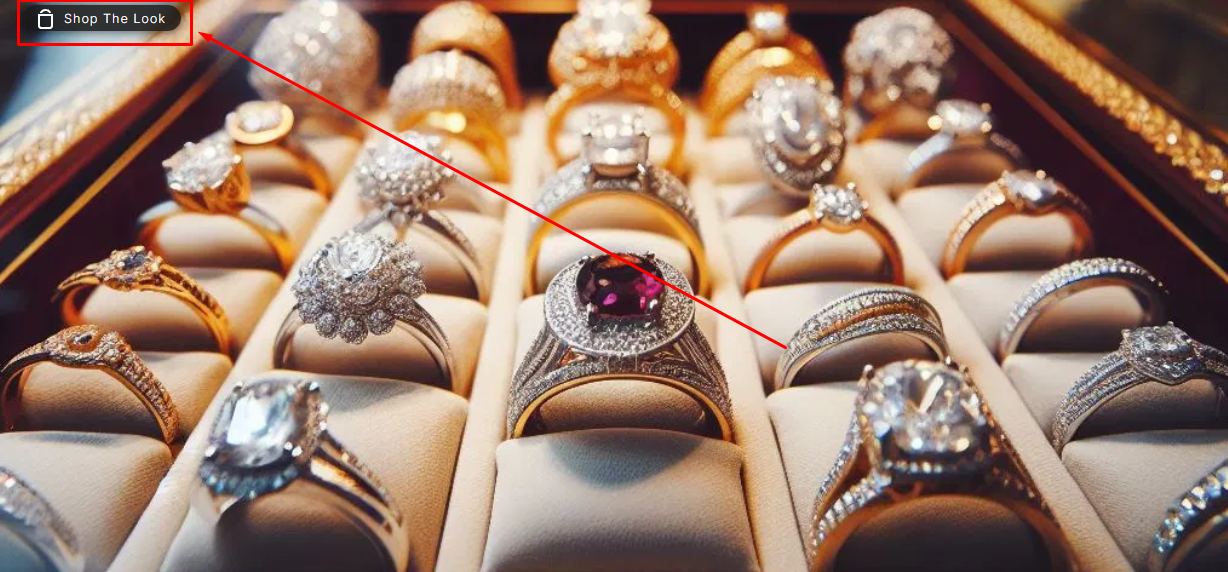
After clicking OK, a Shop The Look button will automatically appear in the top-left corner of the image.
This confirms the product tagging is active.
Step 7: Customer Experience
From a customer’s perspective:
Clicking Shop The Look opens a popup.
The popup will display clickable tag dots on the image.
Hovering over a dot shows the product name.
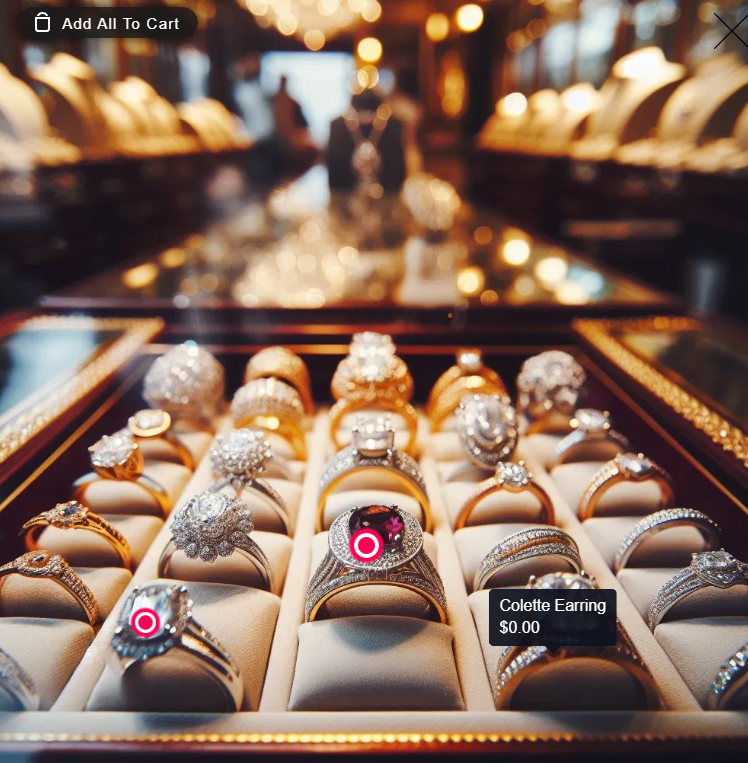
Clicking a dot opens the product detail preview, where the customer can add the item to cart.
This is especially helpful for customers who want to quickly identify products in a photo without searching through your product list.
Troubleshooting
For any issues encountered while processing online orders, refer to the Flawless POS support team.
Was this article helpful?
That’s Great!
Thank you for your feedback
Sorry! We couldn't be helpful
Thank you for your feedback
Feedback sent
We appreciate your effort and will try to fix the article