In this guide, we'll cover how to execute over-the-counter trade-ins, manage store credits, and process scrap metal or refiner shipments within Flawless POS. By accurately handling these workflows at the point of sale, you ensure precise profit margins, streamline inventory tracking, and guarantee compliance with localized sales tax regulations.
Part 1: Scrap Sales & Refiner Shipments
This module replaces standard sales workflows when processing counter-purchased scrap metal, loose stones, or aged store inventory designated for refinery processing. It simplifies tracking individual acquisition costs and manages the multi-week gap between physical shipping and final refiner assay reports.
Why Track Refiner Shipments?
Managing shipments explicitly prevents inventory double-handling and locks individual items out of active stock queues. It ensures your general ledger precisely holds estimated assets while awaiting final chemical analysis from your refining partner.
Step 1: One Time Admin Setup
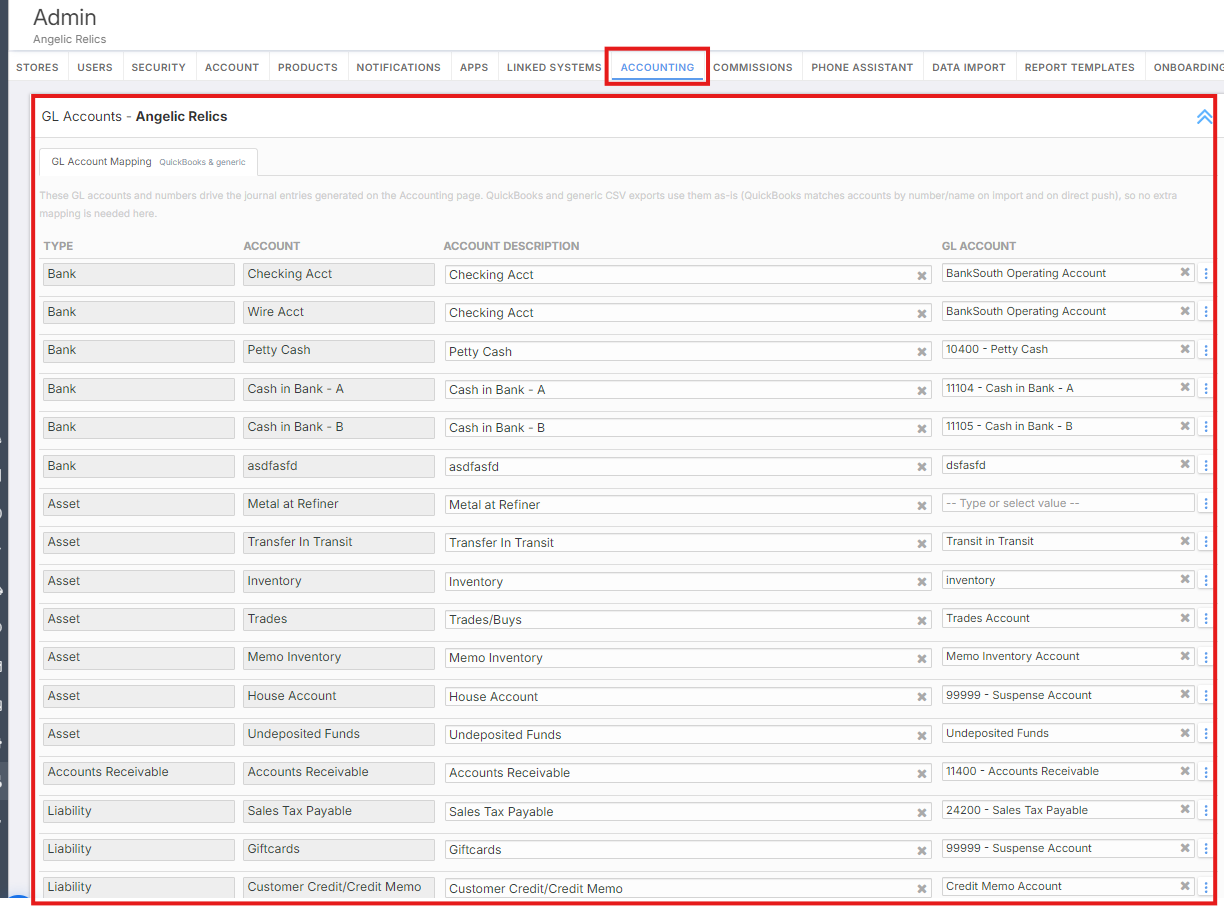
To begin, an administrator must map the fundamental financial pathways under Admin > Accounting before any transactions can occur:
Create explicit client profiles for your refinery partners (e.g., "Midwest Refining Co").
Bind your active Chart of Accounts to the three mandatory system ledger accounts: Metal at Refiner (Asset), Scrap Sales Revenue (Revenue), and Scrap Cost of Goods Sold (COGS).
(Note: Click Store > Admin > Accounting to do this)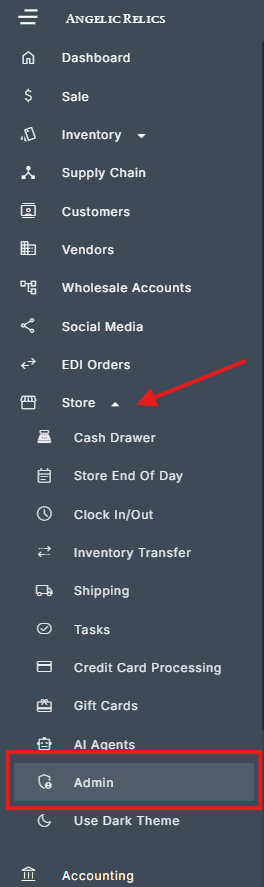
Note: Live acquisition costs are hidden by default on the sales screen for customer security; managers can temporarily reveal them by tapping the Costs (eye) icon.
Step 2: Starting a New Shipment
Once configuration is complete, initiate the shipment process at the register:
Ensure your active register cart is completely empty.
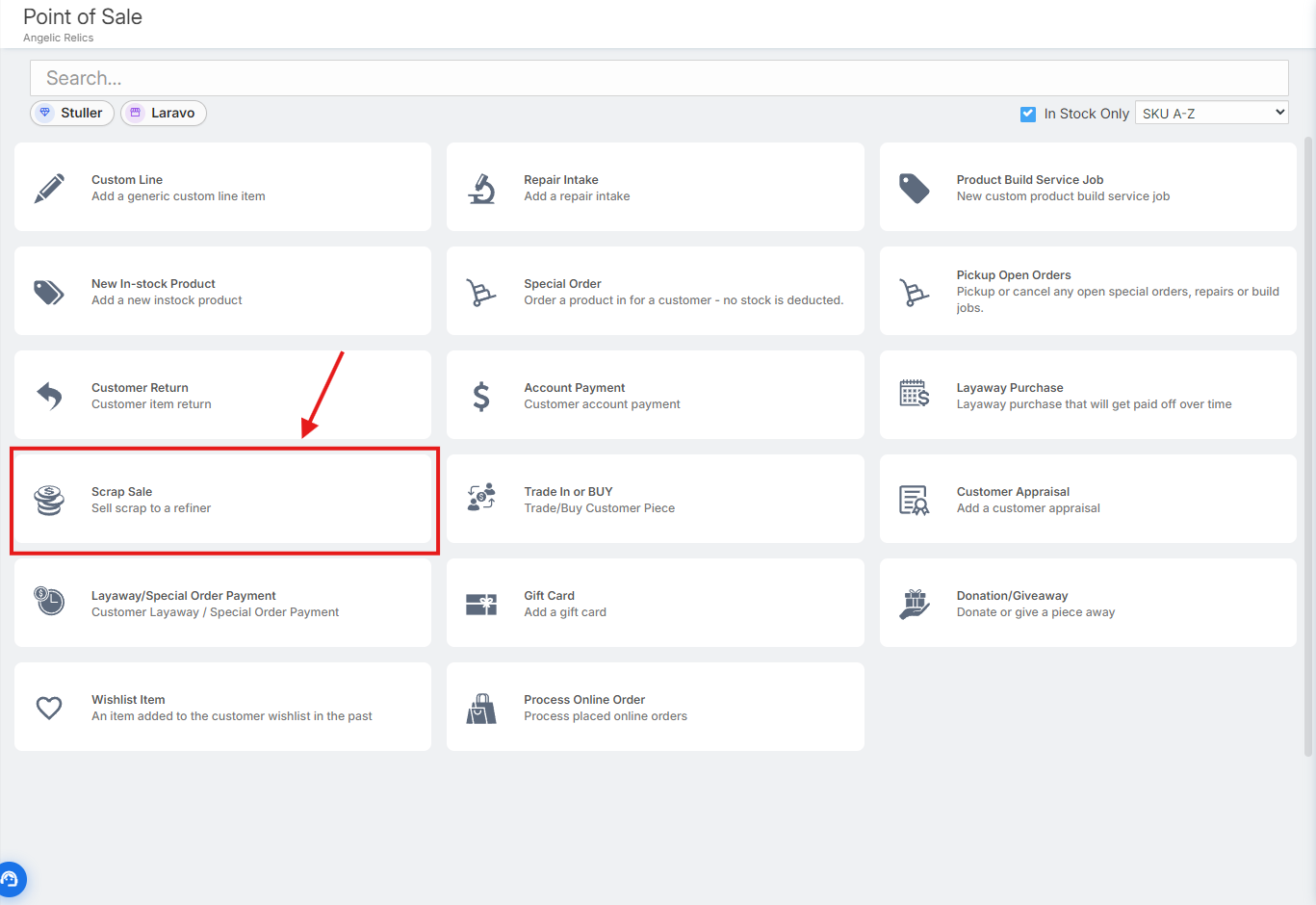
Tap the Scrap Sale tile and select New Refiner Shipment.
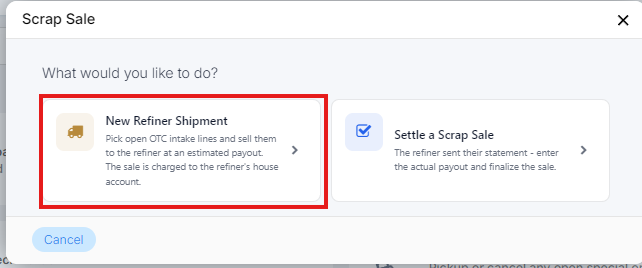
Select your designated refining partner (customer) from the customer profile prompt to attach the lot.
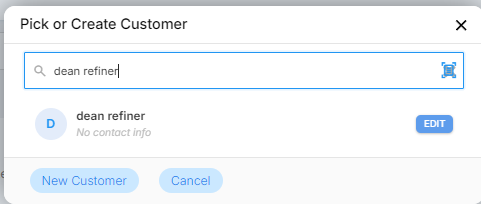
Step 3: Selecting Your Lots ( Optional )
In the inventory picker dialog window, choose the exact lines you are packing into the physical lot:
Under the OTC Scrap Buys tab, check the boxes for outstanding customer buys, which display their Meta-Receipt (MR) number, intake date, material composition, and remaining open weights.
Switch to the All Inventory tab if you are scrapping broken or aged store items. Manually input the metal type and gram weight so the integrated spot calculator can determine baseline metrics from the item's original cost history.
For partial lots, manually adjust the line item quantities (e.g., changing an entry to ship 250 g out of an available 310 g lot).
Step 4: Setting Valuations and Timelines
Establish how the register should value the package and track incoming funds:
Set Valuations: The system automatically calculates estimates at 95% of live market spot price to buffer typical refining fees. You can manually override this by adjusting the percentage, toggling the math to a percentage of cost, or entering a hardcoded flat estimate.
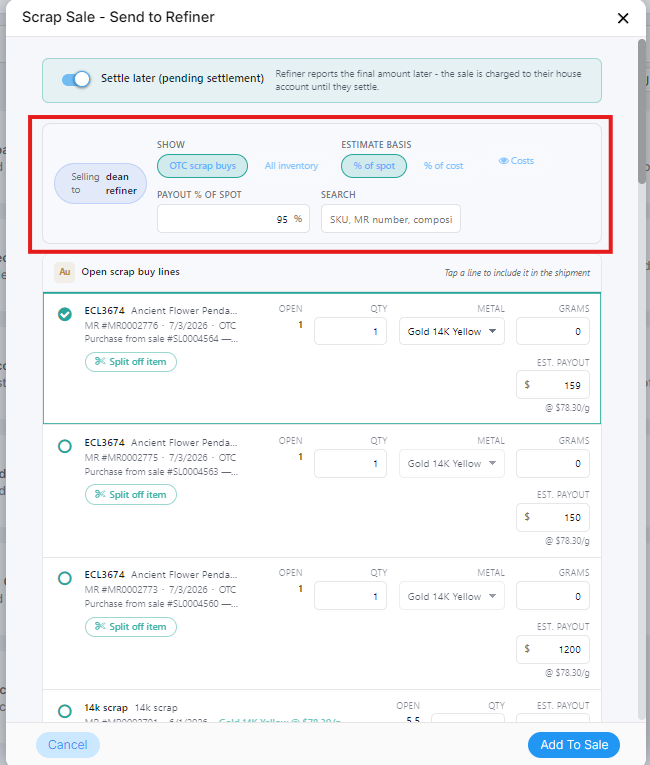
Set the Settlement Timeline: Review the Settle Later toggle button.
Leave Settle Later ON (Default) if the package is being sent for future melt and assay analysis. This automatically bills the shipment to the refiner’s house account as a pending receivable balance.
Toggle Settle Later OFF only if the refiner is issuing an immediate, locked-in counter payout value, allowing you to check out right away using standard payment tenders (cash, check, or wire).

Choose Scrap and tap Add to Sale and complete the checkout sequence to deduct the quantities from inventory.
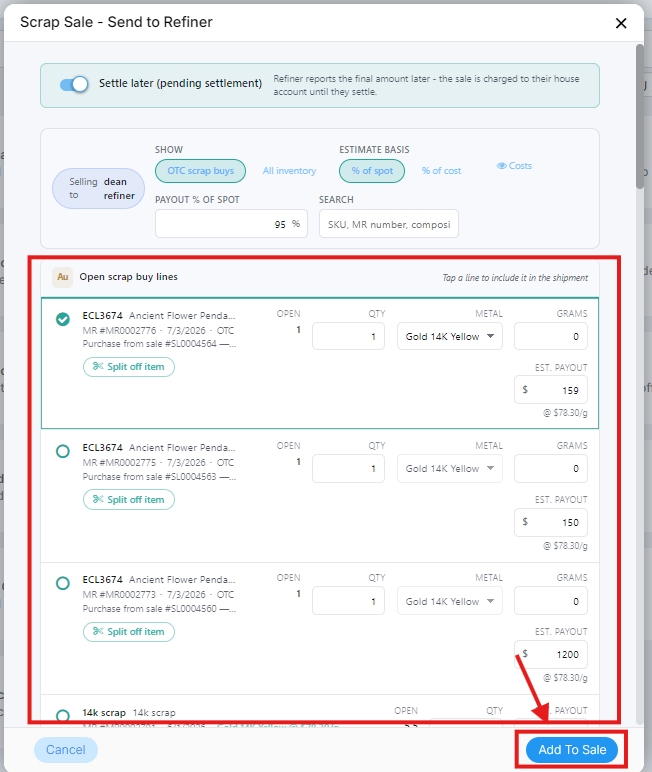
4. Proceed to Checkout.
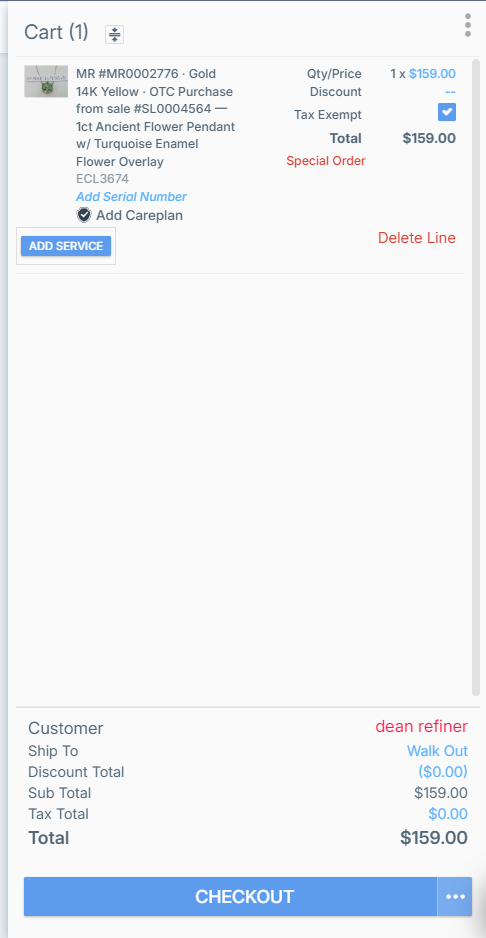
5. Once you press Checkout, the payment method will be automatically set to the House Account. Click Submit Sale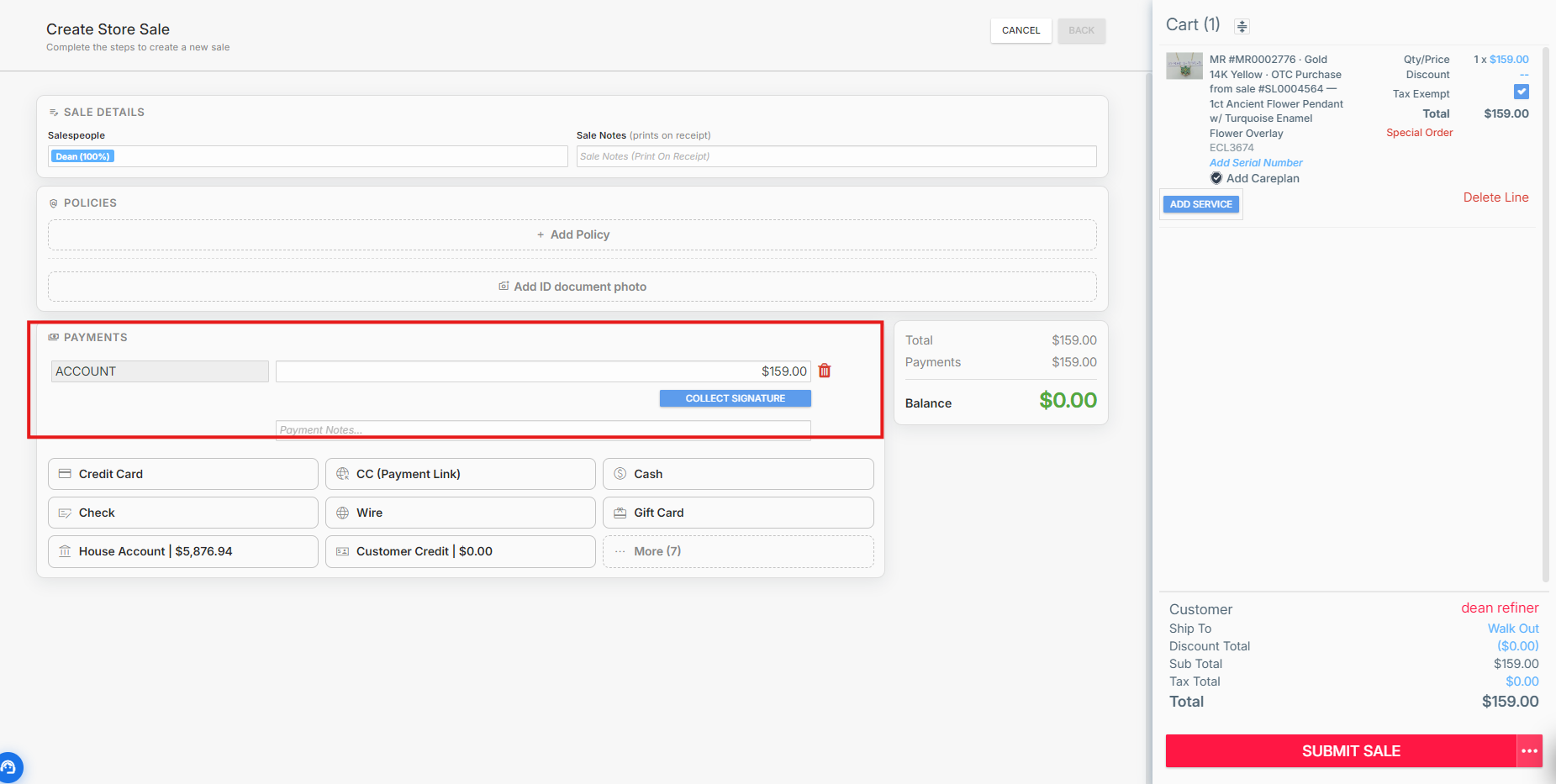
Step 5: Reconciling the Final Settlement Statement
When the physical refinery statement arrives with final chemical breakdown numbers, pull up the open shipment to close the loop:
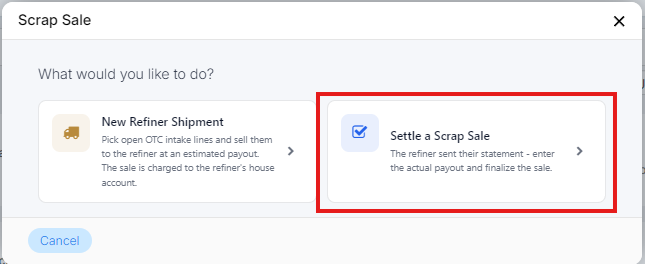
Navigate to Scrap Sale and select Settle a Scrap Sale.
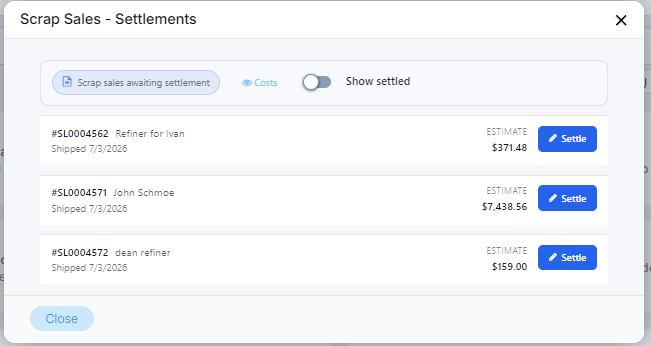
Choose the correct pending shipment from the chronological sequence ledger.
Input the paperwork totals: Gross Amount, Fees, Settlement Date, and Statement Reference Number.
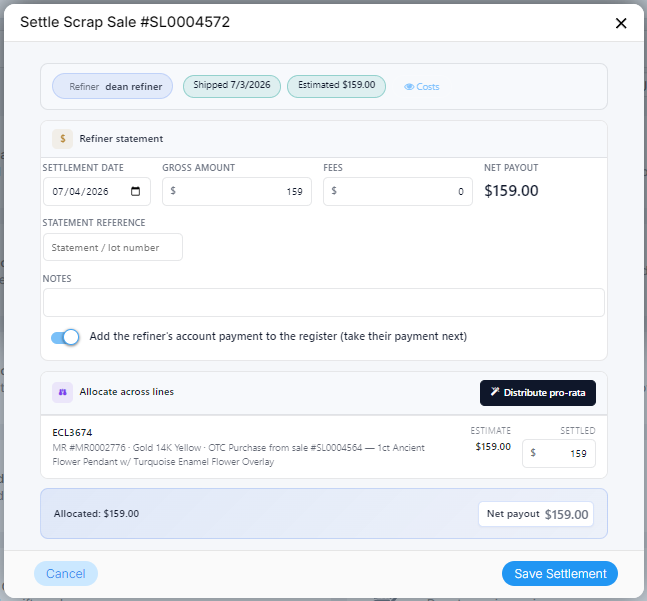 Click Distribute pro-rata to instantly split the net payout across all shipped lines, or type the per-line payouts manually until the total equals the net statement exactly.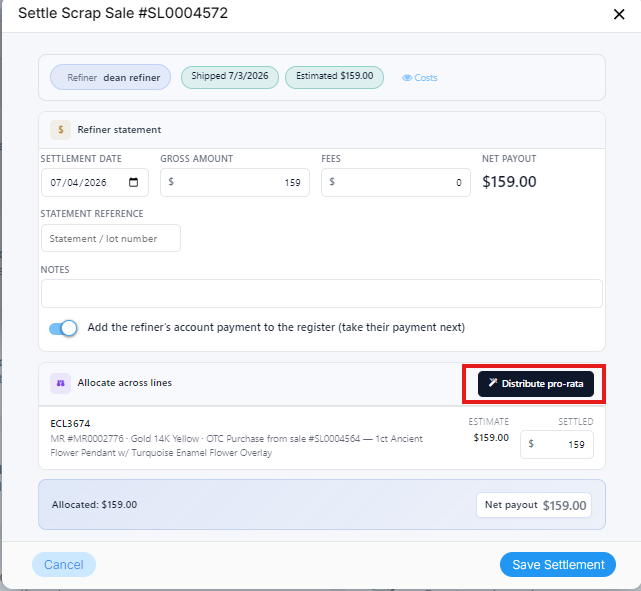
Manage the final payment distribution toggle:
Add the refiner's account payment to the register ON: This automatically queues a prepared account payment for the net total on the register. Complete the payment step using the refiner's payout tender (like Check or Wire) to clear their house account balance.
Add the refiner's account payment to the register OFF: Select this if the statement is verified but the physical funds are arriving later via a separate sequence. This saves the statement data but leaves the account open until you process the final payout later through the standard Account Payment tile.
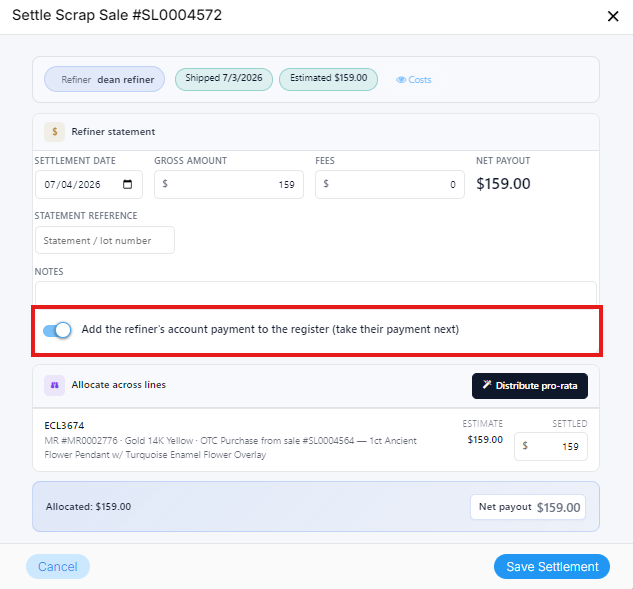
6. Click Save Settlement Once Done and popup should appear that the scrap was settled.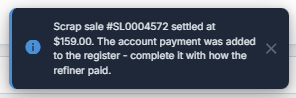
Part 2: Trade-Ins & Sales Tax Compliance
This framework regulates register operations during customer trade-in events, establishing precise rules for when a transaction qualifies for a sales tax credit.
Why Focus on Trade-In Tax Rules?
A trade-in legally serves as a sales tax reduction tool only when a client applies the value of their property toward a concurrent taxable purchase or exchanges it for official store credit. Buying itemized inventory outright from a consumer for immediate cash back is a store buyout, not a retail sales event, meaning it must be designated non-taxable to pass audits.
Step 1: Evaluating Items and Checking Identification
To begin a trade-in transaction:
Examine, test, and weigh the customer's trade-in items to determine a fair market valuation.
Collect and log the customer’s valid, government-issued photo ID information to ensure compliance with trade and buyback regulations.
Step 2: Building the Register Cart
Once the item valuation is set, add all elements to the active point-of-sale screen:
Populate the cart with the new merchandise items the customer wishes to buy.
Add the corresponding trade-in line item to the cart grid and input its total determined value.
Step 3: Applying the Right Tax Rule
Analyze the value balance of your cart to see which scenario matches your active transaction:
Scenario A (Purchase meets or exceeds trade): If a customer buys a $2,000 ring and trades in a $500 old band, mark the trade-in line as Taxable. The $500 credit directly subtracts from the taxable total, meaning the customer only pays sales tax on the $1,500 difference.
Scenario B (Purchase is less than trade with cash back): If a customer buys a $300 pendant, trades in a $500 ring, and requests $200 cash back, only the first $300 qualifies as a tax-offsetting trade. You must toggle the extra $200 overage portion to Tax Exempt / Non-Taxable because it represents an outright store buyout.
Scenario C (Purchase is less than trade with store credit): If a customer buys a $300 pendant, trades in a $500 ring, and leaves the remaining $200 on a store credit account, the full $500 satisfies the compliance rules. Mark the line item as Taxable.
Step 4: Resolving the Checkout Amber Warning
If the total value of your taxable trade-in entries exceeds the total value of purchased goods and issued store credit combined, the system halts checkout processing and displays an amber reminder window:
"Reminder Shown at Checkout: This may not be a taxable trade. The trade-in is worth more than the items being purchased, so it doesn't qualify as a trade - the trade-in should normally be non-taxable. Please review the tax before submitting."
To resolve this warning and complete the checkout, select one of the following resolution paths:
Apply Line Exemptions: Return to the active cart panel and toggle the trade-in line (or the unsupported overage portion) to Tax Exempt. This clears the warning.
Expand Customer Value Allocation: Add more merchandise items or load a store credit allocation line to bring the total value received up to or past the trade-in baseline.
Manual Compliance Override: If your specific state or local municipal tax statutes explicitly dictate that taxing the full trade value is compliant for your location, select Continue anyway to intentionally push the sale through.
Was this article helpful?
That’s Great!
Thank you for your feedback
Sorry! We couldn't be helpful
Thank you for your feedback
Feedback sent
We appreciate your effort and will try to fix the article