FlawlessPOS Retail Accounting integrates with QuickBooks Online and Zoho Books to automatically generate accounting entries for your retail operations. Every sale, repair, customer deposit, trade-in, vendor receipt, vendor payment, and other supported transaction uses your configured General Ledger (GL) accounts to ensure financial data is recorded consistently.
This article explains how to configure your accounting integration, map your GL accounts, understand how transactions flow through the system, and prepare journals for export to your accounting software.
Before You Begin
Before configuring Retail Accounting:
- Connect QuickBooks Online or Zoho Books.
- Ensure your Chart of Accounts has already been created.
- Verify you have permission to manage accounting settings.
Note: The account list available inside FlawlessPOS is pulled directly from your accounting provider. If an account does not exist in QuickBooks or Zoho Books, it will not appear in the mapping list.
Understanding Your Default Accounts
Before mapping your GL accounts, it's important to understand what each account category represents.
FlawlessPOS organizes its default accounts into four primary accounting groups.
Income Accounts:
Income accounts track the revenue your business earns.
Examples include:
| Account | Purpose |
|---|---|
| Sales Revenue | Merchandise sales |
| Memo Sales Revenue | Consignment Sales |
| Service Revenue | Repair and custom work |
| Warranty Revenue | Warranty plans |
| Shipping Revenue | Shipping charges |
| Other Revenue | Miscellaneous income |
Asset Accounts:
Asset accounts represent items or funds owned by your business.
Examples include:
| Account | Purpose |
|---|---|
| Bank | Checking and deposit accounts |
| Undeposited Funds | Payments waiting to be deposited |
| Accounts Receivable | Customer balances owed |
| Inventory | Merchandise owned by your business |
| Memo Inventory | Consigned inventory |
| Trade-In Inventory | Customer trade-ins |
| House Account | Customer in-store balances |
Liability Accounts:
Liability accounts track money your business owes.
Examples include:
| Account | Purpose |
|---|---|
| Accounts Payable | Vendor balances |
| Uninvoiced Purchases | Inventory received but not yet billed |
| Customer Deposits | Customer prepayments |
| Gift Cards | Outstanding gift card balances |
| Store Credit | Customer store credits |
| Memo Liability | Money owed to consignors |
| Labor Liability | Outside jeweler labor |
| Sales Tax Payable | Taxes collected but not yet remitted |
Cost of Sales & Expense Accounts:
These accounts track the cost of operating your business.
Examples include:
| Account | Purpose |
|---|---|
| Cost of Goods Sold | Merchandise sold |
| Service COGS | Parts used during repairs |
| Service Labor COGS | Outside repair labor |
| Donations | Inventory donated |
| Other Expenses | Miscellaneous operating costs |
Configure Account Mapping
Access Accounting Settings
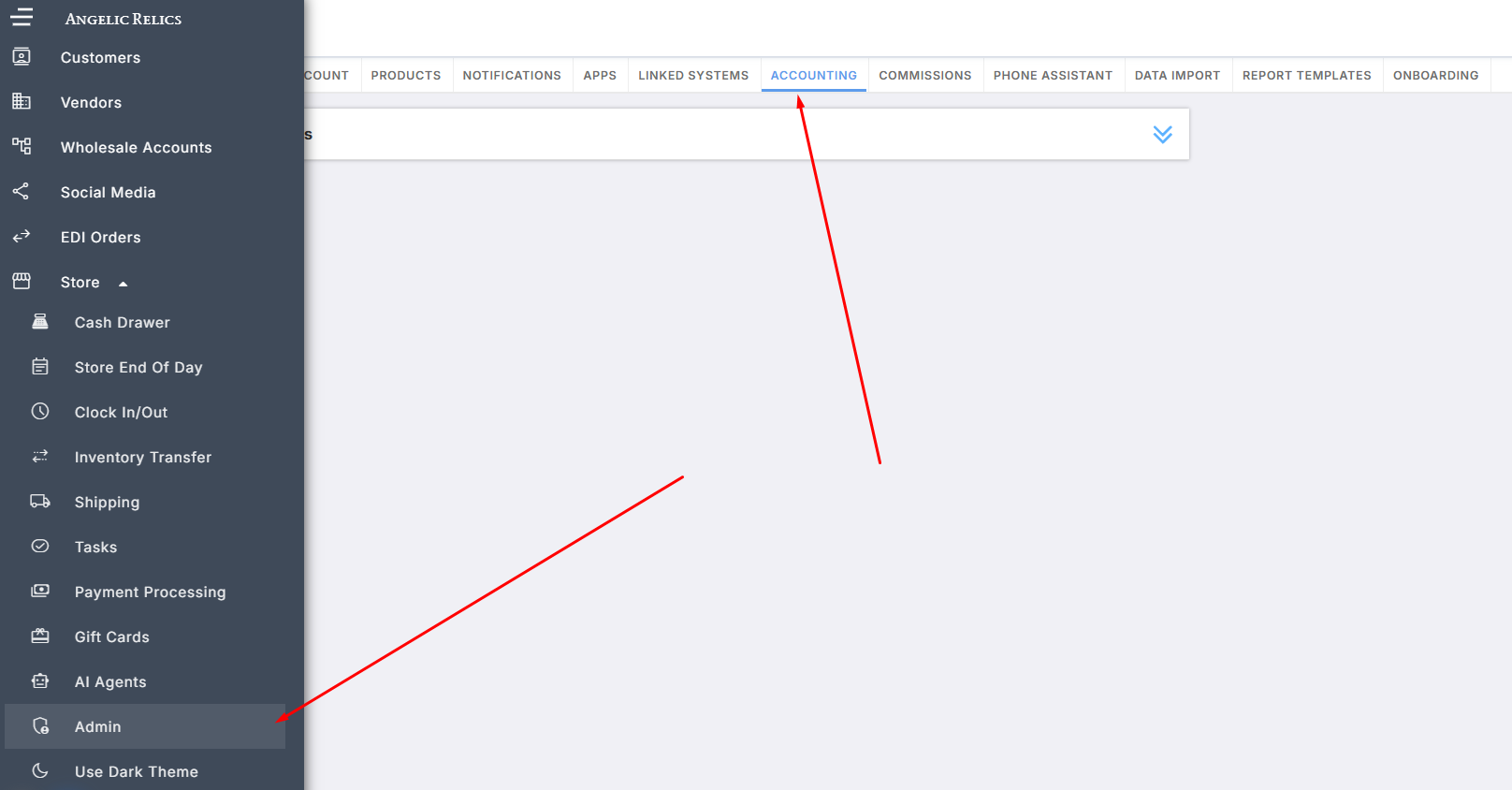
- Enable Integrated Provider Mapping

- Select Your Provider

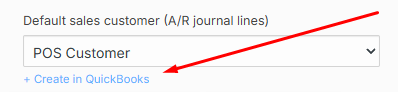
- Configure Sales Customer or Create a New One - The Default Sales Customer is the customer record used when exporting retail sales transactions to QuickBooks Online or Zoho Books. Since retail sales often involve many different customers, accounting software typically doesn't require a separate customer record for every transaction. Instead,we can export those transactions using a single default customer.
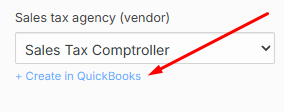
- Configure Sales Tax Agency or Create a New One - The Sales Tax Agency identifies the tax authority that receives the sales tax collected from your customers. When taxable sales are exported, FlawlessPOS uses this setting to associate the collected sales tax with the correct tax agency in your accounting software.
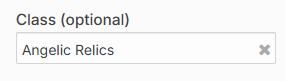
- Set the Class - Classes allow you to categorize accounting transactions for reporting purposes within QuickBooks Online or Zoho Books. If your business uses Class Tracking, you can assign a default class so exported transactions are automatically categorized.
- Automatically Map the Accounts - The Auto-Map Accounts feature automatically attempts to match FlawlessPOS General Ledger accounts with accounts in your connected QuickBooks Online or Zoho Books Chart of Accounts.
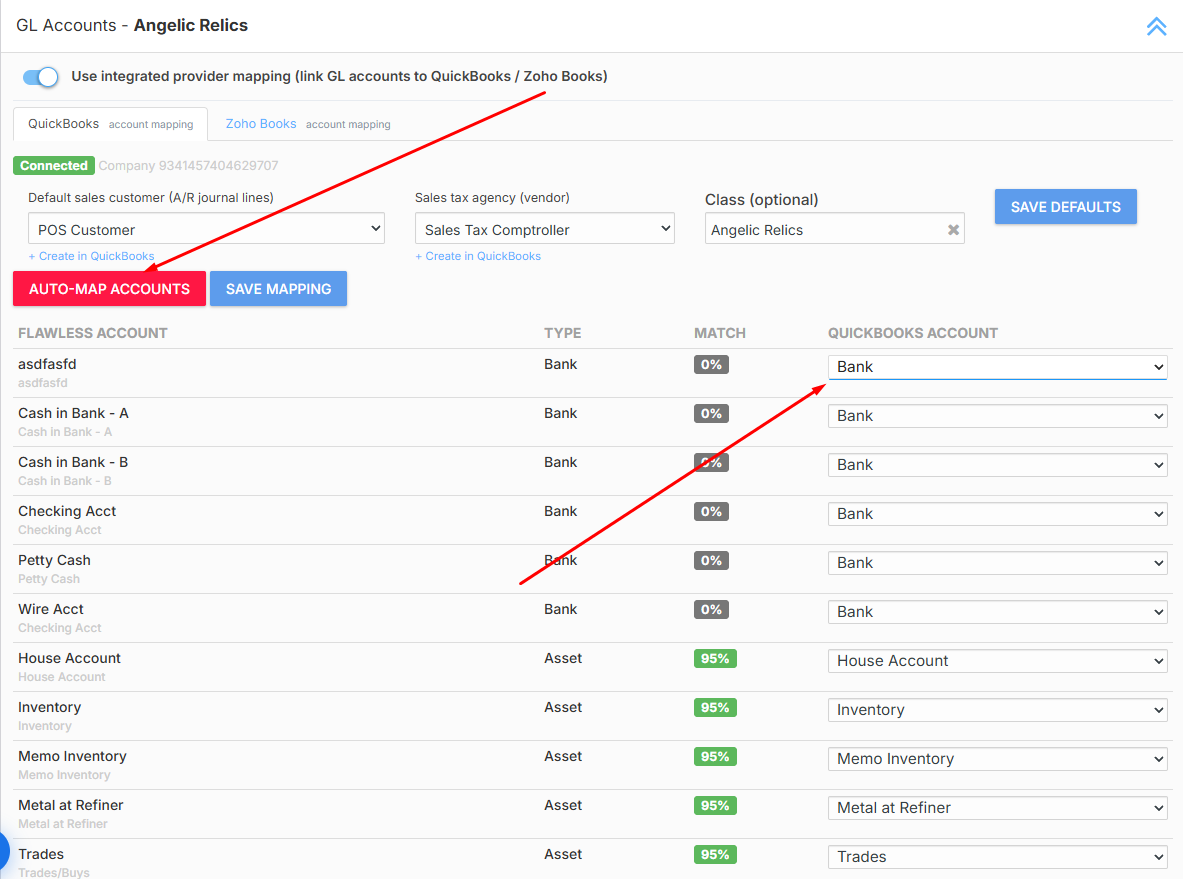
- Match % - This column indicates how closely FlawlessPOS believes an account matches an account in your accounting software. Higher percentages generally indicate stronger matches.
- Once everything has been confirmed, Save the Mapping
Note: These settings determine how FlawlessPOS communicates with your accounting software. Incorrect mappings or default settings may result in accounting transactions being posted to the wrong General Ledger accounts. Always review your configuration with your accountant or bookkeeper before exporting live accounting data.
Understanding Retail Accounting Flows
Standard Sale
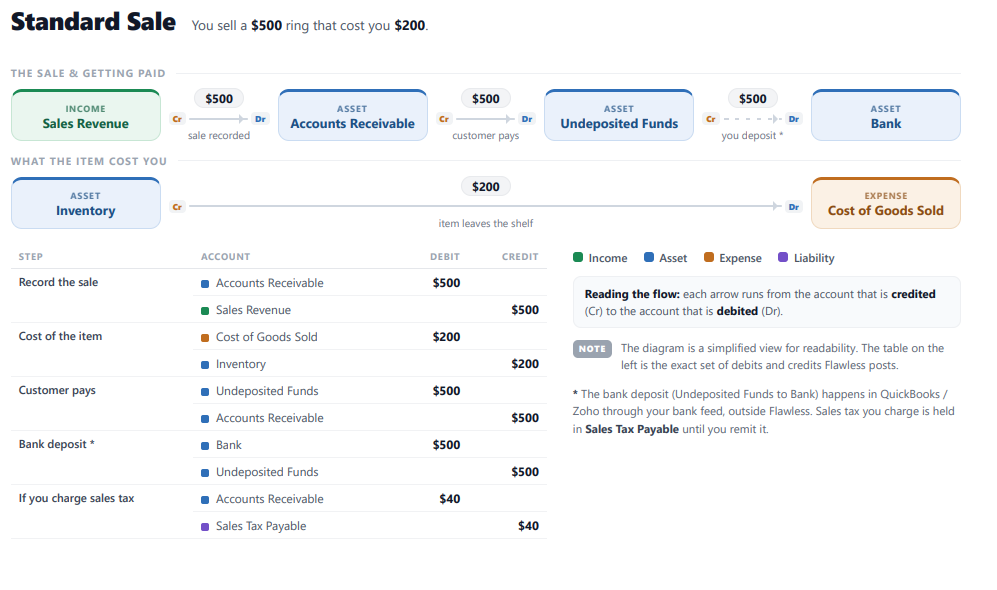
When a customer purchases merchandise, FlawlessPOS records the sale, recognizes the revenue, removes the item's cost from inventory, and records the customer's payment. If sales tax is collected, it is recorded separately as Sales Tax Payable until it is remitted.
Special Orders & Customer Deposits
Customer deposits are recorded as liabilities because the revenue has not yet been earned. Once the customer picks up the merchandise, the deposit is applied to the sale and any remaining balance is collected.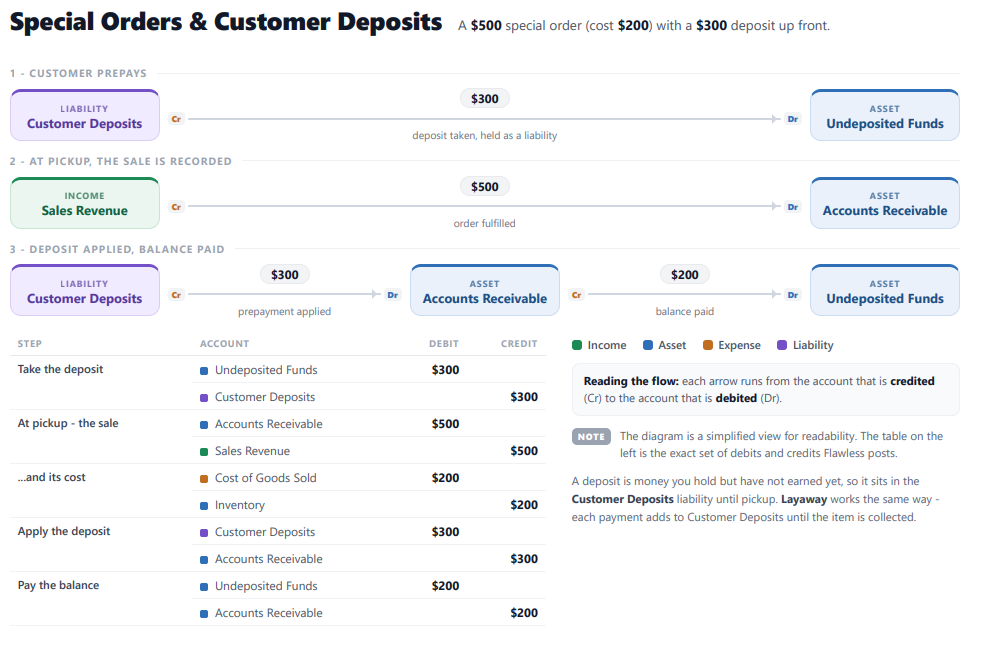
Repairs & Services
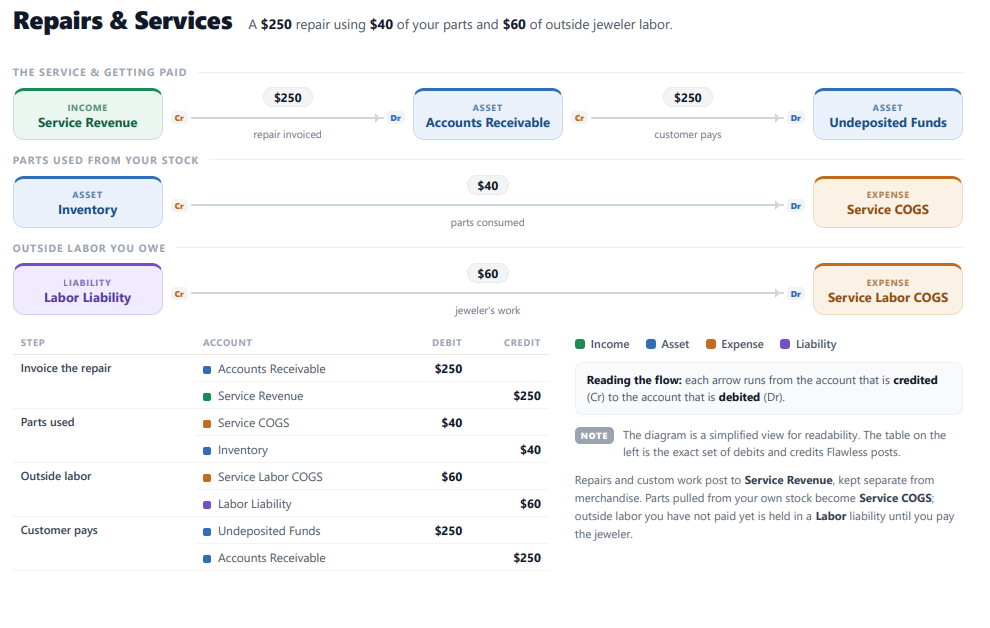
Repair transactions are recorded separately from merchandise sales. Parts pulled from inventory become Service COGS, while outside jeweler labor is temporarily held in Labor Liability until paid.
Trade-Ins
Repair transactions are recorded separately from merchandise sales. Parts pulled from inventory become Service COGS, while outside jeweler labor is temporarily held in Labor Liability until paid.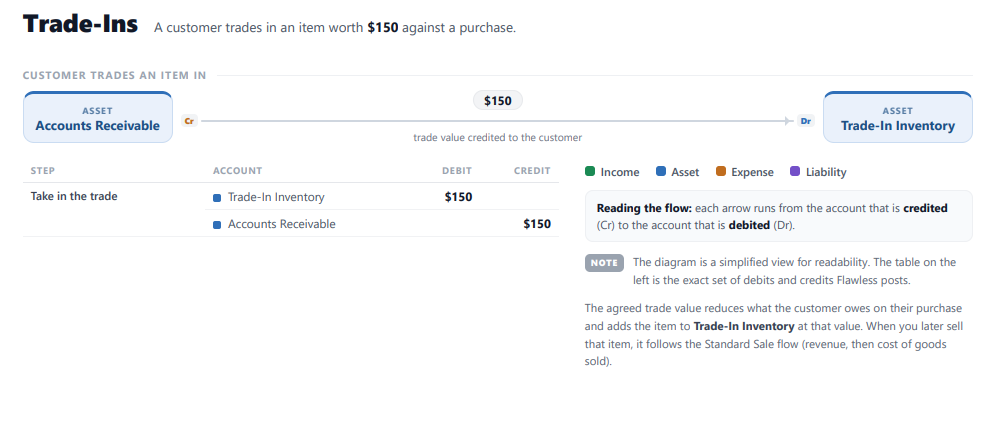
Memo/Consignment Sales
Consigned inventory is tracked separately using Memo Inventory and Memo Liability. When a consigned item is sold, FlawlessPOS records the sale, removes the item from memo inventory, and records the amount owed to the consignor.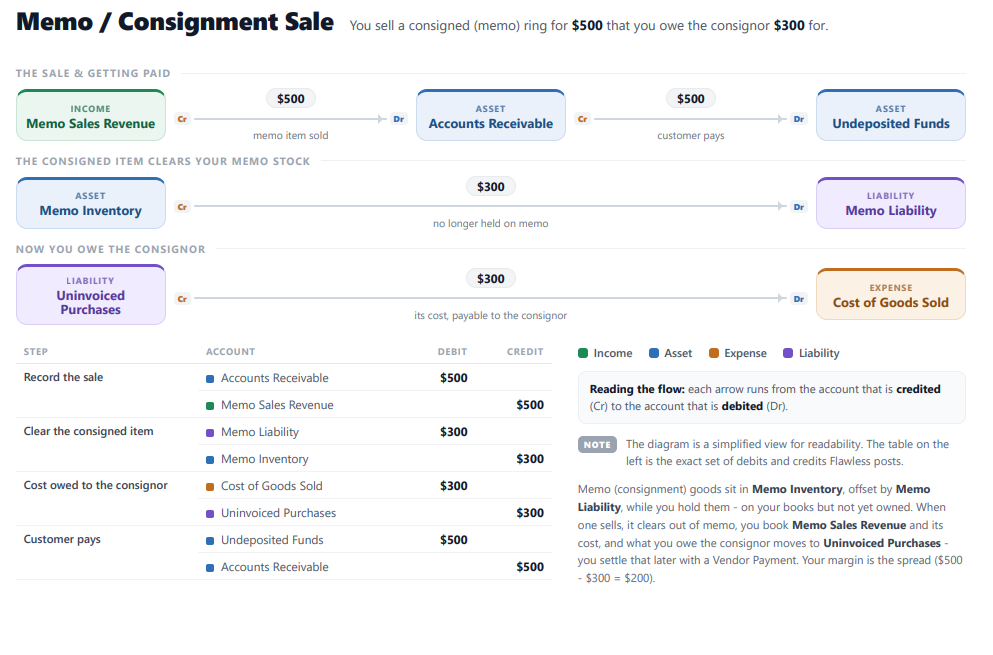
Vendor Receiving
When inventory is received, it is immediately added to Inventory while the cost is temporarily recorded under Uninvoiced Purchases. Once the vendor invoice is entered, the balance moves into Accounts Payable.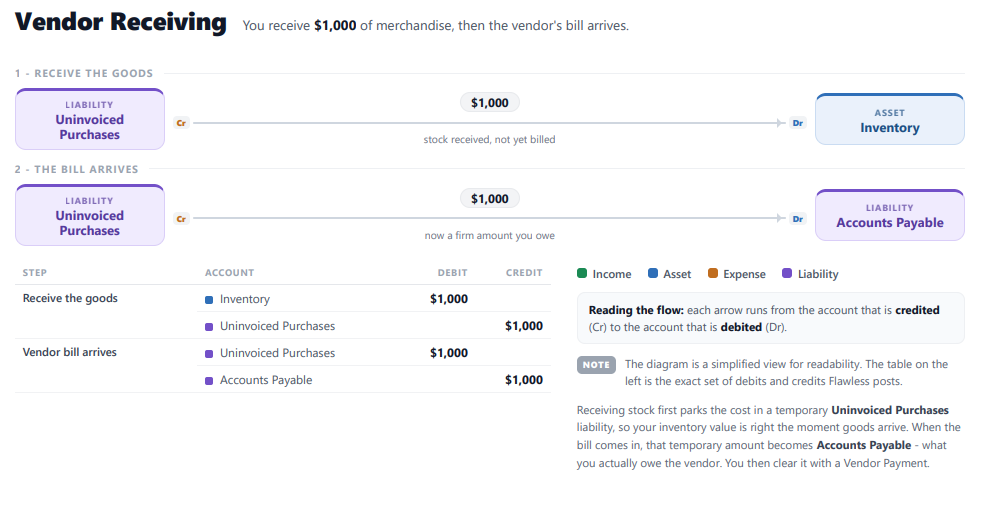
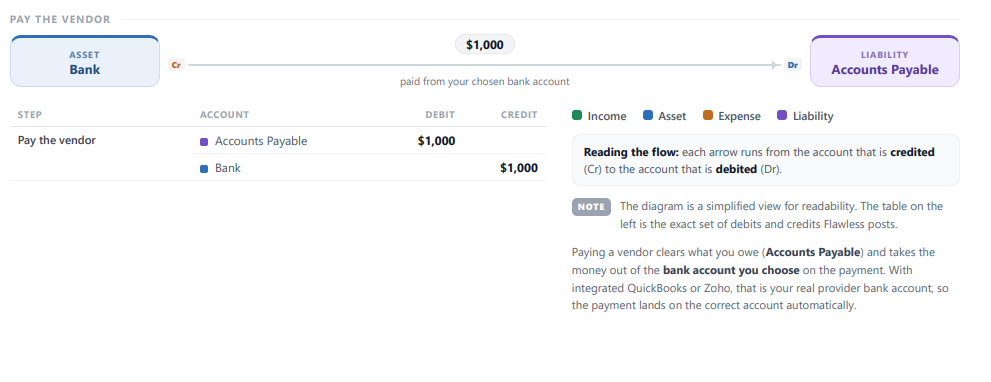
Vendor Payments
Vendor payments reduce the Accounts Payable balance and withdraw funds from the selected bank account.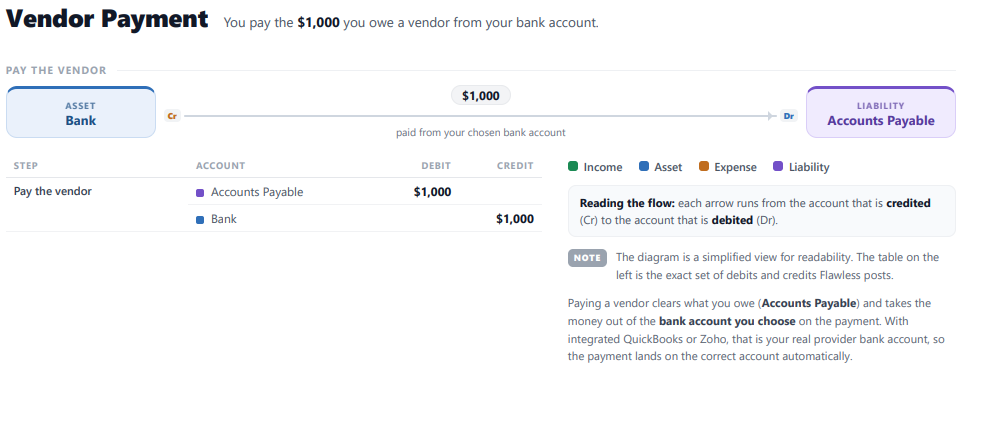
General Ledger (GL) Management
The General Ledger module provides a centralized view of all financial transactions.
Using the Generate Journal Entries Window:
The Generate Journal Entries window allows you to identify how transactions flow through various GL accounts. Each product or item transacted in the system reflects movement between accounts.
Generating Journal Entries:
Navigate to Accounting > General Ledger.
Click on Generate Journal Entries.
Specify the date range and filters (e.g., transaction type).
- Review the list of transactions, including:
GL Account: The account impacted by the transaction.
Transaction Type: SALE, REFUND, etc.
Debit/Credit Amounts: The monetary values affecting the accounts.
Click Generate Entries to finalize the process.
Batch Processing:
GL Batches consolidate journal entries for streamlined reporting. Existing batches can be reviewed under the General Ledger tab, showing:
Date of creation
Description
Transaction count
Example (Assembly Job):
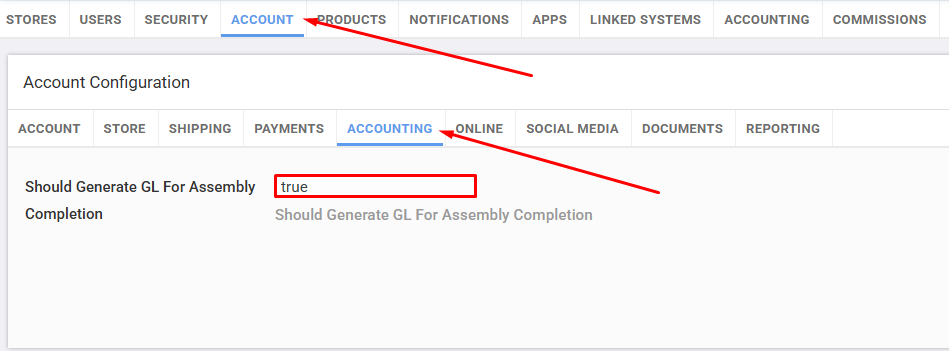
Below we have another example for whenever an assembly job is completed. This setting helps maintain inventory valuation accuracy by ensuring costs associated with assembly are properly reflected in the general ledger. It balances inventory movement, labor, and unstocked part costs in real time. To ensure inventory-ledger entries are generated upon assembly completion, navigate to: Admin → Account → Accounting → Accounting tab → Should Generate GL For Assembly Completion. Set this to true to enable ledger generation.
For this example. we have an assembly job which currently takes in 2 parts. One is consumed upon job completion and the other is sourced separately/no stock consumption.
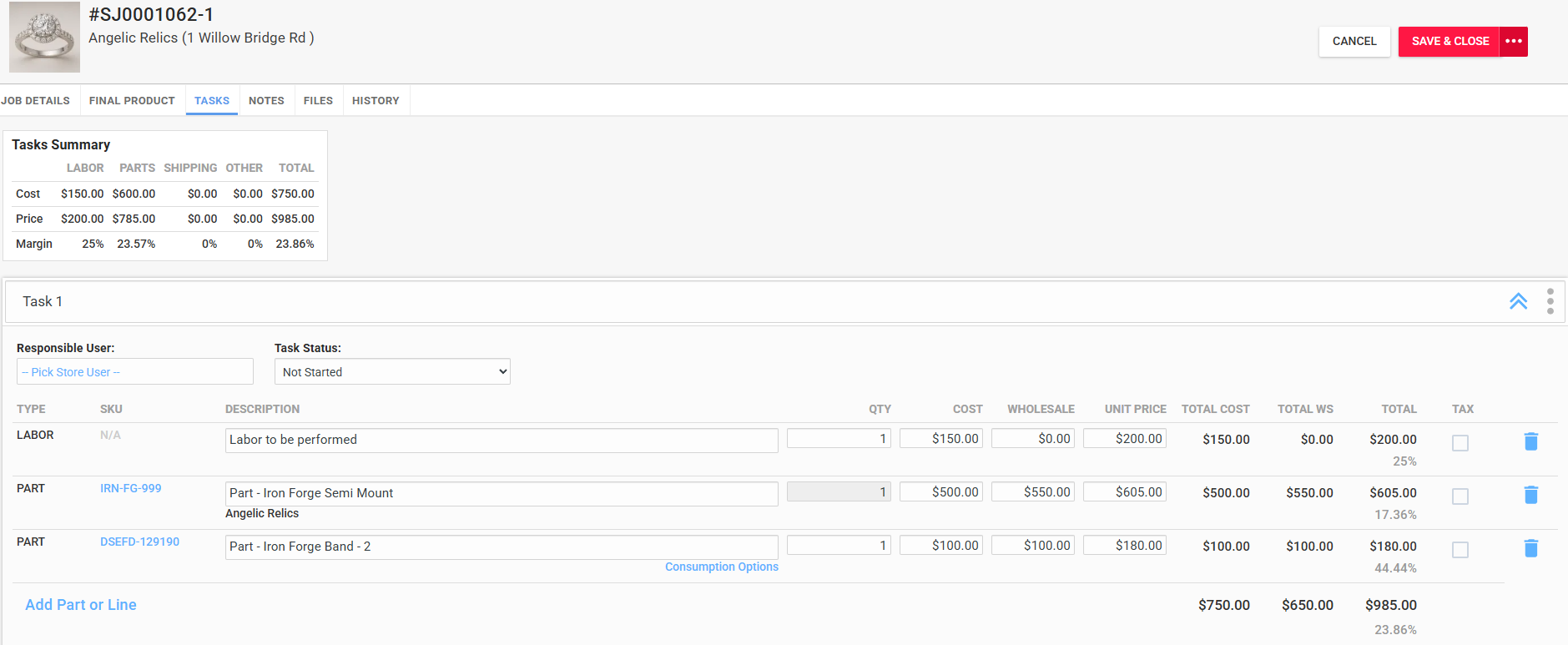
When an assembly job is completed, the system posts the following entries based on the job components:
| GL Account | Type | Debit | Credit | |
| Cost of the resulting item | Inventory | Debit | $750.00 | $0.00 |
| Cost of the labor performed | Services labor liability | Credit | $0.00 | $150.00 |
| Parts not consumed from the stock | Uninvoiced purchases | Credit | $0.00 | $100.00 |
| Cost of the consumed parts | Inventory | Credit | $0.00 | $500.00 |
In this example, two parts were used in the job. One was drawn from inventory and one was manually sourced. The system recorded:
Inventory gain for the completed item ($750),
Labor liability for the performed work ($150),
Uninvoiced purchases for the non-inventory part ($100),
Inventory reduction for the consumed stock part ($500)
Retail Month-End Process
The Retail Month-End module ensures accurate closure of accounting periods for retail operations. It prepares your accounting journals for export after all daily transactions have been reviewed.
Steps to Start Month-End:
Go to Accounting > Retail Month End.
Select the "Start Month End" button.
Review account balances, including:
House Account Balance: Outstanding balances from customers.
Interest Charged: Additional charges for late payments.
Gift Card Balance: Remaining value of issued gift cards.
Finalize the month-end process to lock the period.
Wholesale Interest Management
This module handles interest invoices for wholesale customers.
Generating Interest Invoices:
Navigate to Accounting > Wholesale Interest.
Click Generate Interest Invoices.
Select the date range and review the batch details.
Confirm to create interest invoices for overdue accounts.
Wholesale Commissions
The Wholesale Commissions module simplifies commission calculations and payments for sales personnel.
Paying Pending Commissions:
Navigate to Accounting > Wholesale Commissions.
Click Pay Pending Commissions.
Enter the description, date range, and filters.
Review the list of salespeople and their respective commissions.
Finalize the payment process.
Was this article helpful?
That’s Great!
Thank you for your feedback
Sorry! We couldn't be helpful
Thank you for your feedback
Feedback sent
We appreciate your effort and will try to fix the article