This feature allows you to quickly identify or create customers in the Point of Sale by scanning their driver’s license or business card. The system automatically detects whether the customer already exists and either lets you select them or creates a new customer with pre-filled details.
You may refer to this video for a step-by-step guide on how to quickly identify a customer: https://www.youtube.com/watch?v=eUW9AkfNk38
Step 1: Open the Point of Sale Module
Locate and open the Point of Sale (POS) module in your system.
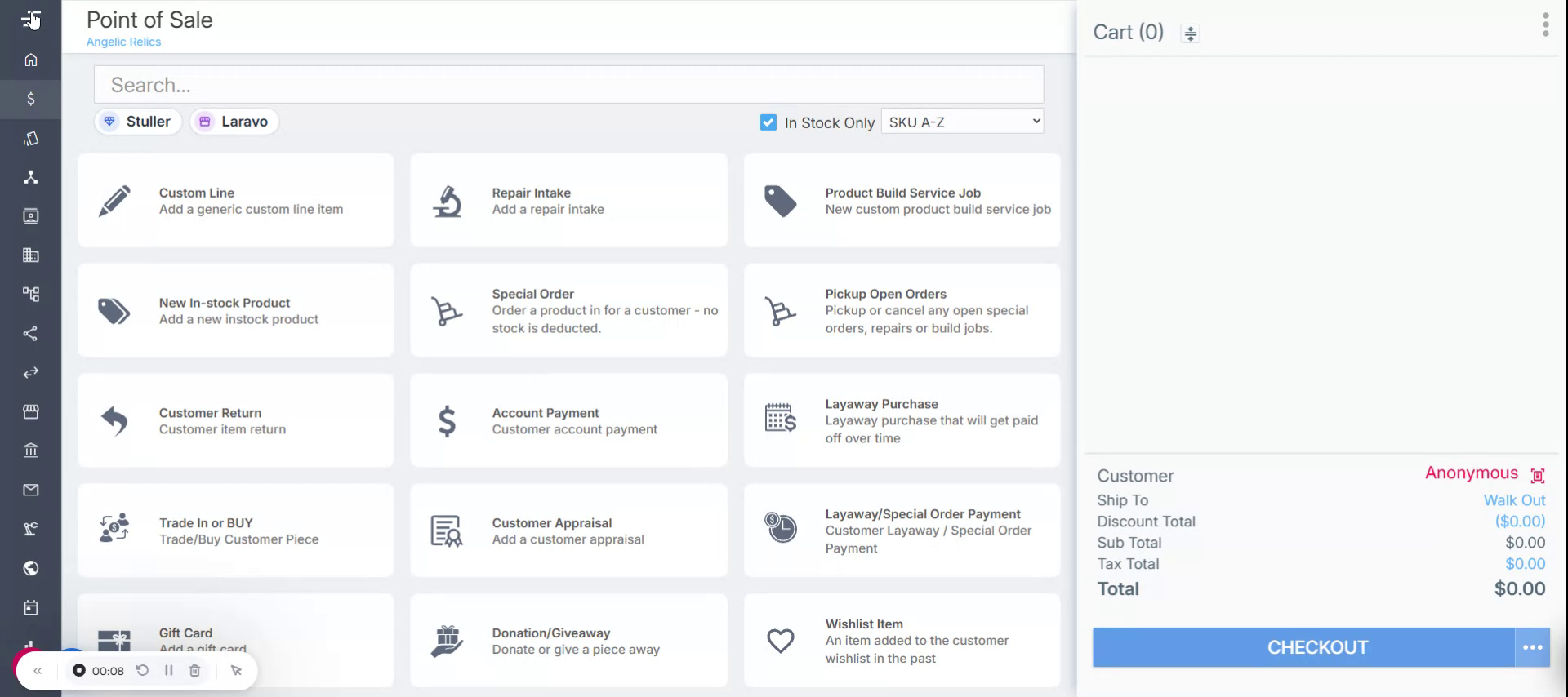
Step 2: Access the Customer Selection Area
In the customer selection section, instead of choosing a customer only from the existing customer list, use the option to scan a customer ID.
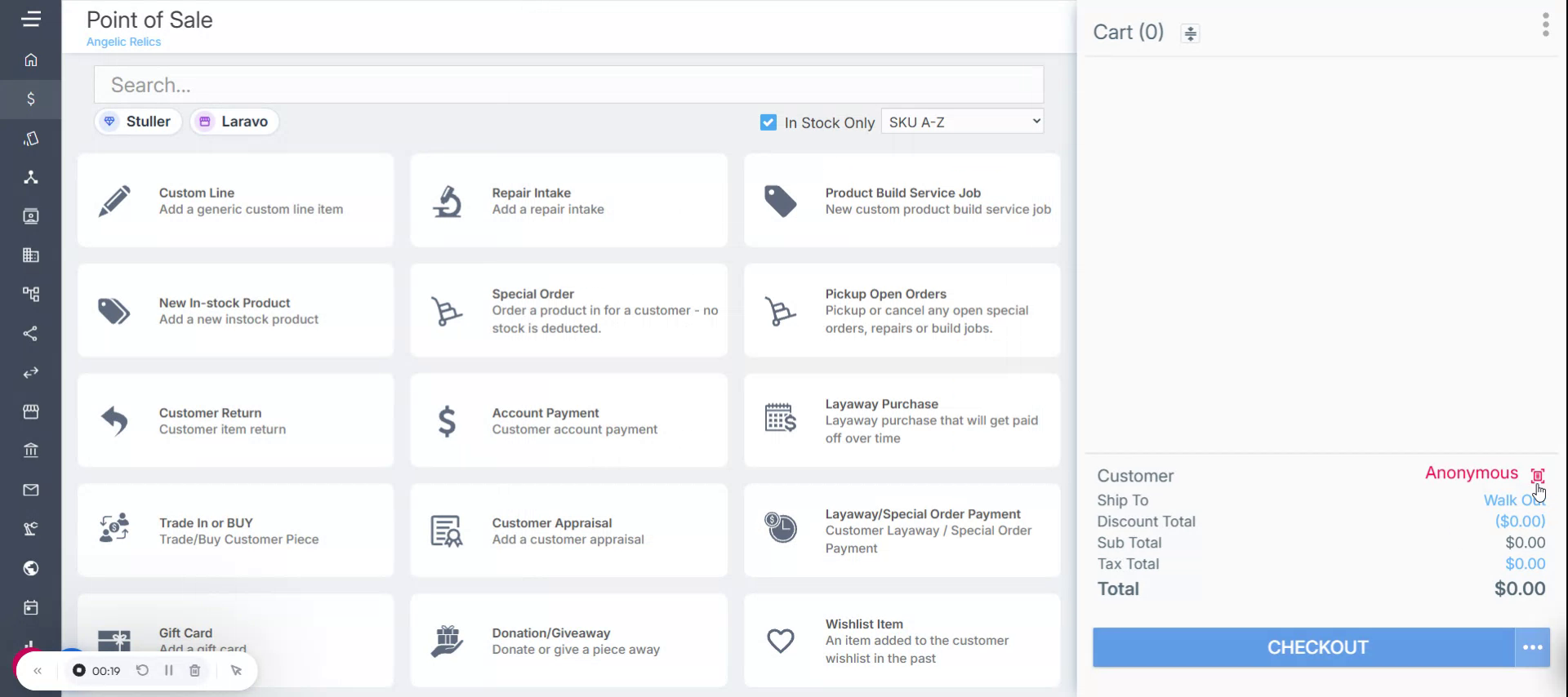
Step 3: Upload or Scan the Customer Document
Use any supported device to capture or upload the image of the driver’s license or business card. You can upload the image directly from your computer, mobile phone, scanner, or another compatible device.
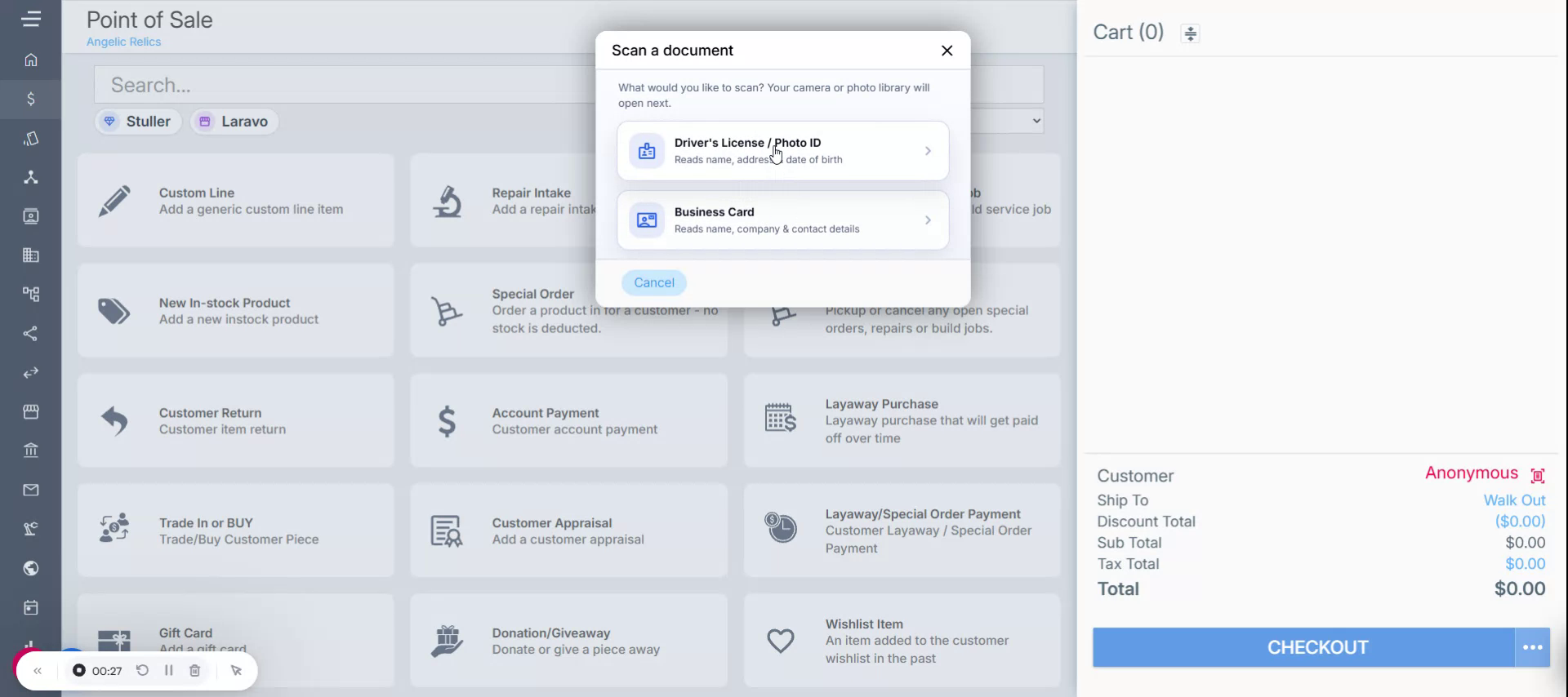
Step 4: Handle Existing Customers Detected by the Scan
After scanning, the system checks whether the customer already exists. If the customer is found in the system, you will be prompted to either select the existing customer record or create a new customer using the scanned information. Once you choose the existing customer, the POS will proceed as it normally does after you select a customer.
Example of a license used:
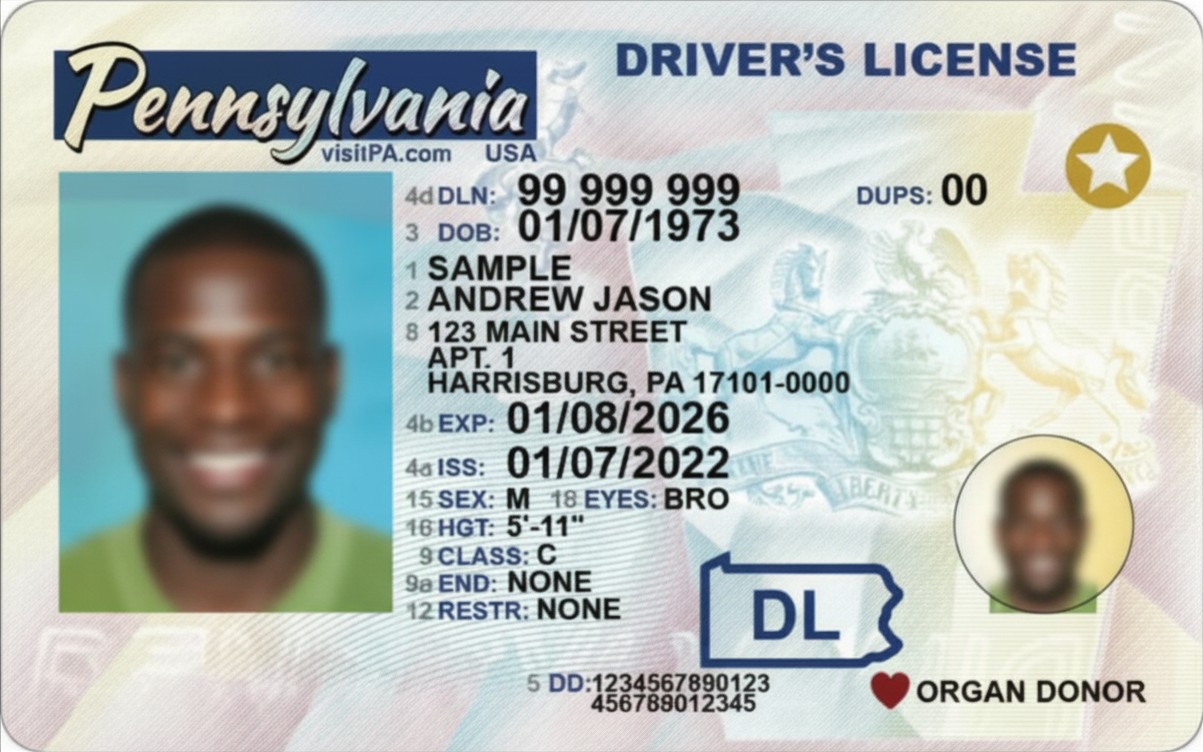
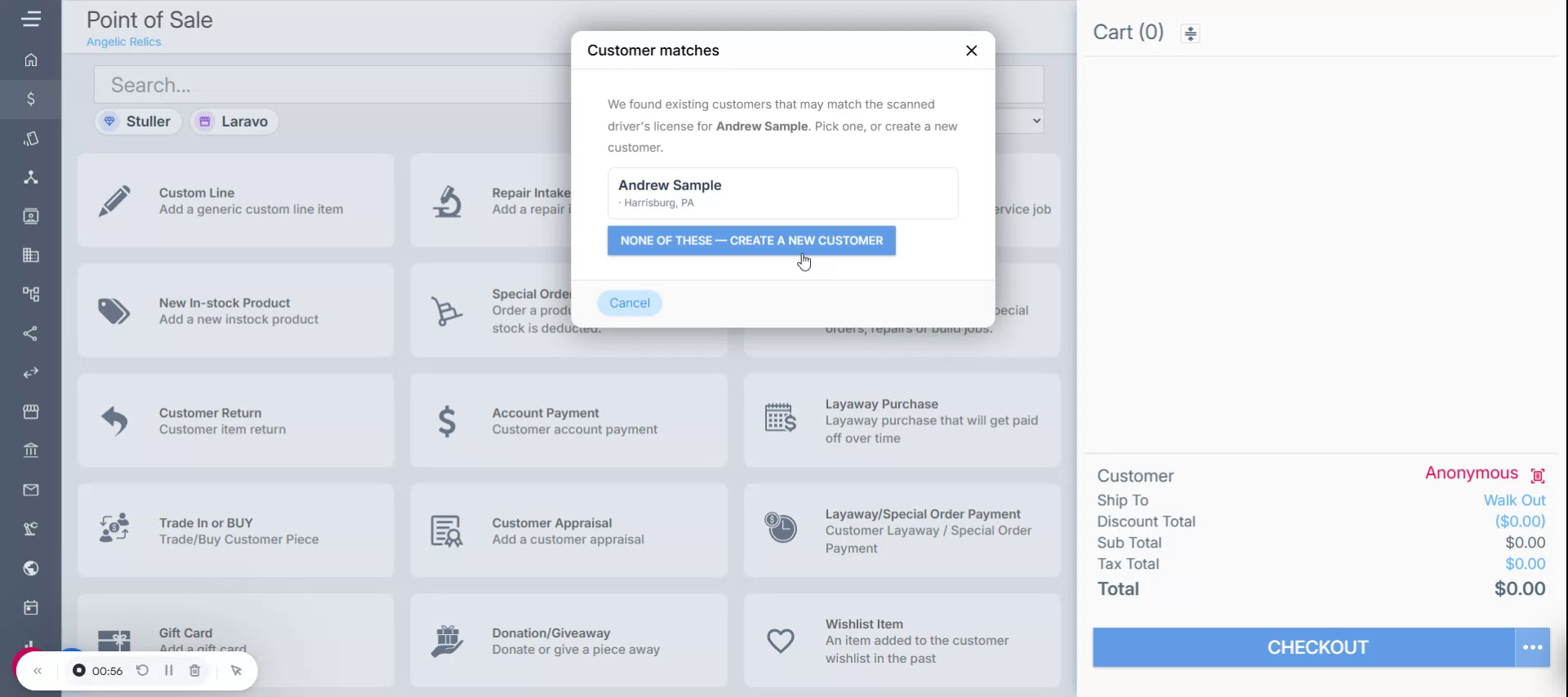
This speeds up customer lookup when you are in a hurry and prefer scanning an ID instead of manually searching.
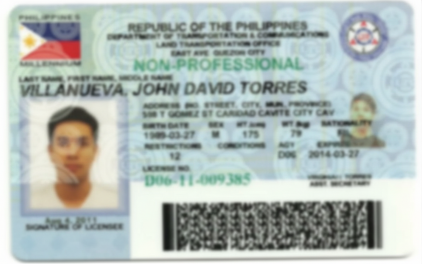
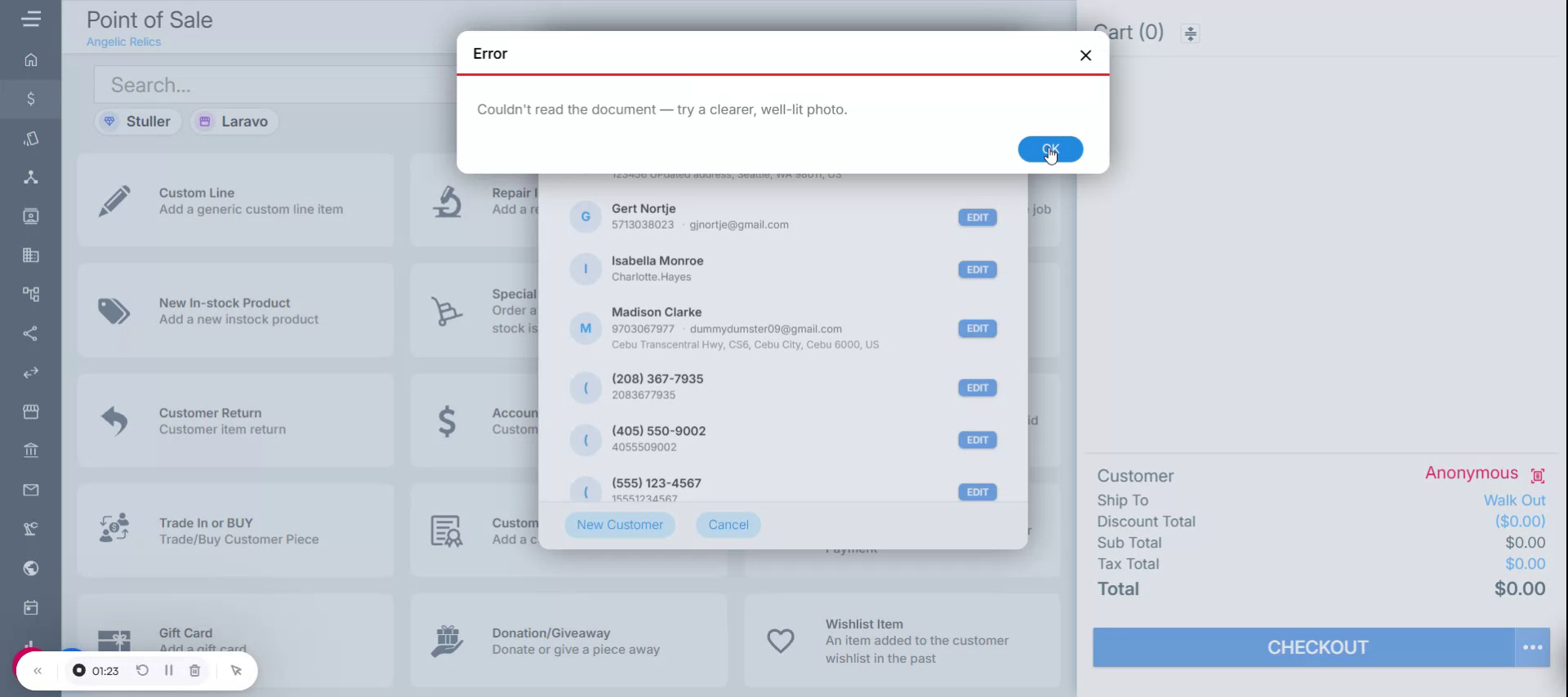
Note: If you attempt to upload or scan a license that is not clearly visible (for example, blurry, dark, or partially obscured), the system will display an error message asking you to try again with a clearer, well-lit photo.
Example of a blurry photo:
Step 5: Create a New Customer from a New ID
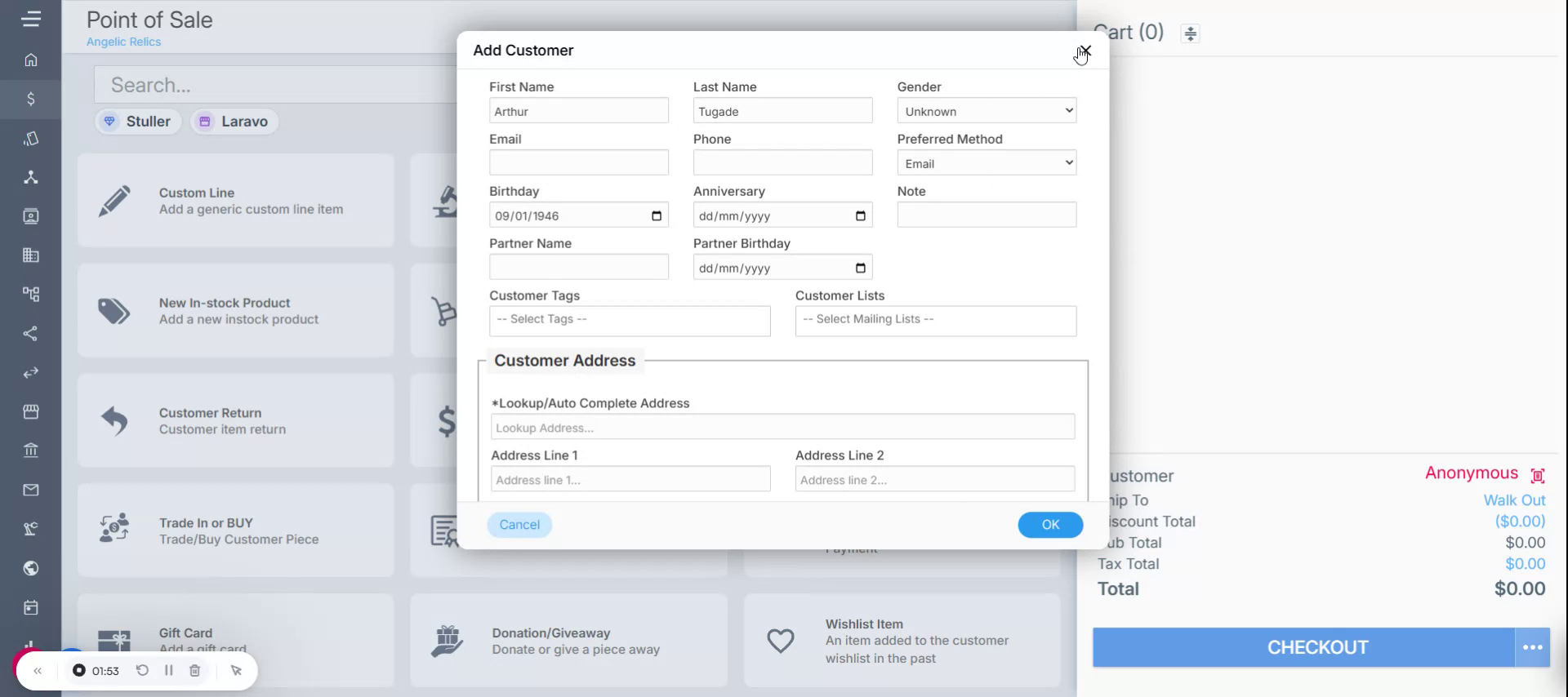
If the scanned customer does not yet exist in the system, the Create Customer screen will open automatically.
Troubleshooting
For any issues encountered when Scanning Customer IDs in the Point of Sale through the POS, please contact Flawless POS support for assistance.
Was this article helpful?
That’s Great!
Thank you for your feedback
Sorry! We couldn't be helpful
Thank you for your feedback
Feedback sent
We appreciate your effort and will try to fix the article