This article provides a guide on using the new Driver’s License Scanning feature in the Checkout App. This allows you to scan the barcode on the back of a customer’s driver’s license to automatically locate an existing customer or quickly create a new customer profile with pre-filled details.
Note: This feature is available in the Checkout App only and is not part of the web browser version of Flawless.
Step 1: Open Checkout and Locate the Barcode Scanner
Open the Checkout App and begin a sale as usual.
Look at the top-right area of the screen.
On the right side of the Cart label, click the Barcode Scanner icon.
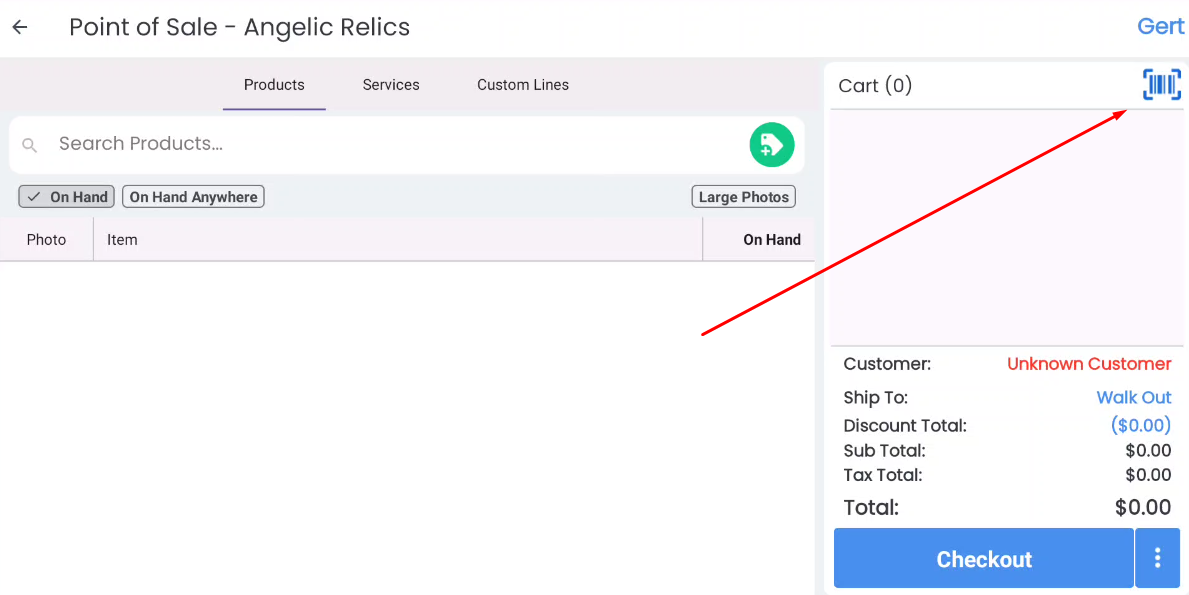
This will open the camera scanner window.
Step 2: Scan the Barcode on the Back of the Driver’s License
Position the customer’s driver’s license so the barcode on the back is visible.
Align the barcode inside the scanning box on the screen.
Hold steady until the barcode is detected.
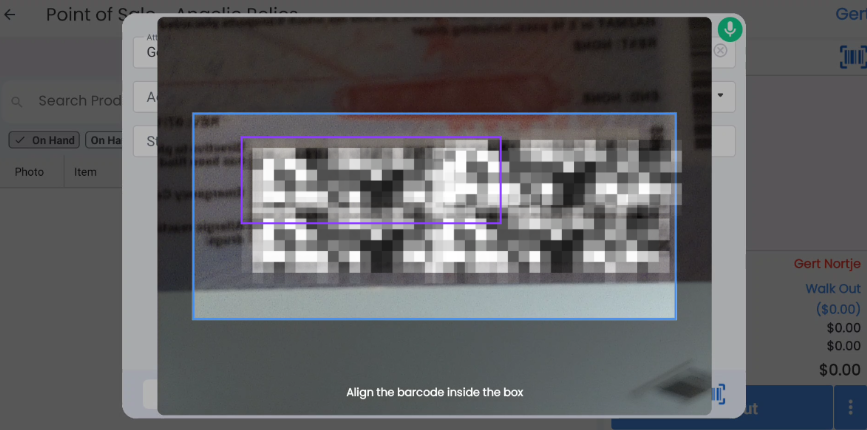
Once scanned, the system automatically reads the driver’s license details and attempts to match the customer to an existing profile.
IMPORTANT NOTE: When scanning with the driver's license, please make sure to cover the other barcode next to the driver's license's code with your finger to avoid it from scanning the incorrect barcode.
Step 3: Select an Existing Customer (If a Match Is Found)
If the scanned license matches a customer already in your system:
A popup will appear prompting you to select the existing customer.
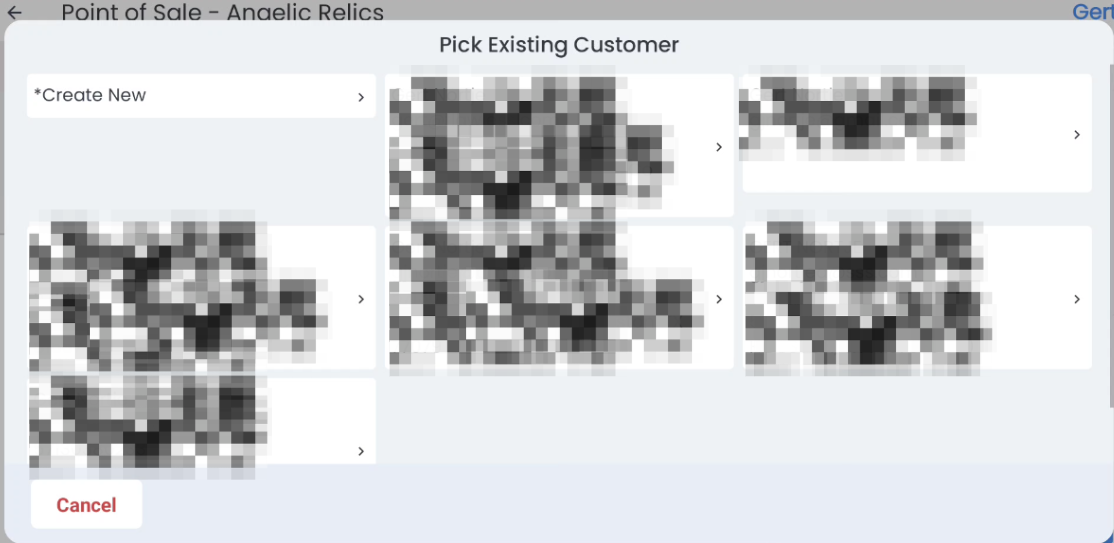
Confirm the correct customer to attach them to the sale.
After selecting the customer, proceed with checkout as usual.
Step 4: Create a New Customer (If No Match Is Found)
If no existing customer matches the scanned license:
A Create New Account popup will appear.
The form fields will automatically populate using the information pulled from the driver’s license
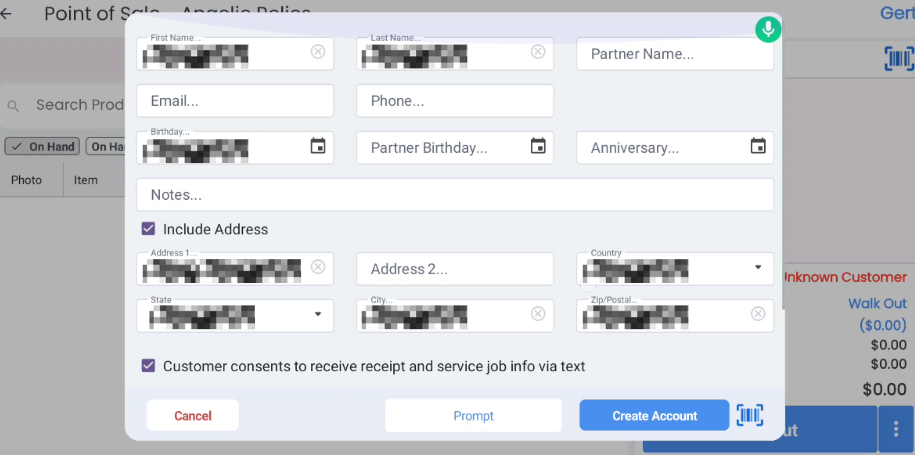
Review the details for accuracy, then click Create Account.
Once the account is created, the new customer will be attached to the sale automatically, and you can continue checkout.
What Gets Auto-Filled
When creating a new customer from a license scan, the Checkout App will automatically fill in available details from the driver’s license, such as:
First Name and Last Name
Address information
Date of birth
Zip/Postal Code
Troubleshooting
If you encounter any issues when trying to Scan a Driver's License in the checkout app, please reach out to Flawless POS customer support for technical assistance.
Was this article helpful?
That’s Great!
Thank you for your feedback
Sorry! We couldn't be helpful
Thank you for your feedback
Feedback sent
We appreciate your effort and will try to fix the article