This article walks through how to create a Sales Rep user, set up their Sales Rep account in the Wholesale module, receive inventory into that account, and verify that the merchandise has been successfully received.
Creating a New Sales Rep
Before creating a Sales Rep account in the Wholesale module, the Sales Rep must first be created as a user in the Admin module.
Step 1: Navigate to Users
Go to Admin → Users
Click Add User
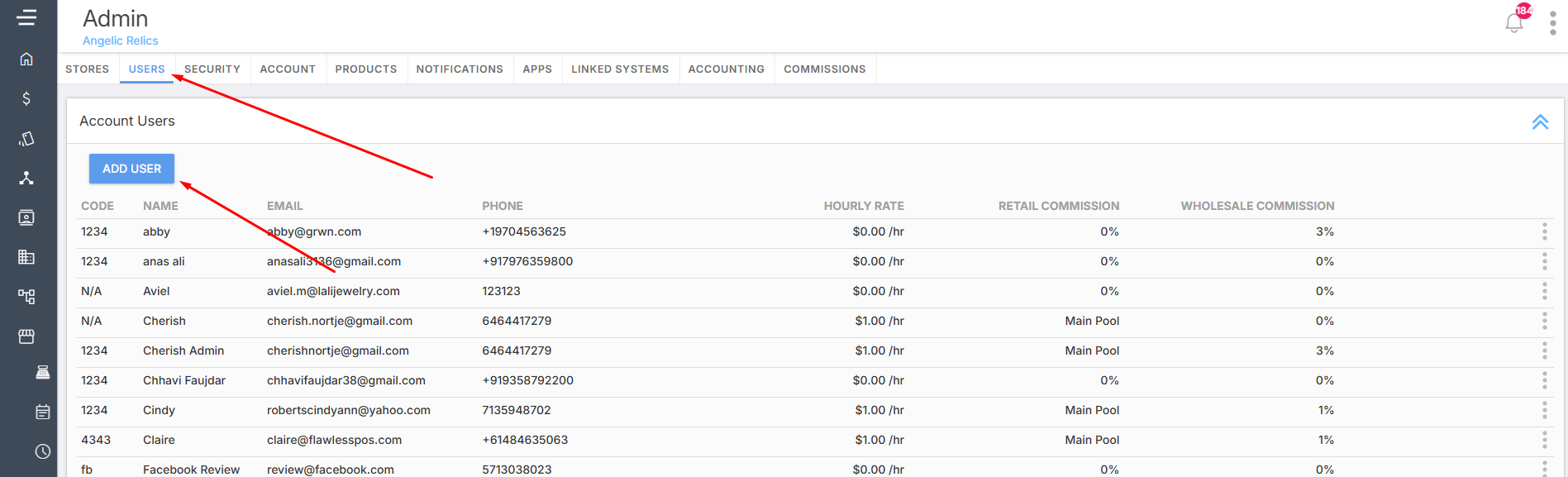
Fill in all required user information such as:
Name
Email
Login credentials
Any other required fields
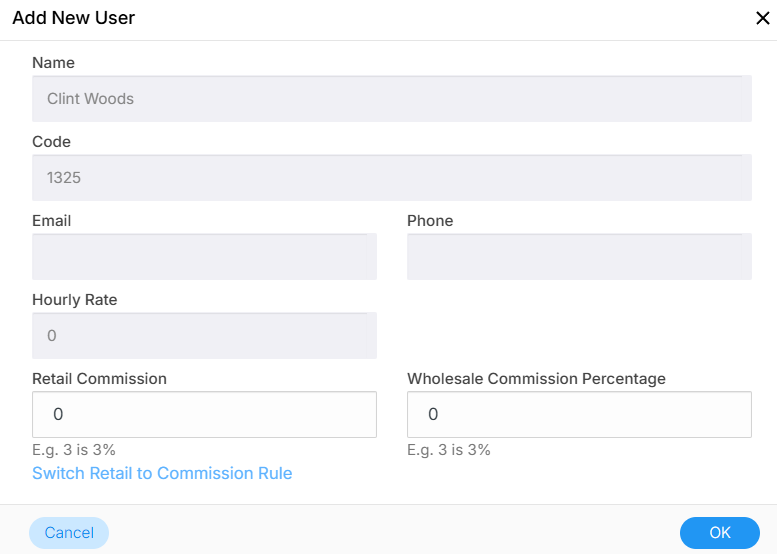
Once done, Click OK to create the user.
Adding the Sales Rep to a Store
Once the user has been created, they must be assigned to a store.
Step 1: Navigate to Stores
Go to Admin → Stores
Select the store where the Sales Rep will be assigned
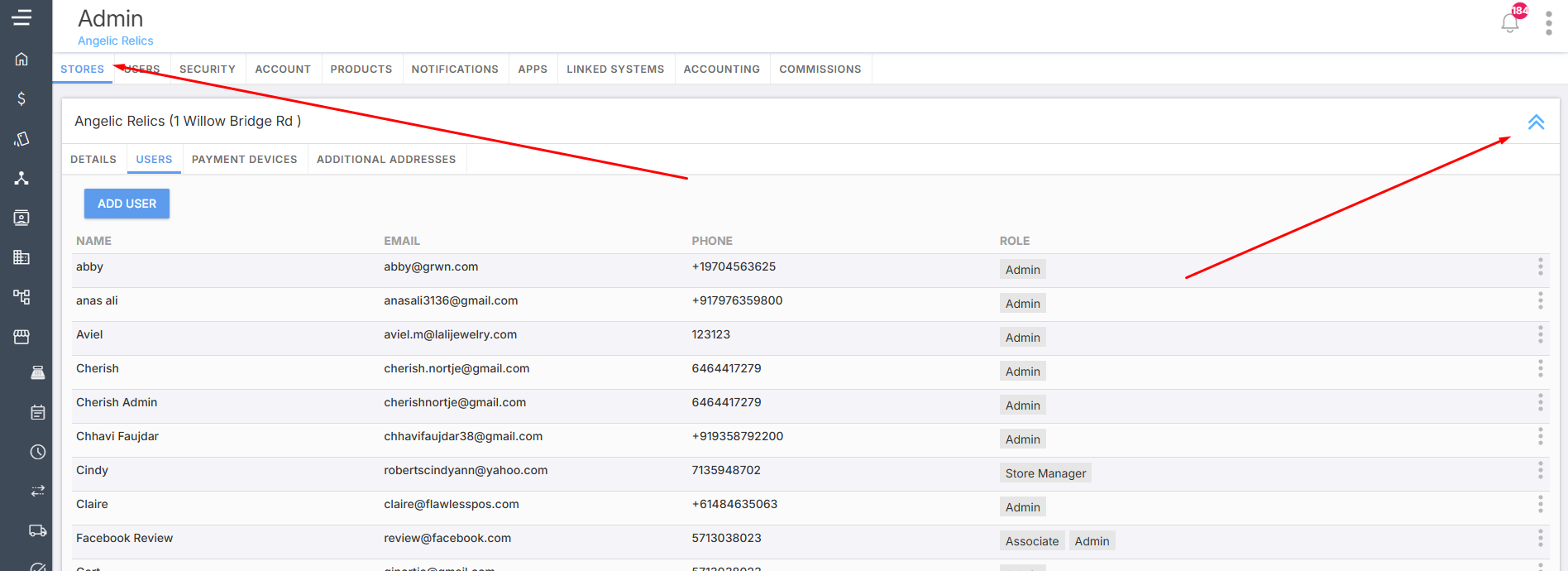
Step 2: Add the User to the Store
Open the Users tab
Click Add User
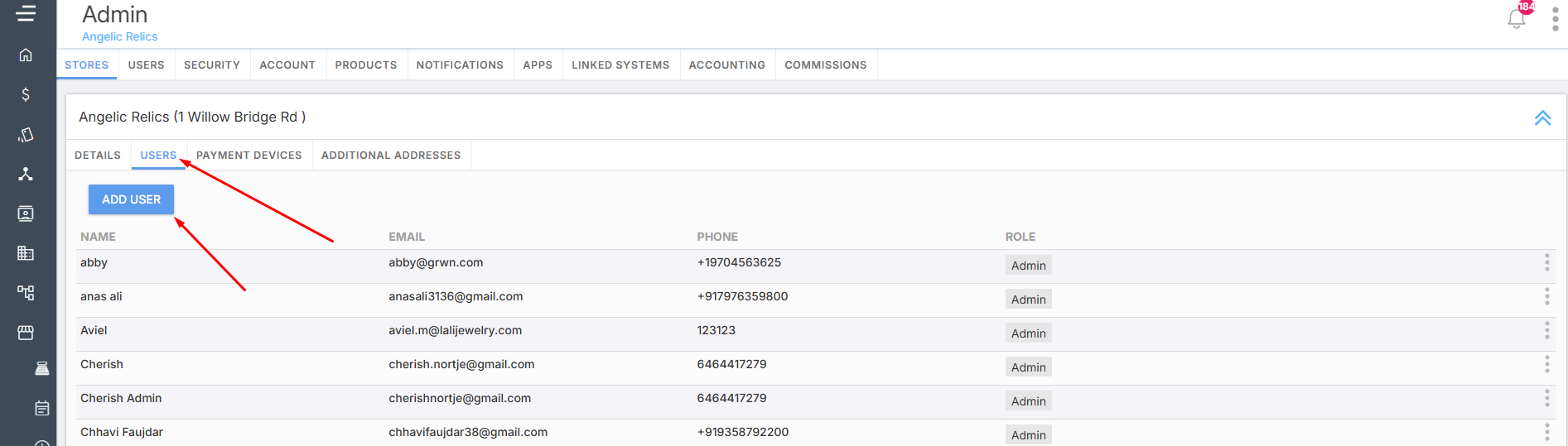
Select the newly created user from the dropdown
Step 3: Assign Role
Set the necessary Role
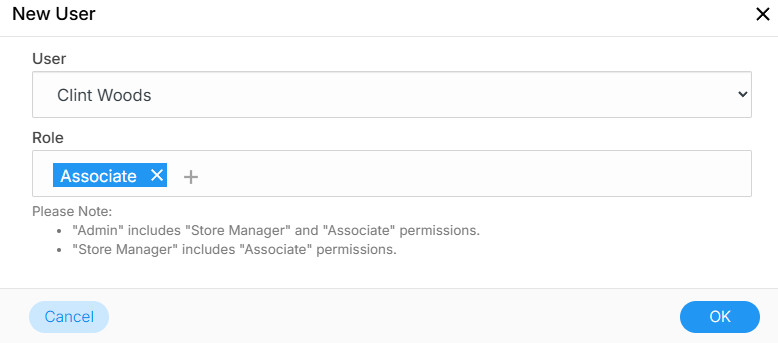
Click OK
This assigns the Sales Rep to the selected store.
How the Sales Rep Logs In
The Sales Rep can now log in using the email assigned to their user account.
To access the POS: www.[storename]/pos.
They will use their assigned email.
Creating a New Sales Rep Account
Once the user has been created and assigned to a store, you can create their Sales Rep account in the Wholesale module.
Step 1: Open the Wholesale Module
Navigate to the Wholesale module.
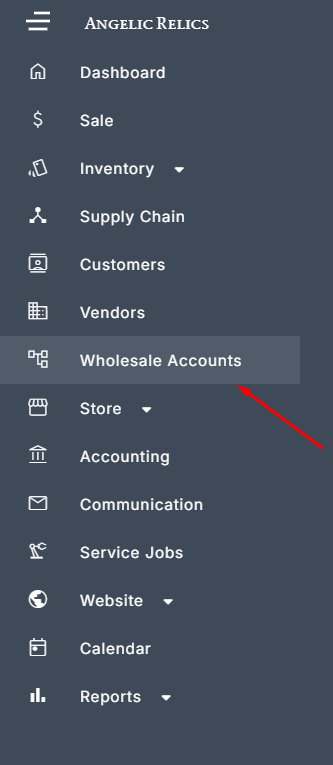
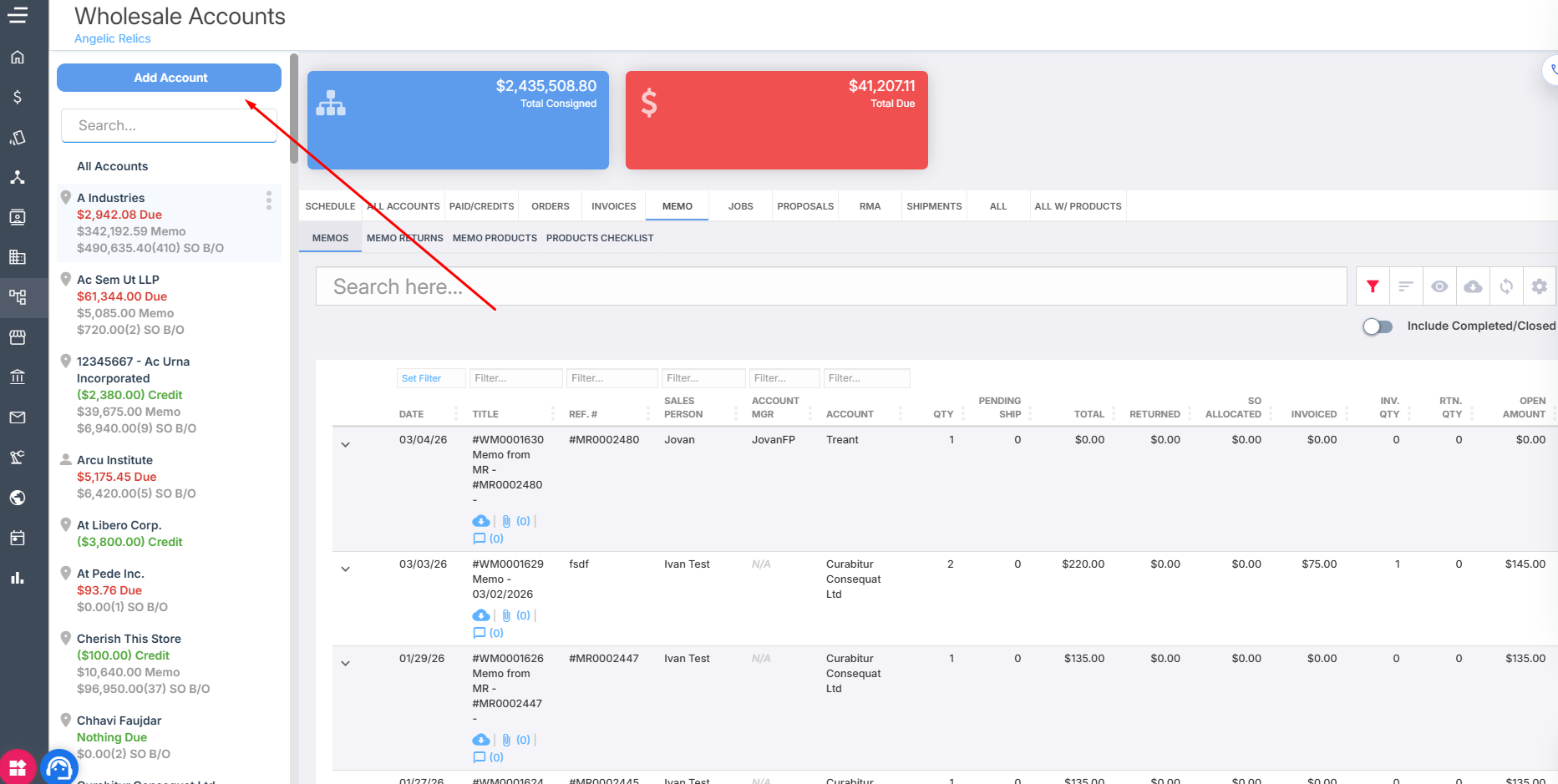
Step 2: Create a New Account
Click Add Account in the top-left corner.
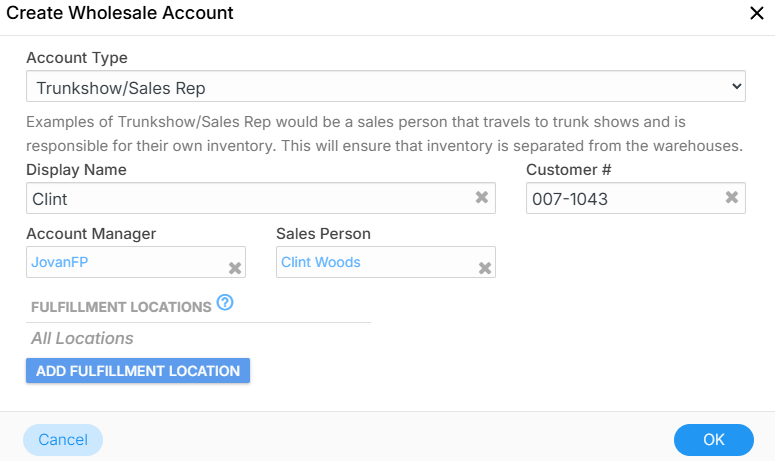
Change the Account Type to Trunkshow / Sales Rep.
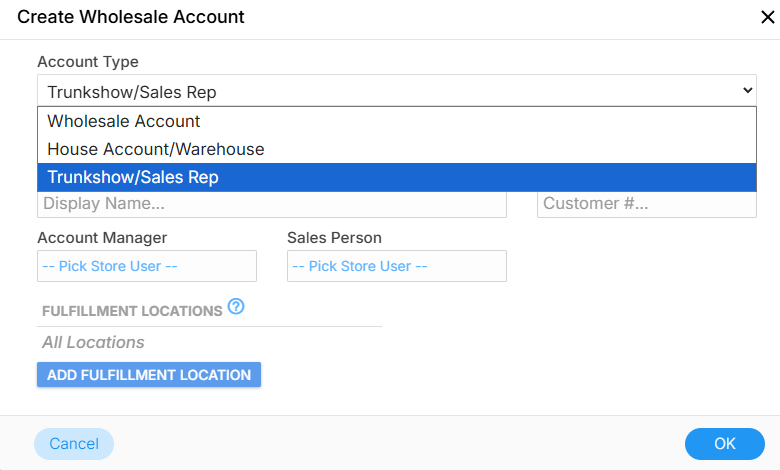
Step 3: Fill Out Account Details
Enter the required information such as:
Display Name – The name used to identify the Sales Rep account.
Customer # – Optional customer identifier if used.
Account Manager – The designated manager responsible for the Sales Rep.
Sales Person – Select the user account you previously created
Step 4: Configure Fulfillment Locations
Under Fulfillment Locations, select the locations that can be used as inventory allocation sources for this Sales Rep.
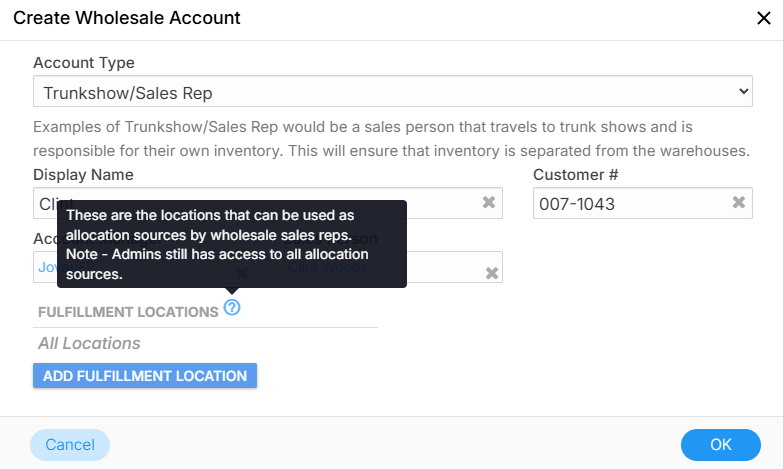
Important Note: Administrators will still have access to all allocation sources regardless of the selected fulfillment locations.
Step 5: Save the Account
Click OK to create the Sales Rep account.
Receiving Inventory for a Sales Rep
Once the Sales Rep account is created, inventory can be received directly into their account.
Step 1: Access the Vendor Module
Open the left navigation menu
Click Vendor
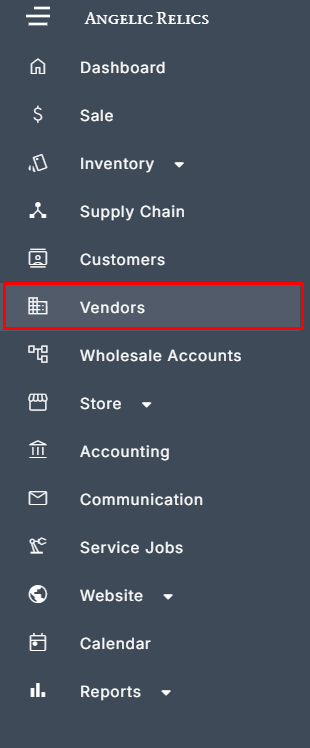
Select the vendor you are receiving merchandise from
Step 2: Start a Merchandise Receive
After selecting the vendor:
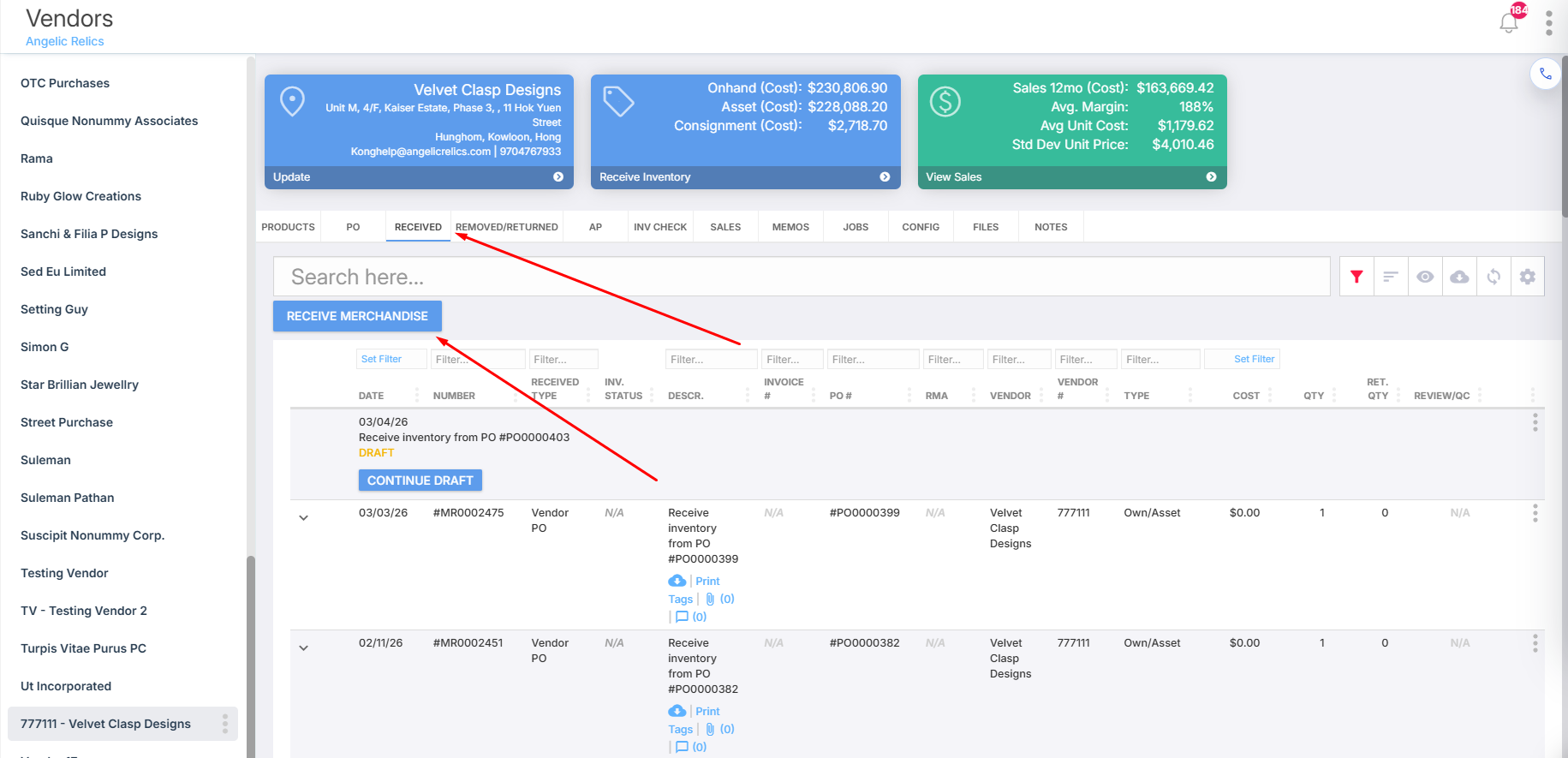
Navigate to the Receive tab
Click Receive Merchandise
In the MR Details section, choose the receive type
For example: Simple Merchandise Receive
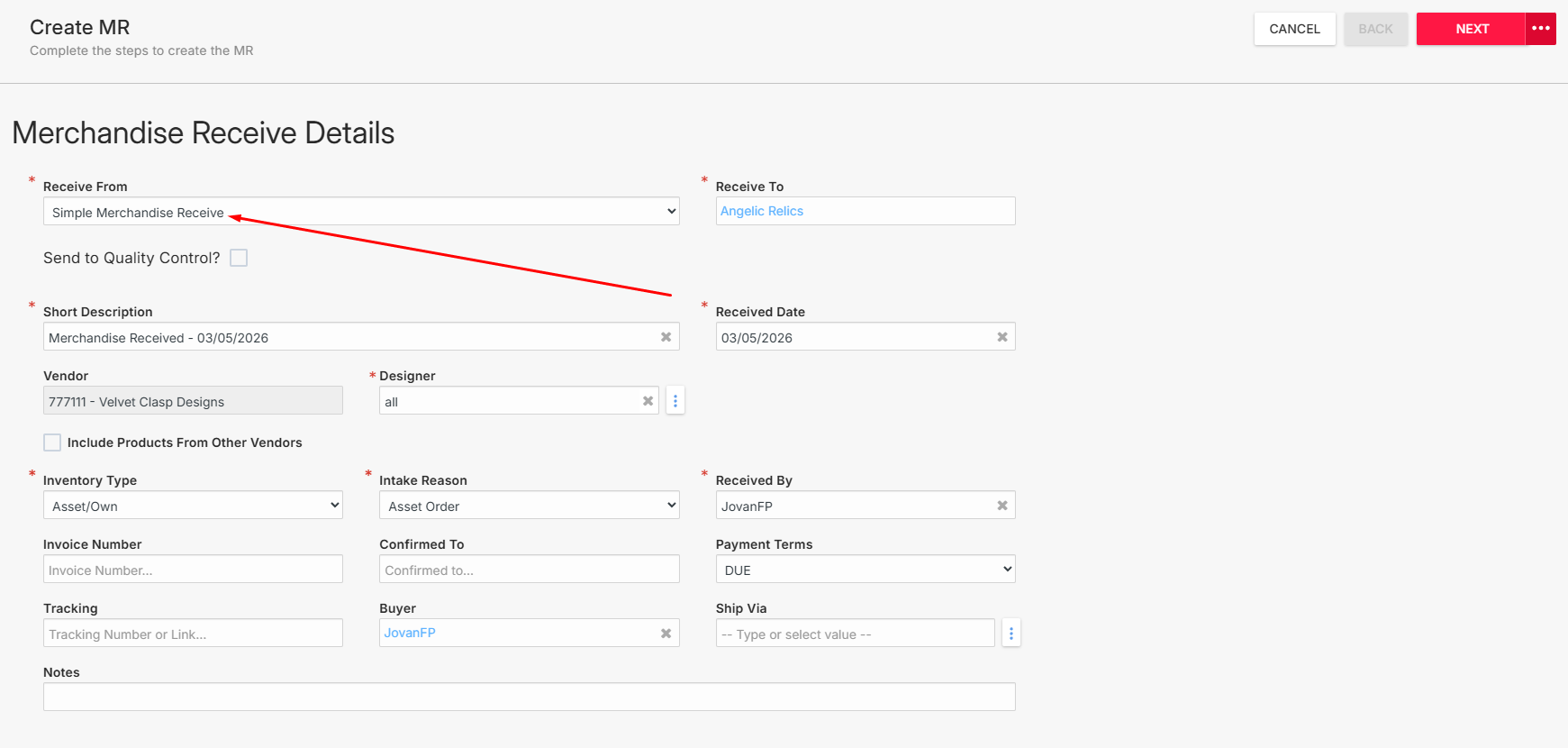
Optional:
Enable Quality Control if items need to go through QC.
Step 3: Select Where Inventory Will Be Received
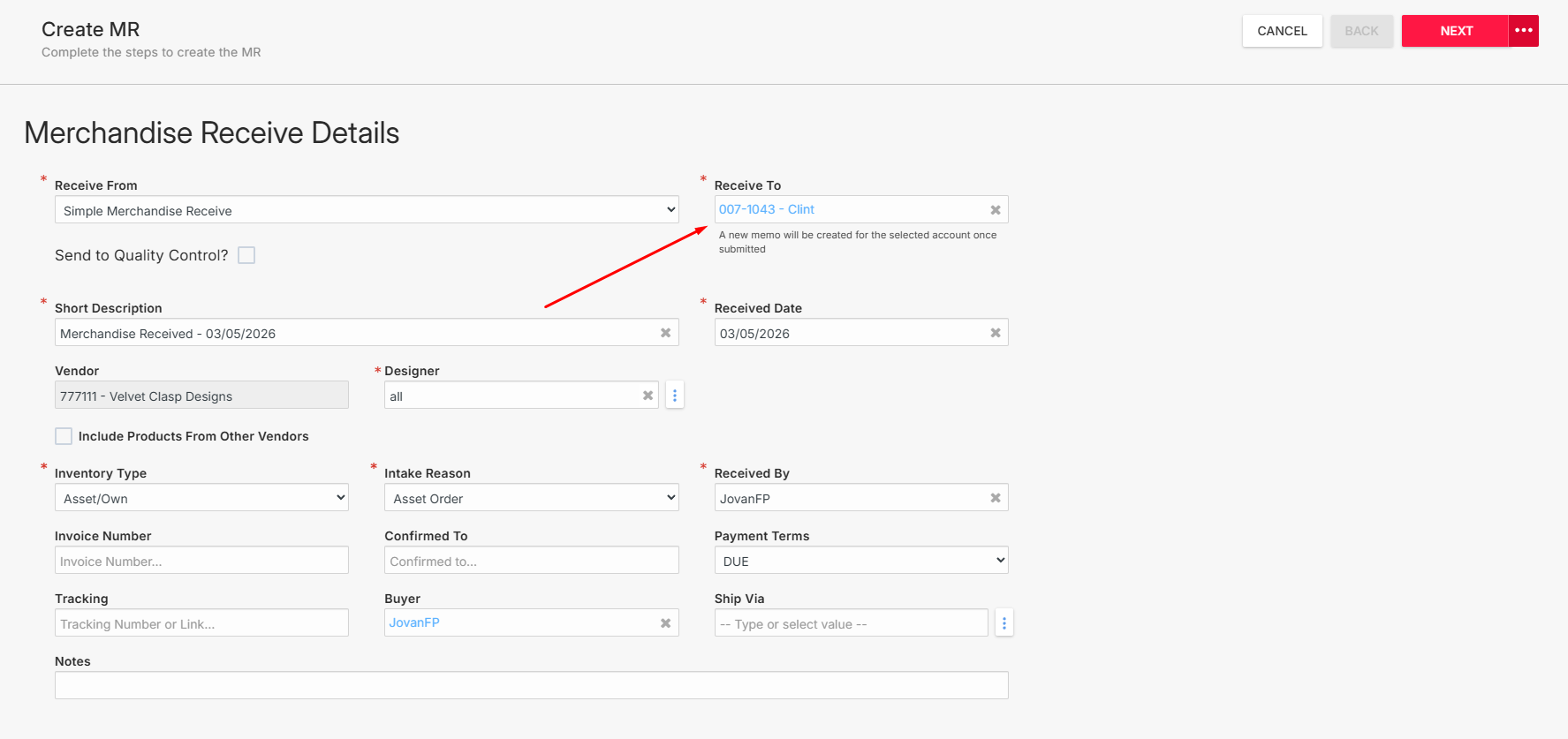
In the Receive To field:
Select the Sales Rep accountyou created in the Wholesale module.
Step 4: Select Products to Receive
Click Next.
You can add items using one of the following methods:
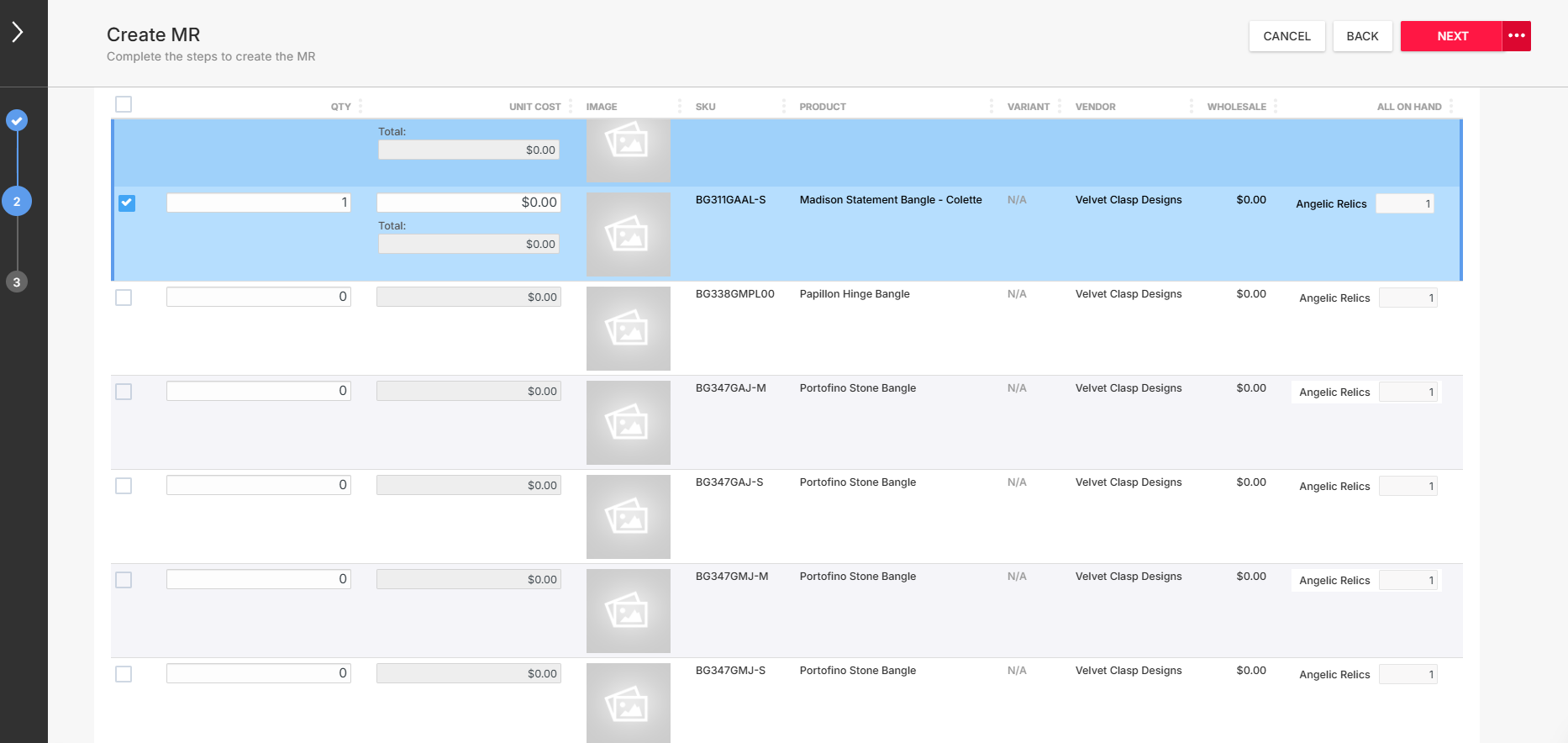
Barcode scanner
Manual product selection
Excel or CSV import using Select From Excel or CSV
Step 5: Finalize the Merchandise Receive
Click Next again.
In the final screen you can:
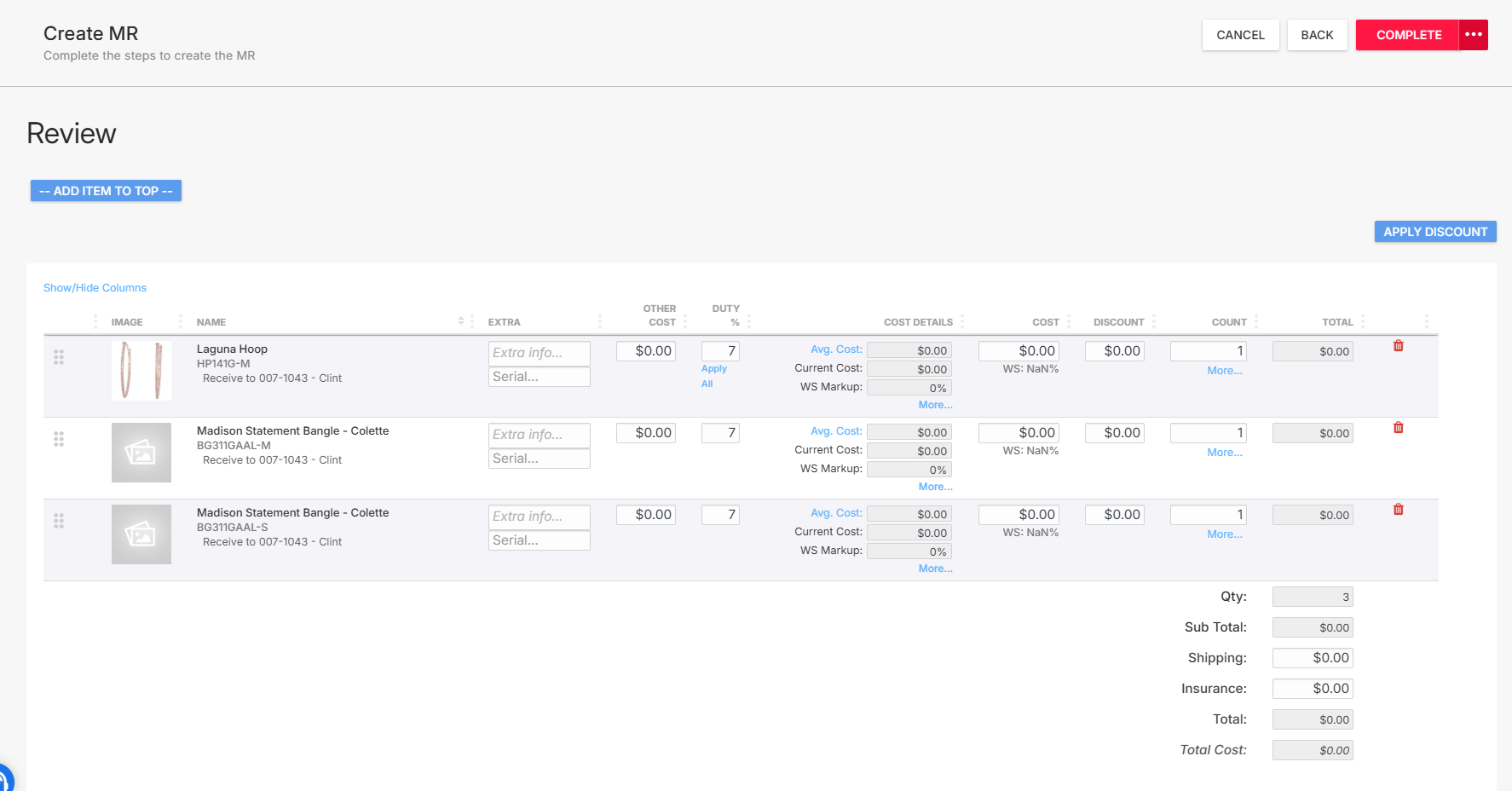
Adjust quantities
Add descriptions
Enter cost information
When finished, click COMPLETE.
Verifying the Inventory Was Received
To confirm that the inventory was successfully received:
Step 1: Open the Wholesale Module
Navigate to the Wholesale module.
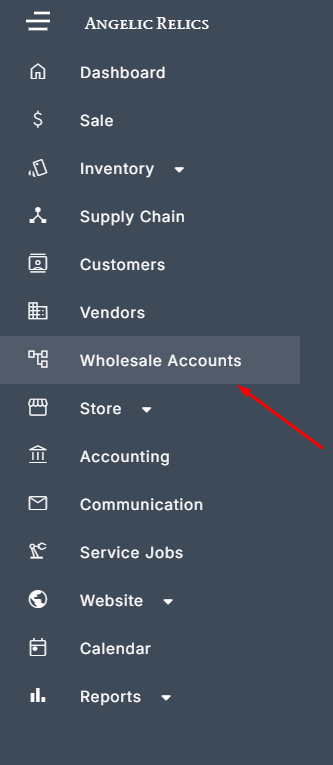
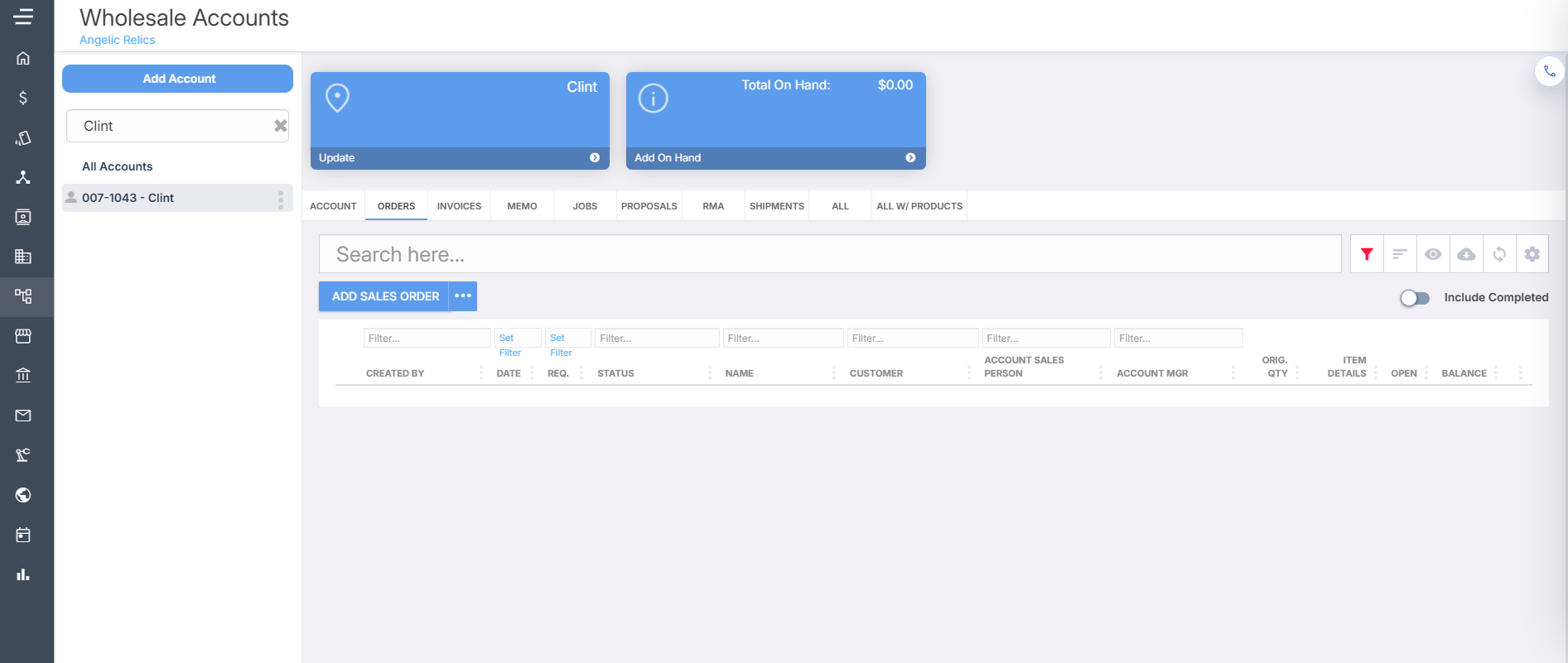
Step 2: Open the Sales Rep Account
Locate and select the Sales Rep account that received the inventory.
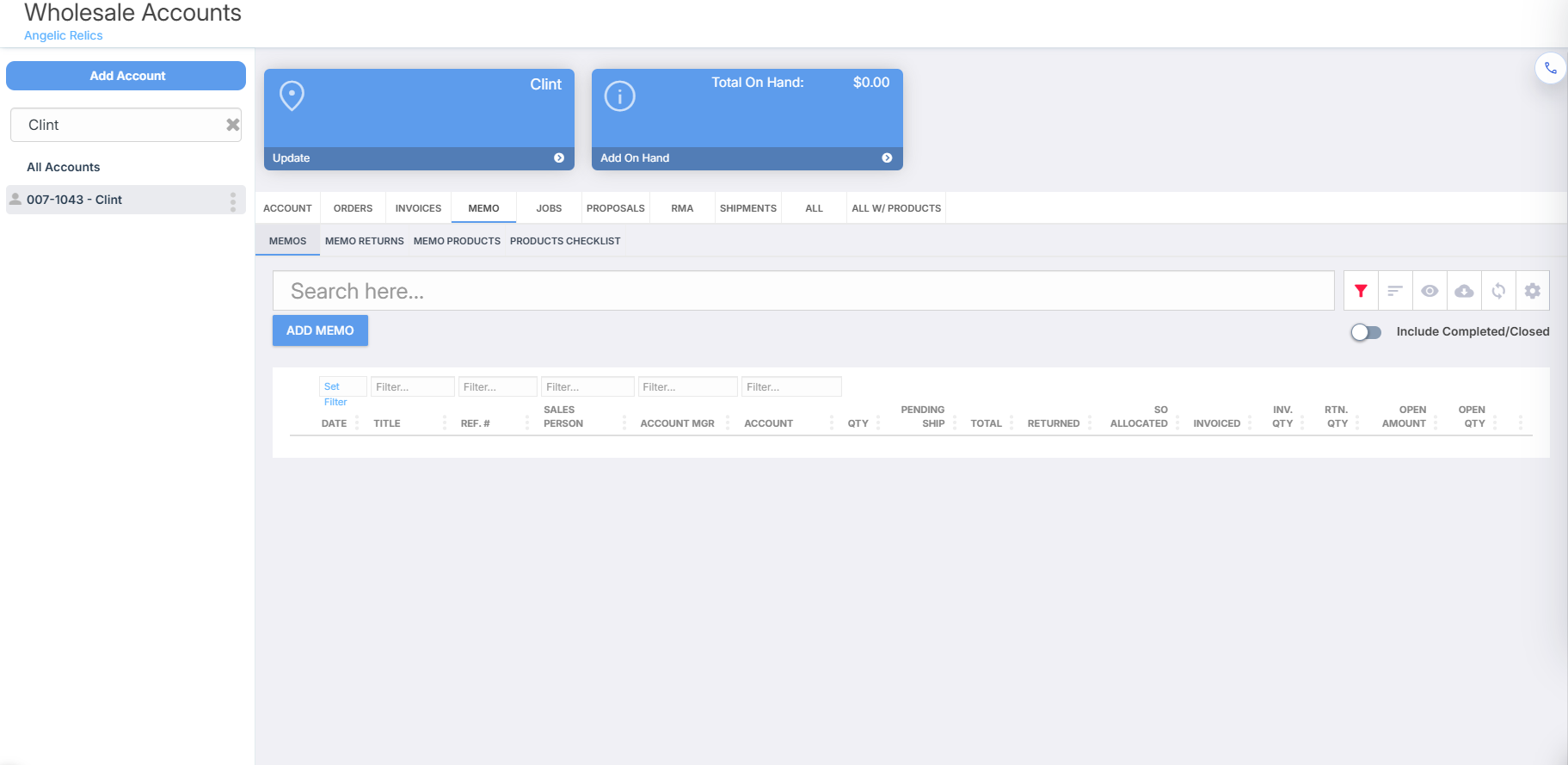
Step 3: Check the Memo Section
Navigate to the Memo tab
Look for the memo created from the Merchandise Receive (MR)
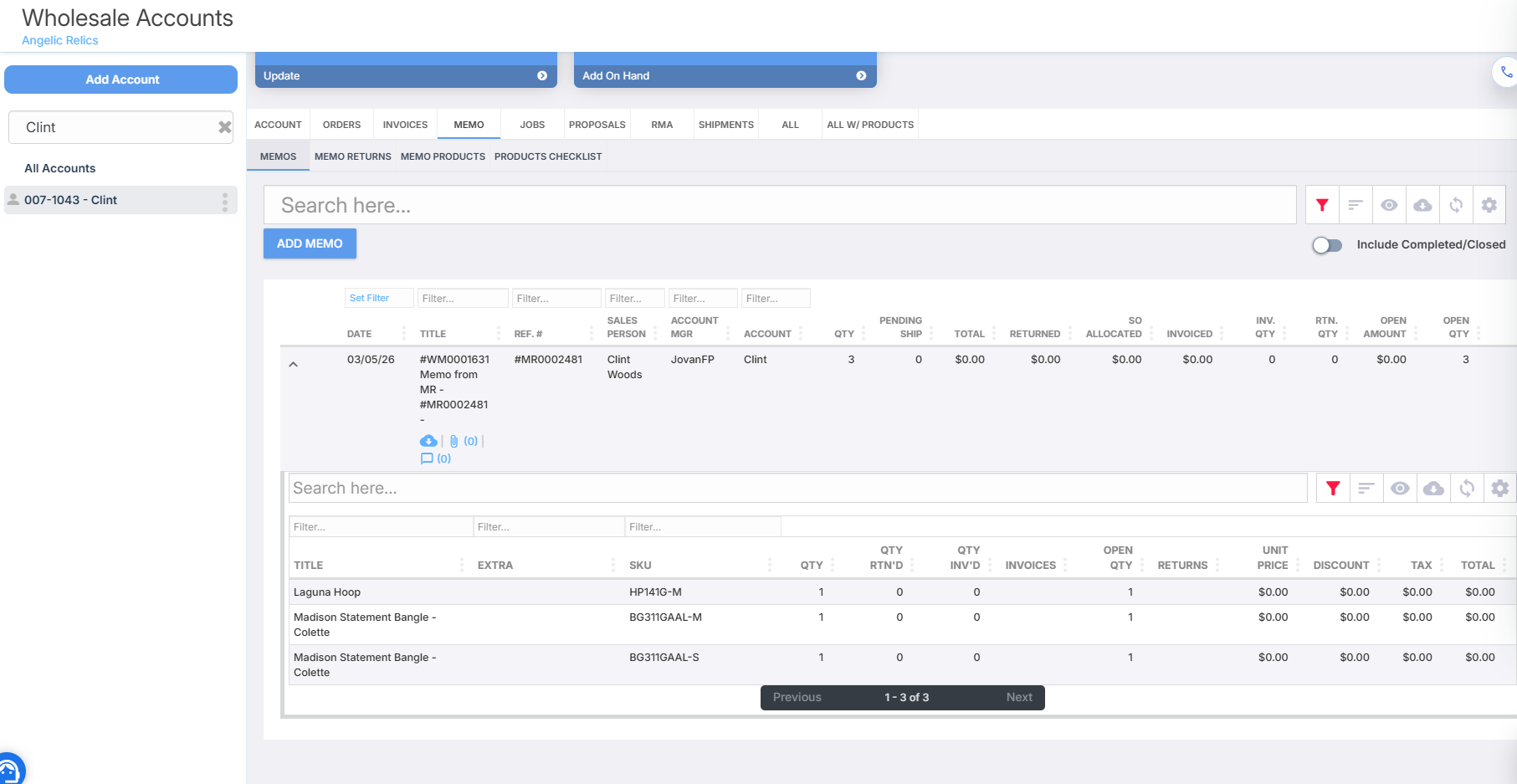
This memo confirms that the inventory has been successfully received into the Sales Rep account.
Alternative Verification Method
Another way to confirm the inventory was received is through the Products module.
Navigate to the Products module.
Locate the item that was received.
Check the All On Hand column
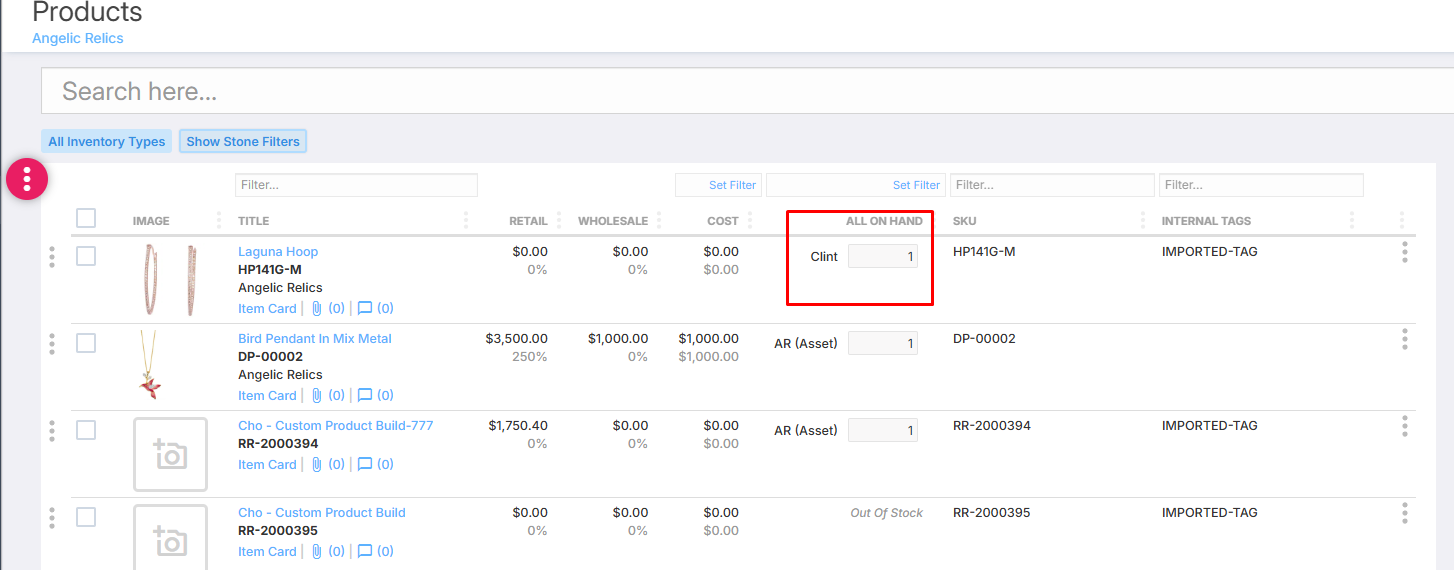
In this column, you will be able to see which account currently holds the inventory, including the Sales Rep account that received the merchandise.
Was this article helpful?
That’s Great!
Thank you for your feedback
Sorry! We couldn't be helpful
Thank you for your feedback
Feedback sent
We appreciate your effort and will try to fix the article