This article provides a guide on using the newly revamped Promotions module. Promotions can now be configured to apply to Online, In-Store, or Online + In-Store purchases, depending on how the promotion is set up.
Step 1: Navigate to the Promotions Module
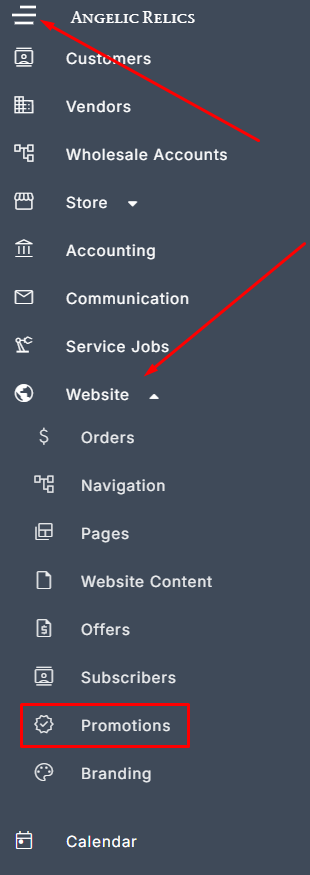
Open the left navigation menu.
Select Website.
Click Promotions.
Step 2: Add a New Promotion
Click Add New Promotion.
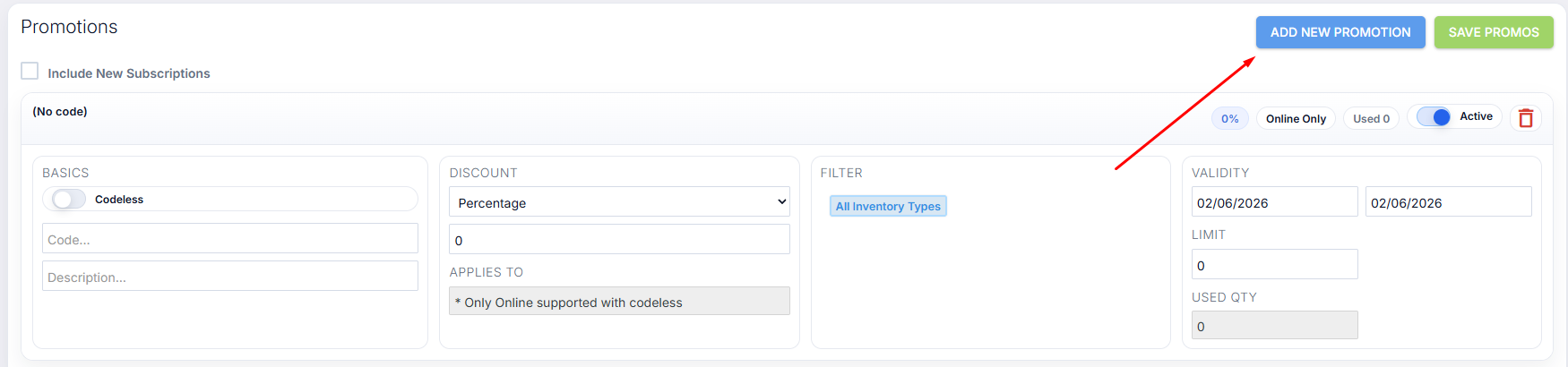
Configure the promotion settings.
You can create promotions in two ways:
Codeless Promotion (no coupon code required)
Code-based Promotion (you enter your own promo code)
Important: Code-based promotions are currently supported for online purchases only.
If you want a promotion to apply to Online + In-Store, you must use a Codeless promotion.
Step 3: Set the Discount and Where It Applies
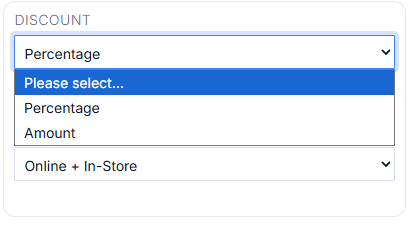
Under Discount, choose your discount type and amount (example: Percentage).
Under Applies To, select where the promotion should apply:
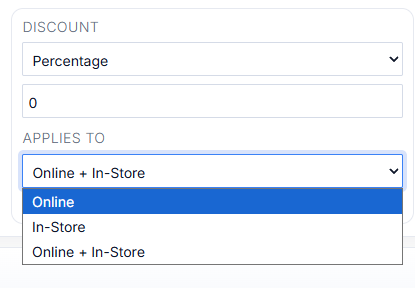
Online
In-Store
Online + In-Store
Step 4: Add Filters, Validity, and Limits
Under Filter, set the conditions for what items qualify for the promotion.
(Example: inventory type, vendor, price range, and other product filters.)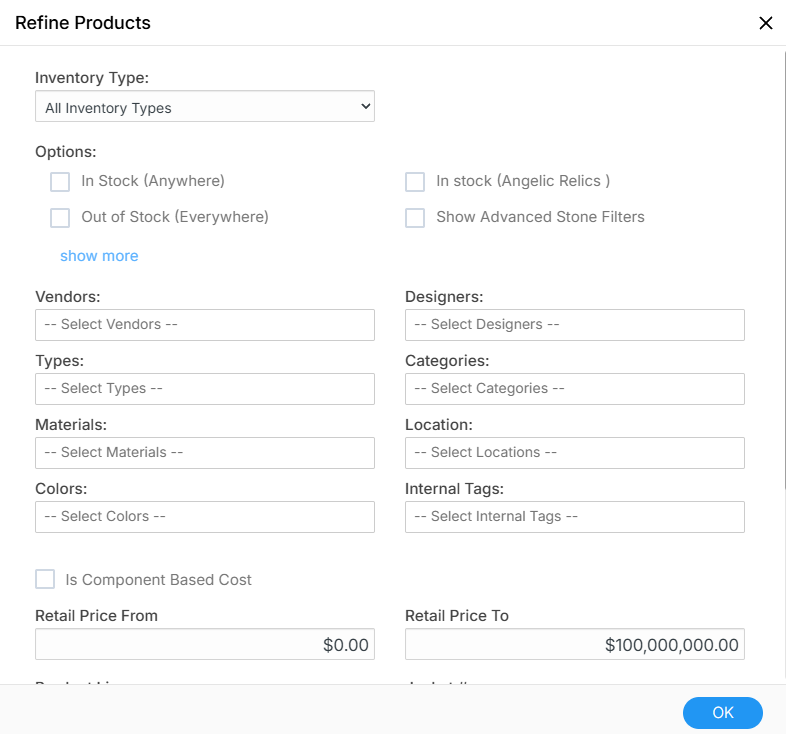
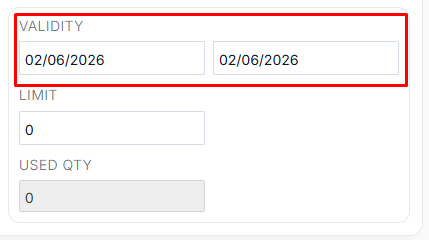
Under Validity, select the start and end dates for the promotion.
Under Limit, set how many times the promotion may be used.
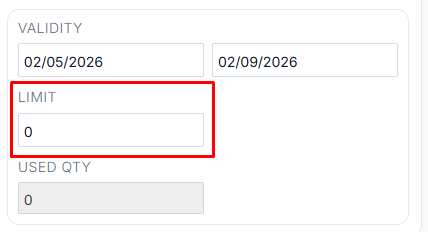
The Used Qty field indicates how many times the promotion has already been used.
Once everything has been filled out, don't forget to click on the Save Promos button to save the promotion.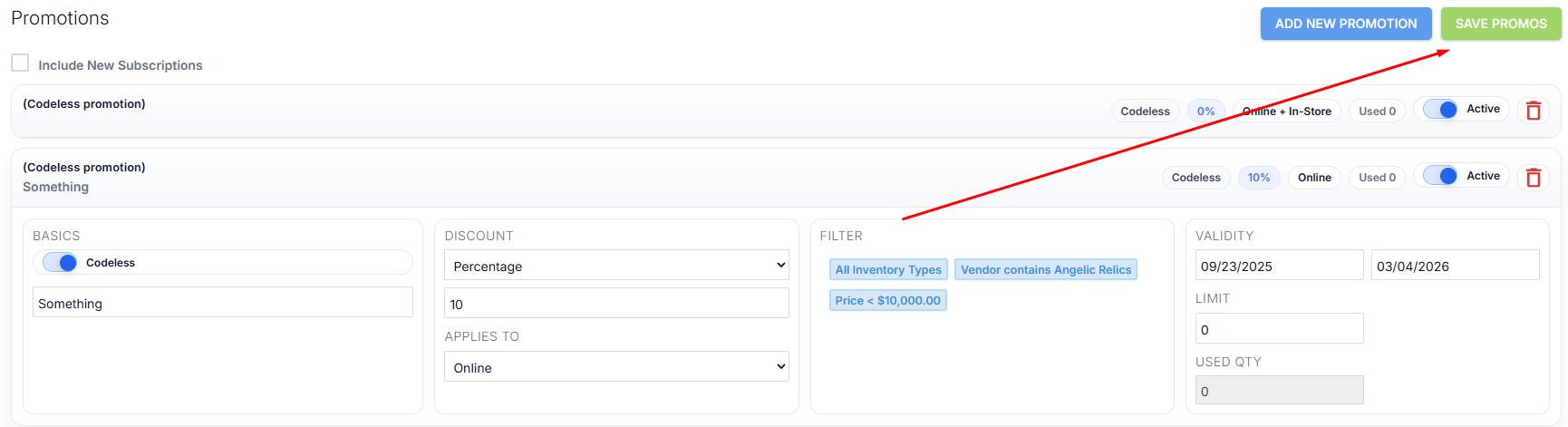
Step 5: How It Works for an In-Store Purchase
When a customer checks out in-store, Flawless will automatically detect if a scanned/selected item qualifies for an active promotion.
Add the item to the cart as usual.
If the item has an eligible promotion, you’ll see a discount icon on the top-right of the product tile.
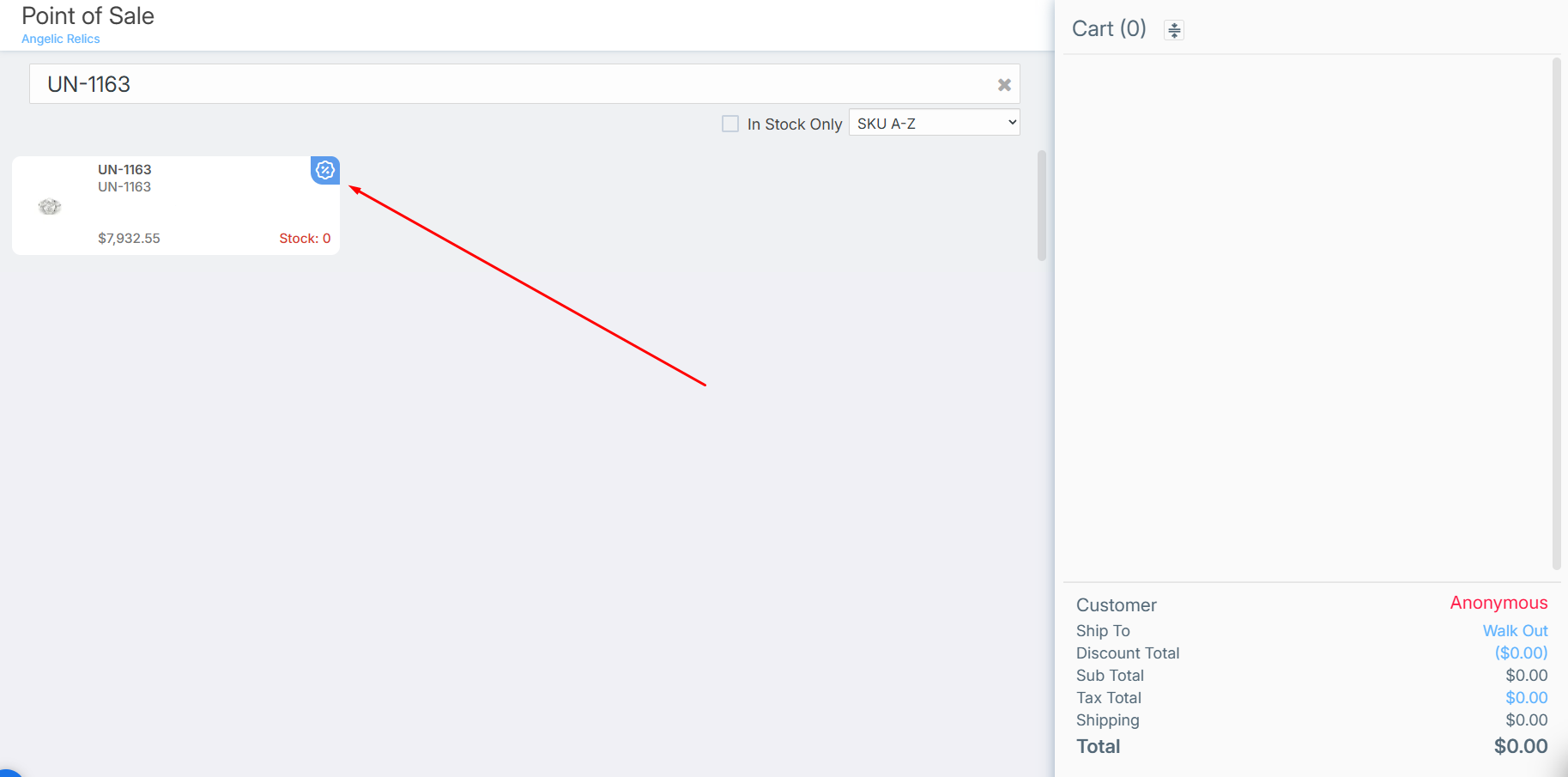
Click the product.
If the product matches the promotion filters, a popup will appear showing:
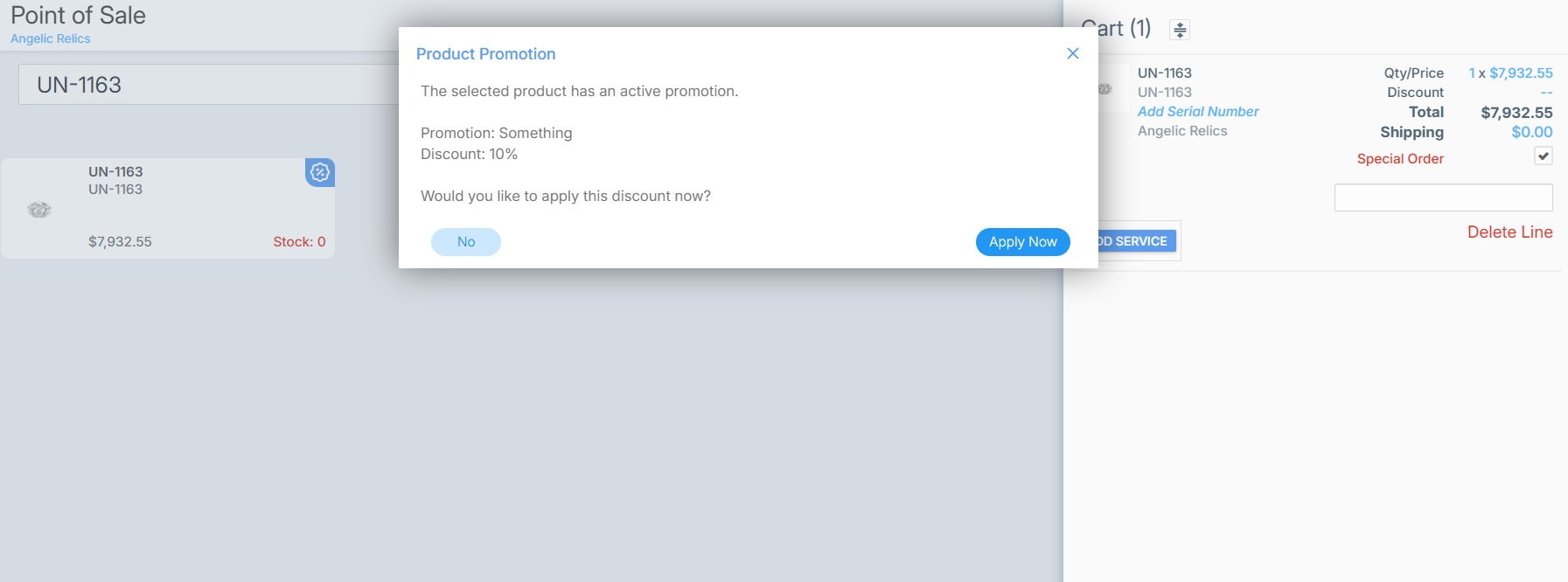
The Promotion name
The Discount amount
Options to Apply or Decline
Click Apply to add the discount.
When applied, the discount is automatically added to that product in the cart, and you can proceed with checkout as usual.
Was this article helpful?
That’s Great!
Thank you for your feedback
Sorry! We couldn't be helpful
Thank you for your feedback
Feedback sent
We appreciate your effort and will try to fix the article