This article explains how to create an EDC Feeds API key so your vendors and suppliers can automatically access your sales and inventory data, instead of relying on manual reports.
Step 1: Open the Admin Module
Go to your system’s Admin module to begin configuring EDC Feeds.
In the Admin area, locate and open the Admin section if it is not already selected. 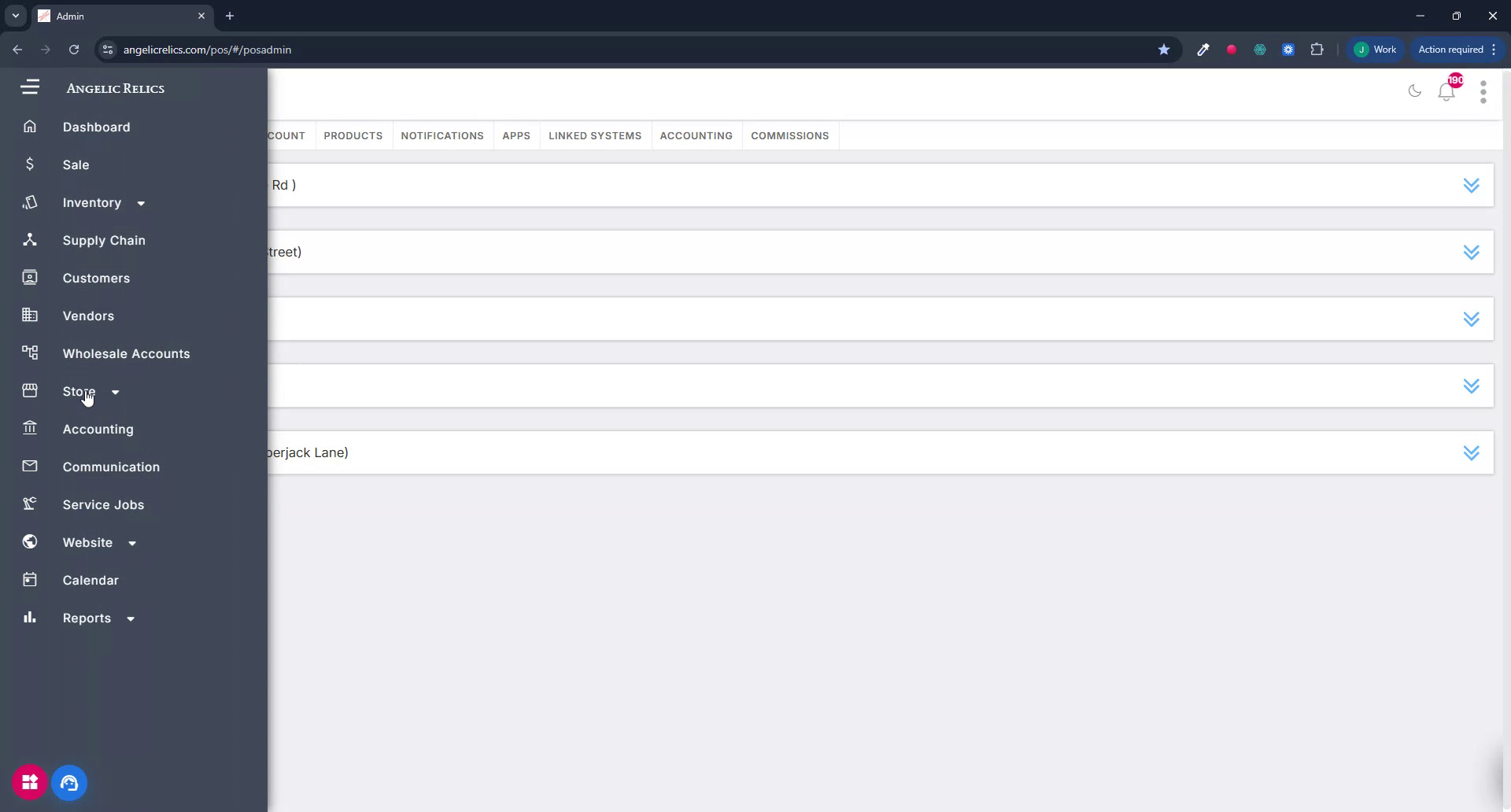
Step 2: Navigate to the Apps Tab
From the Admin module, open the Apps tab to manage installed applications.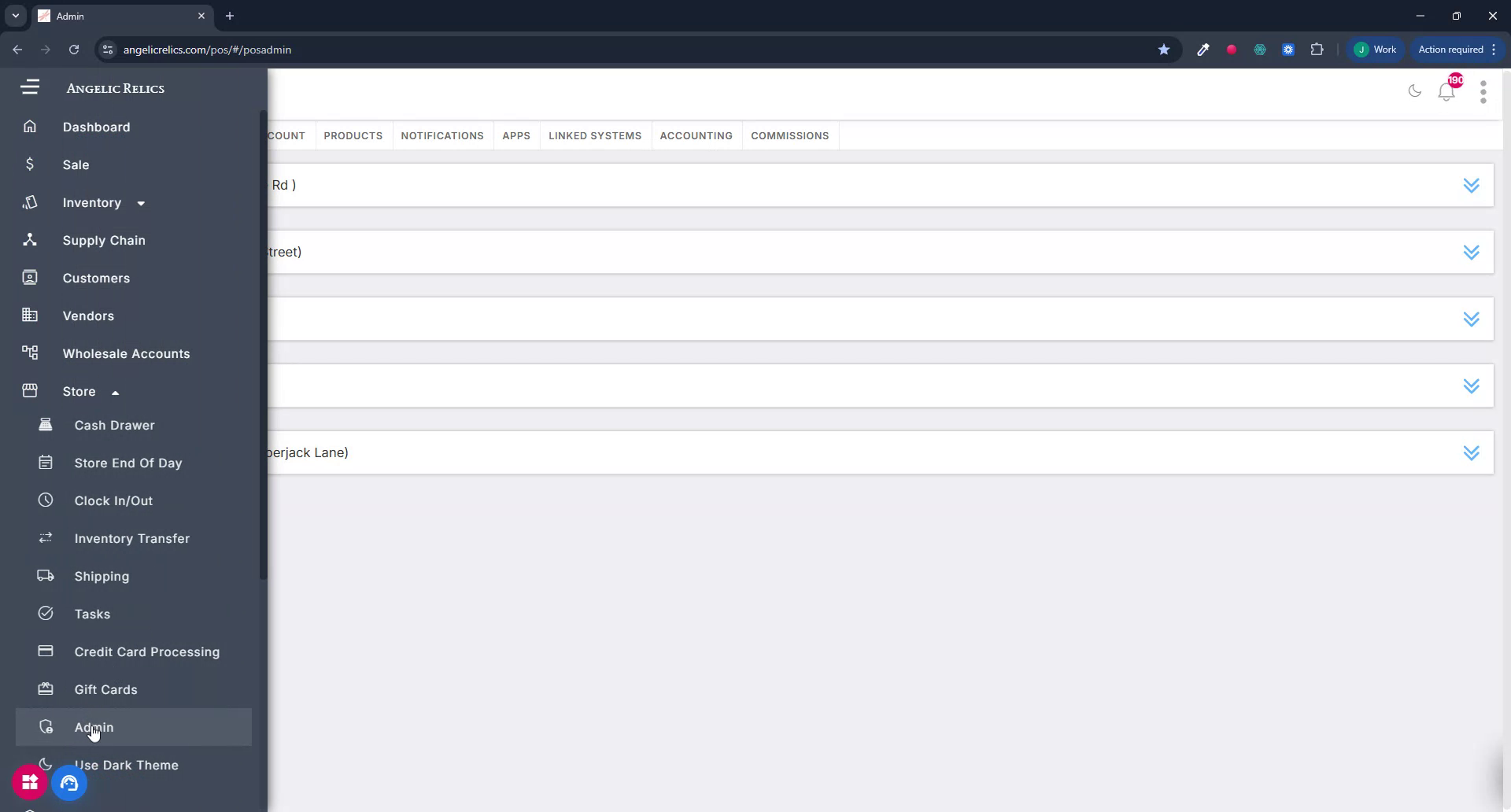
Under the Apps tab, find the EDC Feeds app.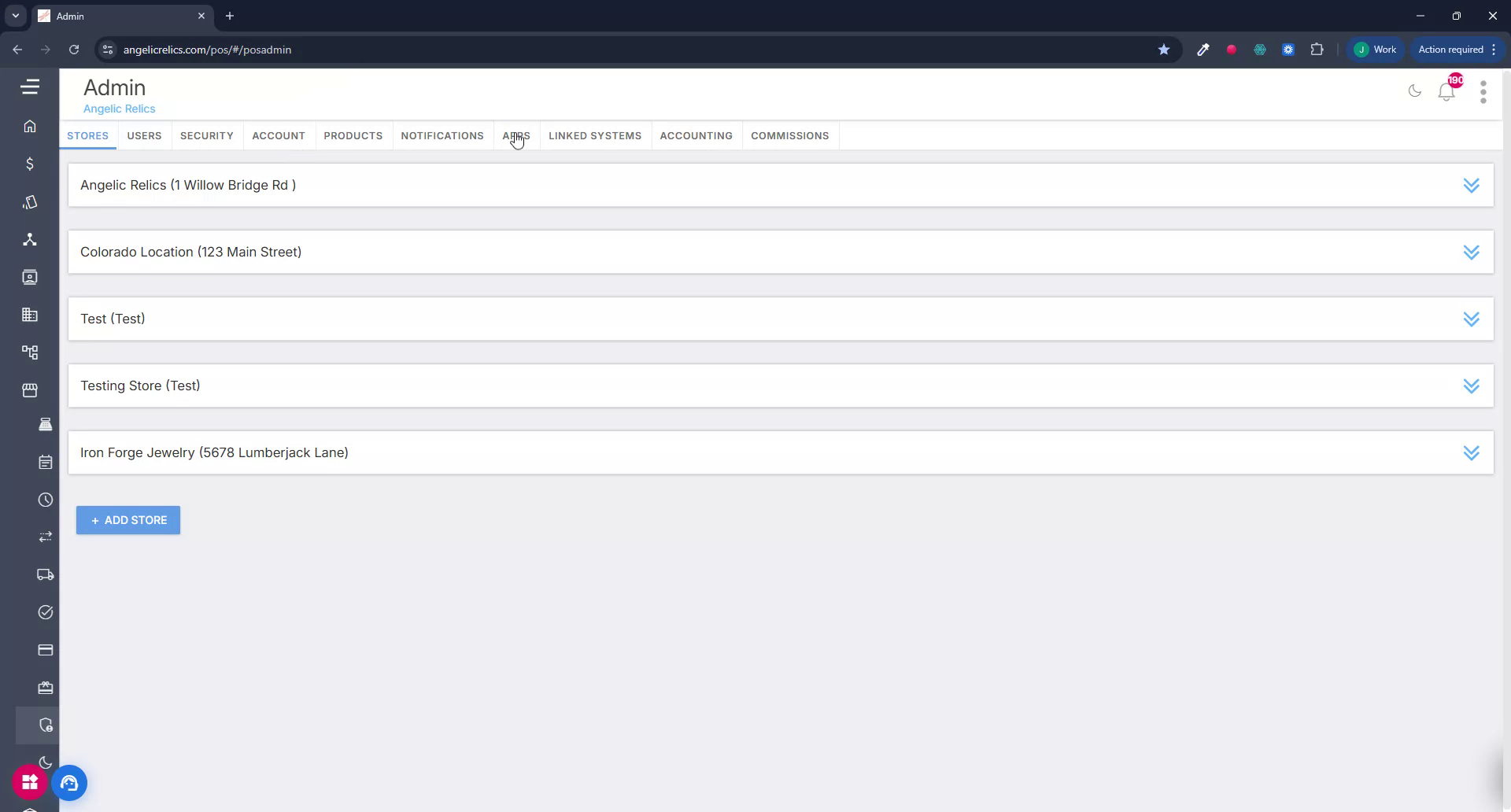
Step 3: Open EDC Feeds Configuration
On the EDC Feeds app tile, click the three-dotted menu button in the top-right corner.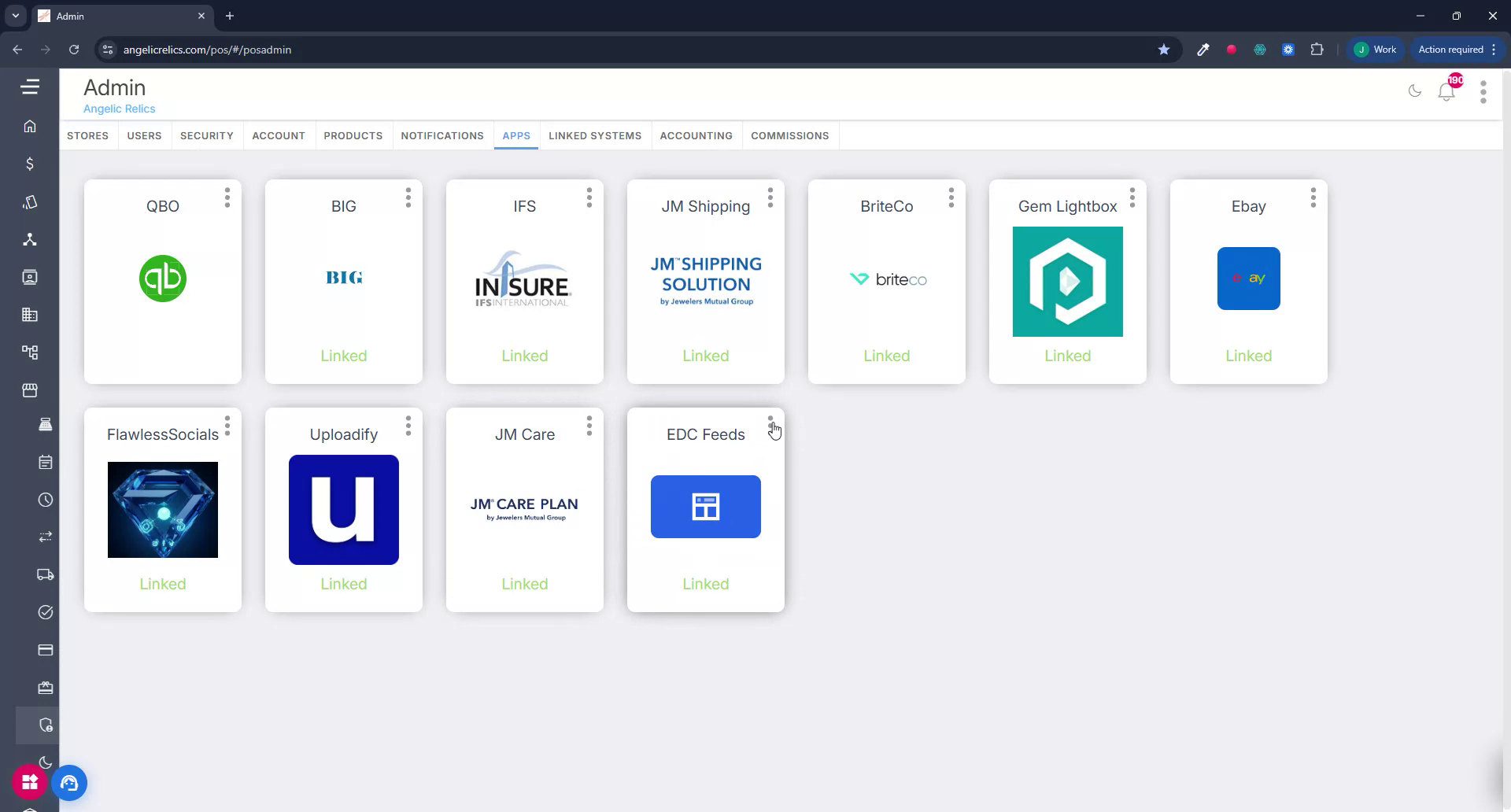
From the dropdown menu, select Update Configuration to open the feed settings.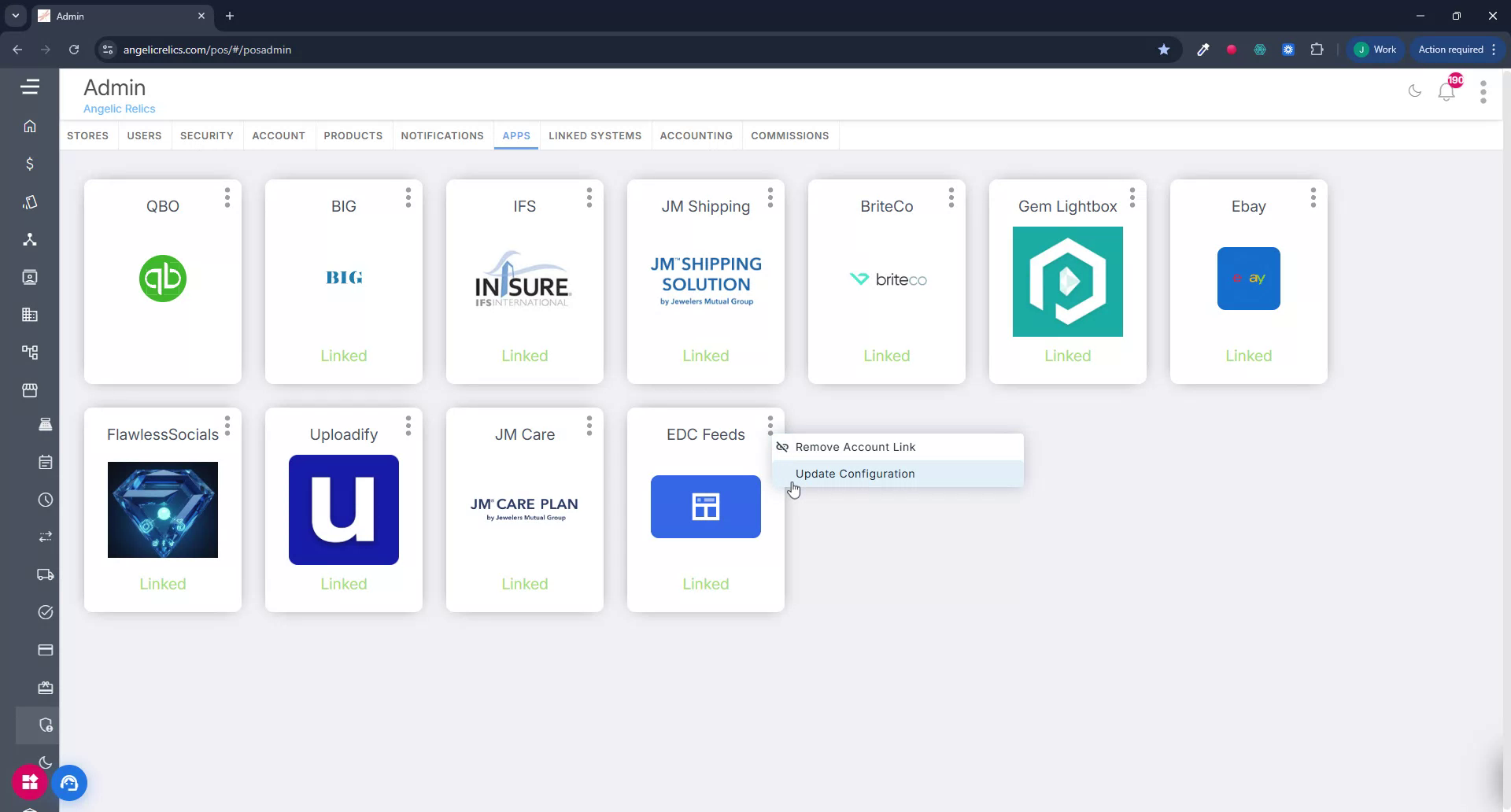
Step 4: Review Feed Types and Shared Data
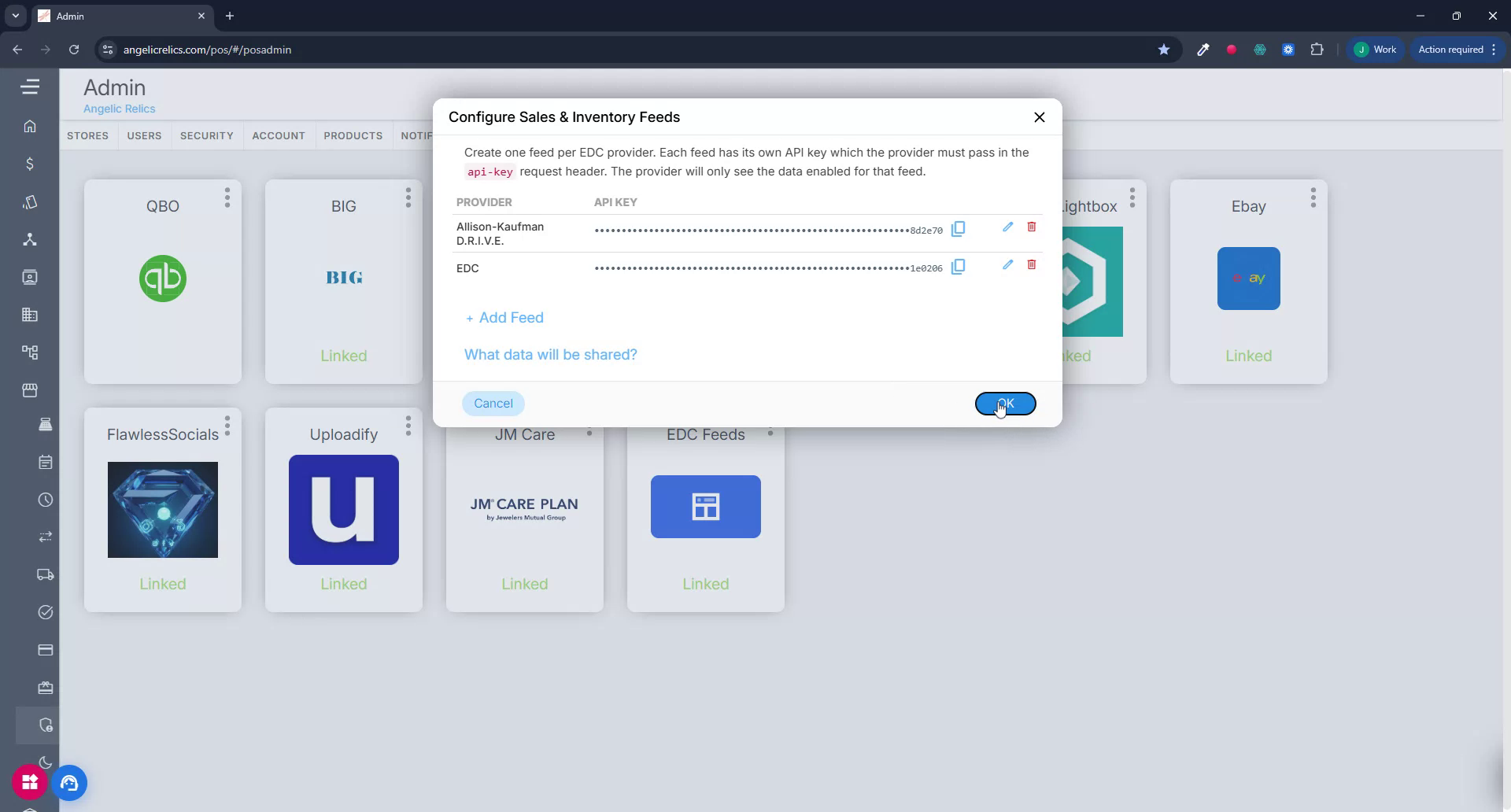
In the configuration screen, note that you can create one feed per EDC provider. Each feed has its own API key, which the provider must include in the API request header.
The integration shares two kinds of data: Sales Data and Inventory Data.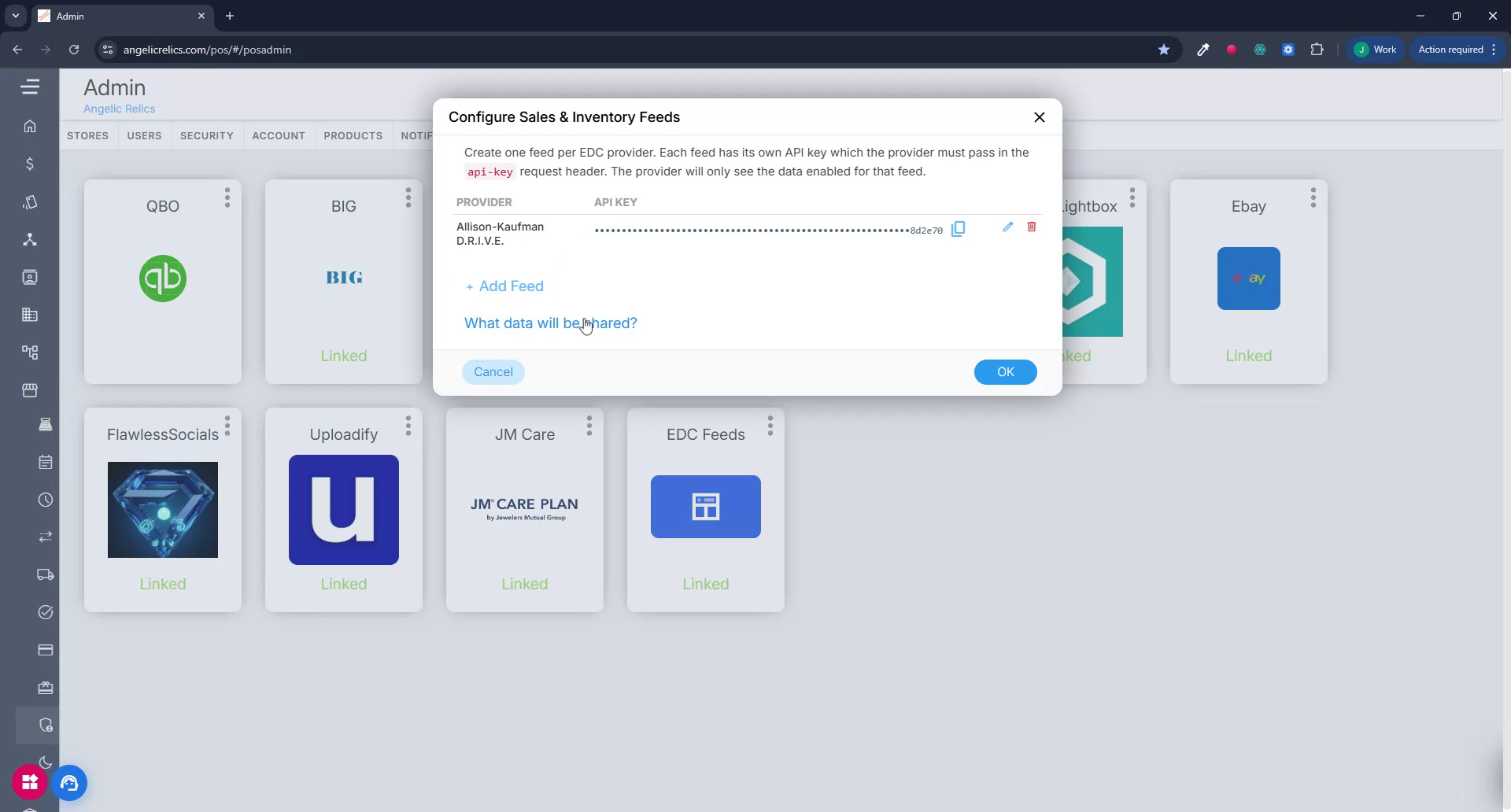
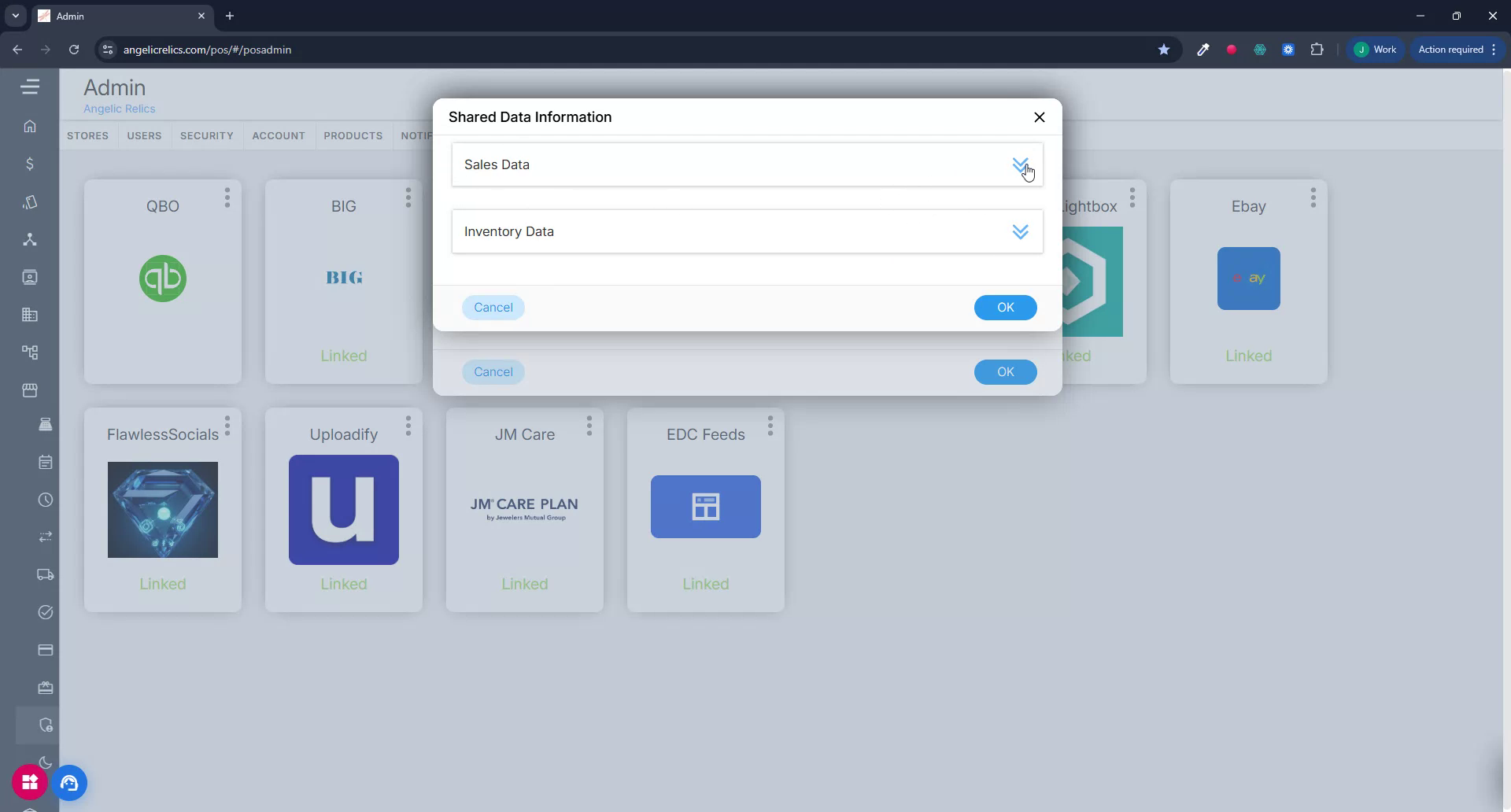
For Sales Data:
- Only completed sales from the last calendar month are included by default.
- If you set vendor filters, only sales matching those vendors are shared.
- Incomplete sale lines (such as special orders or layaways) are not included until they are closed, unless you enable the Include Incomplete Sales option for that feed.
- The screen lists the specific sales data fields that will be shared.
For Inventory Data:
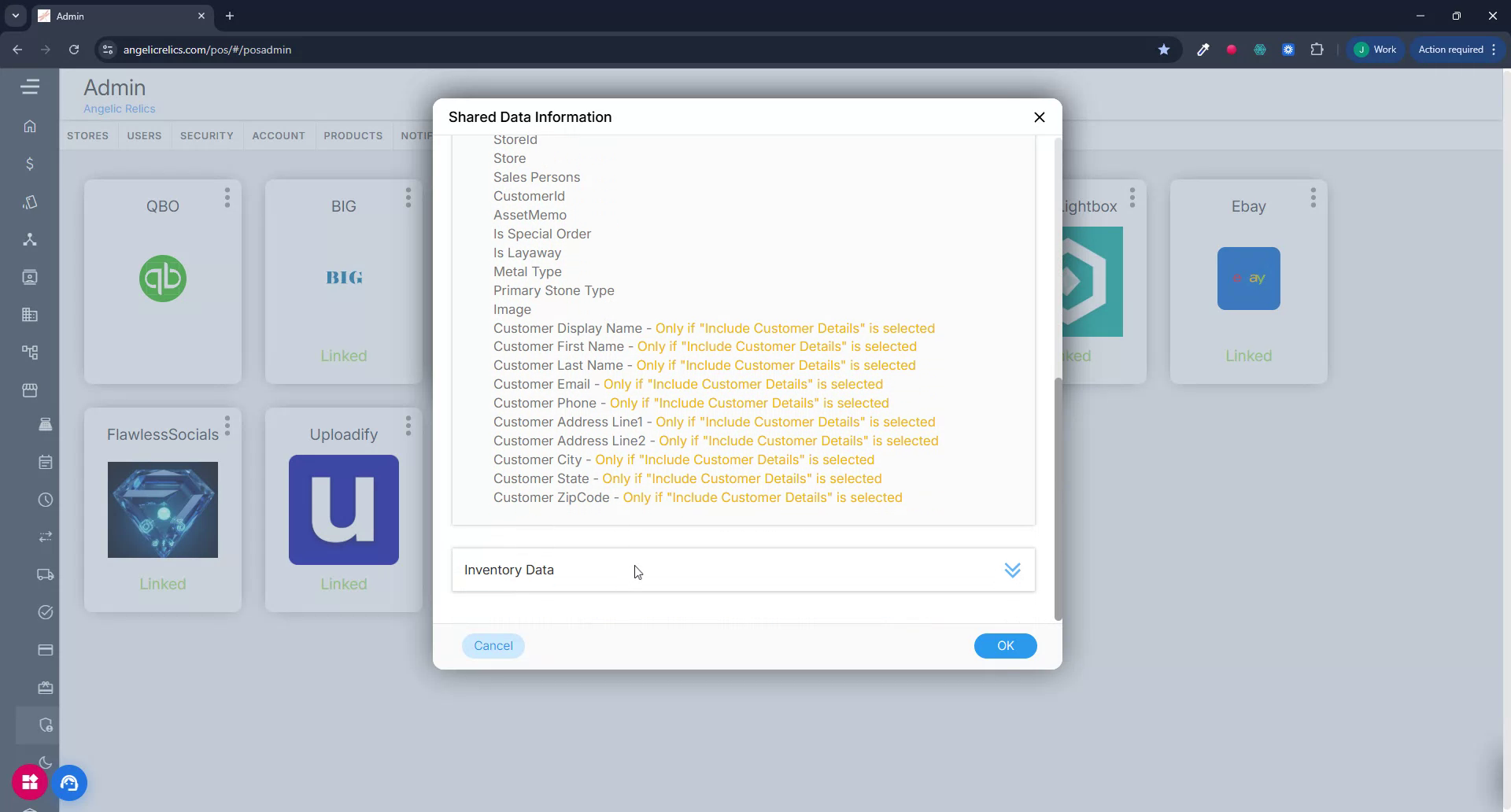
- Data is shared based on the vendor filters you configure.
- If no filters are set, all vendors are included.
- Only products that are in stock, on purchase order (PO), or in the current shared sales list are included.
- The screen lists the specific inventory data fields that will be shared.
Step 5: Add a New Feed
Click the Add Feed button to create a new feed for an EDC provider.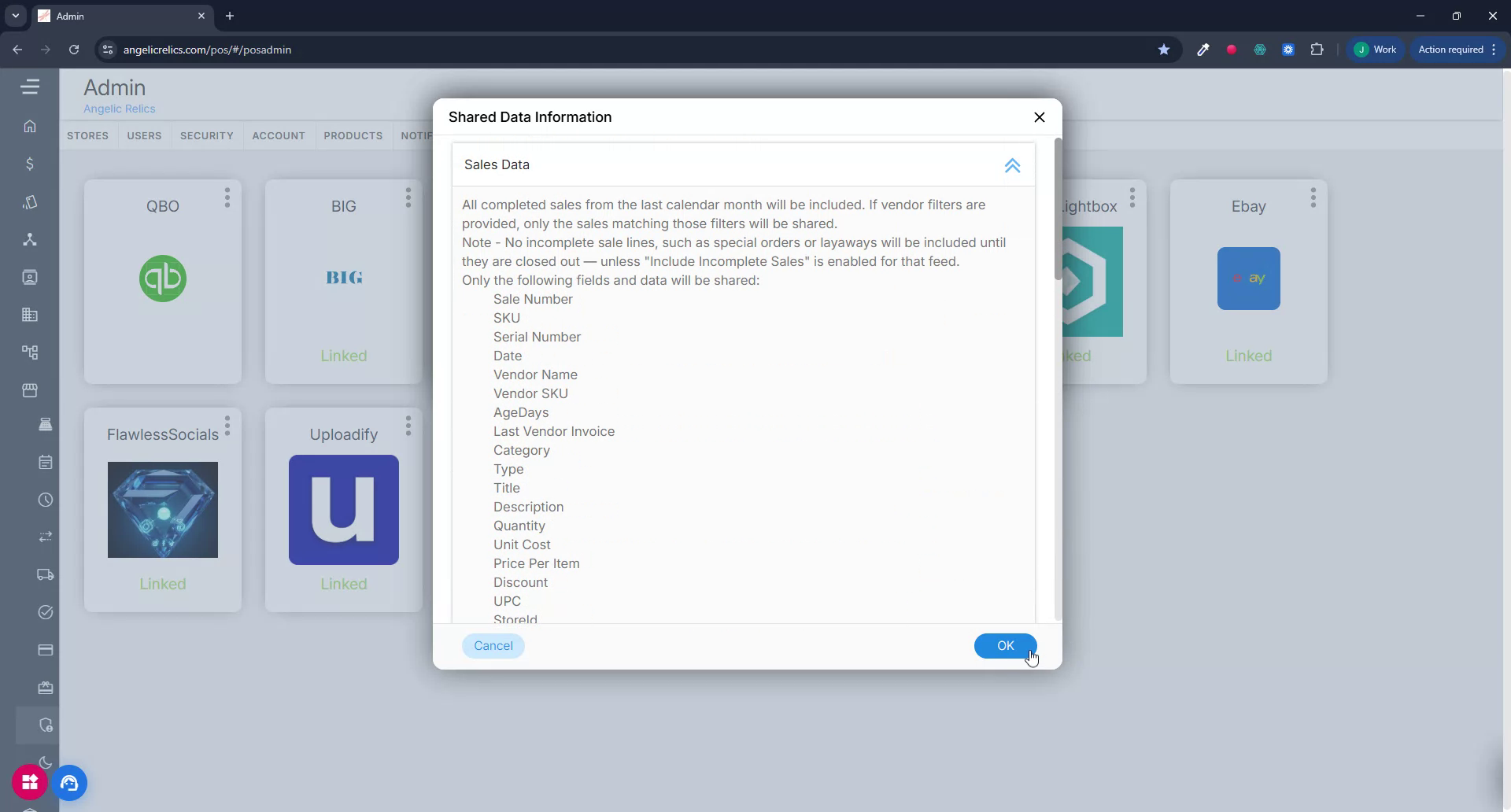
In the dialog that appears, enter a Provider Label.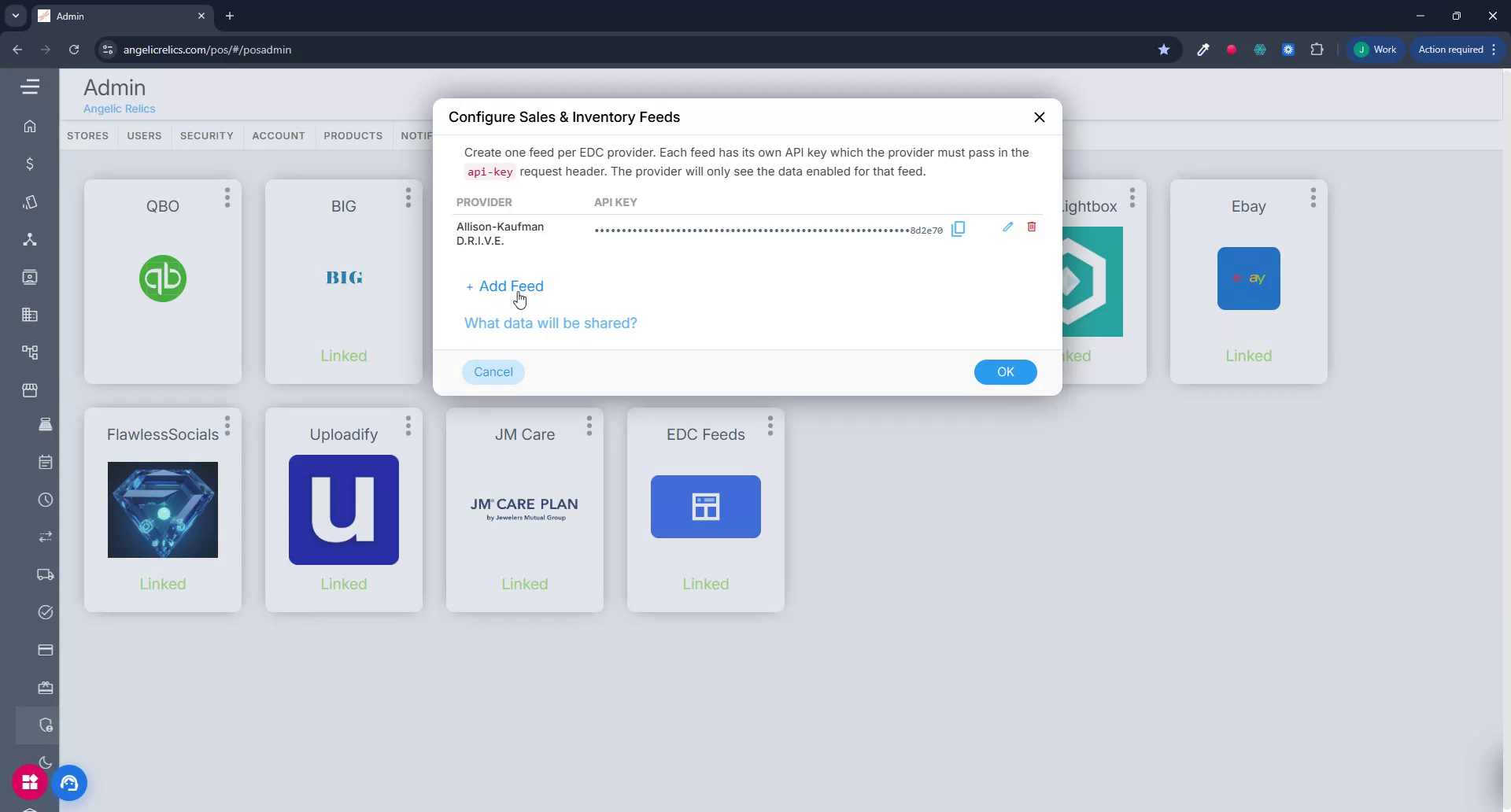
Use a clear and unique label so you can easily distinguish this feed from others; each provider label will have its own API key.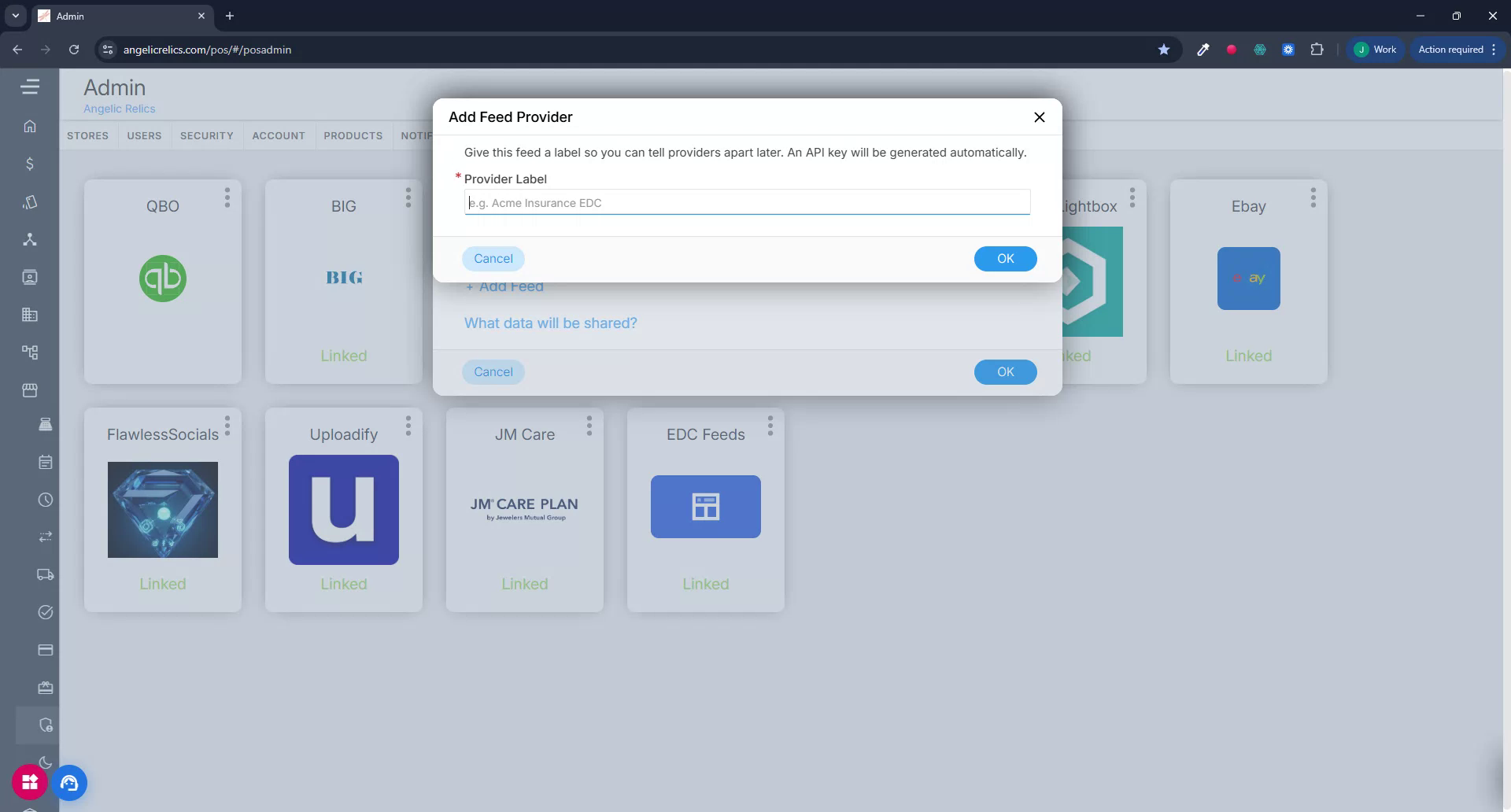
Click OK to create the feed.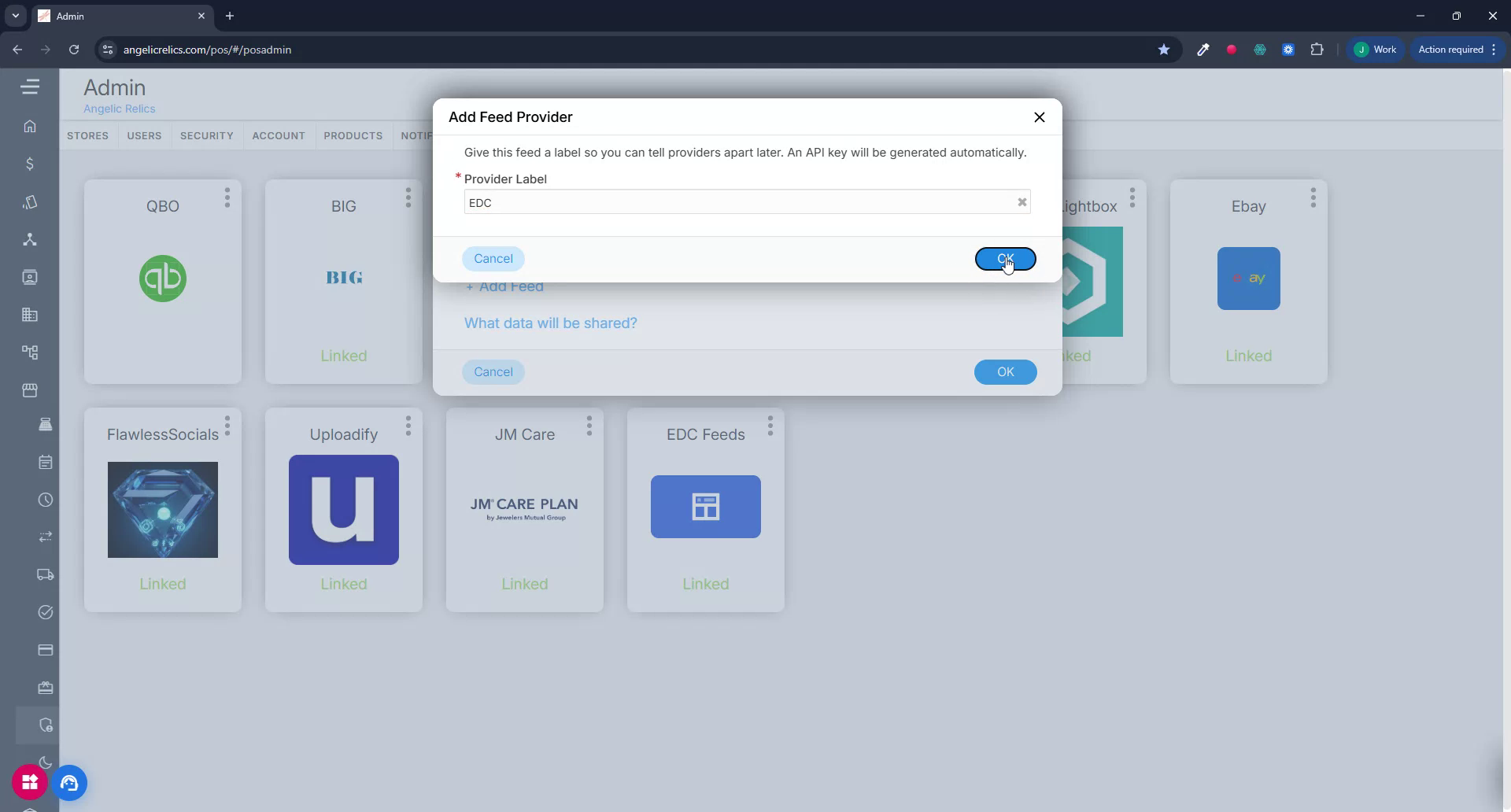
Step 6: Configure the New Feed and Copy the API Key
After creating the feed, you are redirected to its configuration page, where you will see:
- The Provider Label you just created.
- The automatically generated API Key for this feed.
Copy the API key; this is what you will provide to your vendor. They must include this key in the API key header when calling the EDC sales or inventory data.
Configure the remaining options as needed for this provider:
- Share Sales Data: Enable to allow access to sales data.
- Include Incomplete Sales: Optionally include special orders and layaways that are not yet closed.
- Include Customer Details: Enable if customer information should be shared.
- Share Inventory Data: Enable to allow access to inventory data.
- Vendor Filters: Include or exclude specific vendors. If left at the default, all vendors are included.
When all settings are correct, click OK to save the feed.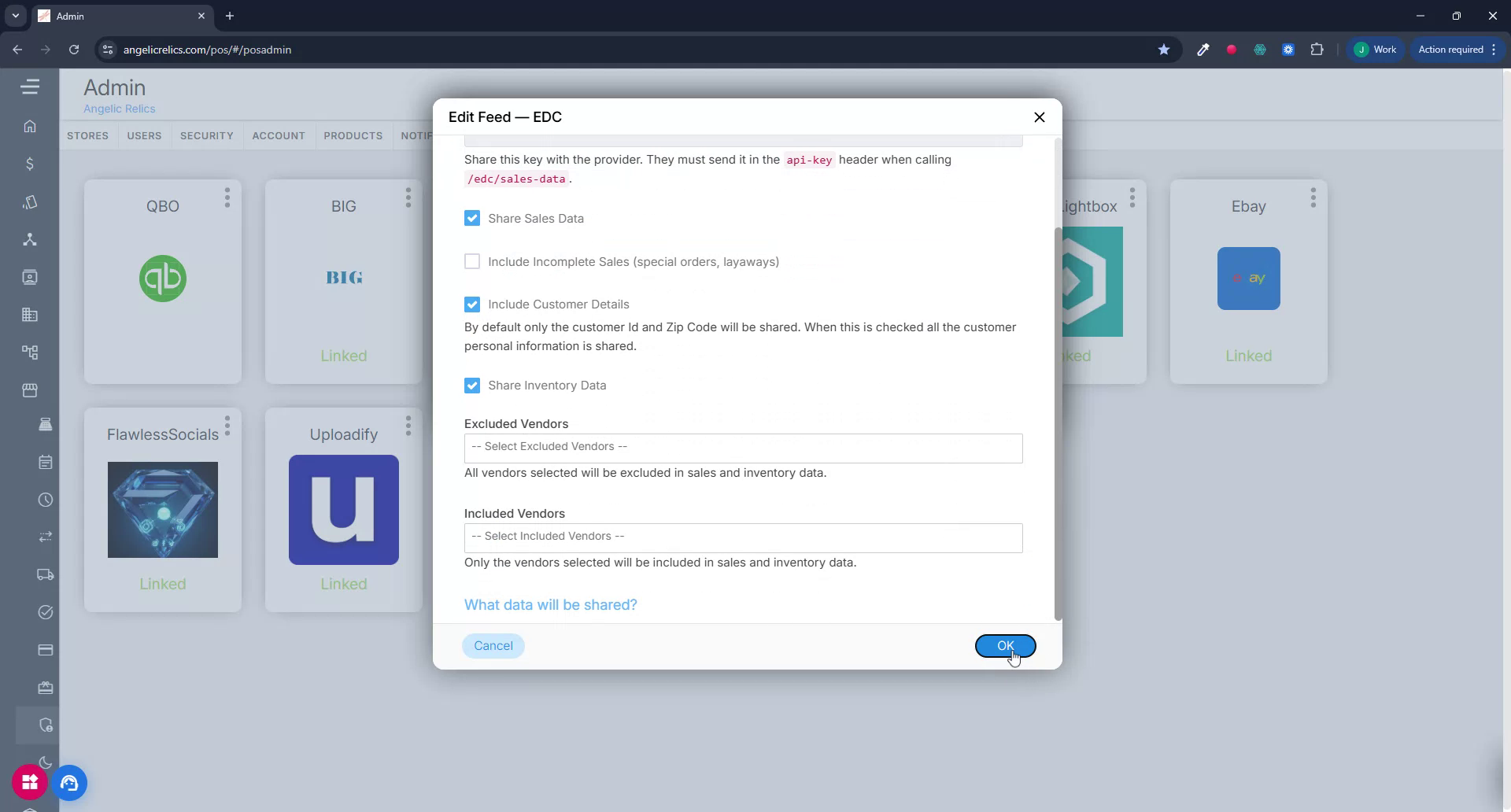
You will now see the new feed listed, along with its API key, which you can copy and share with your vendors for their integrations.
Troubleshooting
For any issues encountered when retrieving the API key for the EDC feed, please contact Flawless POS support for assistance.
Was this article helpful?
That’s Great!
Thank you for your feedback
Sorry! We couldn't be helpful
Thank you for your feedback
Feedback sent
We appreciate your effort and will try to fix the article