This article walks you through creating a promotional email campaign using the AI email builder, from setting up a new campaign and configuring AI options, to selecting products, adding imagery, refining AI-generated content, and applying AI-powered image edits before saving and previewing the final email. Also check our video tutorial below:
Step 1: Create a New Campaign
Start by adding a new email campaign in your account.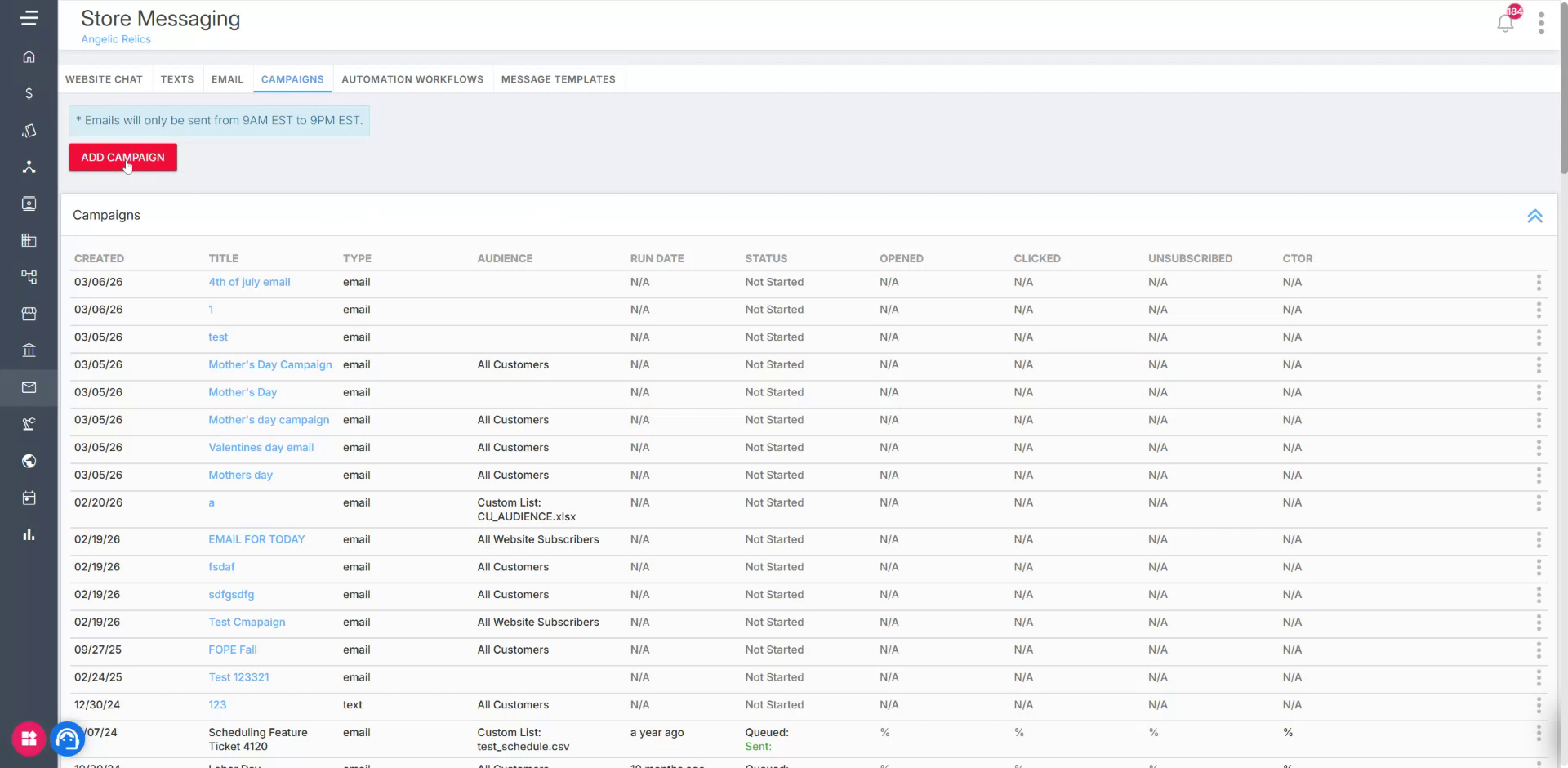
Enter a campaign name, for example “Mother’s Day.”
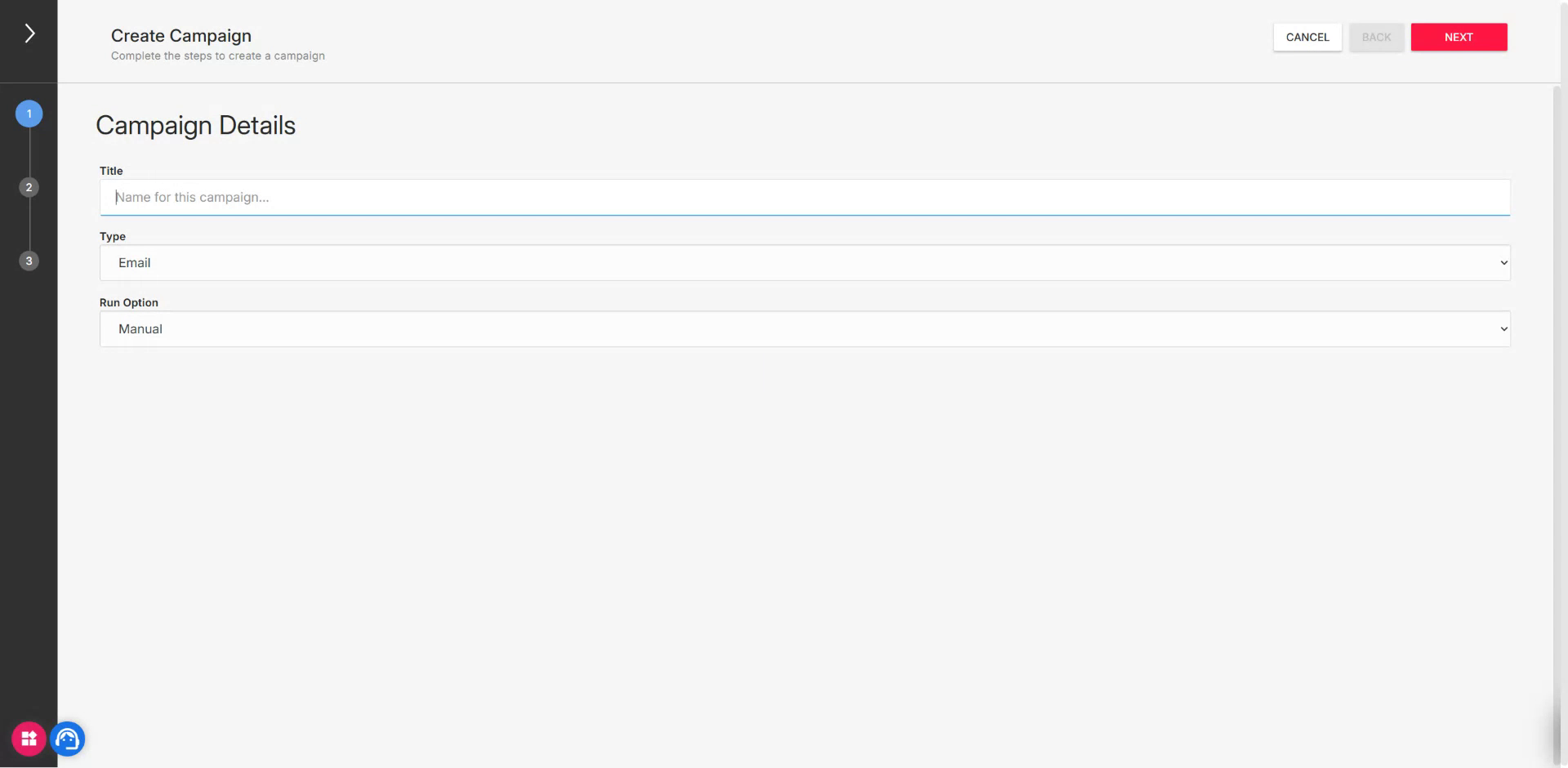
Type “Mother’s Day” as the campaign title.
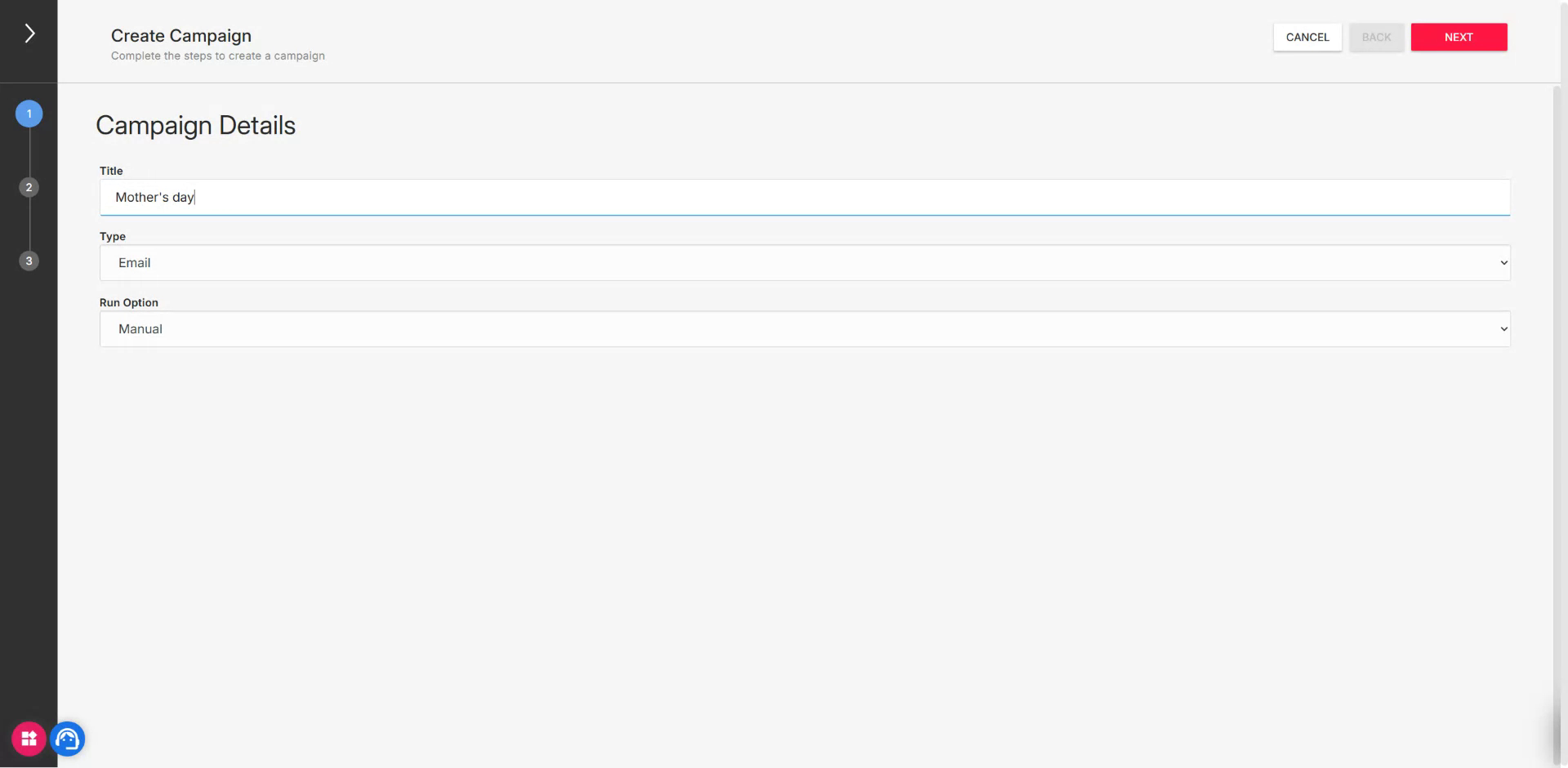
Confirm the name and hit Next.
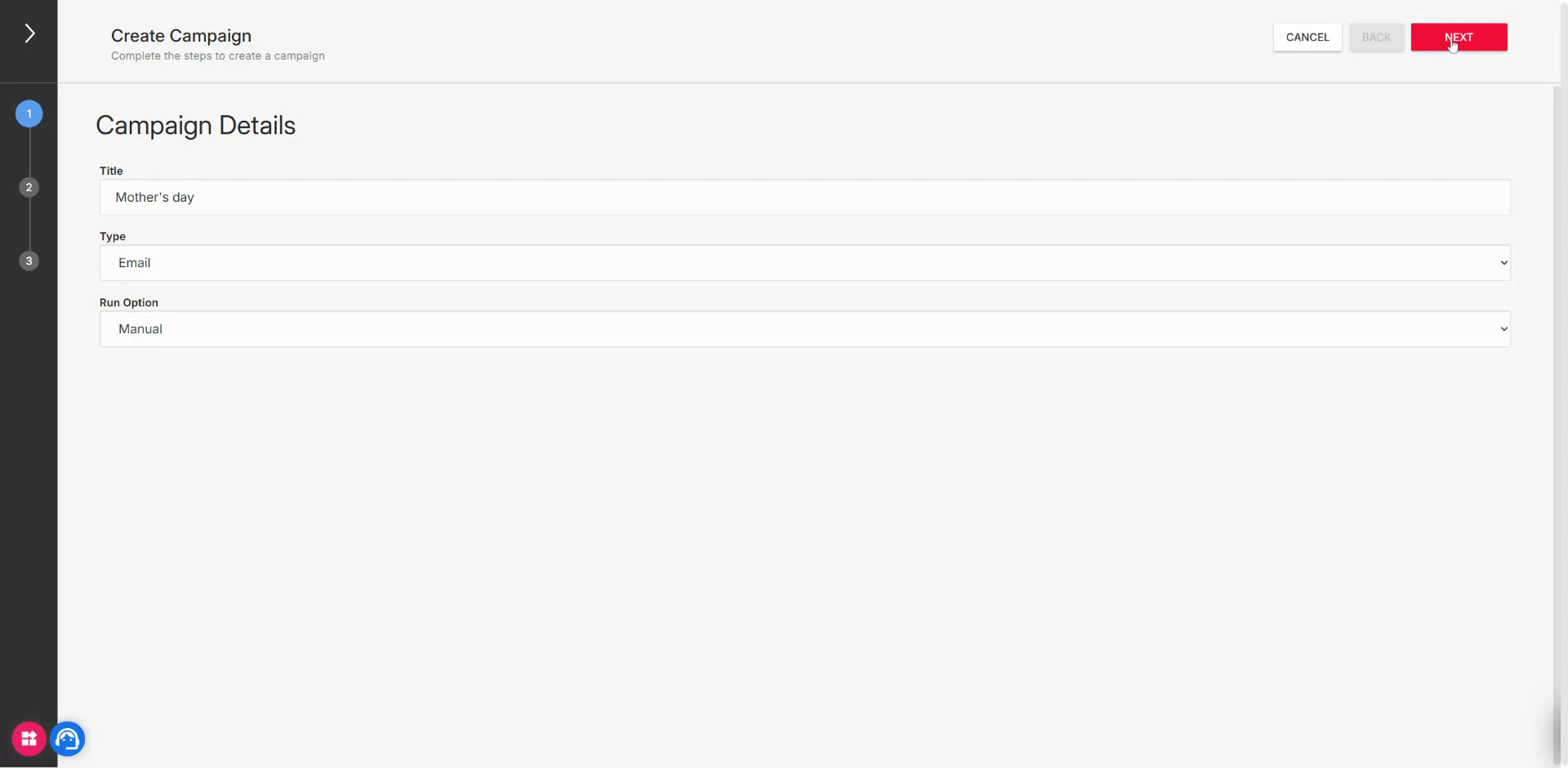
Choose the option to Create with the AI builder. Note that this feature is currently in beta.
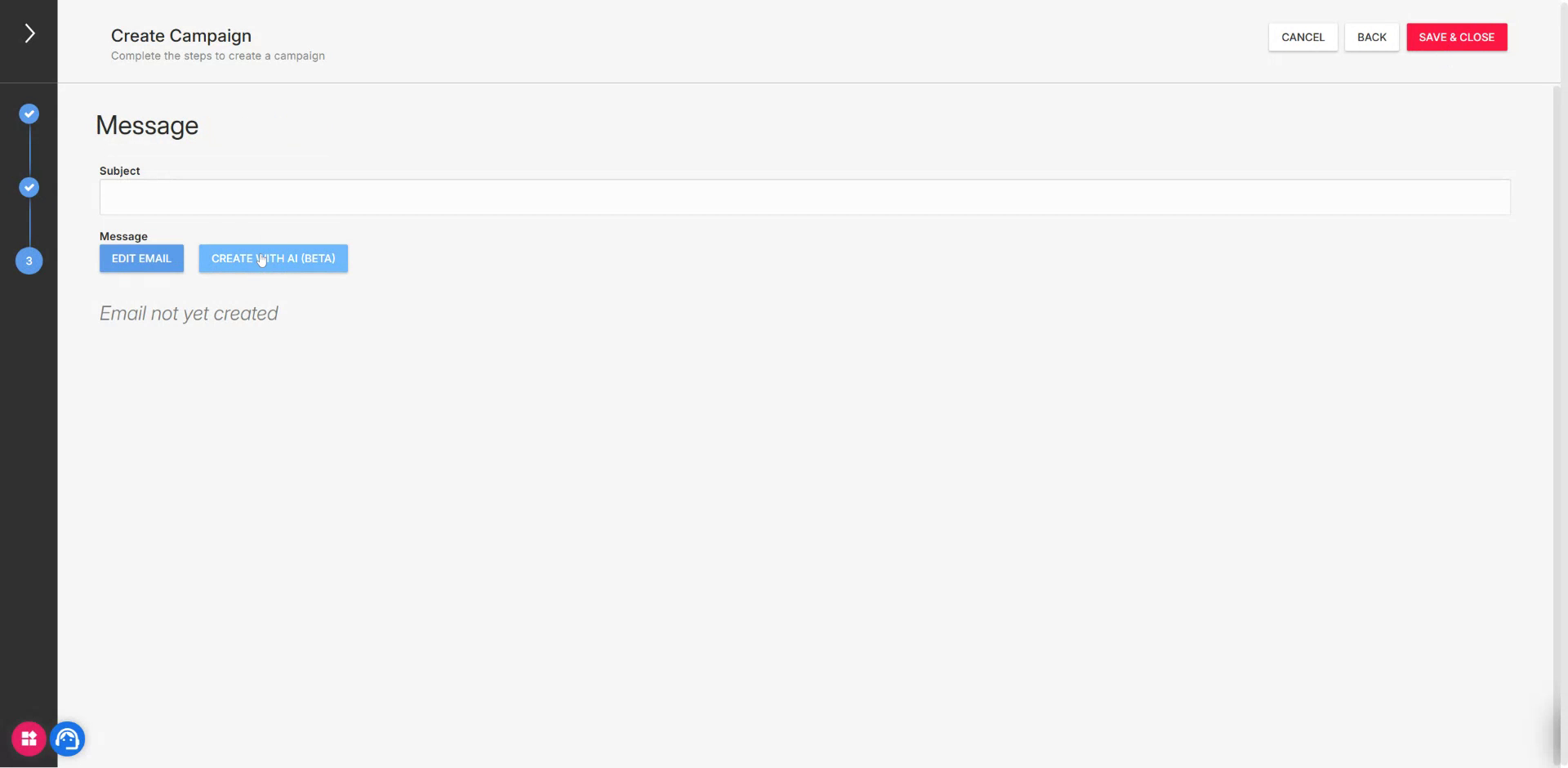
Step 2: Configure the AI Promotional Brief
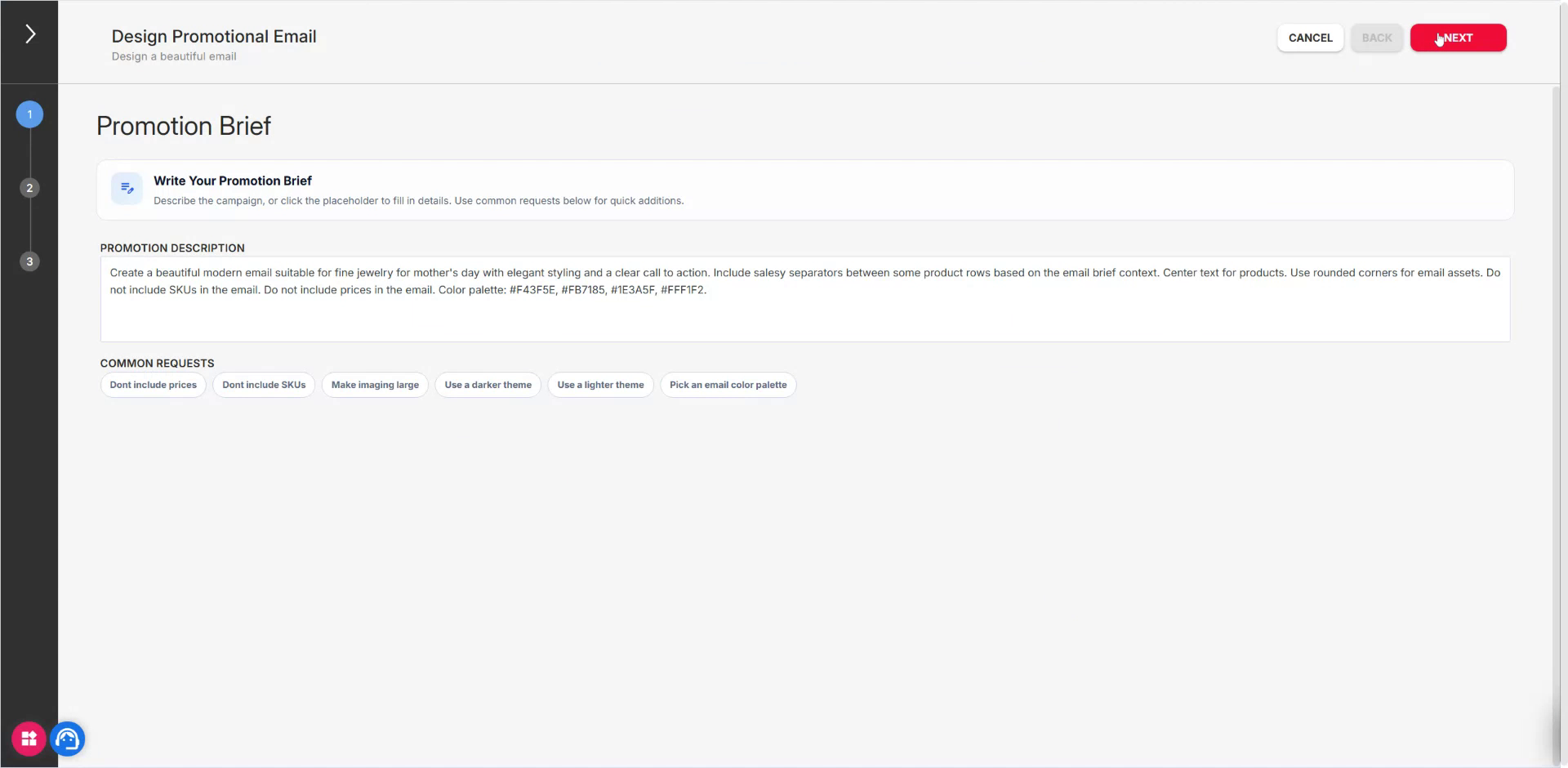
The system provides a default seed for the promotional brief that guides how the AI will create your email.
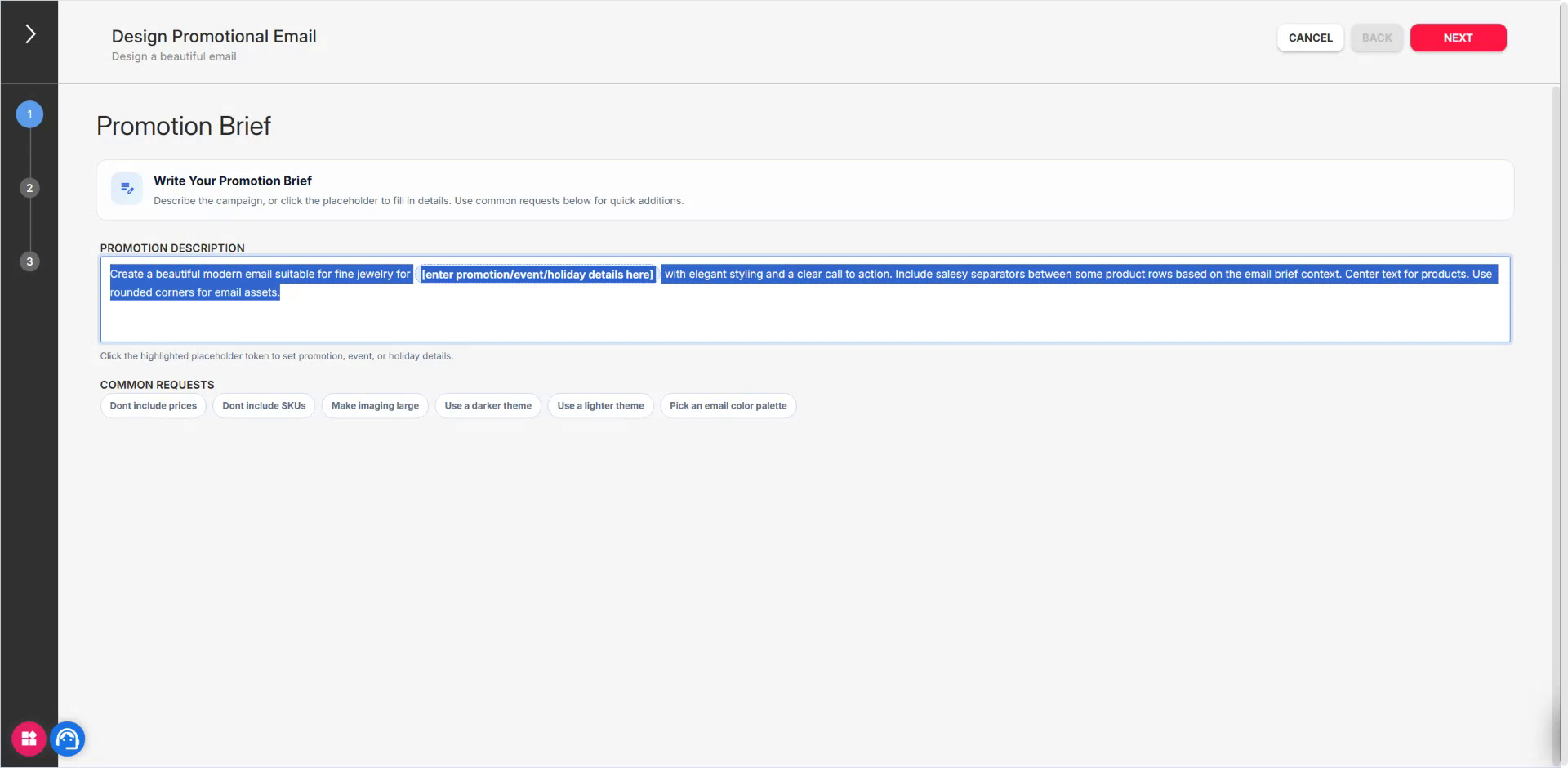
Open the promotion details section.
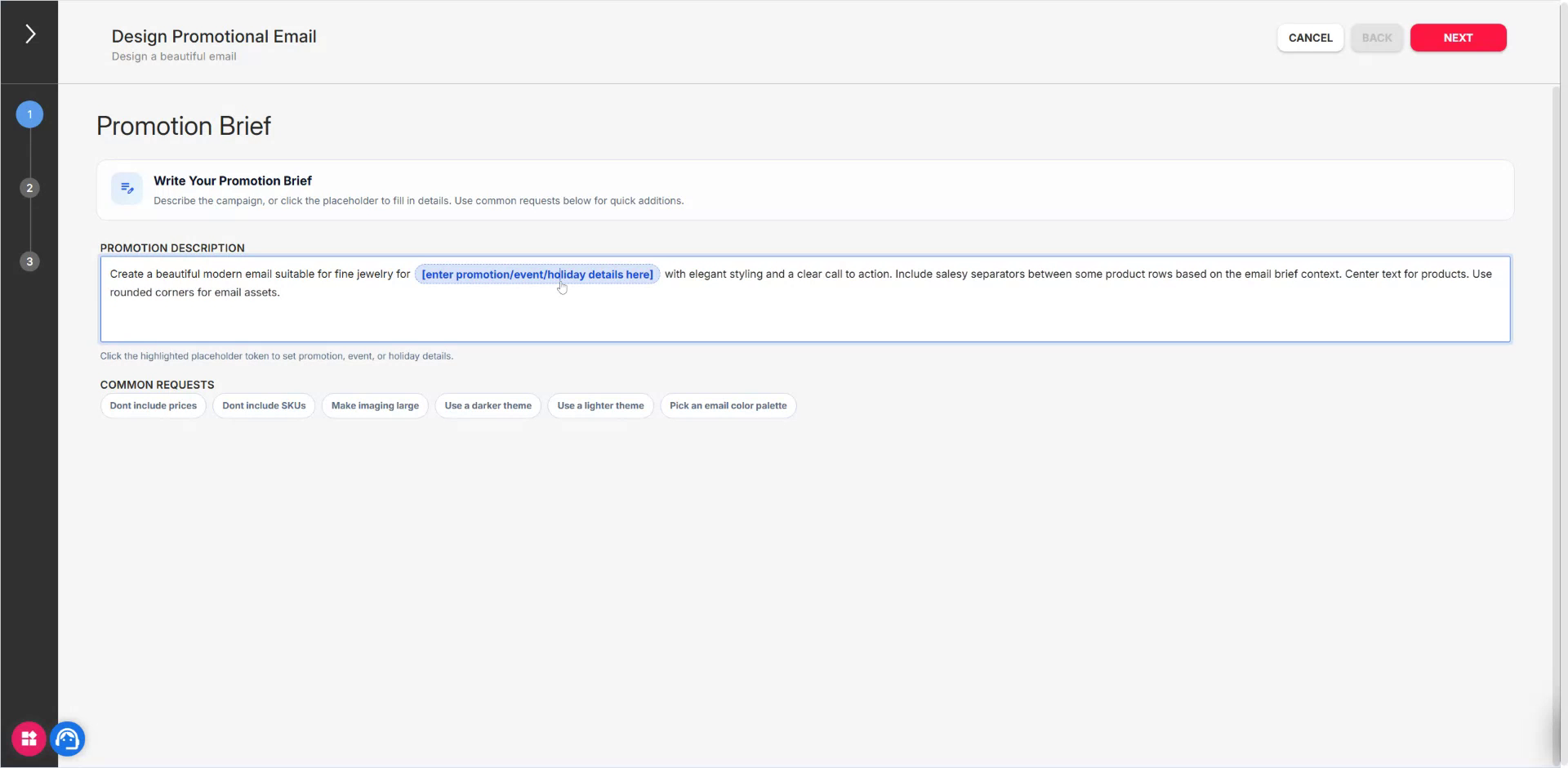
Click into the promotion details field.

Enter the campaign theme, for example: “Mother’s Day.”
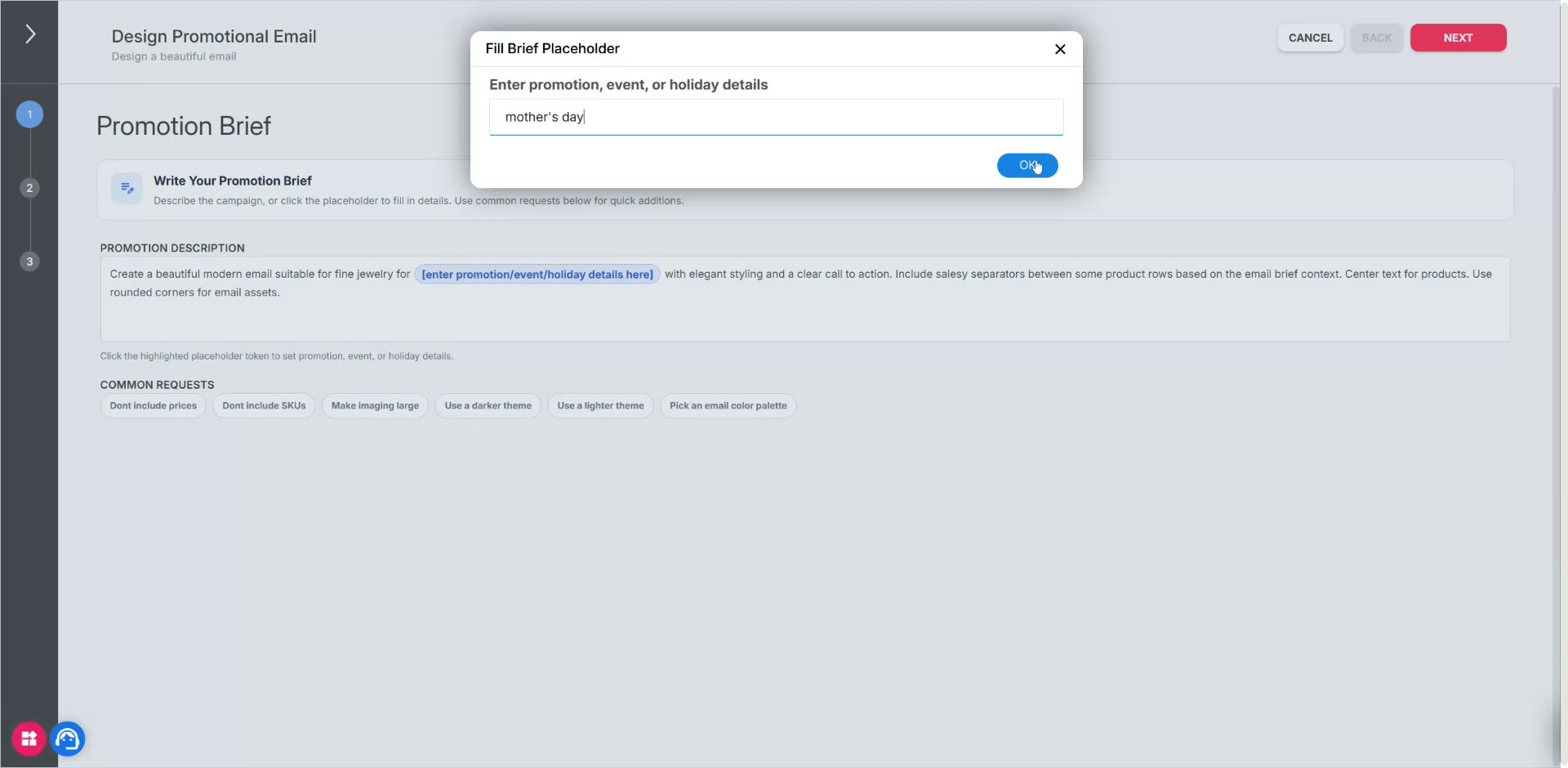
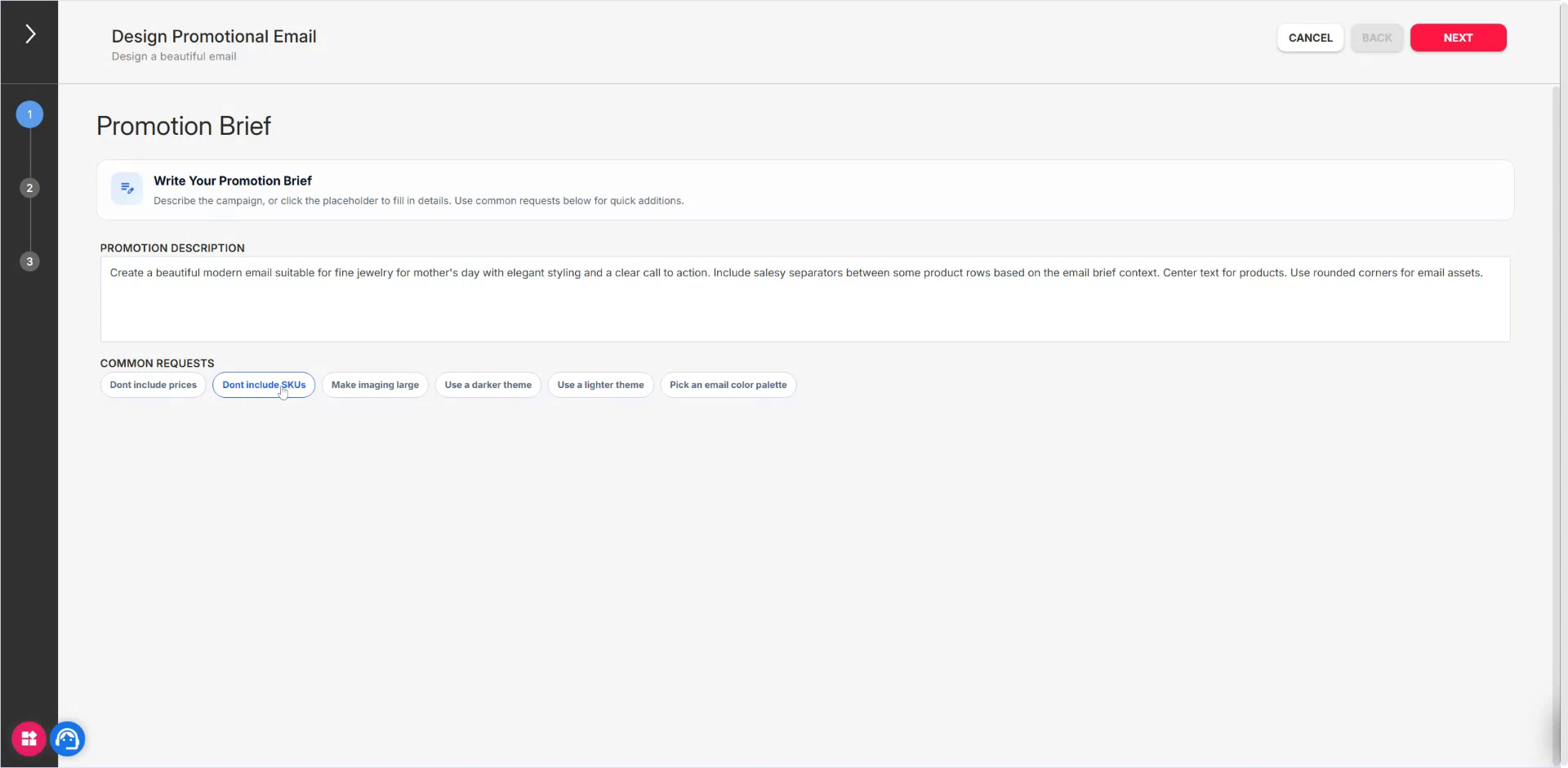
Adjust the AI options as needed:
- Specify whether to include or exclude SKUs.
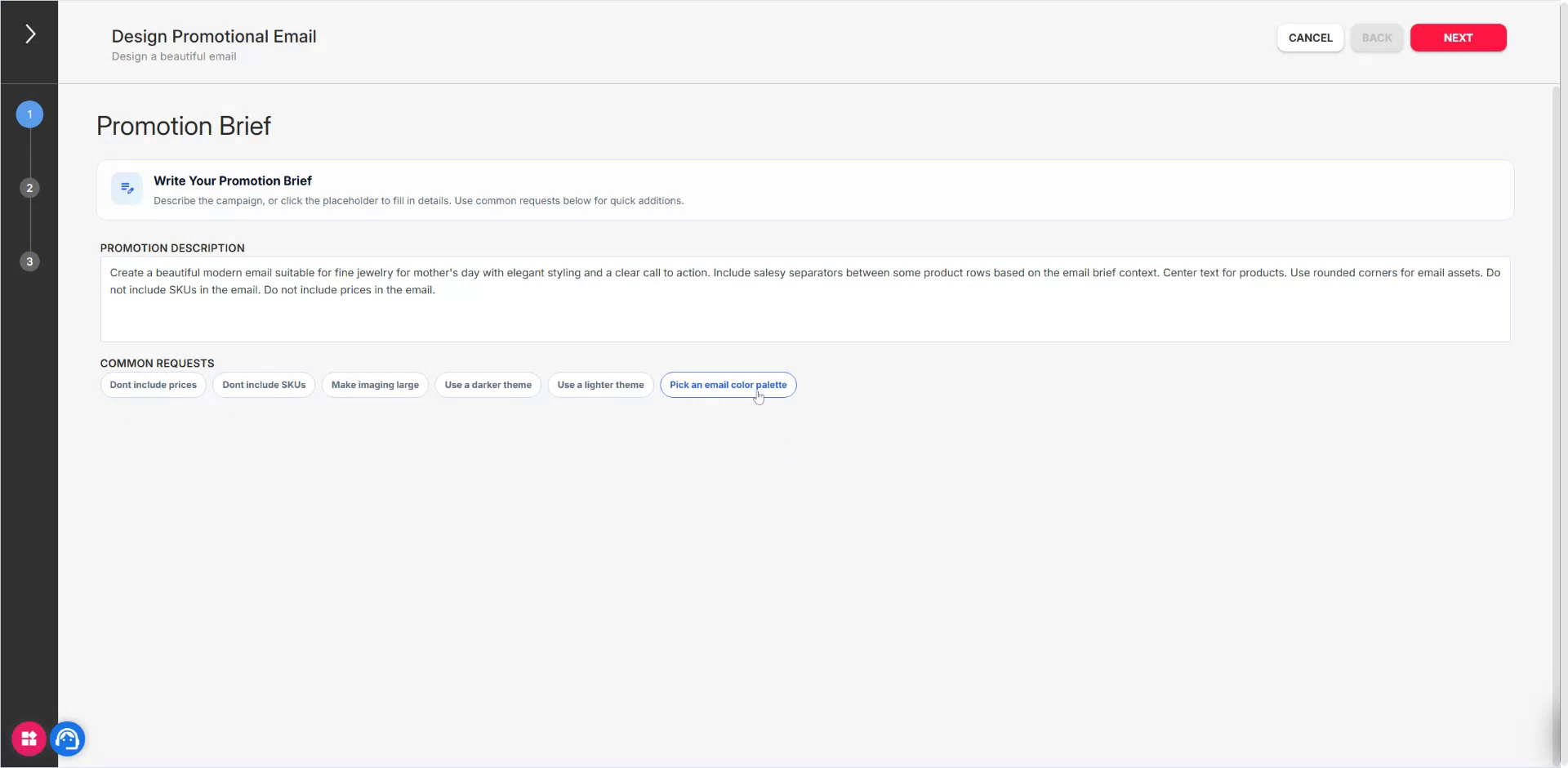
- Specify whether to include prices.
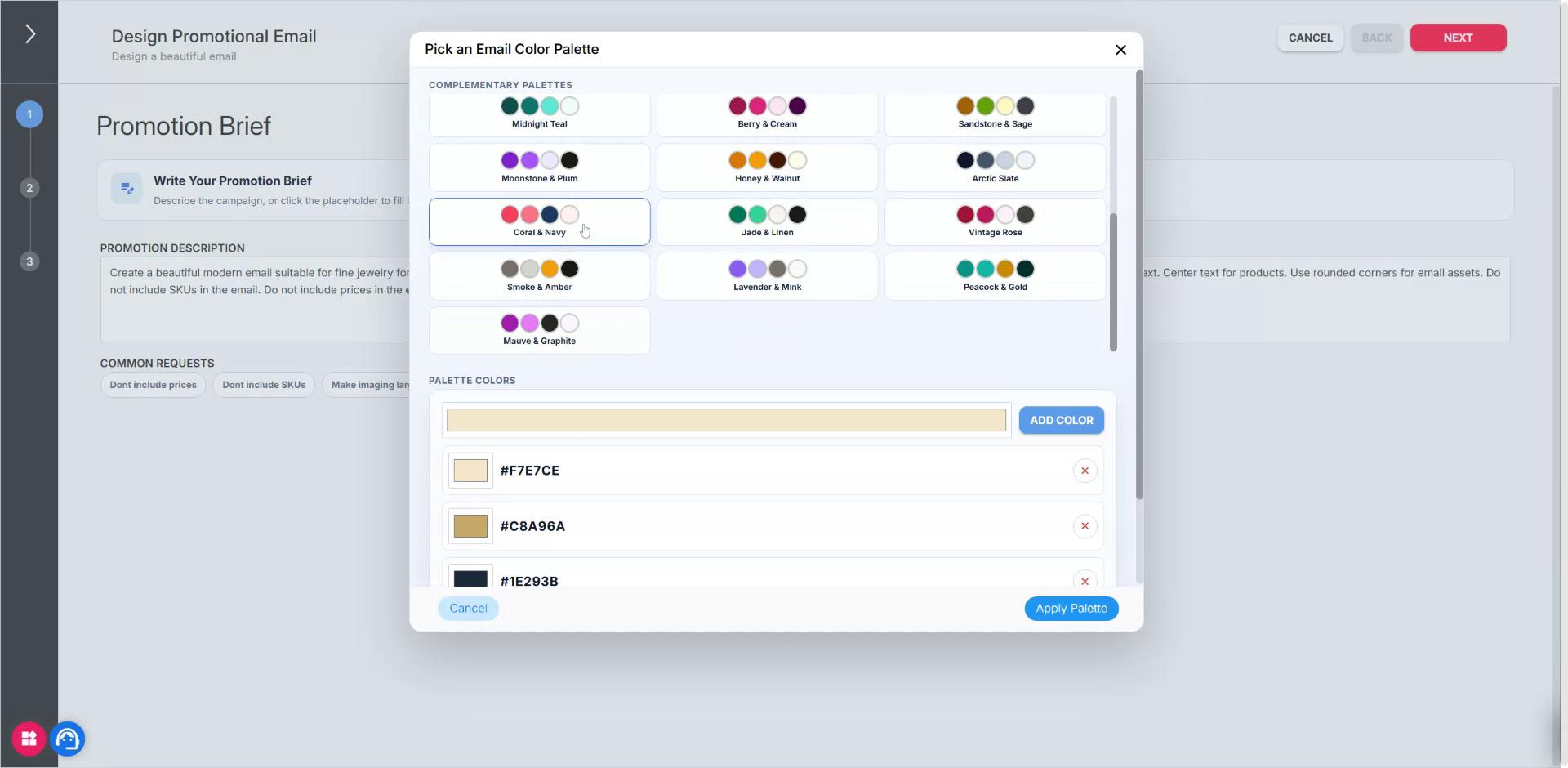
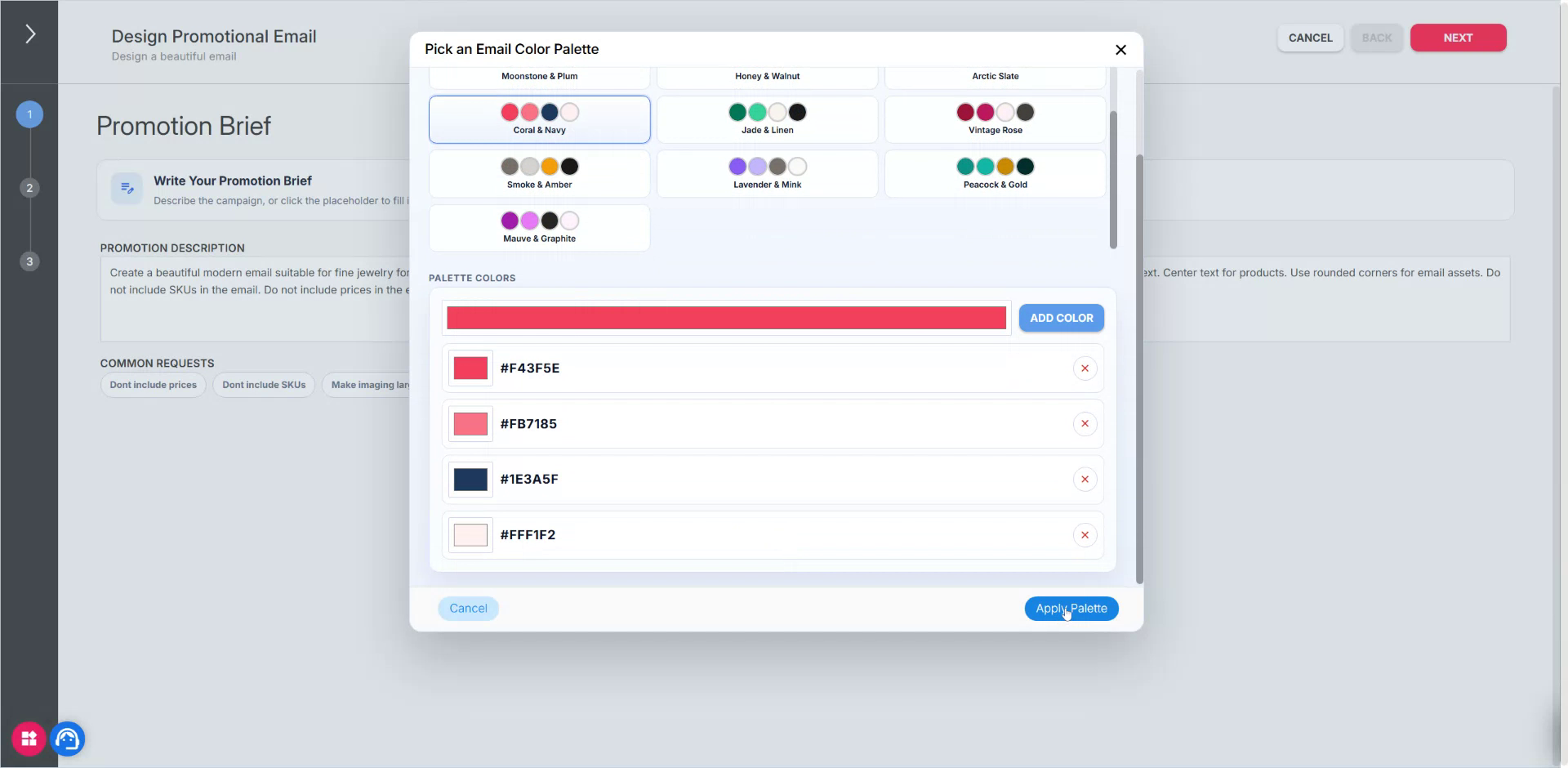
- Select a specific color palette for the email (for example, a pink and blue palette).
- Apply the palette selection.
- Then click Next to continue.
- From here, proceed to product selection.
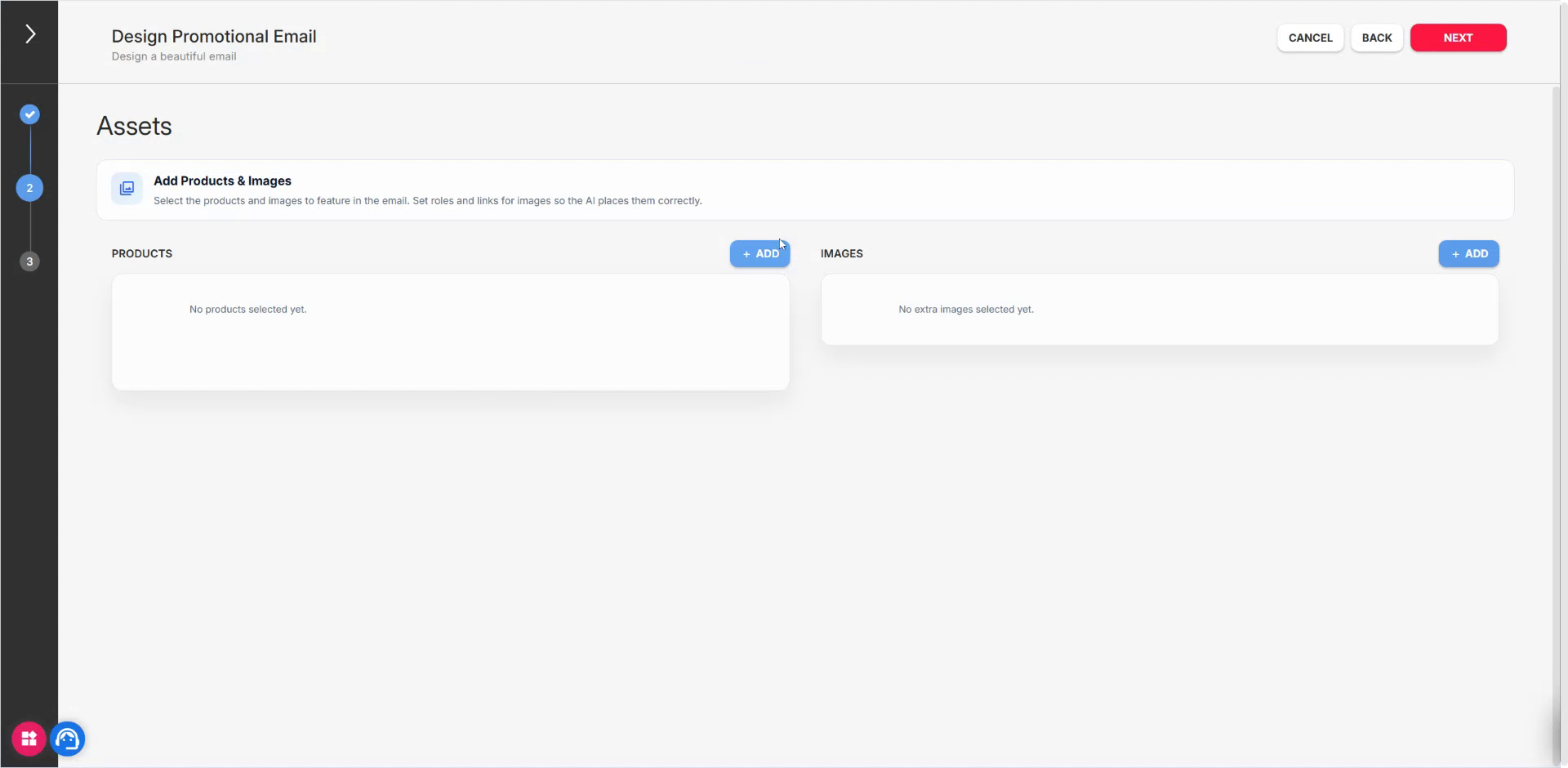
Step 3: Select Products for the Campaign
Choose the products you want to feature in the email.
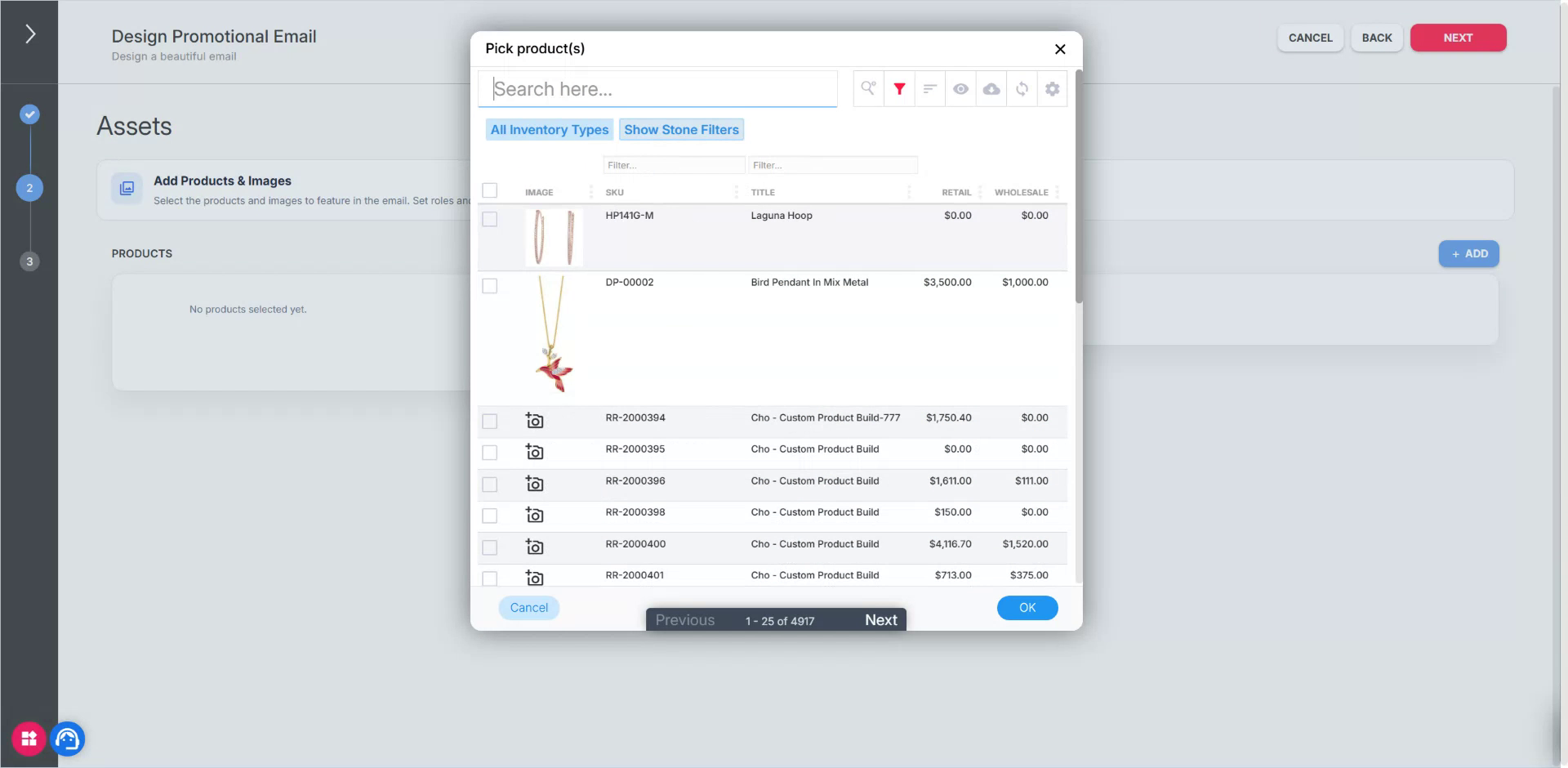
For this example, select heart-themed products:
- Choose heart items.
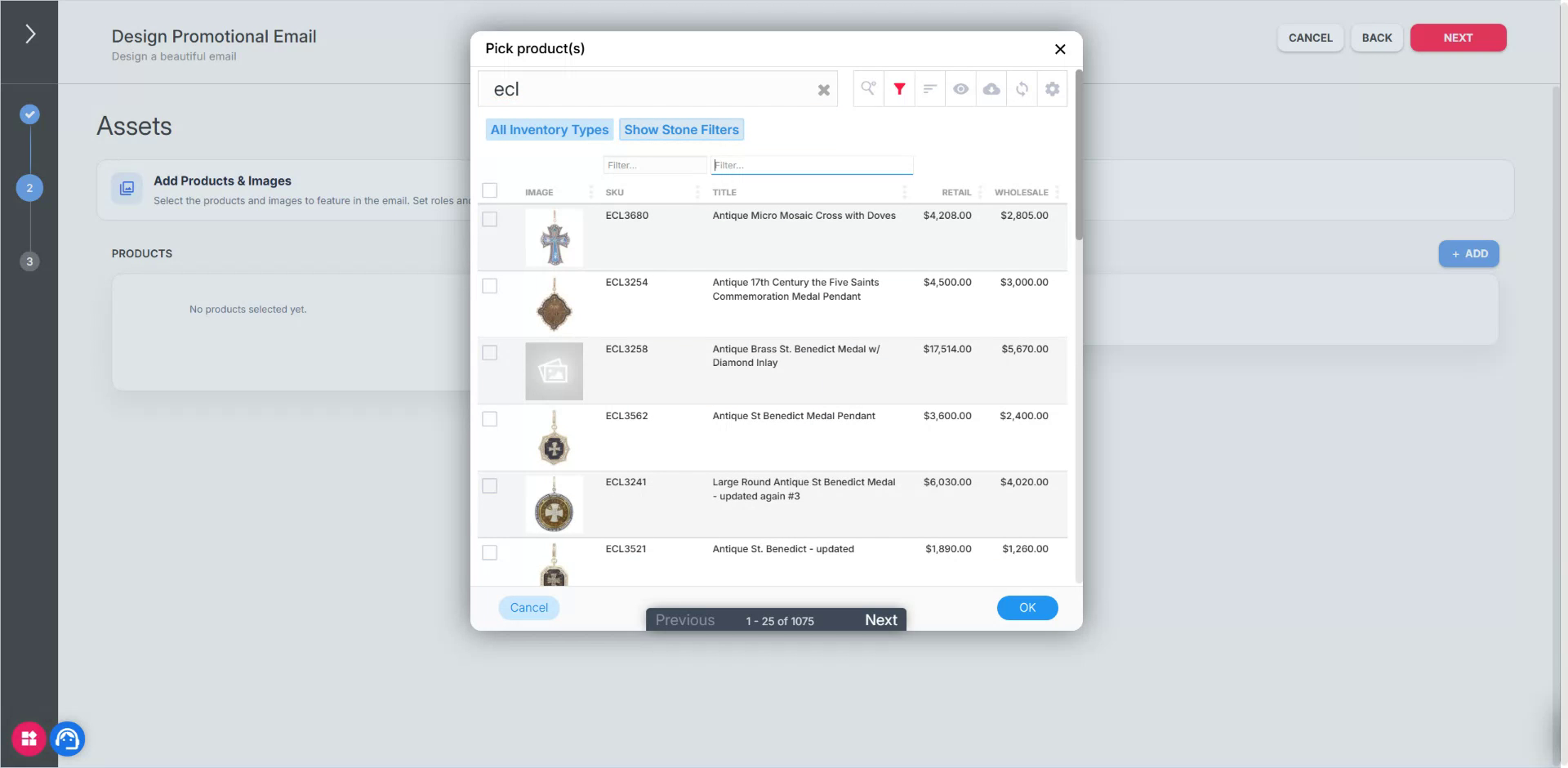
- Select heart pendants and similar items.
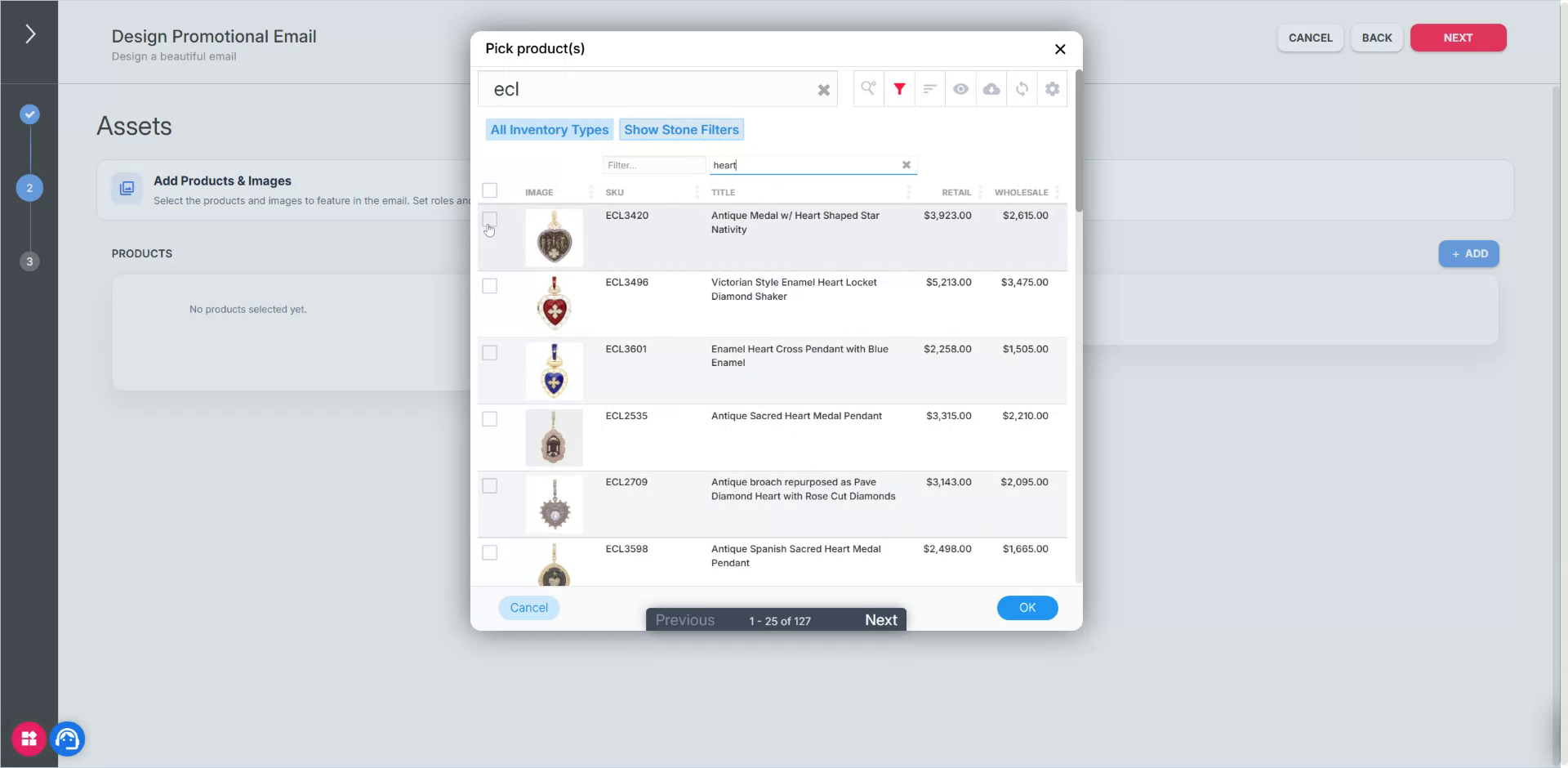
- Continue selecting until you have all desired products added.
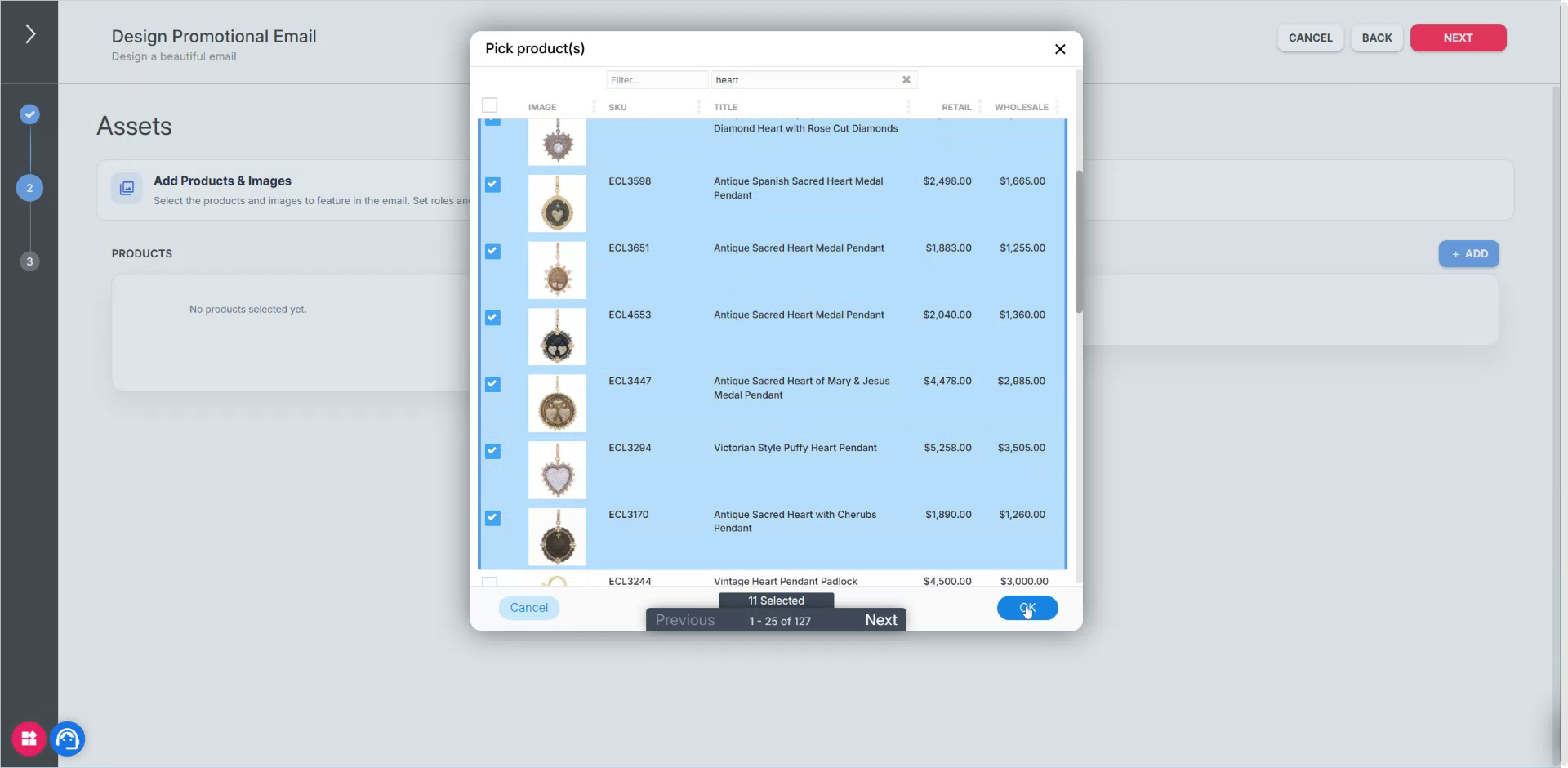
Confirm your selection (e.g., “11 selected”).
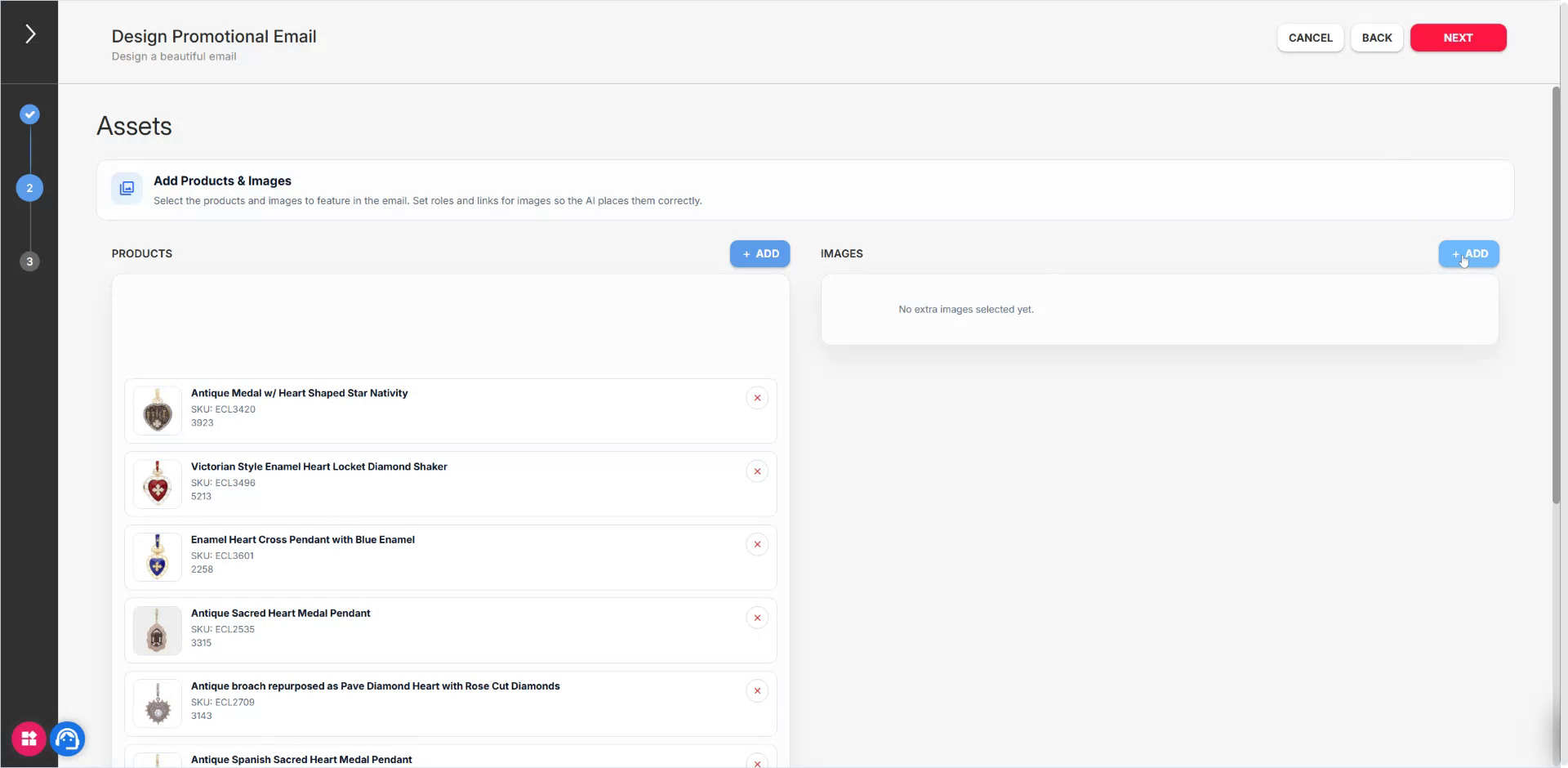
Step 4: Add Header, Footer, and Additional Imagery
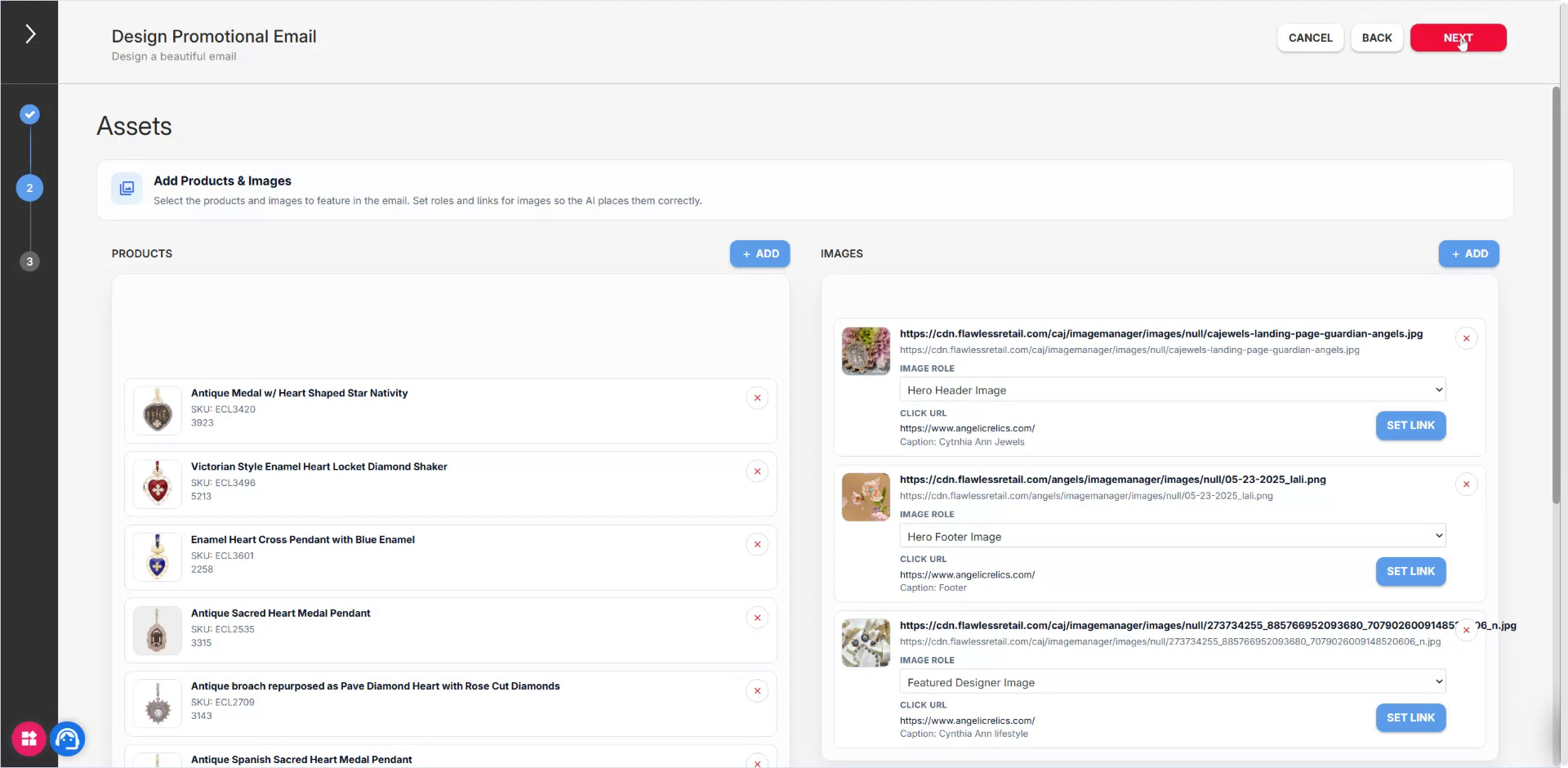
Add imagery that the AI builder will use in the email layout.
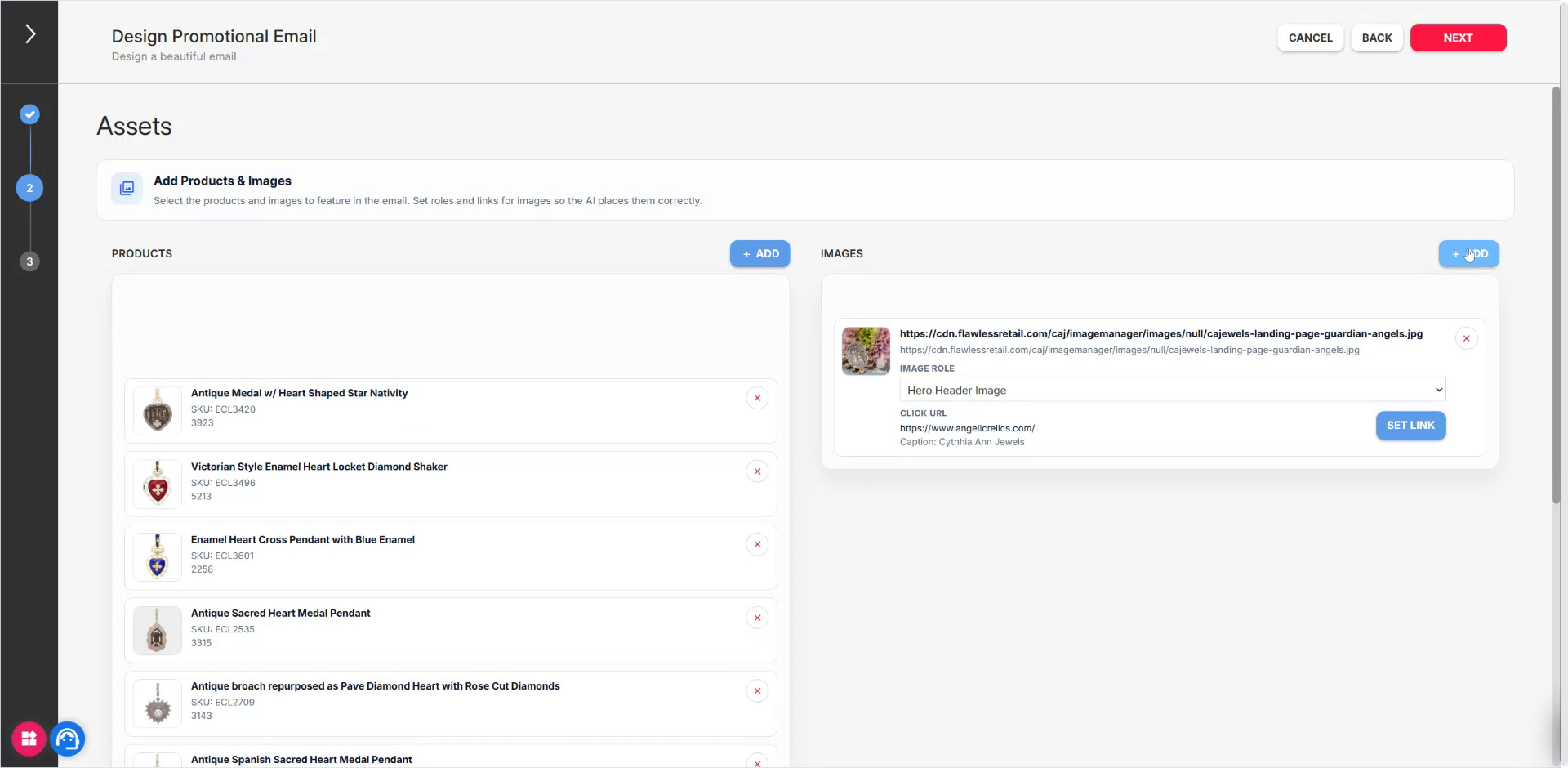
First, add a header hero image.
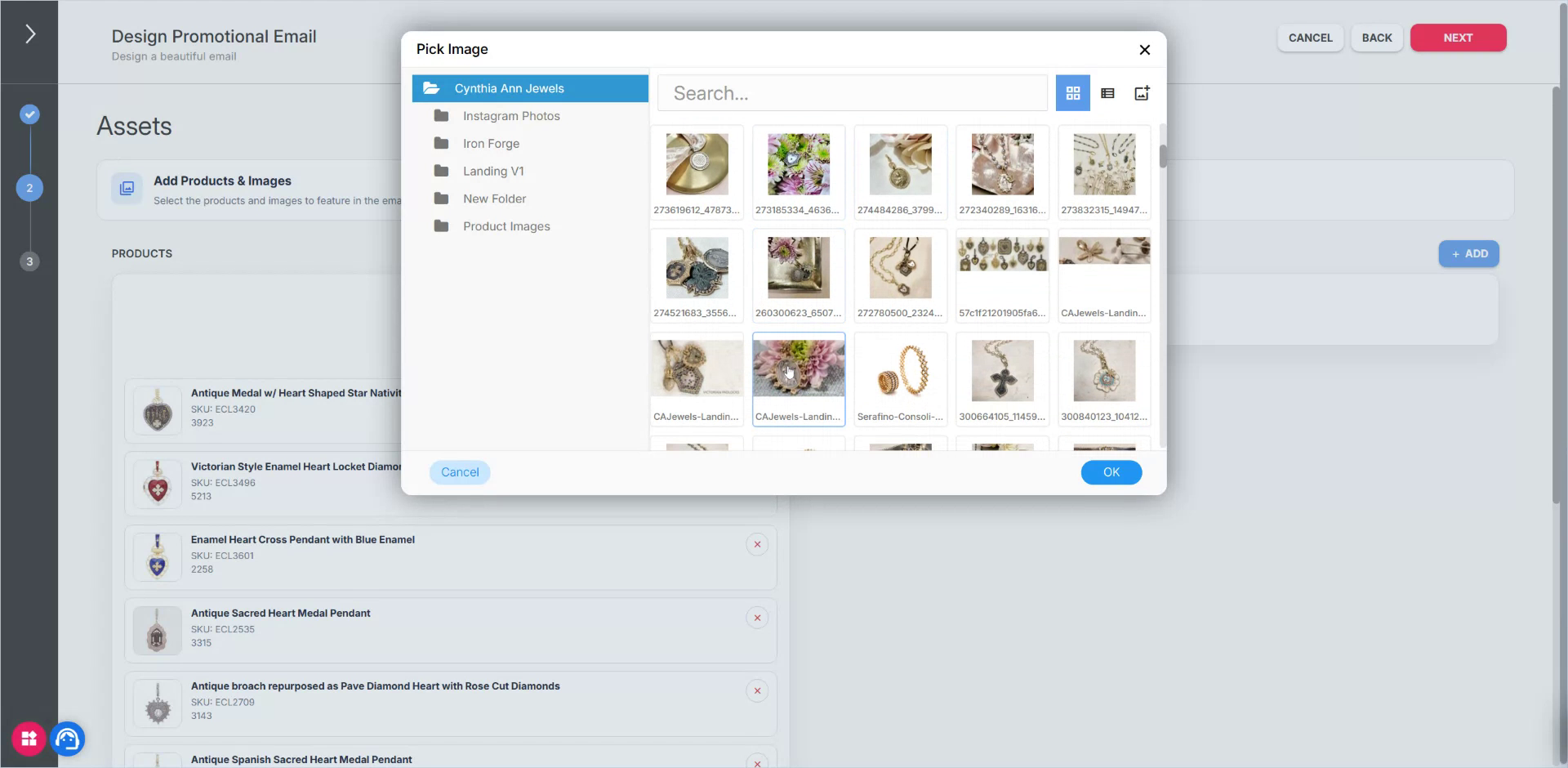
Select the appropriate header or hero image.
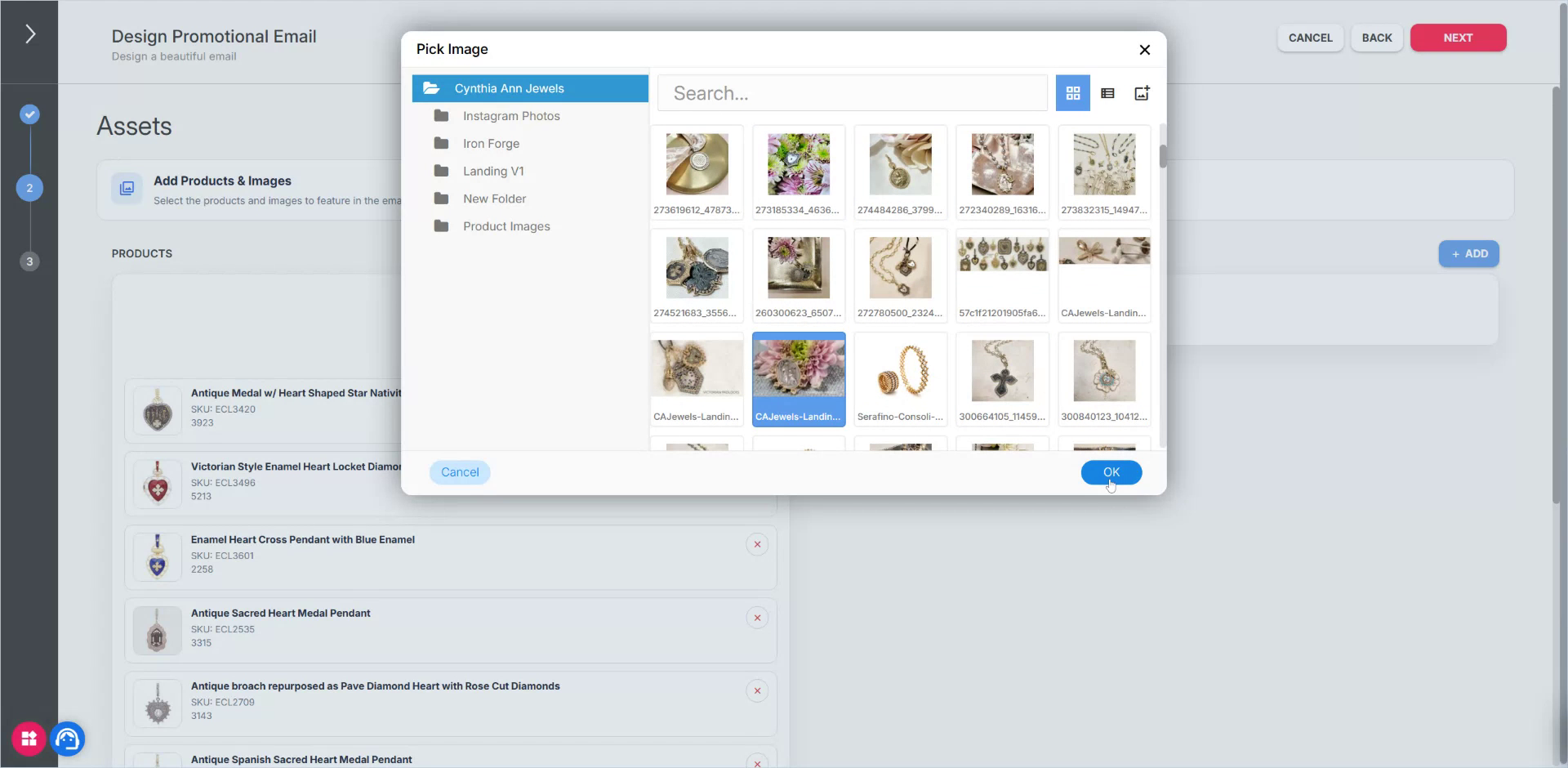
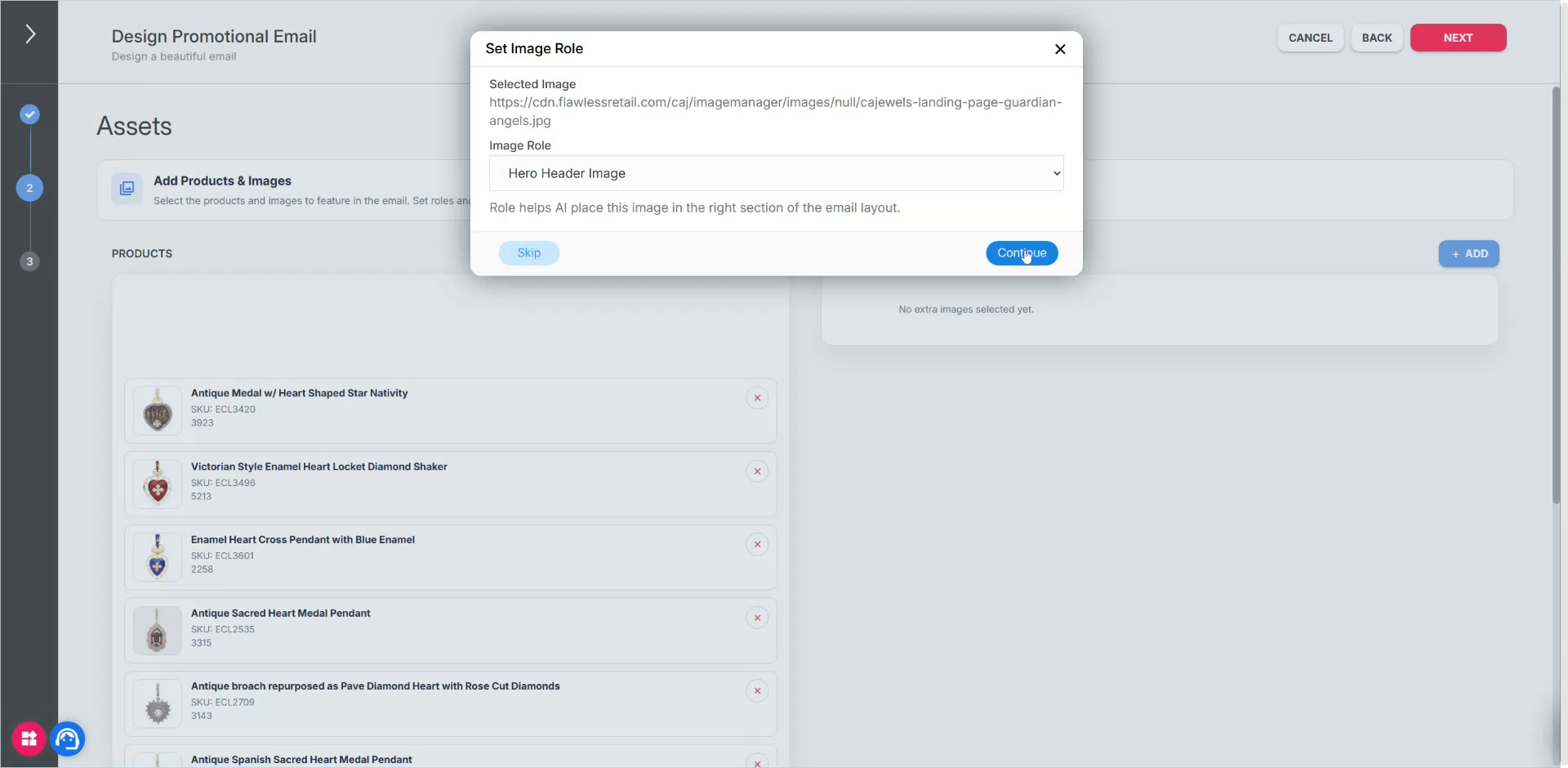
Confirm the header hero image selection.
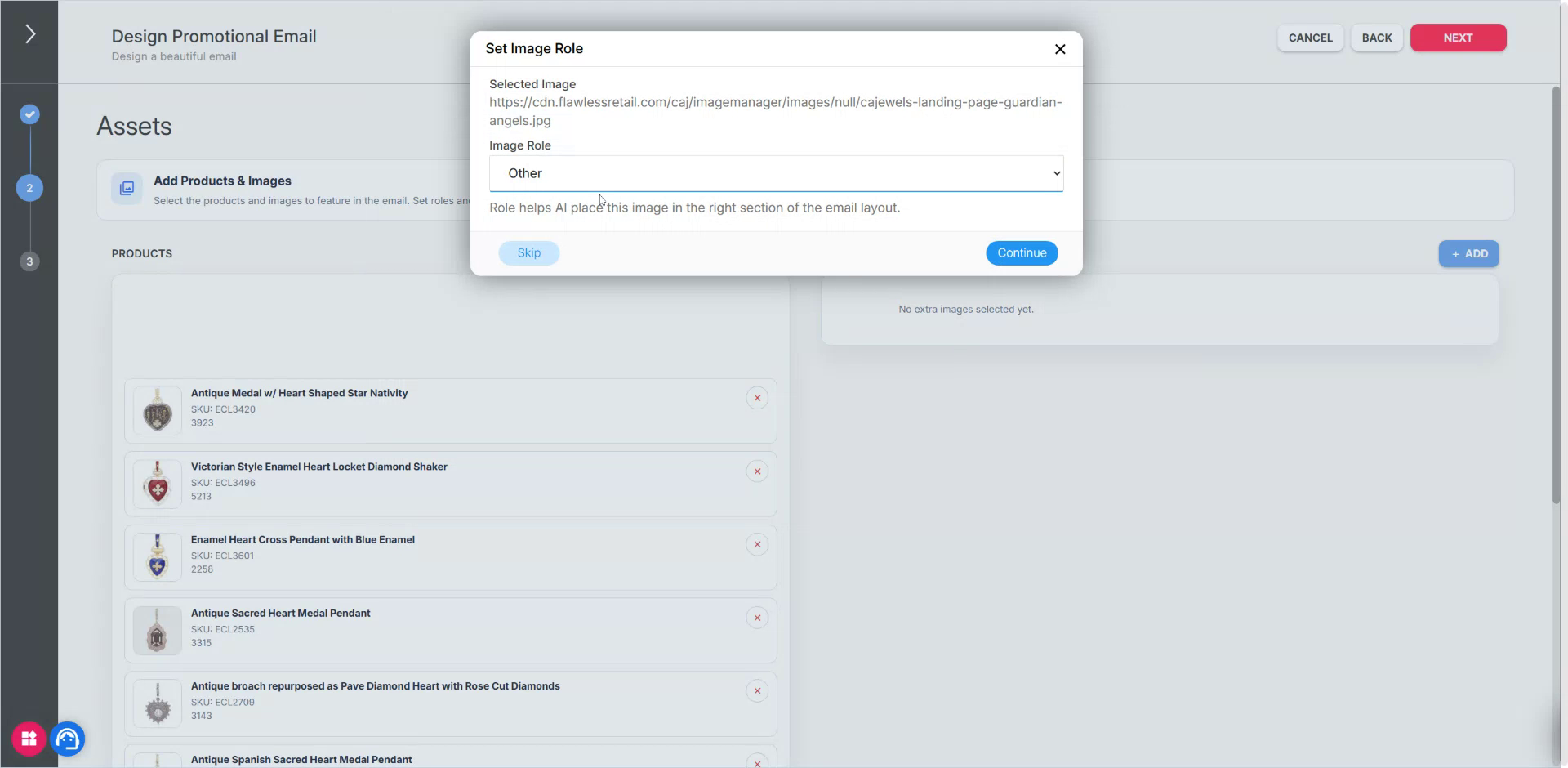
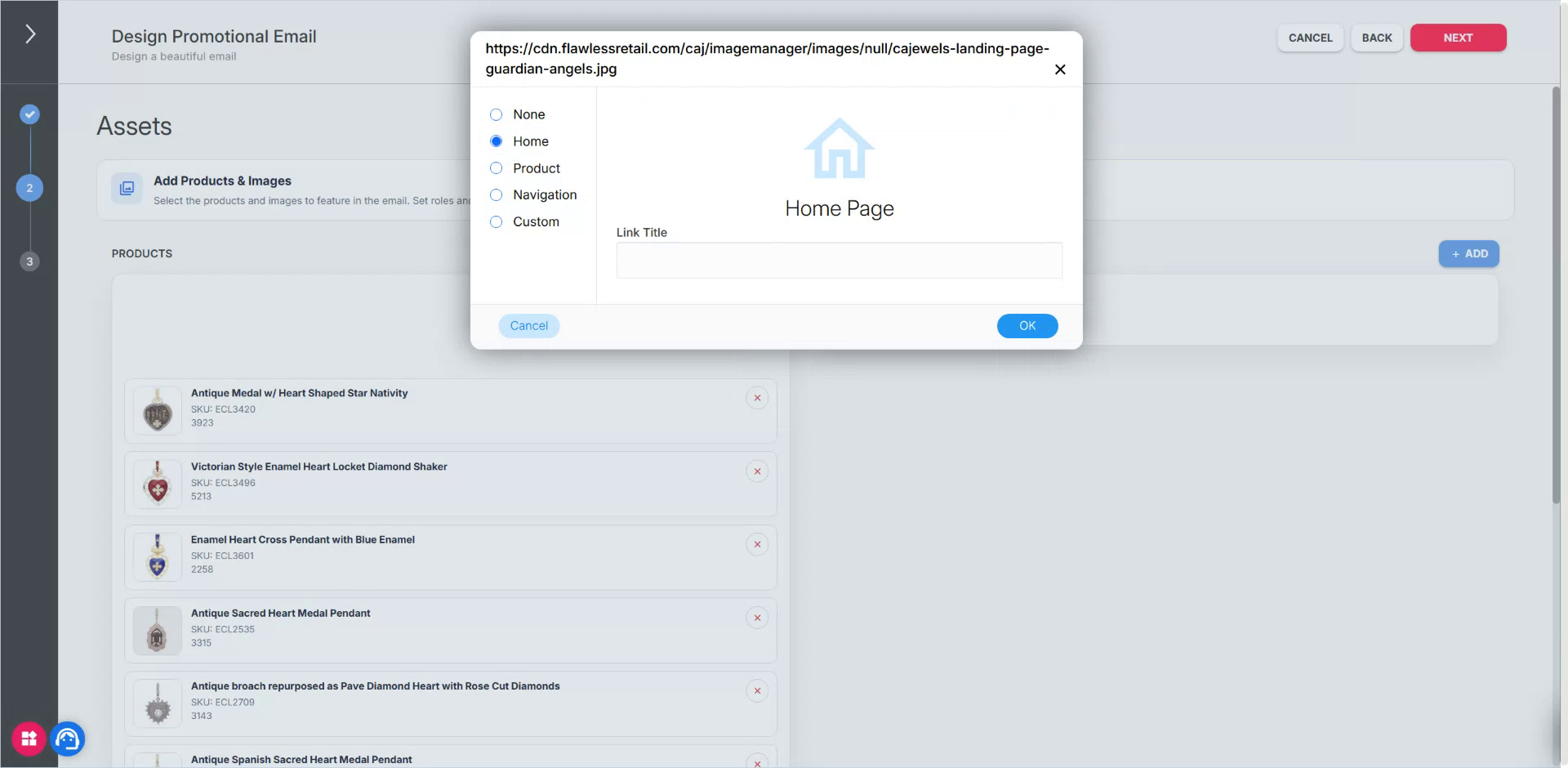
Note: It is recommended to add at least a header and footer image. If needed, also add your logo.
Add your footer image:
Open the image selection.
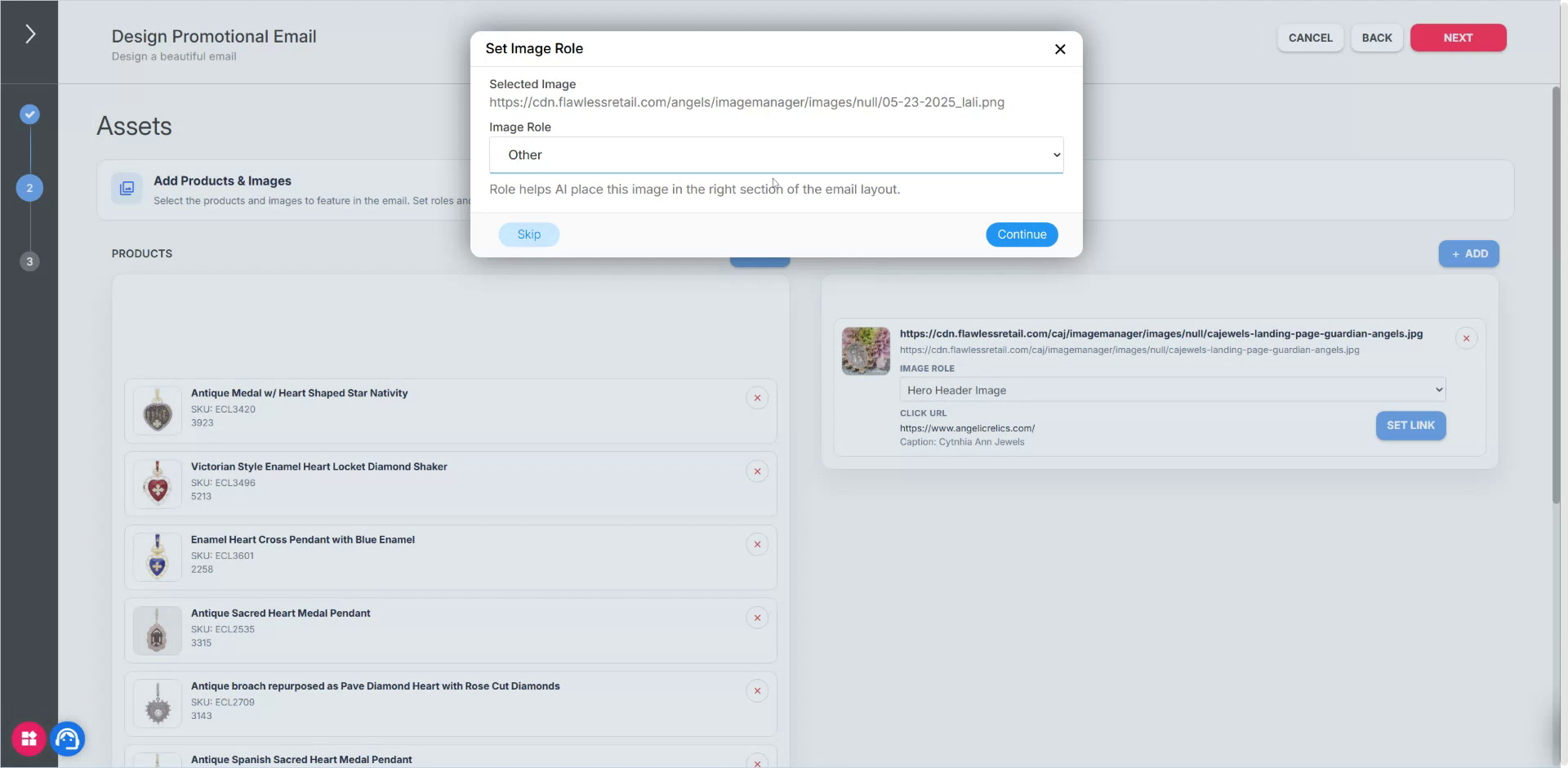
Choose a footer image (for example, a flower-themed footer).
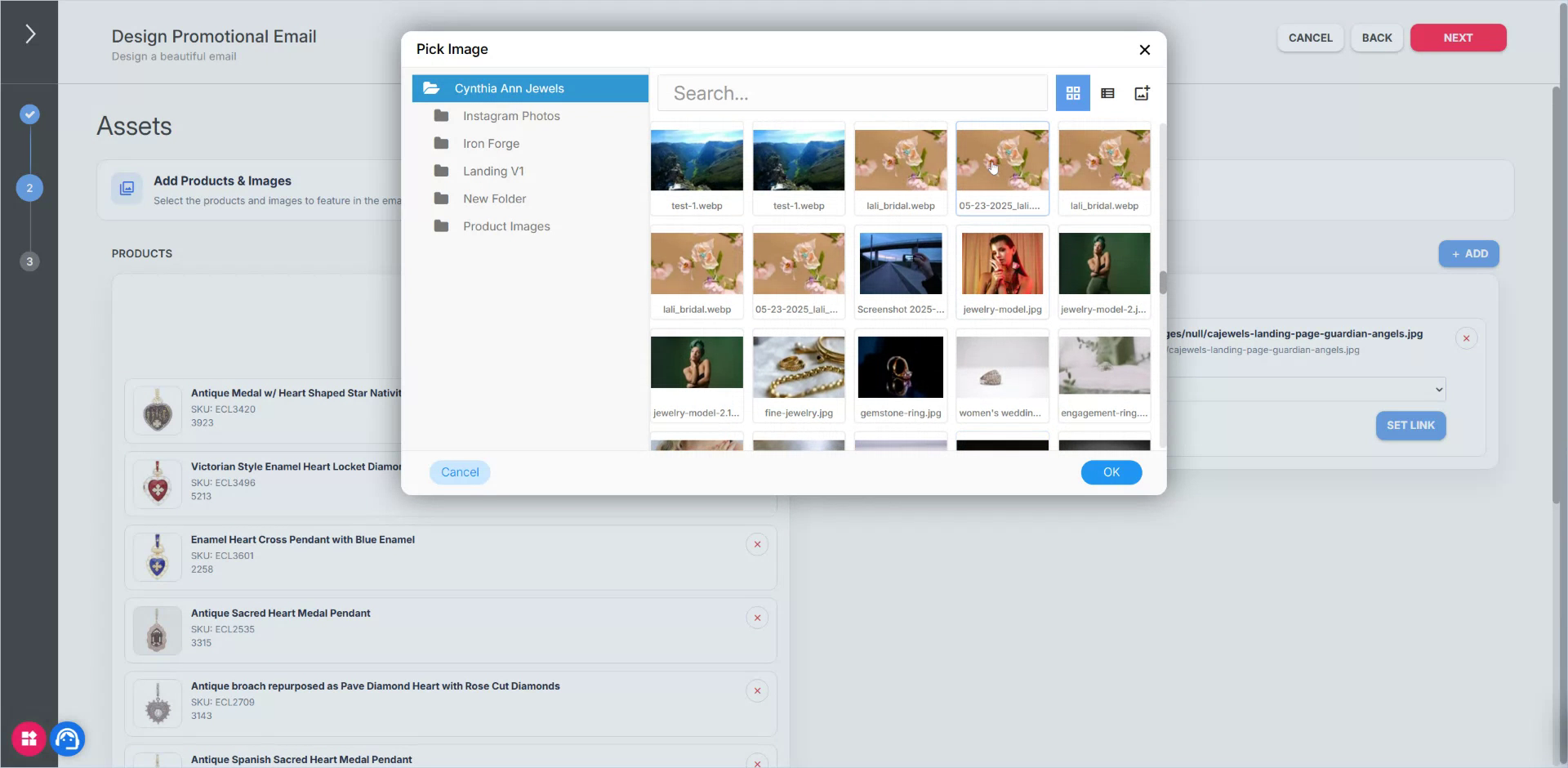
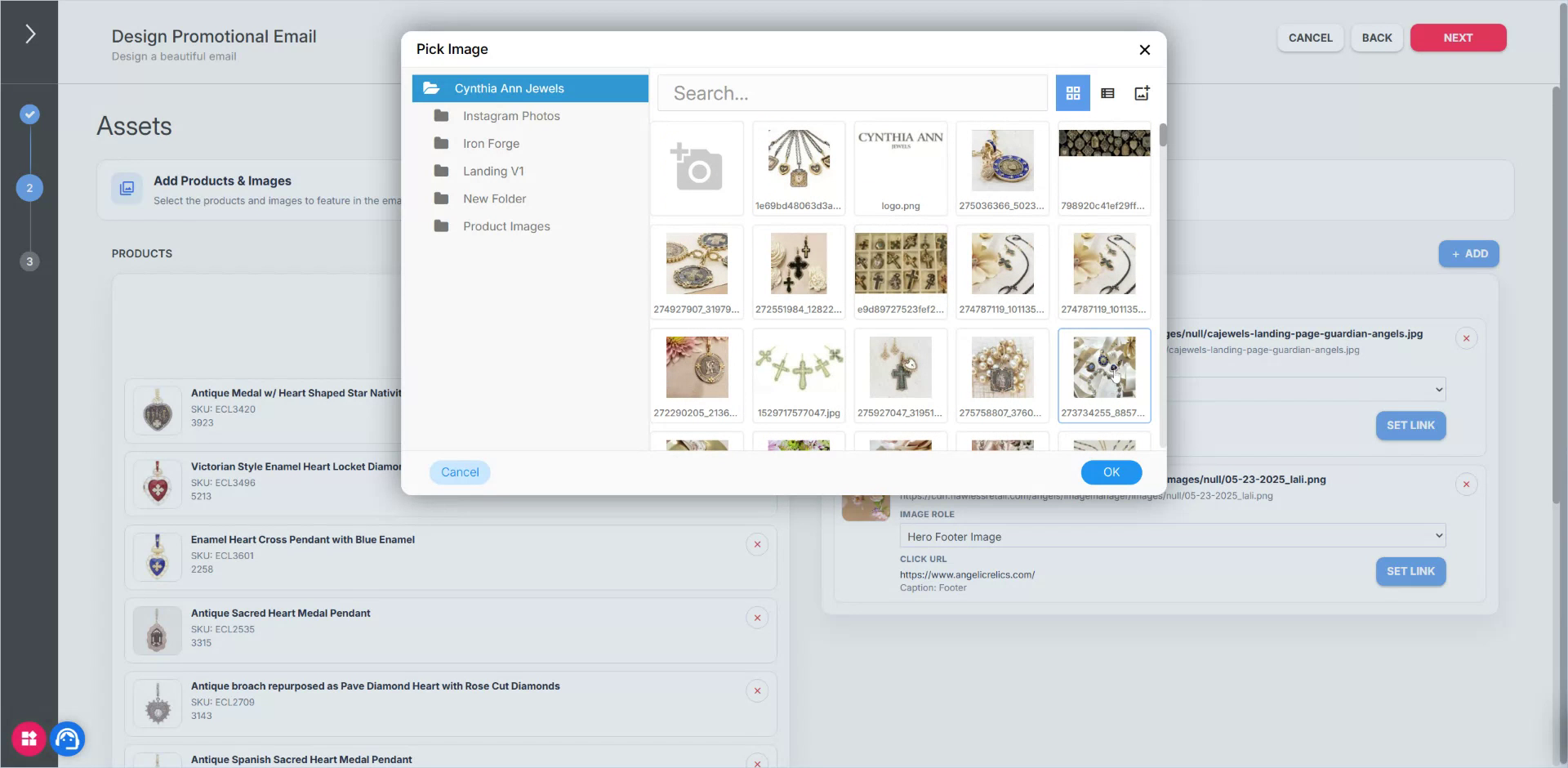
Optionally, add one or more lifestyle images (for example, an image with multiple pendants).
Browse and select the desired lifestyle image.
Click Next to proceed.
Step 5: Generate and Review the AI-Created Email
The system now generates the email using state-of-the-art email generation models. This may take up to 2–2.5 minutes.
Once generation is complete, review the email:
- Verify that products and images have been inserted.
- If elements appear misaligned, adjust spacing or layout manually.
- Edit any text directly, including copy, headings, and fonts.
If you are not satisfied with the result, you can:
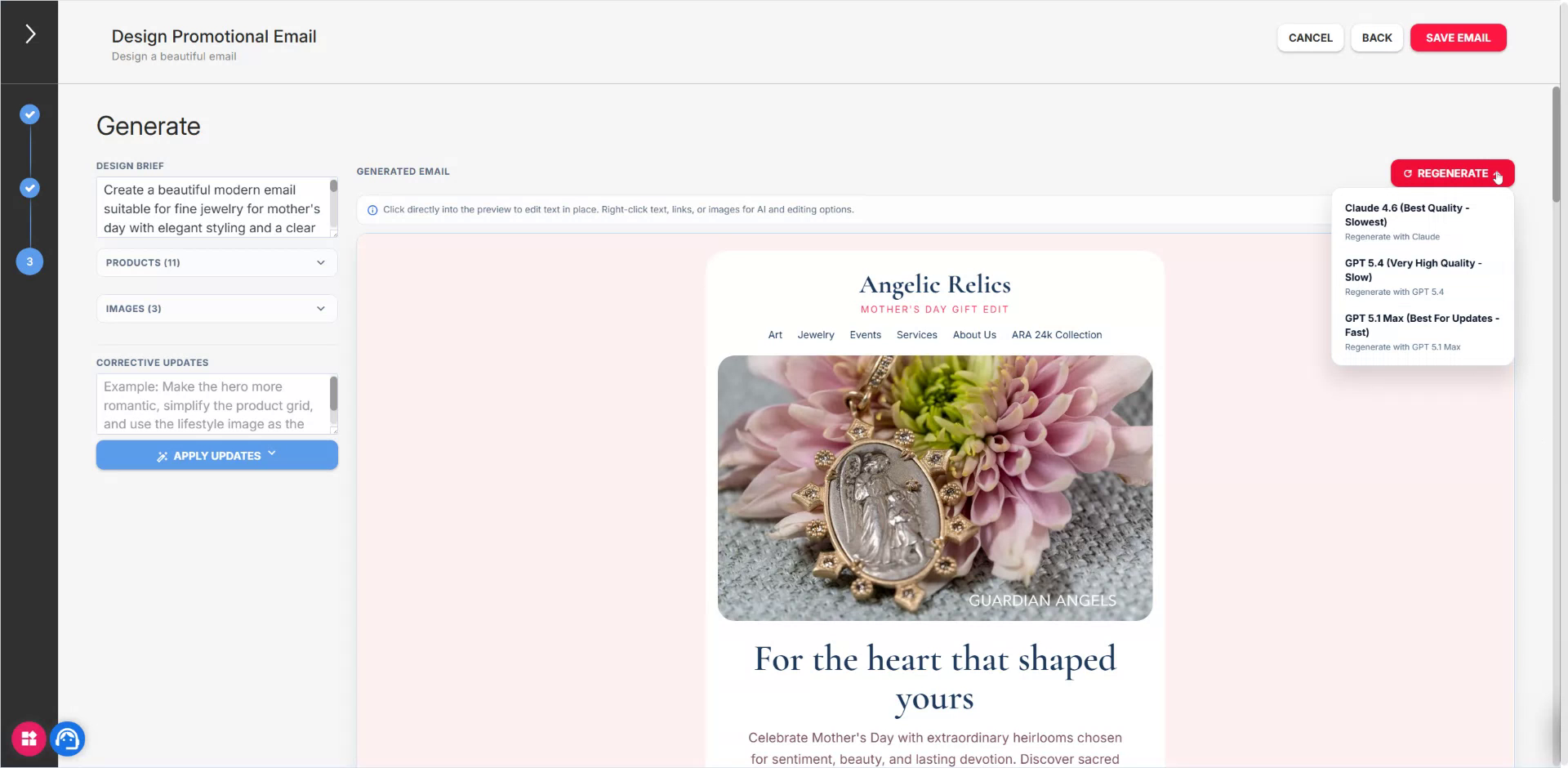
- Regenerate the entire email from scratch.
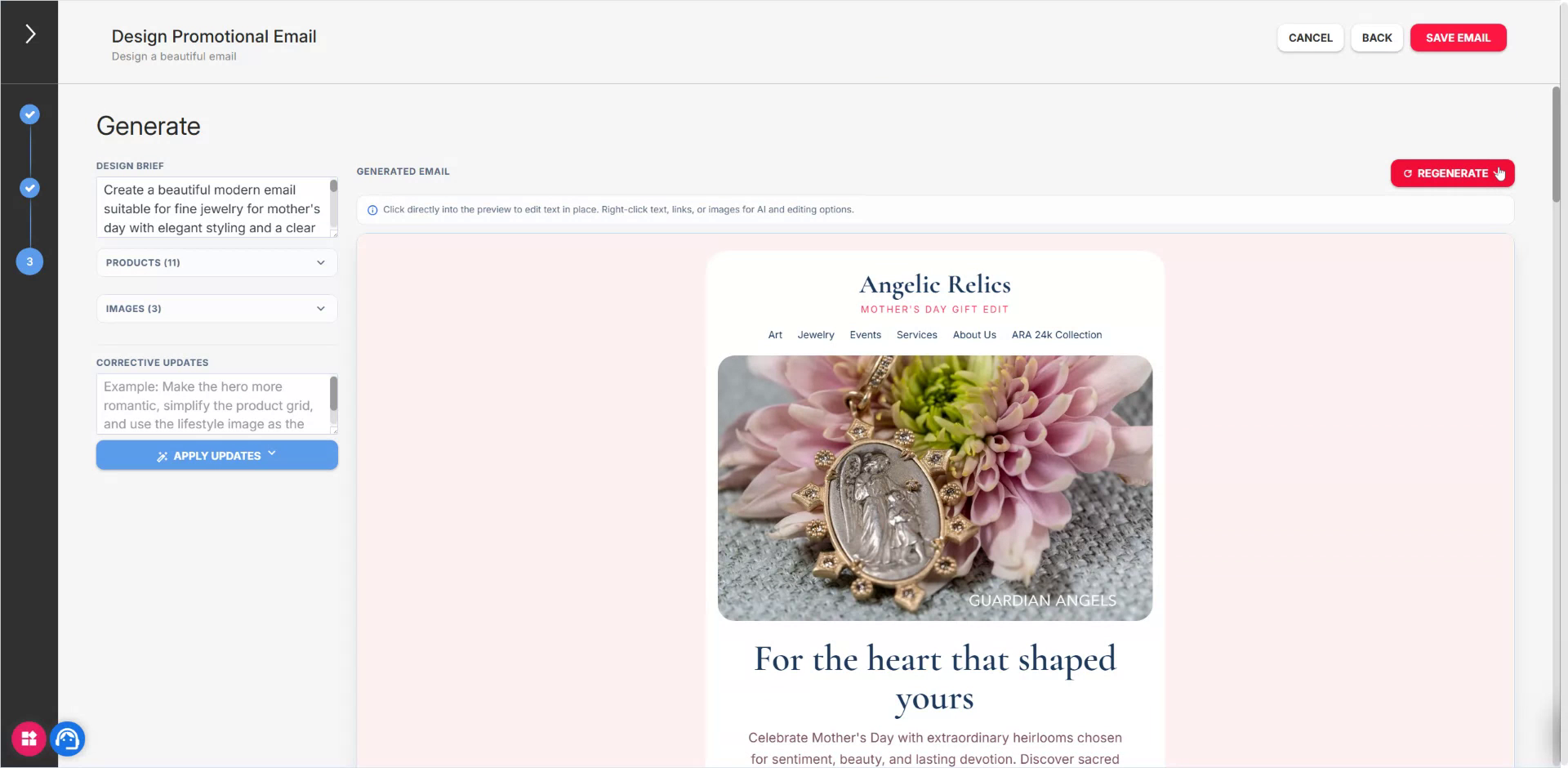
This option will fully recreate the email.
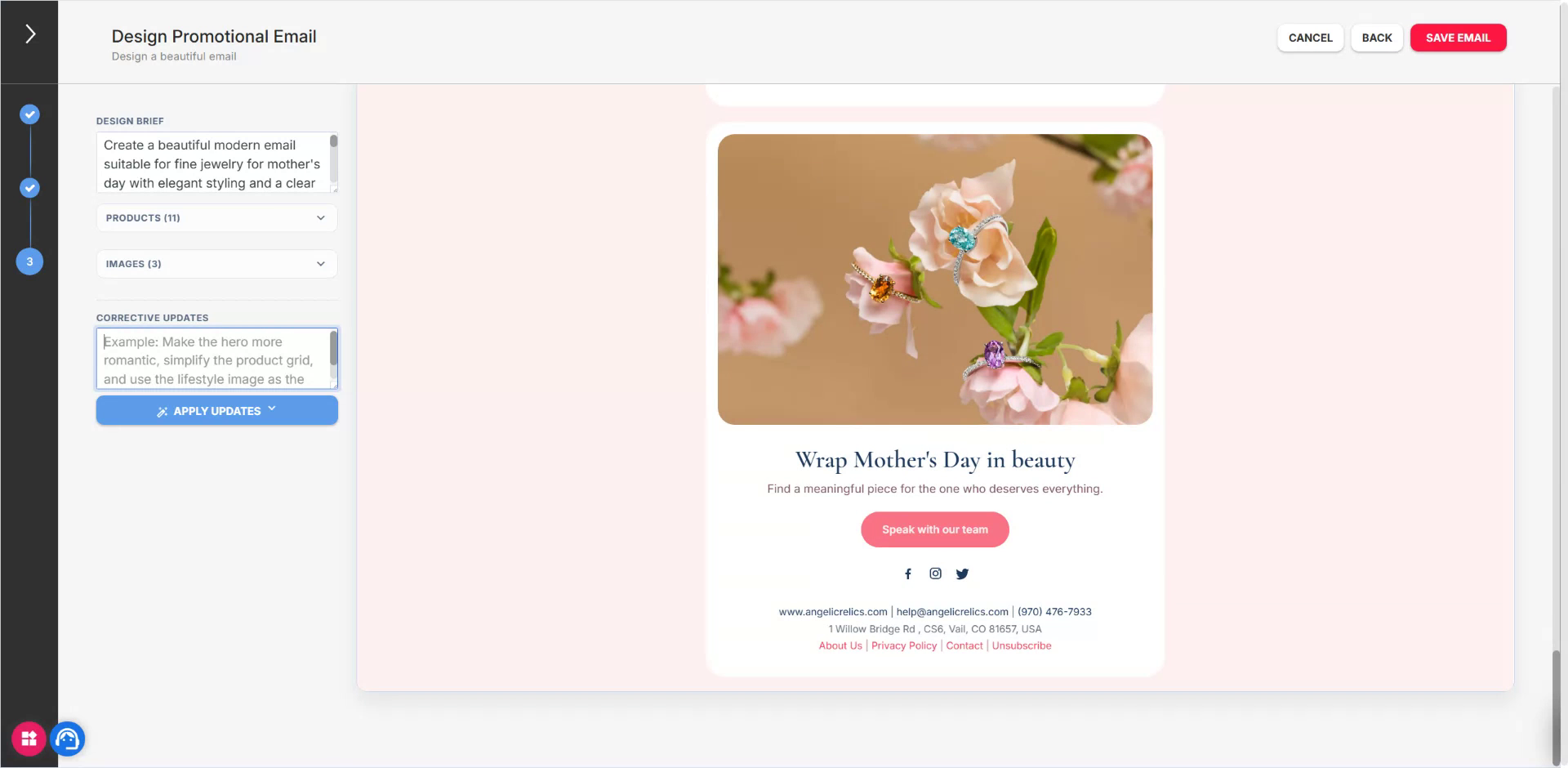
Provide instructions to adjust design decisions or text that you cannot or prefer not to change manually.
You can also add more products and images at this stage.
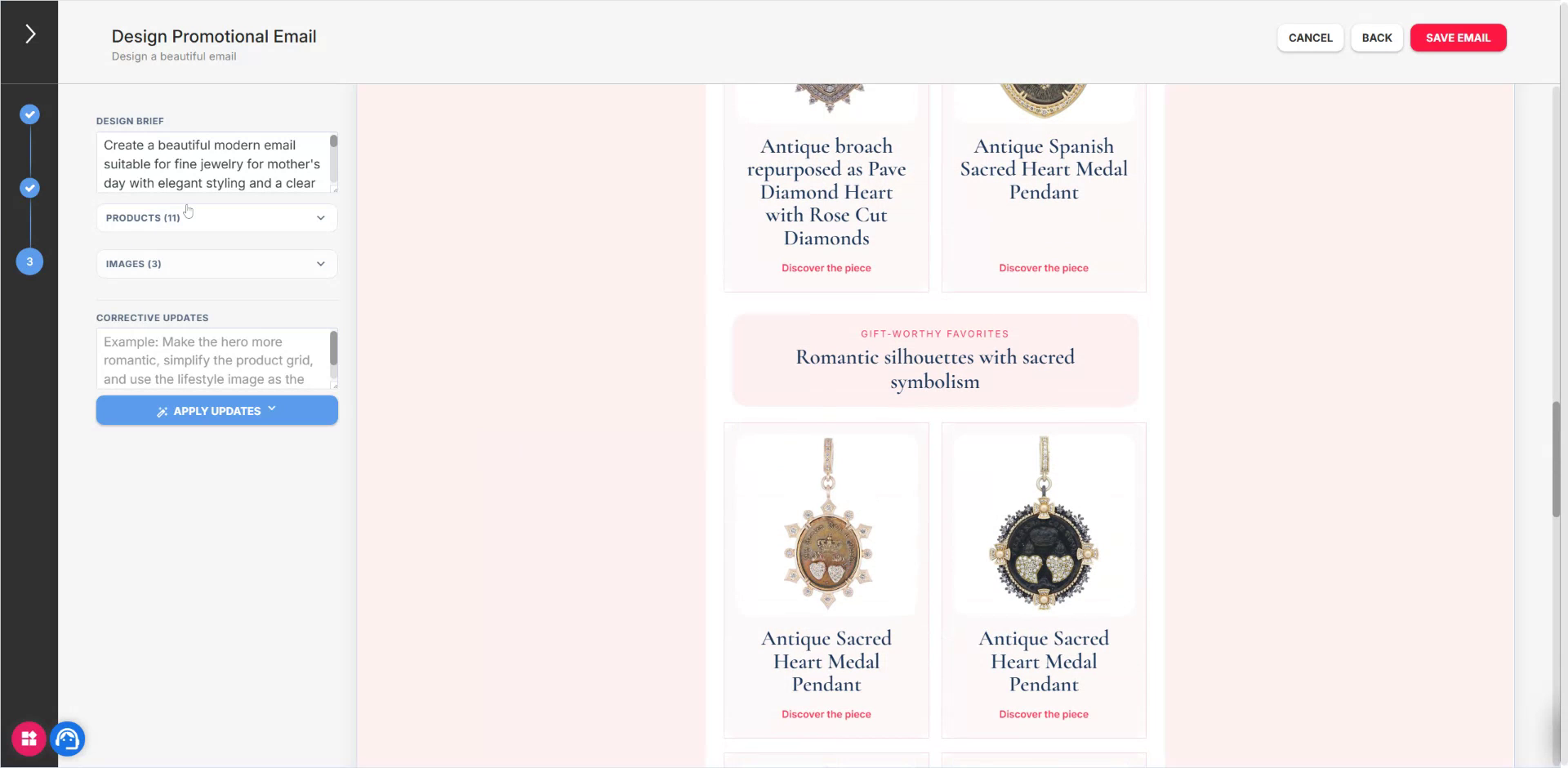
Step 6: Enhance Individual Images with AI
For any existing image in the email, you can use Alter the image with AI to refine visuals while preserving the product.
Open the AI image editing option for an image.
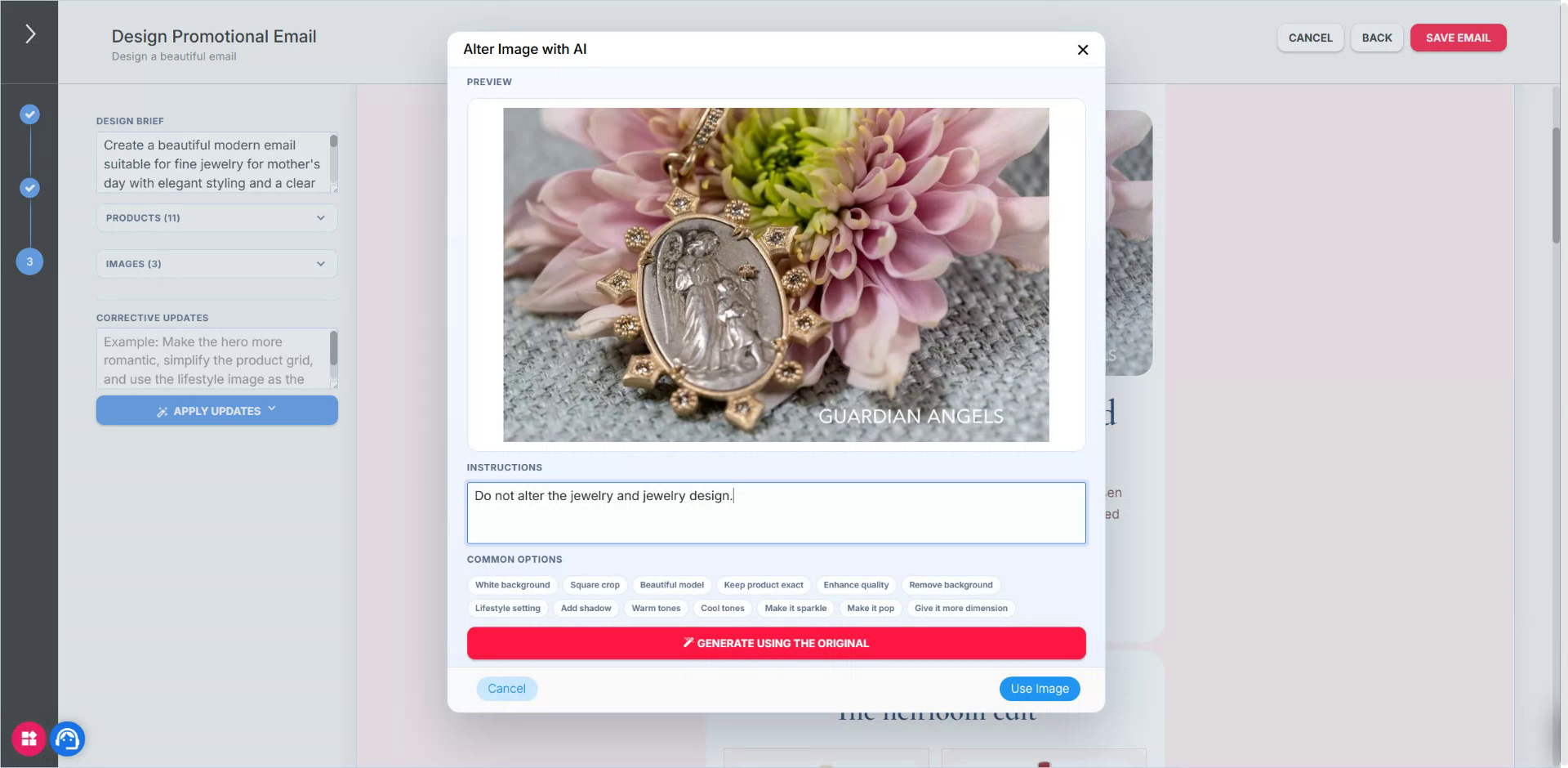
Provide enhancement instructions, such as:
- Add subtle sparkles.
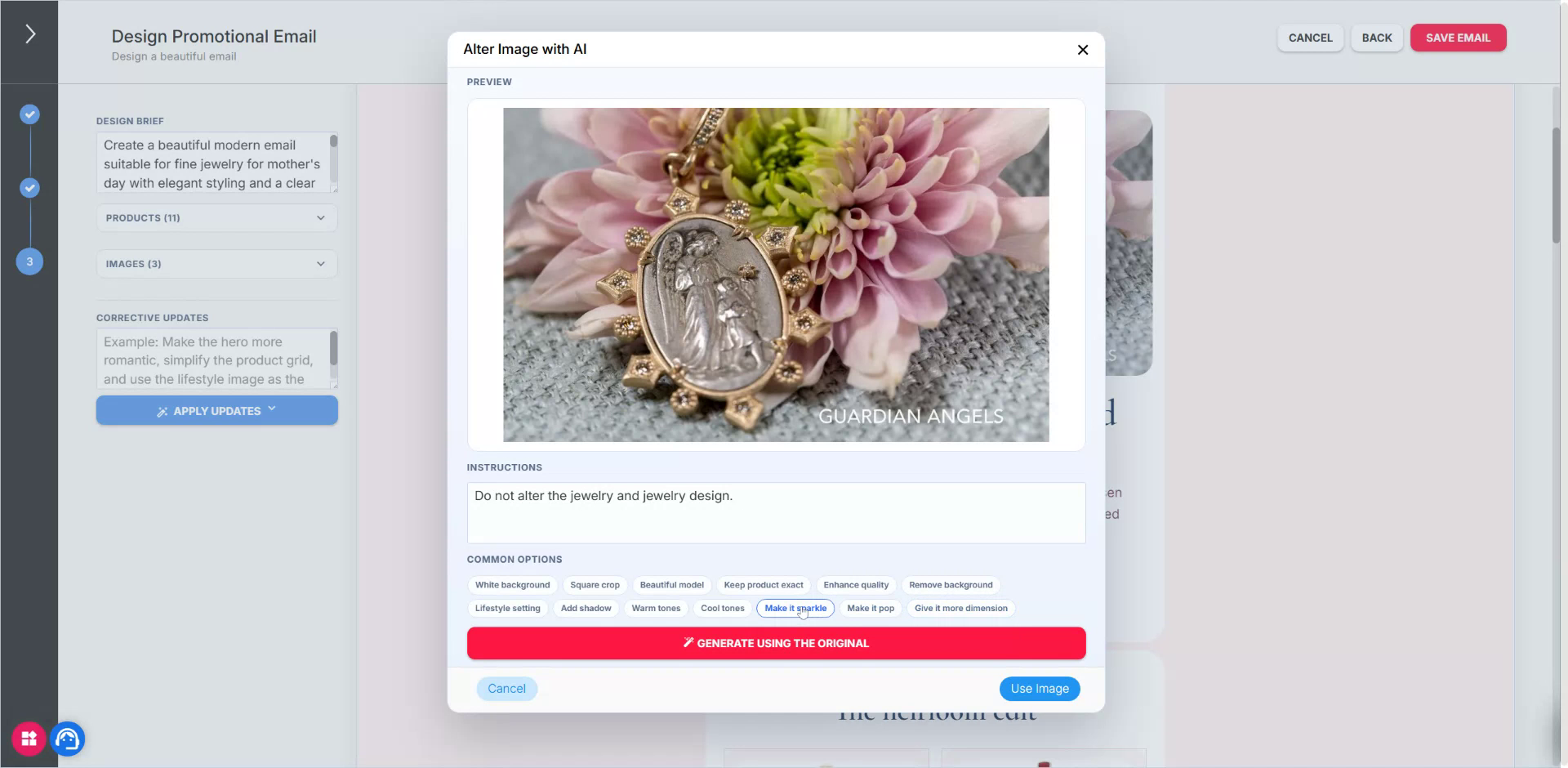
- Enhance the overall quality.
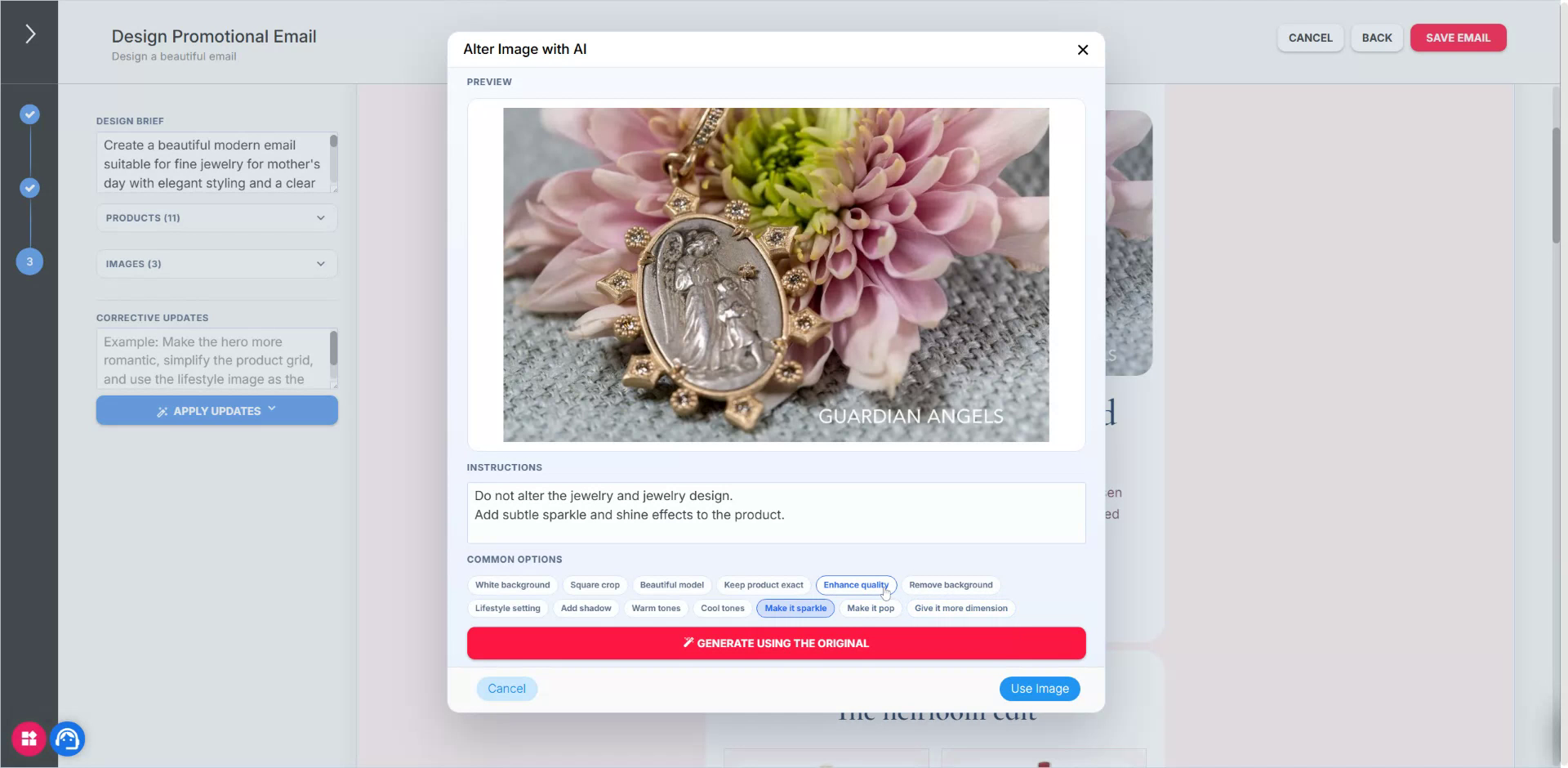
- (Optional) Add more dimension if needed.
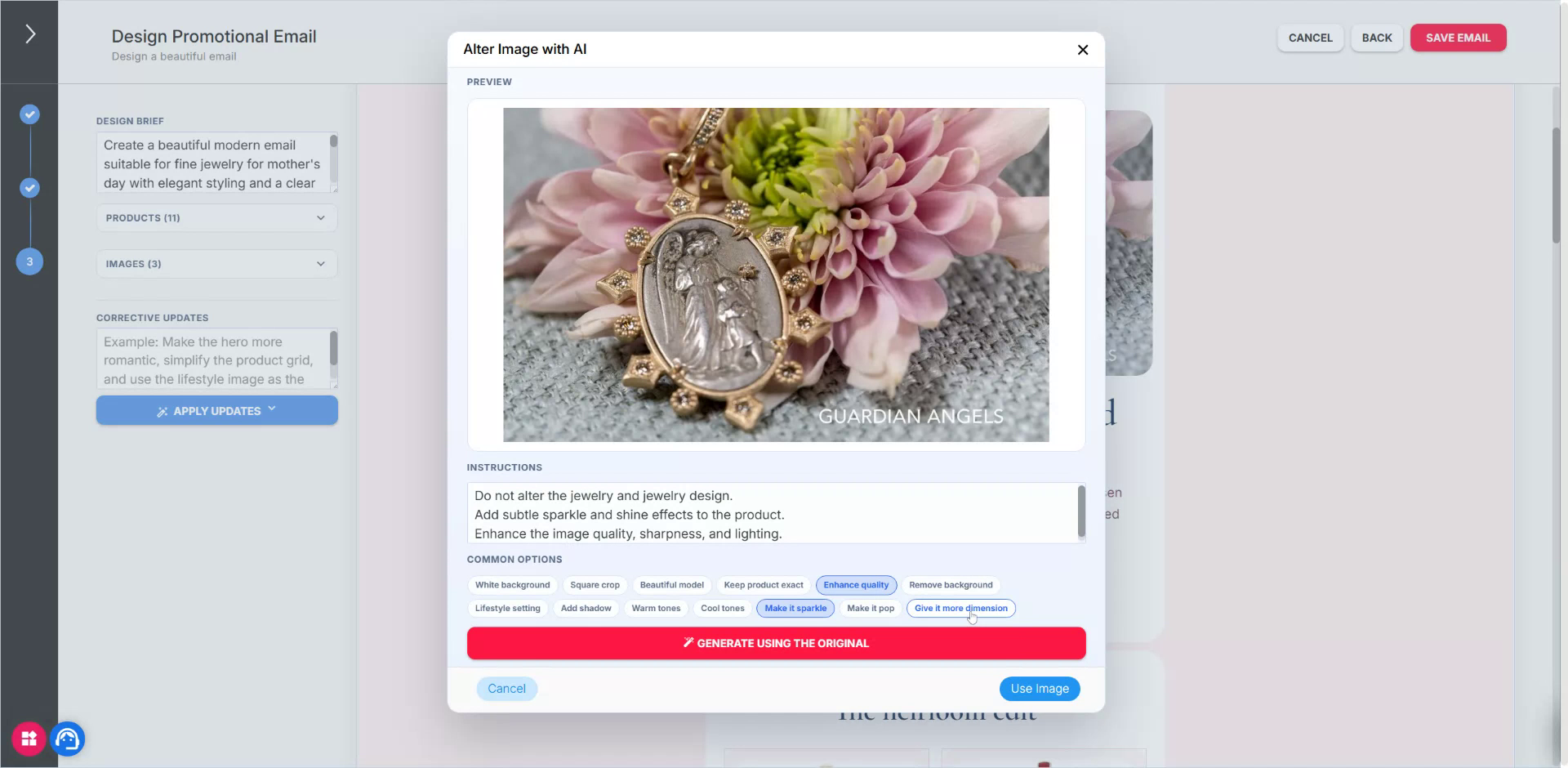
- Confirm and generate the updated image. The system applies the requested changes (e.g., added sparkles, increased brightness).
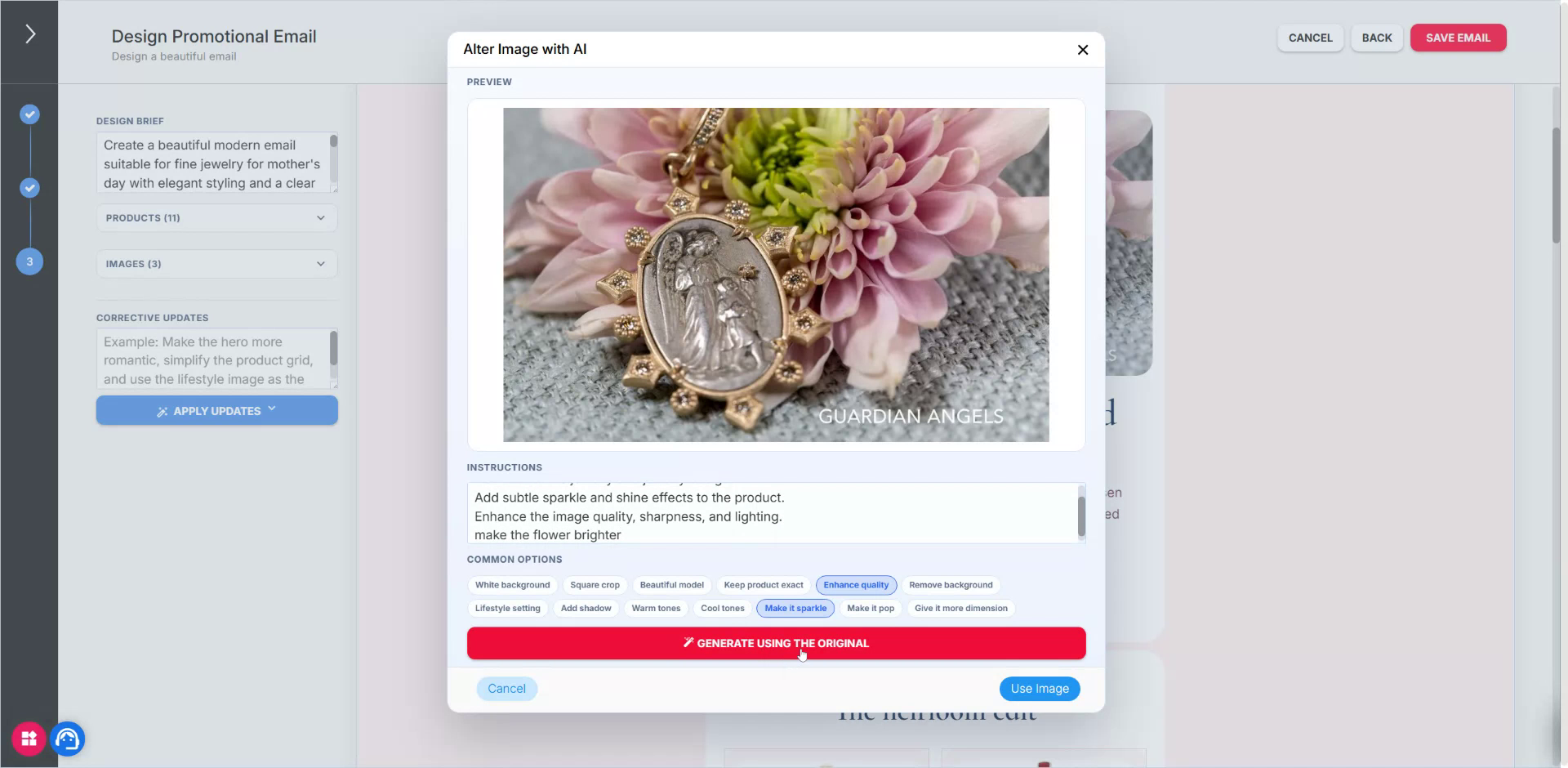
If necessary, you can instruct the AI to make the image even brighter or more pink. Importantly, the actual jewelry piece remains unchanged:
- The product itself does not change shape or design.
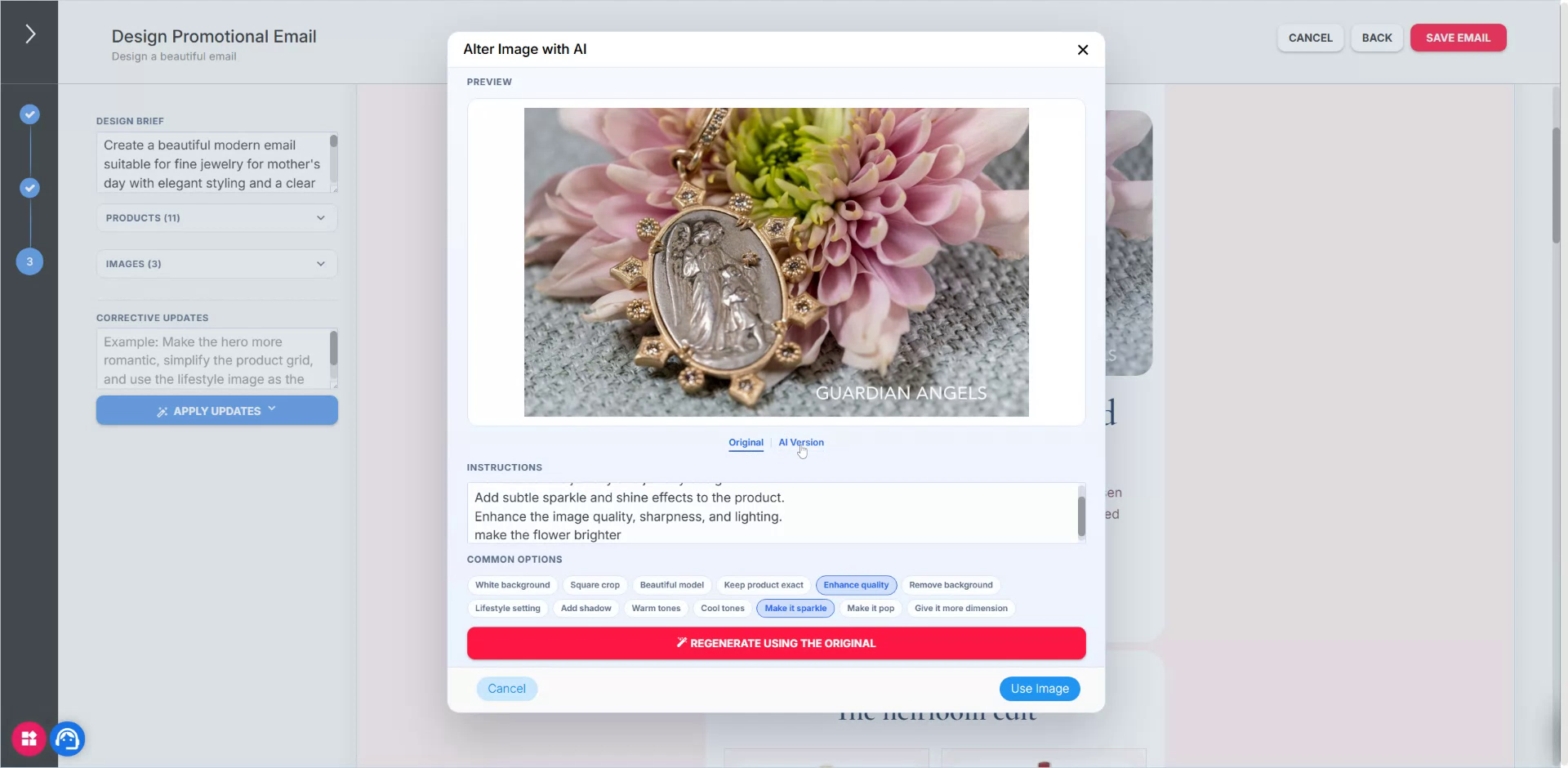
- The piece remains intact, which is critical for accurate product representation.
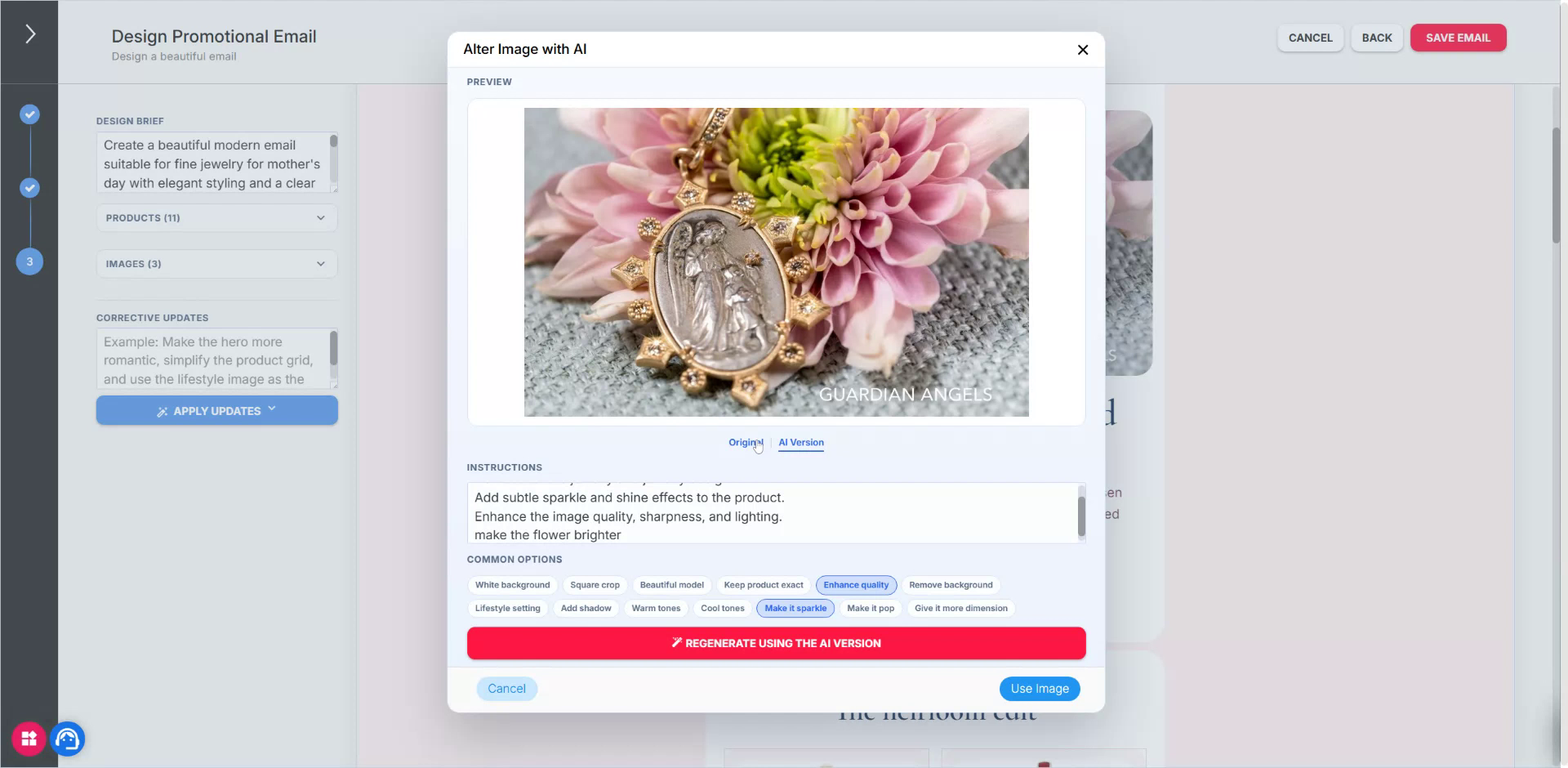
Once satisfied, choose Use this image to apply it to the email.
Step 7: Place Products on a Model Using AI
You can also use AI to place products on a model while keeping their design intact.
Select another image and choose to alter this image with AI.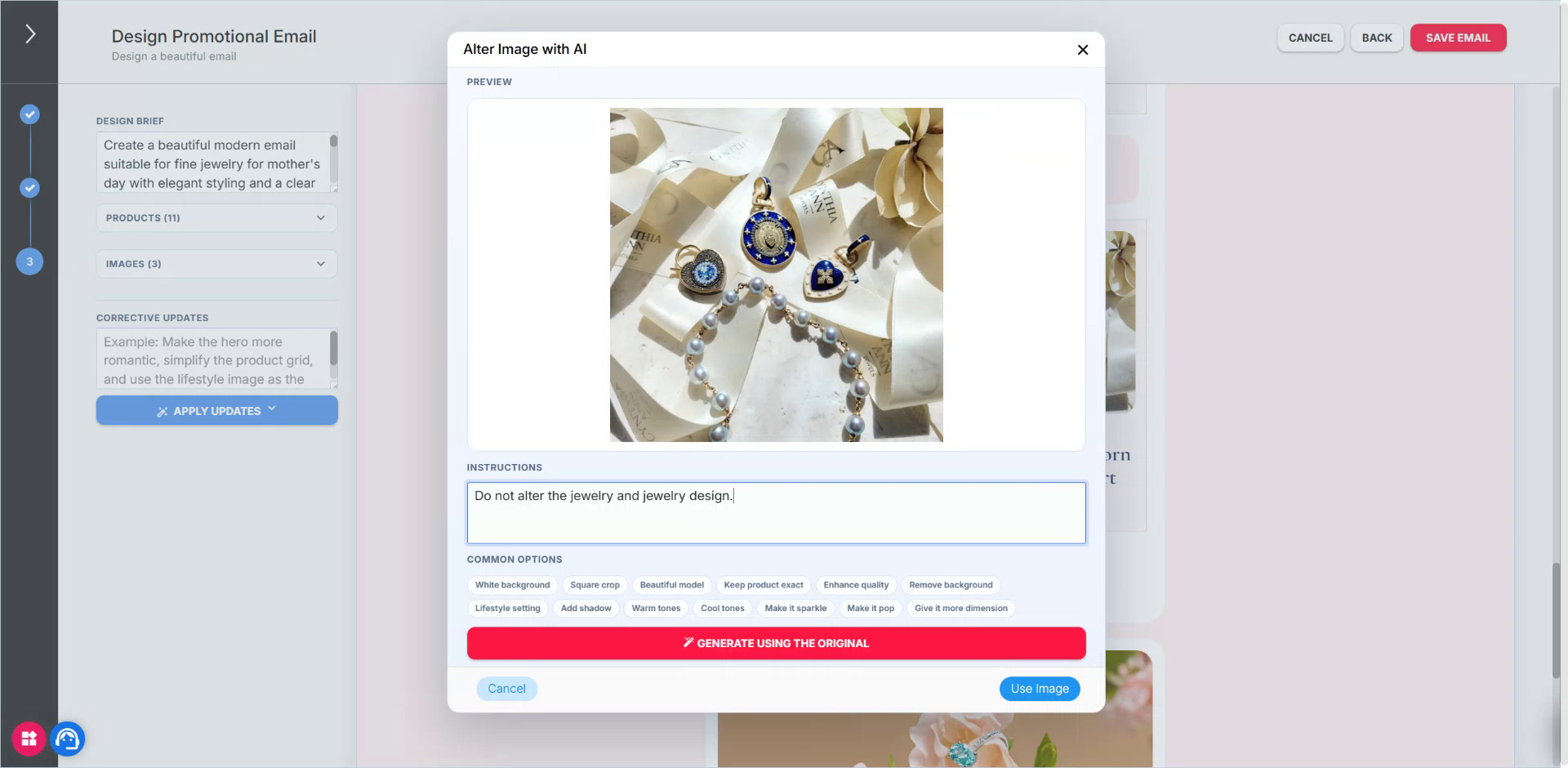
Provide a detailed prompt, for example:
- “Put these pieces on a beautiful model, all four pieces…”
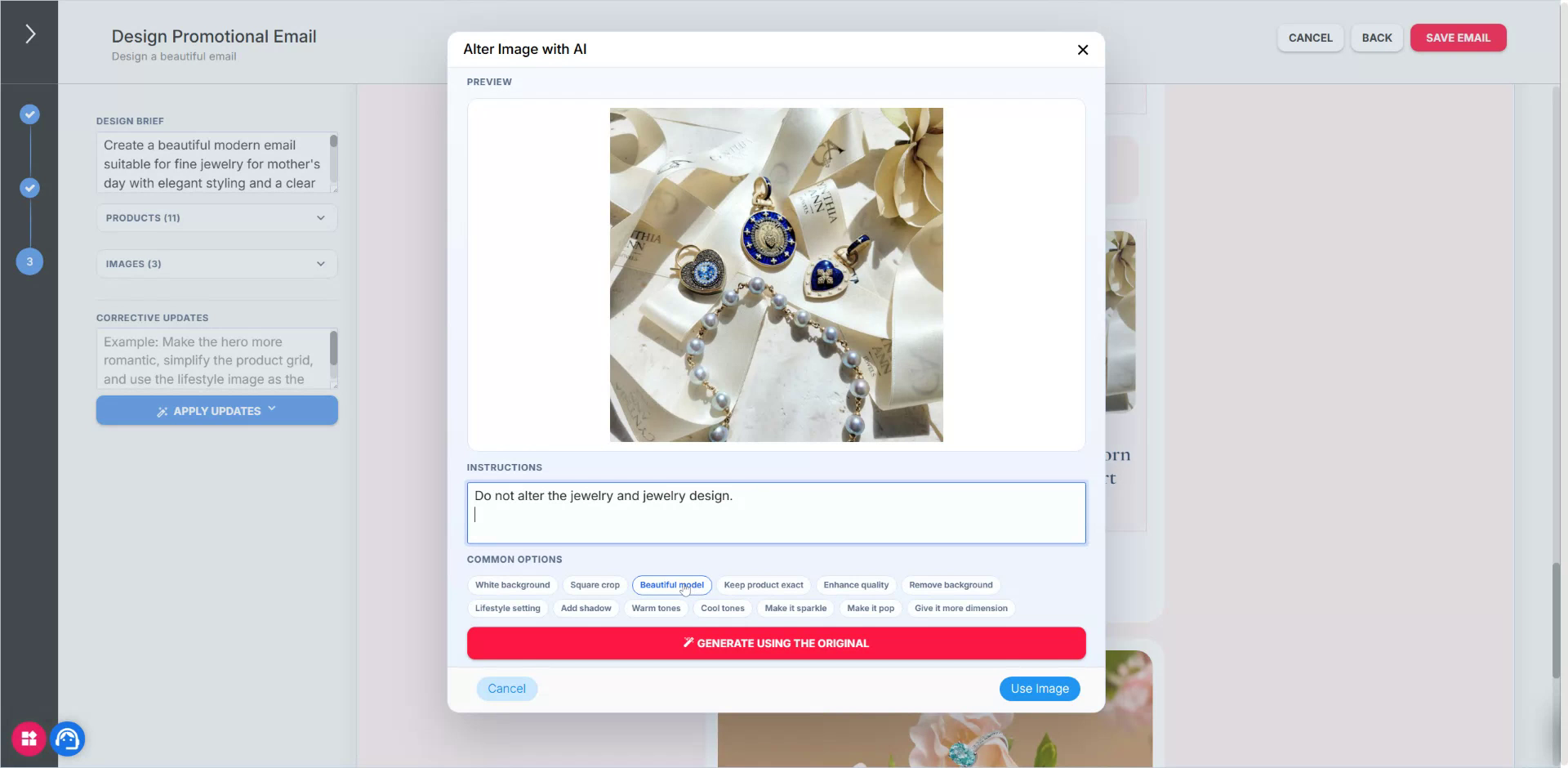
- Clarify product types: “Three pieces are pendants, and the pearls is a necklace. Pearls a necklace,” so the AI understands it is a necklace, not a bracelet.
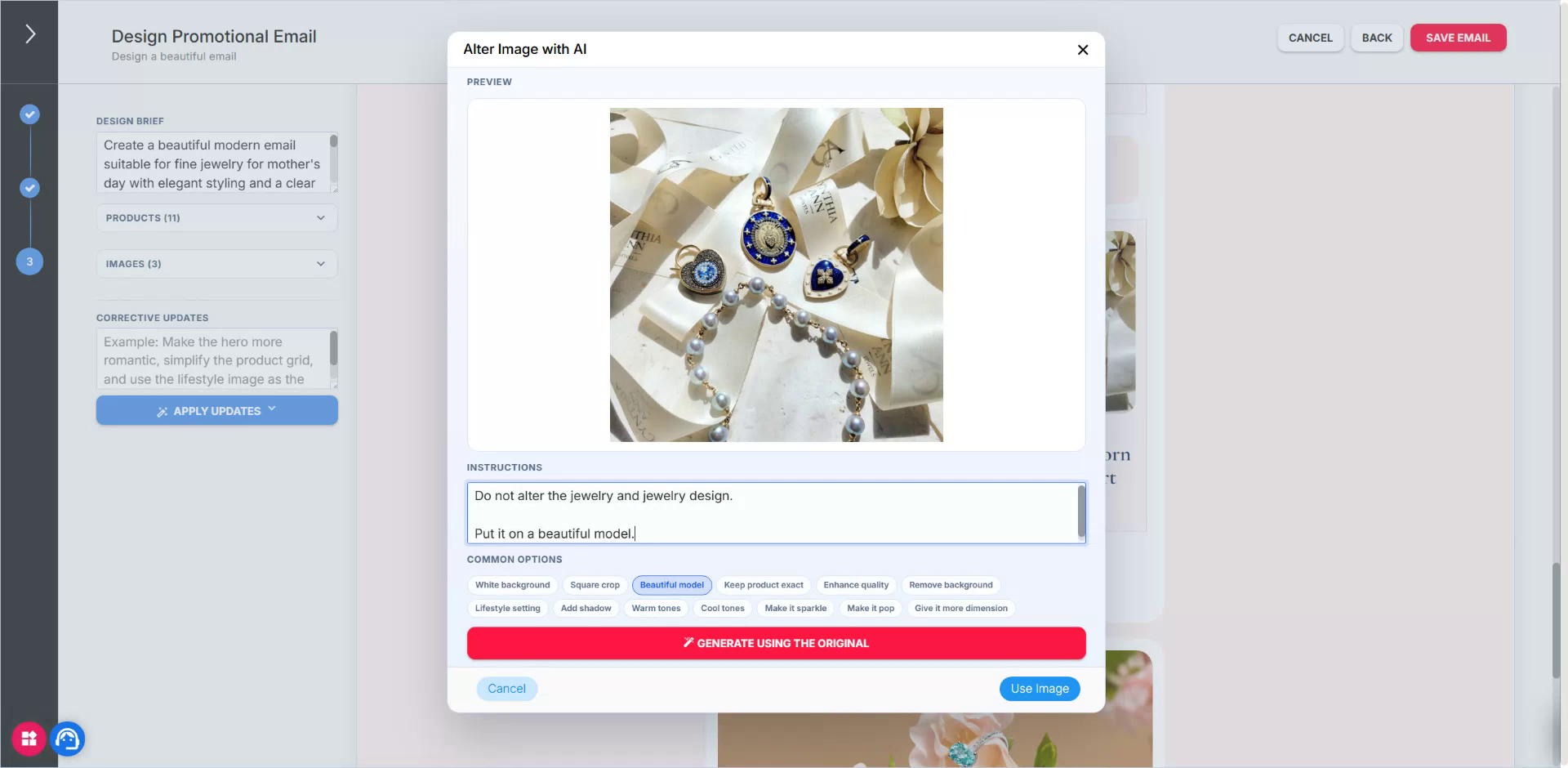
This clarification helps the model correctly interpret shorter items like pearls as a necklace.
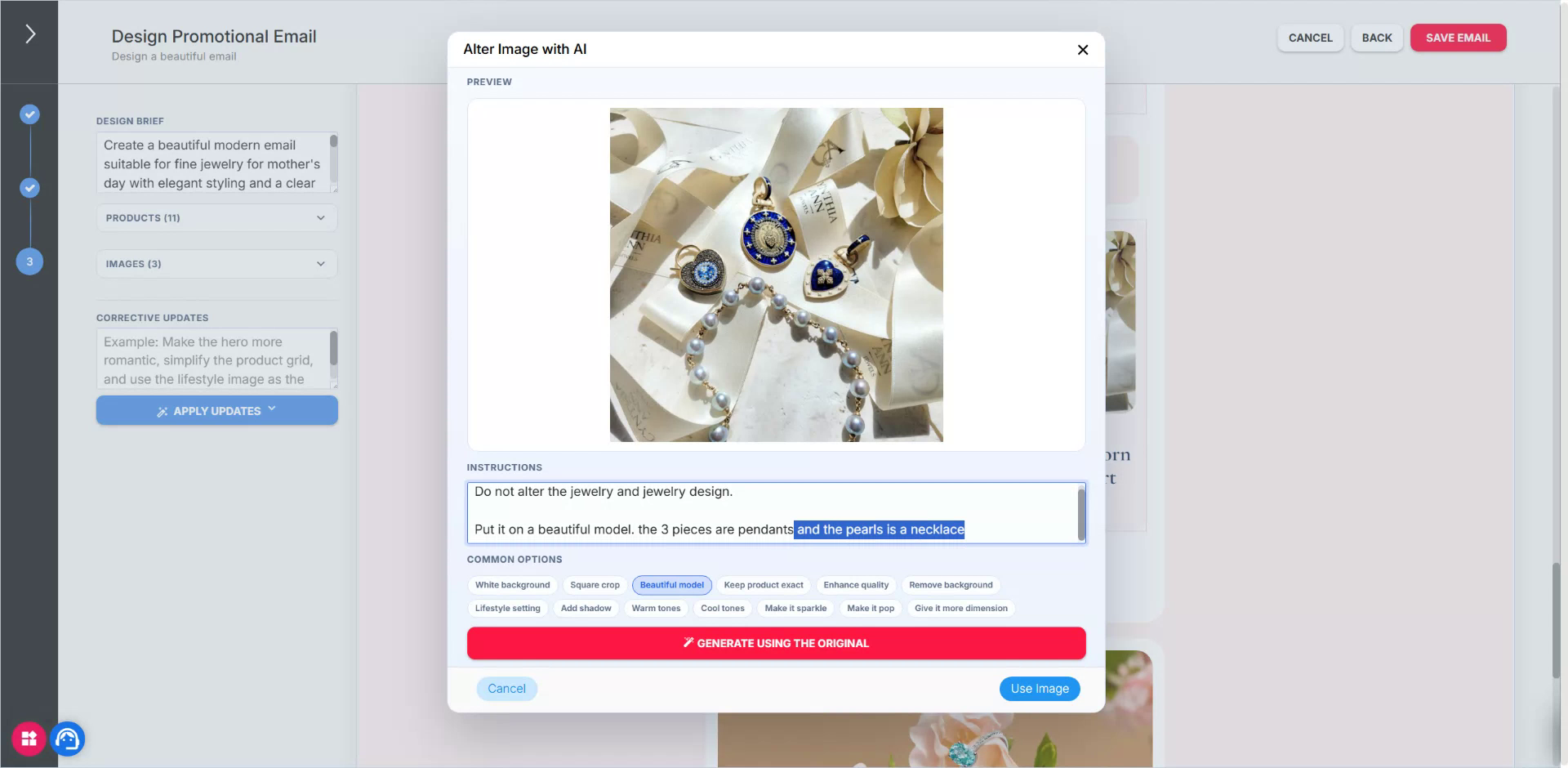
Generate the new image.
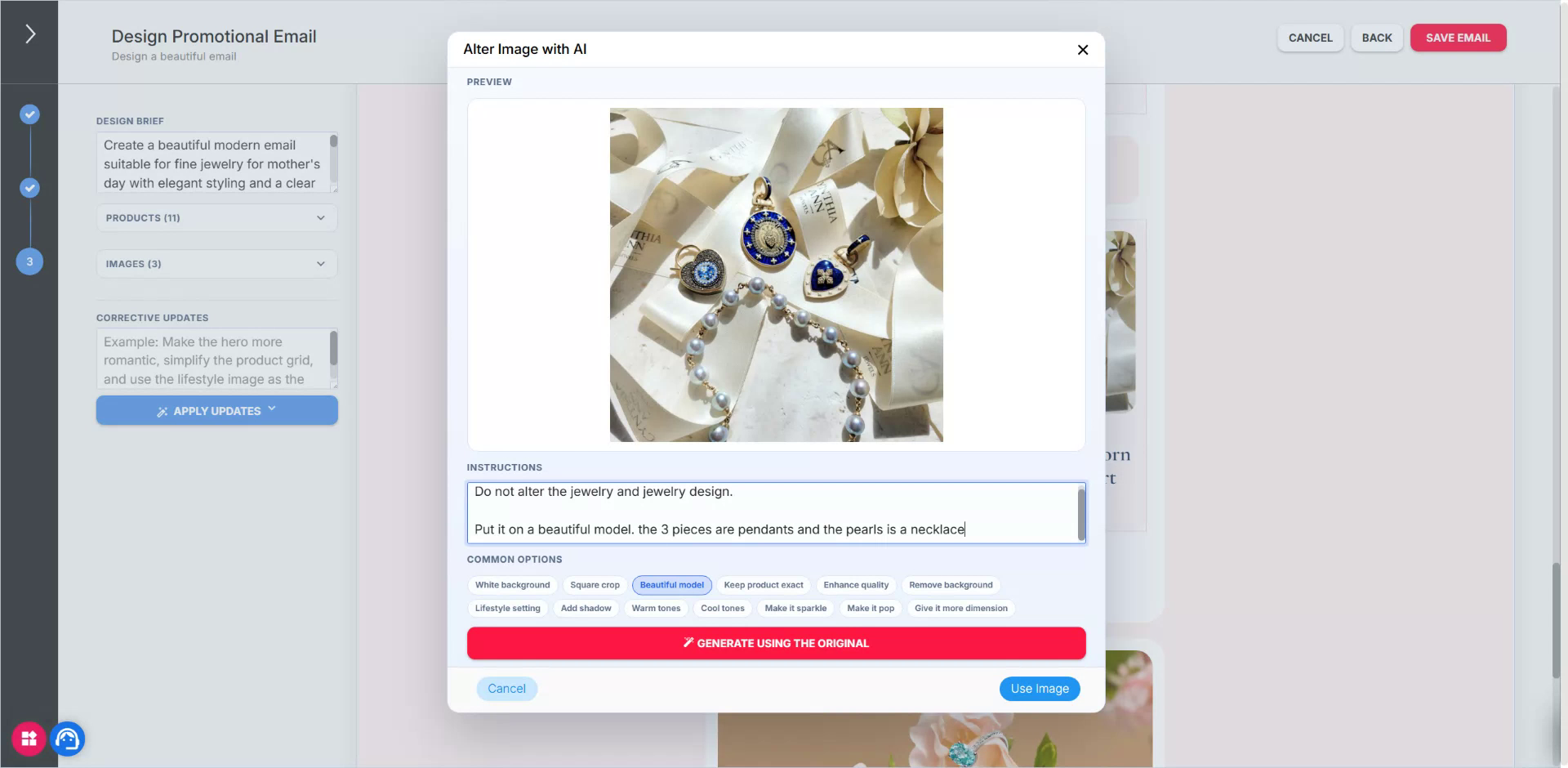
Once generated, review the result:
- Confirm that the pieces are placed on the model.
- Verify that the jewelry designs are not altered and that their relative sizes (aspect ratios) match the originals.
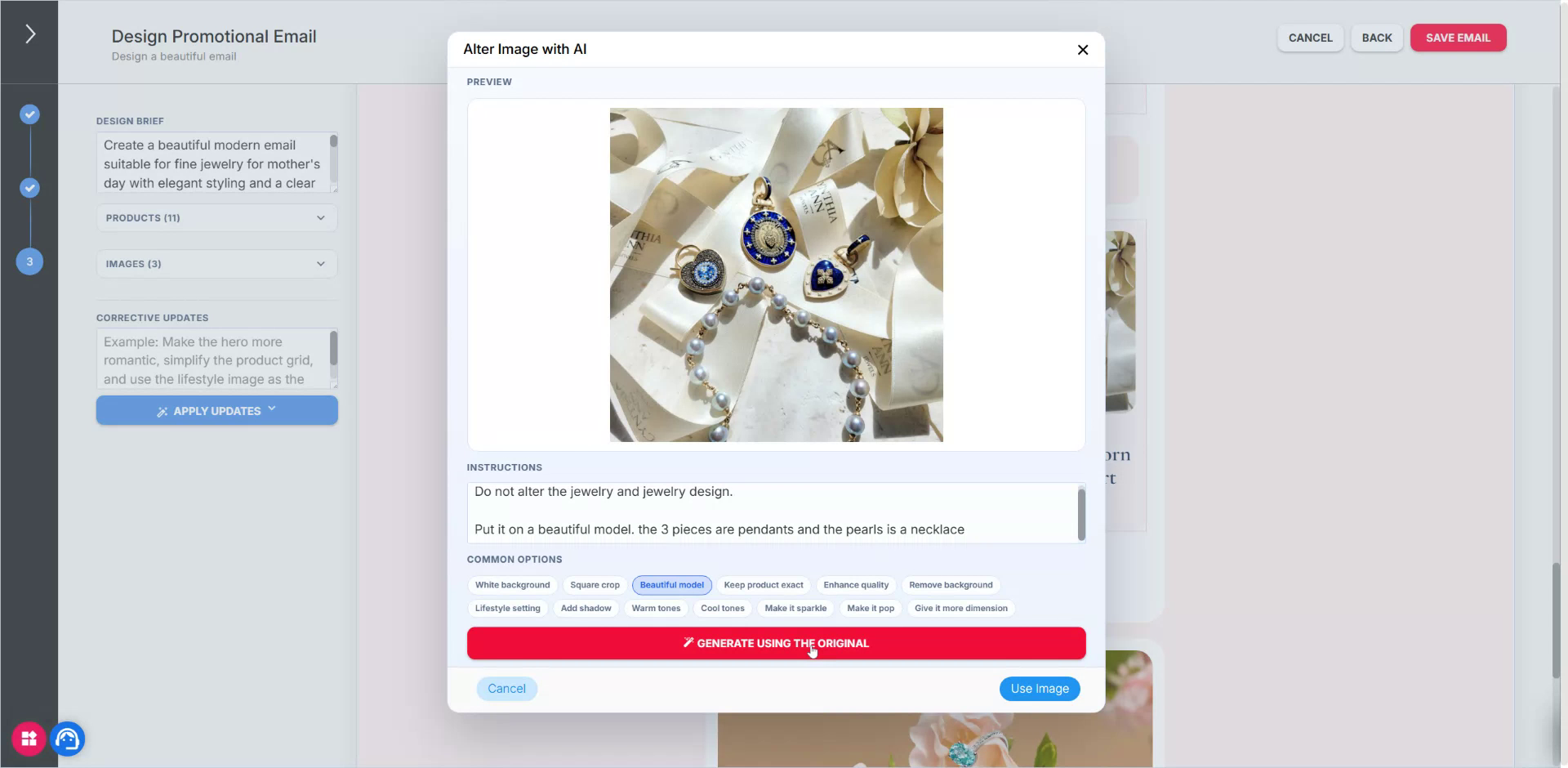
You’ll see the pieces maintain their original proportions (e.g., large, smaller, smaller) and design integrity.
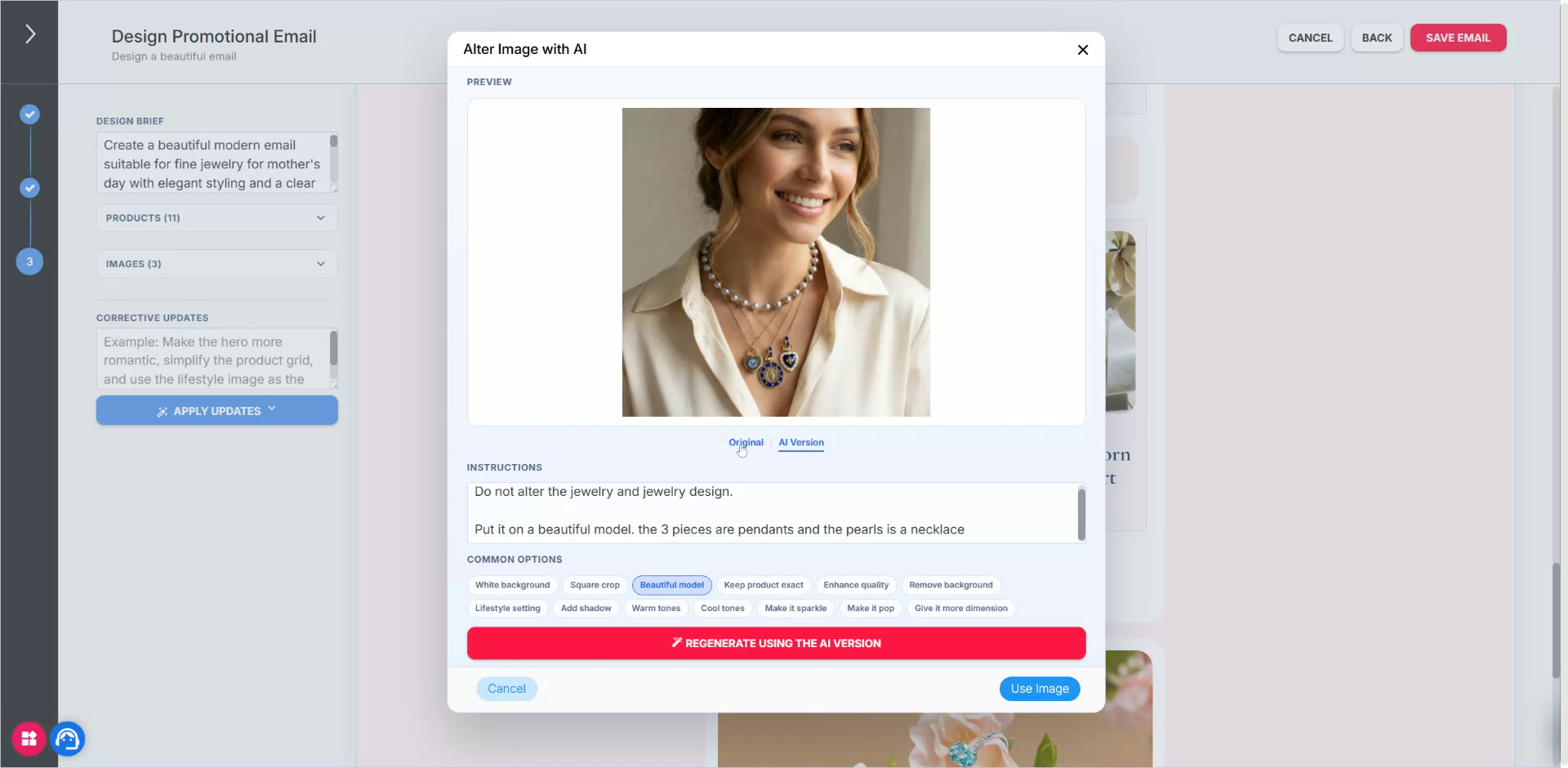
When satisfied, choose Use this image to apply it to your email.
Step 8: Apply Final Corrections, Save, and Preview
Before finalizing:
- Use corrective prompts to make targeted changes to text or layout.
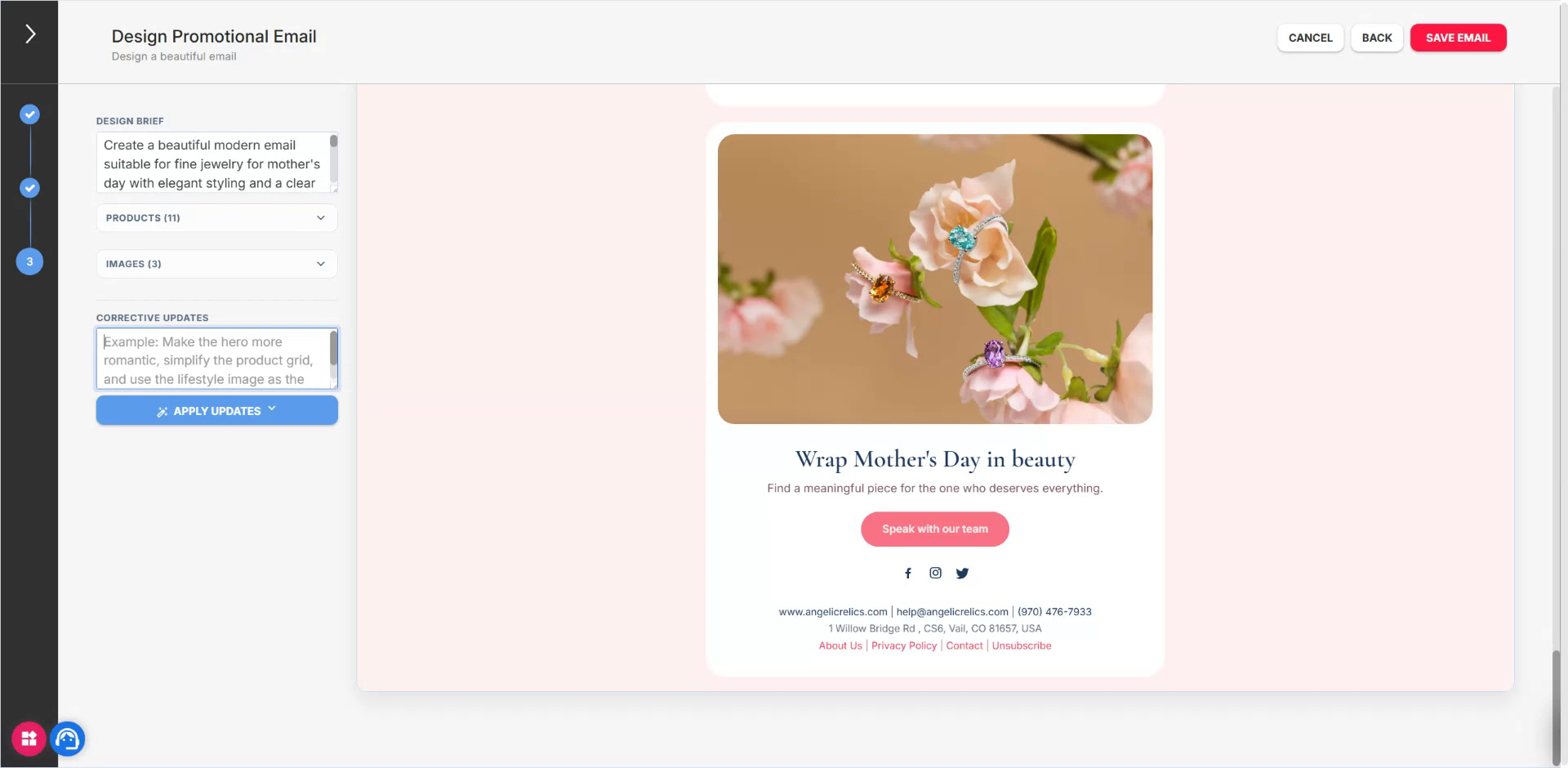
- Choose between faster models for simple changes or more advanced models for substantial updates.
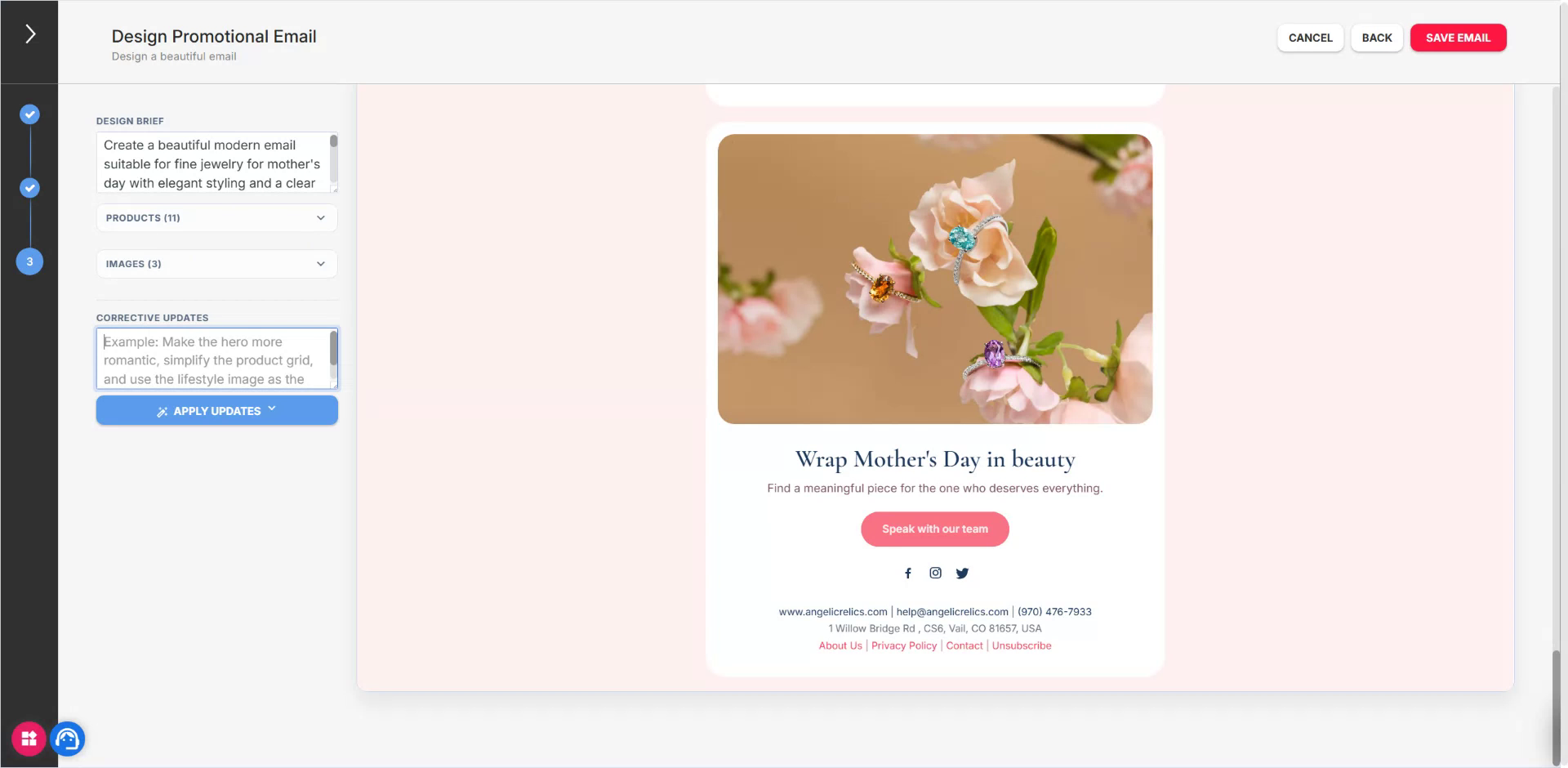
- You can still adjust products and images or fully regenerate the email if necessary.
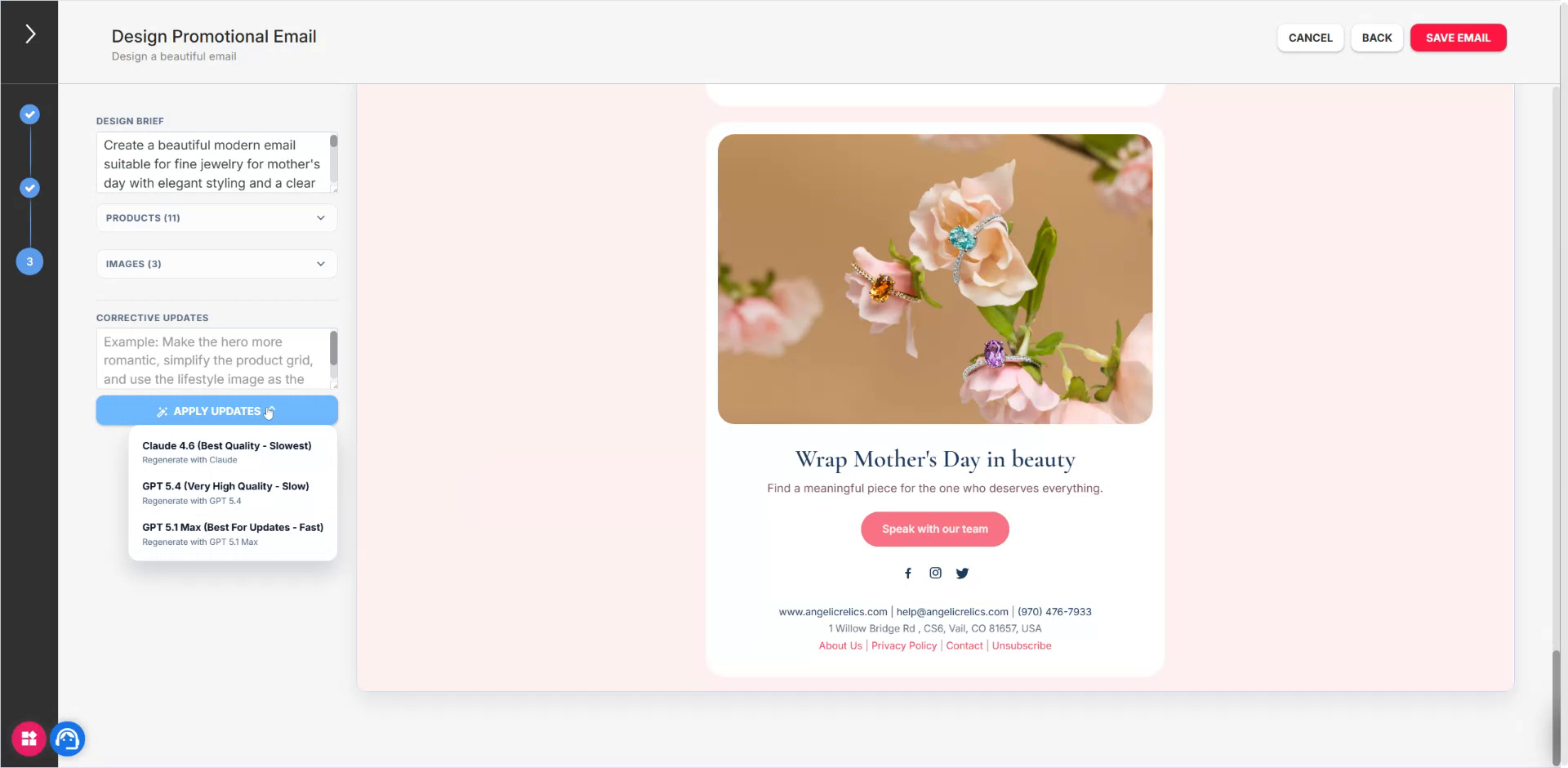
- When all changes are complete, save your work.
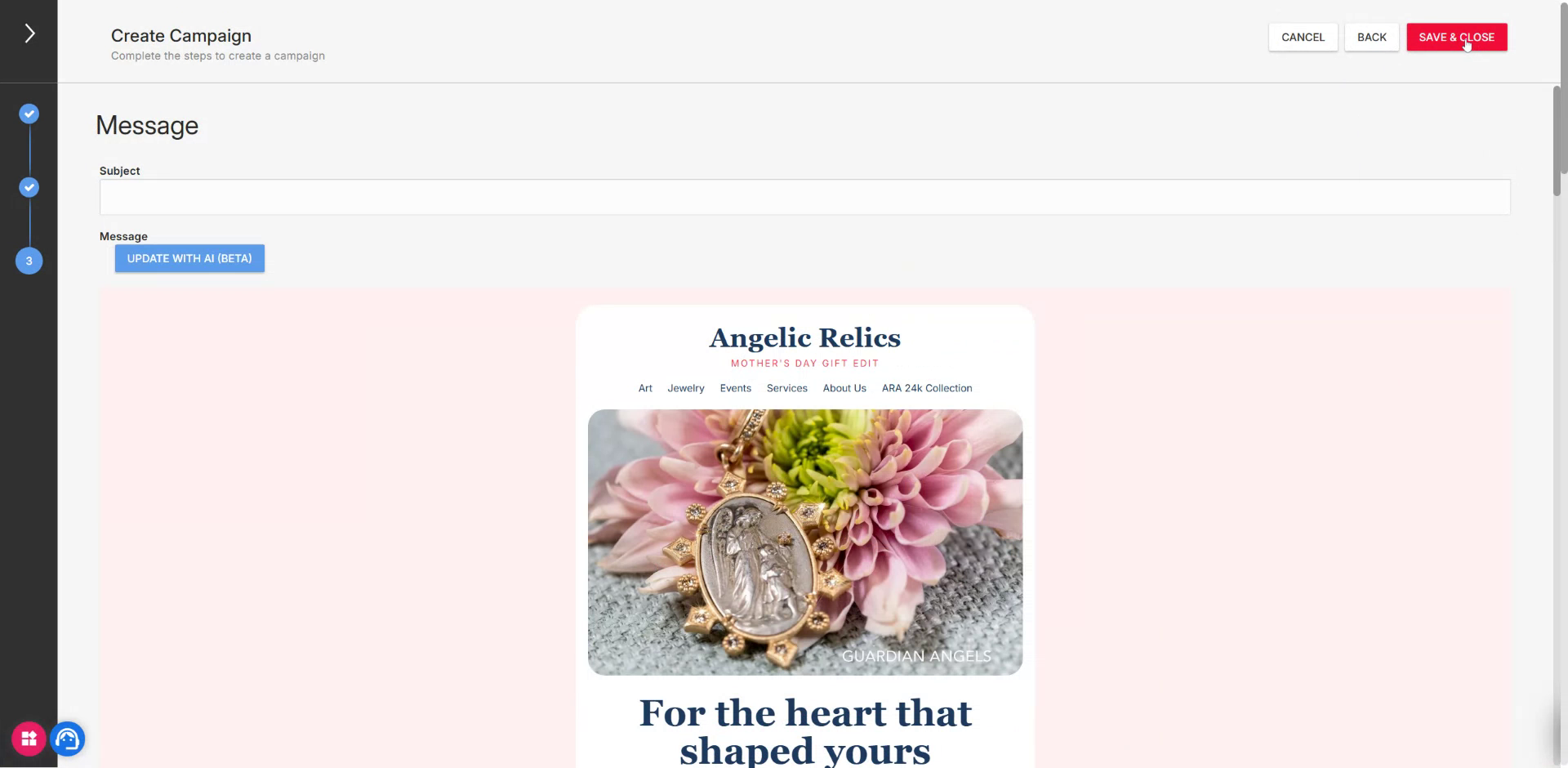
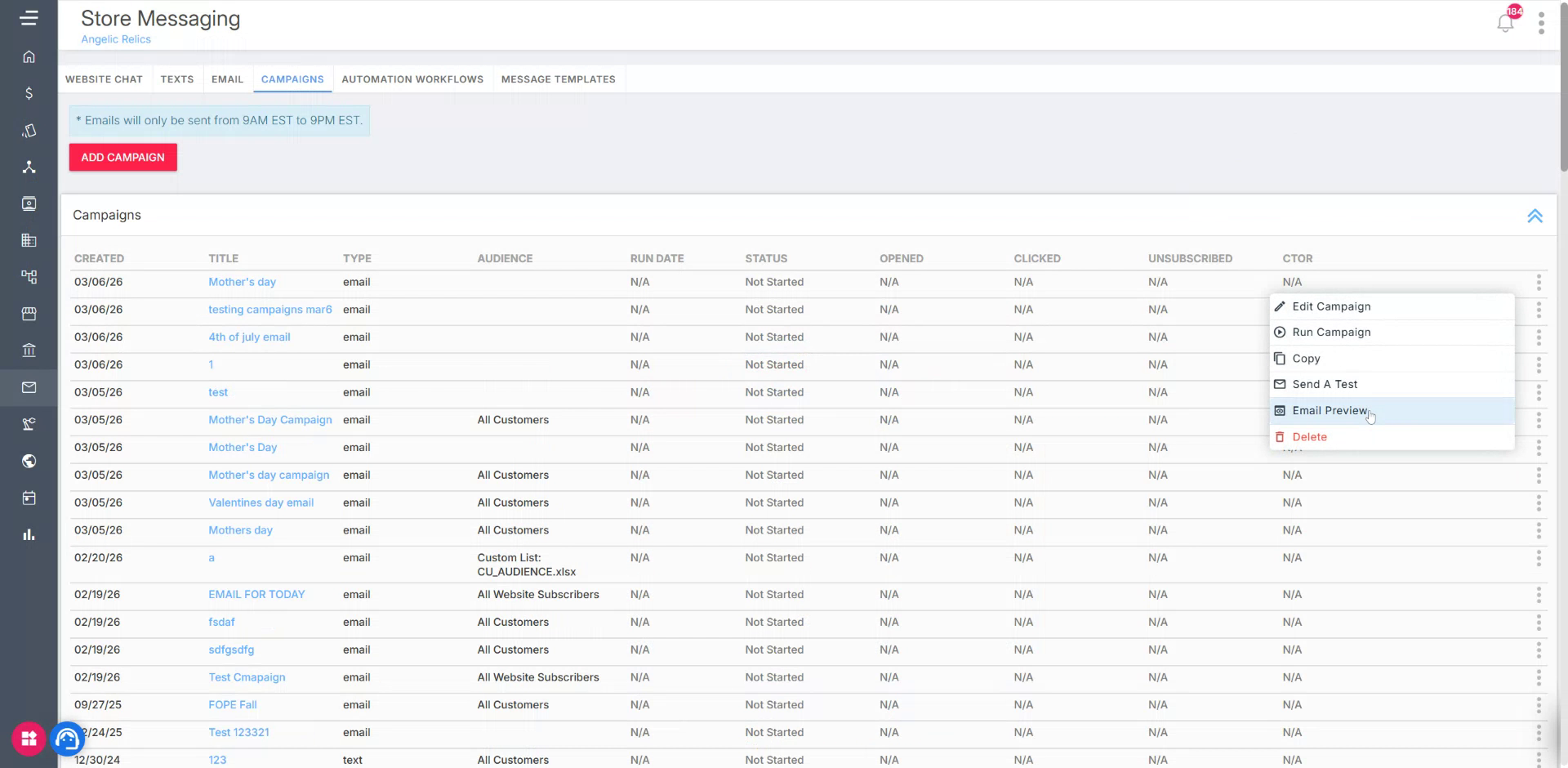
Finally, open the email preview to see the finished AI-generated campaign as your recipients will view it.
Troubleshooting
If you encounter any issues while trying to use the new AI Email Builder, please reach out to Flawless POS customer support for technical assistance.
Was this article helpful?
That’s Great!
Thank you for your feedback
Sorry! We couldn't be helpful
Thank you for your feedback
Feedback sent
We appreciate your effort and will try to fix the article